

このガイドでは、Engage SDK を使用して [続きを見る] を Android TV アプリに統合する方法について説明します。
事前作業
スタートガイドの事前作業の手順を完了していること。
統合
エンティティを作成する
この SDK では、各商品アイテム タイプを表すさまざまなエンティティを定義しています。継続クラスタでは、次のエンティティがサポートされています。
これらのエンティティのプラットフォーム固有の URI とポスター画像を指定します。
また、まだ作成していない場合は、Android TV、Android、iOS などのプラットフォームごとに再生 URI を作成します。これにより、ユーザーが各プラットフォームで視聴を再開すると、アプリはターゲットの再生 URI を使用して動画コンテンツを再生します。
// Required. Set this when you want continue watching entities to show up on
// Google TV
val playbackUriTv = PlatformSpecificUri.Builder()
    .setPlatformType(PlatformType.TYPE_ANDROID_TV)
    .setActionUri(Uri.parse("https://www.example.com/entity_uri_for_tv"))
    .build()

// Required. Set this when you want continue watching entities to show up on
// Google TV Android app, Entertainment Space, Playstore Widget
val playbackUriAndroid = PlatformSpecificUri.Builder()
    .setPlatformType(PlatformType.TYPE_ANDROID_MOBILE)
    .setActionUri(Uri.parse("https://www.example.com/entity_uri_for_android"))
    .build()

// Optional. Set this when you want continue watching entities to show up on
// Google TV iOS app
val playbackUriIos = PlatformSpecificUri.Builder()
    .setPlatformType(PlatformType.TYPE_IOS)
    .setActionUri(Uri.parse("https://www.example.com/entity_uri_for_ios"))
    .build()

val platformSpecificPlaybackUris =
    Arrays.asList(playbackUriTv, playbackUriAndroid, playbackUriIos)
ポスター画像には、URI とピクセル寸法(高さと幅)が必要です。複数のポスター画像を指定してさまざまなフォームファクタをターゲットにしますが、特に Google の [エンターテイメント スペース]内で [続きを見る] エンティティが正しく表示されるように、すべての画像のアスペクト比が 16:9 で、高さが 200 ピクセル以上であることを確認してください。高さが 200 ピクセル未満の画像は表示されない場合があります。
val images = Arrays.asList(
    Image.Builder()
        .setImageUri(Uri.parse("http://www.example.com/entity_image1.png"))
        .setImageHeightInPixel(300)
        .setImageWidthInPixel(169)
        .build(),
    Image.Builder()
        .setImageUri(Uri.parse("http://www.example.com/entity_image2.png"))
        .setImageHeightInPixel(640)
        .setImageWidthInPixel(360)
        .build()
    // Consider adding other images for different form factors
)
MovieEntity
次の例は、必要なすべてのフィールドを含む MovieEntity を作成する方法を示しています。
val movieEntity = MovieEntity.Builder()
   .setWatchNextType(WatchNextType.TYPE_CONTINUE)
   .setName("Movie name")
   .addPlatformSpecificPlaybackUri(platformSpecificPlaybackUris)
   .addPosterImages(images)
   // Timestamp in millis for sample last engagement time 12/1/2023 00:00:00
   .setLastEngagementTimeMillis(1701388800000)
   // Suppose the duration is 2 hours, it is 72000000 in milliseconds
   .setDurationMills(72000000)
   // Suppose last playback offset is 1 hour, 36000000 in milliseconds
   .setLastPlayBackPositionTimeMillis(36000000)
   .setCallToActionText("Resume")
   .addTag("Action")
   .build()
ジャンルやコンテンツ レーティングなどの詳細を提供することで、Google TV はコンテンツをより動的に表示し、適切な視聴者と結び付けることができます。
val genres = Arrays.asList("Action", "Science fiction")
val rating1 = RatingSystem.Builder().setAgencyName("MPAA").setRating("PG-13").build()
val contentRatings = Arrays.asList(rating1)
val movieEntity = MovieEntity.Builder()
    ...
    .addGenres(genres)
    .addContentRatings(contentRatings)
    .build()
有効期限を短く指定しない限り、エンティティは 60 日間自動的に利用可能になります。このデフォルト期間より前にエンティティを削除する必要がある場合にのみ、カスタム有効期限を設定してください。
// Set the expiration time to be now plus 30 days in milliseconds
val expirationTime = DisplayTimeWindow.Builder()
    .setEndTimestampMillis(now().toMillis()+2592000000).build()
val movieEntity = MovieEntity.Builder()
    ...
    .addAvailabilityTimeWindow(expirationTime)
    .build()
TvEpisodeEntity
次の例は、必要なすべてのフィールドを含む TvEpisodeEntity を作成する方法を示しています。
val tvEpisodeEntity = TvEpisodeEntity.Builder()
    .setWatchNextType(WatchNextType.TYPE_CONTINUE)
    .setName("Episode name")
    .addPlatformSpecificPlaybackUri(platformSpecificPlaybackUris)
    .addPosterImages(images)
    // Timestamp in millis for sample last engagement time 12/1/2023 00:00:00
    .setLastEngagementTimeMillis(1701388800000)
    .setDurationMills(72000000) // 2 hours in milliseconds
    // 45 minutes and 15 seconds in milliseconds is 2715000
    .setLastPlayBackPositionTimeMillis(2715000)
    .setEpisodeNumber("2")
    .setSeasonNumber("1")
    .setShowTitle("Title of the show")
    .setCallToActionText("Resume")
    .addTag("Comedy")
    .build()
エピソード番号文字列("2" など)とシーズン番号文字列("1" など)は、[続きを見る]カードに表示される前に適切な形式に展開されます。数値文字列にする必要があります。「e2」、「episode 2」、「s1」、「season
1」は使用しないでください。
特定のテレビ番組にシーズンが 1 つしかない場合は、シーズン番号を 1 に設定します。
視聴者が Google TV でコンテンツを見つけやすくするには、ジャンル、コンテンツ レーティング、利用可能な時間帯などの追加データを提供することを検討してください。これらの詳細は、表示とフィルタリング オプションを強化できます。
val genres = Arrays.asList("Action", "Science fiction")
val rating1 = RatingSystem.Builder().setAgencyName("MPAA").setRating("PG-13").build()
val contentRatings = Arrays.asList(rating1)
val tvEpisodeEntity = TvEpisodeEntity.Builder()
    ...
    .addGenres(genres)
    .addContentRatings(contentRatings)
    .setSeasonTitle("Season Title")
    .setShowTitle("Show Title")
    .build()
VideoClipEntity
必要なすべてのフィールドを含む VideoClipEntity を作成する例を次に示します。
VideoClipEntity は、YouTube 動画などのユーザー生成クリップを表します。
val videoClipEntity = VideoClipEntity.Builder()
    .setPlaybackUri(Uri.parse("https://www.example.com/uri_for_current_platform"))
    .setWatchNextType(WatchNextType.TYPE_CONTINUE)
    .setName("Video clip name")
    .addPlatformSpecificPlaybackUri(platformSpecificPlaybackUris)
    .addPosterImages(images)
    // Timestamp in millis for sample last engagement time 12/1/2023 00:00:00
    .setLastEngagementTimeMillis(1701388800000)
    .setDurationMills(600000) //10 minutes in milliseconds
    .setLastPlayBackPositionTimeMillis(300000) //5 minutes in milliseconds
    .addContentRating(contentRating)
    .setCallToActionText("Resume")
    .addTag("Vlog")
    .build()
必要に応じて、作成者、作成者の画像、作成時刻(ミリ秒単位)、利用可能な時間帯を設定できます。
LiveStreamingVideoEntity
必要なすべてのフィールドを含む LiveStreamingVideoEntity を作成する例を次に示します。
val liveStreamingVideoEntity = LiveStreamingVideoEntity.Builder()
    .setPlaybackUri(Uri.parse("https://www.example.com/uri_for_current_platform"))
    .setWatchNextType(WatchNextType.TYPE_CONTINUE)
    .setName("Live streaming name")
    .addPlatformSpecificPlaybackUri(platformSpecificPlaybackUris)
    .addPosterImages(images)
    // Timestamp in millis for sample last engagement time 12/1/2023 00:00:00
    .setLastEngagementTimeMillis(1701388800000)
    .setDurationMills(72000000) //2 hours in milliseconds
    .setLastPlayBackPositionTimeMillis(36000000) //1 hour in milliseconds
    .addContentRating(contentRating)
    .setCallToActionText("Resume")
    .addTag("Live")
    .build()
必要に応じて、ライブ ストリーミング エンティティの開始時刻、放送局、放送局のアイコン、利用可能な時間帯を設定できます。
属性と要件の詳細については、API リファレンスをご覧ください。
継続クラスタ データを提供する
AppEngagePublishClient は、継続クラスタの公開を行います。
publishContinuationCluste
メソッドを使用して、ContinuationCluster オブジェクトを公開します。
スタートガイドの説明に沿って、クライアントを初期化し、サービスの可用性を 確認してください。
client.publishContinuationCluster(
    PublishContinuationClusterRequest
        .Builder()
        .setContinuationCluster(
            ContinuationCluster.Builder()
                .setAccountProfile(accountProfile)
                .addEntity(movieEntity1)
                .addEntity(movieEntity2)
                .addEntity(tvEpisodeEntity1)
                .addEntity(tvEpisodeEntity2)
                .setSyncAcrossDevices(true)
                .build()
        )
        .build()
)
サービスがリクエストを受信すると、1 つのトランザクション内で次のアクションが行われます。
- デベロッパー パートナーが提供した既存の
ContinuationClusterデータが削除されます。 - リクエストのデータが解析され、更新された
ContinuationClusterに保存されます。
エラーが発生した場合は、リクエスト全体が拒否され、それまでの状態が維持されます。
公開 API は既存のコンテンツを置き換える upsert API です。継続クラスタ内の特定のエンティティを更新する必要がある場合は、すべてのエンティティを再度公開する必要があります。
継続クラスタ データは、成人向けアカウントにのみ提供する必要があります。アカウント プロファイルが成人向けの場合にのみ公開してください。
クロスデバイス同期
setSyncAcrossDevices は、ユーザーの ContinuationCluster
データがテレビ、スマートフォン、タブレットなどのデバイス間で同期されるかどうかを制御します。クロスデバイス同期はデフォルトで無効になっています。
値:
true: 継続クラスタ データは、ユーザーのすべてのデバイス間で共有され、シームレスな視聴体験を実現します。クロスデバイス エクスペリエンスを最大限に高めるため、このオプションを強くおすすめします。false: 継続クラスタ データは現在のデバイスに限定されます。
また、デバイス間でコンテンツを同期するには、アカウント ID を含む AccountProfile
を指定する必要があります。アカウント プロファイルを作成するをご覧ください。
同意を得る
メディア アプリケーションでは、クロスデバイス同期を有効または無効にするための明確な設定を提供する必要があります。ユーザーにメリットを説明し、ユーザーの設定を一度保存して、publishContinuationCluster
で適切に適用します。
// Example to allow cross device syncing.
client.publishContinuationCluster(
    PublishContinuationClusterRequest
        .Builder()
        .setContinuationCluster(
            ContinuationCluster.Builder()
                .setAccountProfile(accountProfile)
                .setSyncAcrossDevices(true)
                .build()
        )
        .build()
)
クロスデバイス機能を最大限に活用するには、アプリがユーザーの同意を得て、SyncAcrossDevices を true
に設定していることを確認します。これにより、コンテンツをデバイス間でシームレスに同期できるため、ユーザー
エクスペリエンスが向上し、エンゲージメントが高まります。たとえば、この機能を実装したパートナーは、コンテンツが複数のデバイスに表示されたため、[続きを見る]
のクリック数が 40% 増加しました。
Engage データを削除する
標準の 60 日間の保持期間が経過する前に、Google TV サーバーからユーザーのデータを手動で削除するには、deleteClusters
メソッドを使用します。リクエストを受信すると、サービスはアカウント プロファイルまたはアカウント全体の既存の Engage
データをすべて削除します。
DeleteReason 列挙型は、データの削除理由を定義します。
次のコードは、ログアウト時に [続きを見る]
データを削除します。
// If the user logs out from your media app, you must make the following call
// to remove continue watching data from the current google TV device,
// otherwise, the continue watching data will persist on the current
// google TV device until 60 days later.
client.deleteClusters(
    DeleteClustersRequest.Builder()
        .setAccountProfile(AccountProfile())
        .setReason(DeleteReason.DELETE_REASON_USER_LOG_OUT)
        .setSyncAcrossDevices(true)
        .build()
)
テスト
検証アプリを使用して、Engage SDK の統合が 正しく機能していることを確認します。
公開 API を呼び出したら、検証アプリでデータが正しく公開されていることを確認します。継続クラスタは、アプリのインターフェース内に個別の行として表示されます。
- アプリで次の操作をテストします。
- ログインします。
- プロファイルを切り替えます(該当する場合)。
- 動画を再生して一時停止するか、ホーム画面に戻ります。
- 動画の再生中にアプリを閉じます。
- [続きを見る] の行からアイテムを削除します(サポートされている場合)。
- 各操作の後、アプリが
publishContinuationClustersAPI を呼び出し、検証アプリにデータが正しく表示されることを確認します。 検証アプリには、正しく実装されたエンティティに対して緑色の [All Good] チェックマークが表示されます。
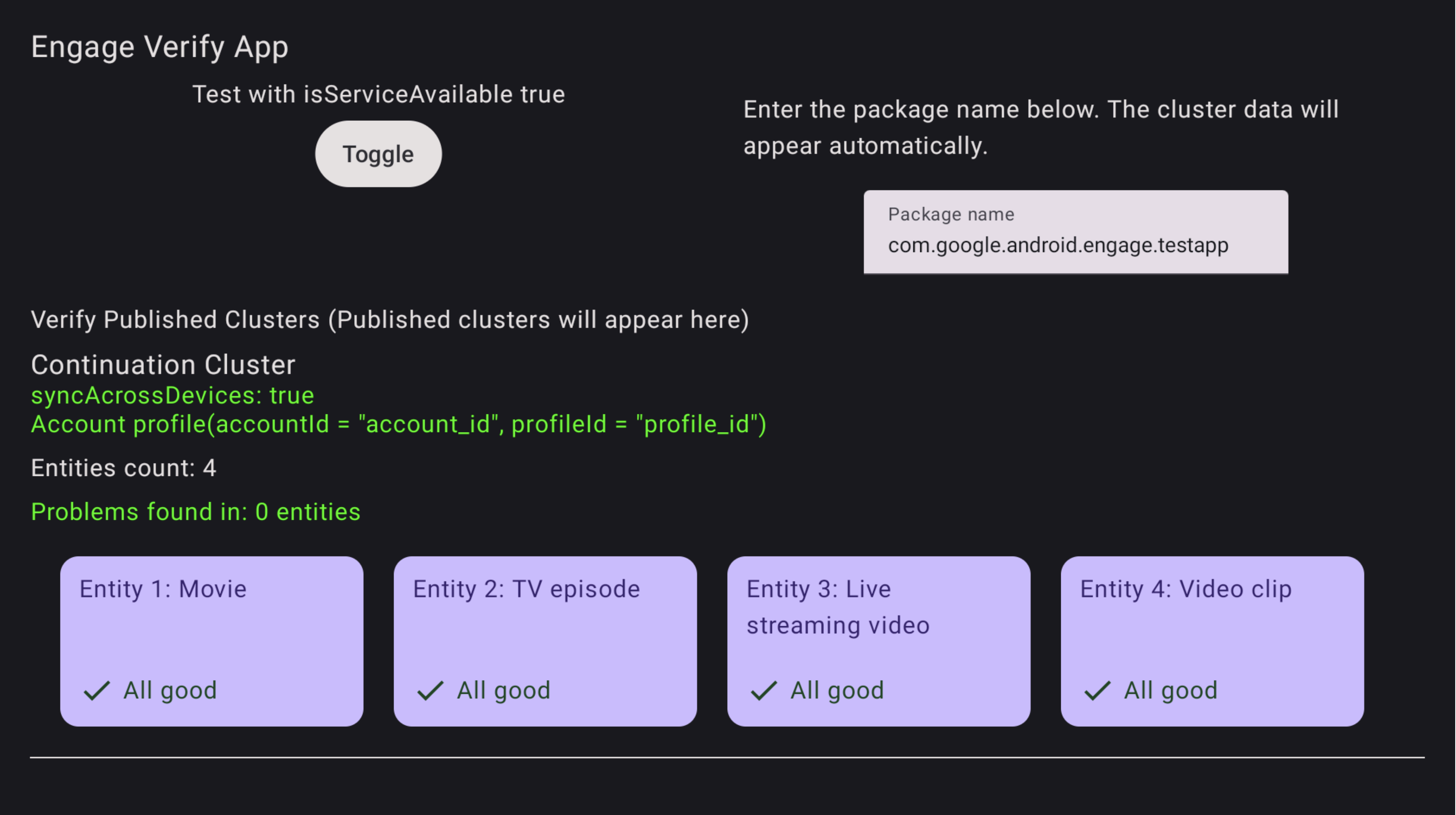
図 1.検証アプリの成功 検証アプリは、問題のあるエンティティにフラグを設定します。
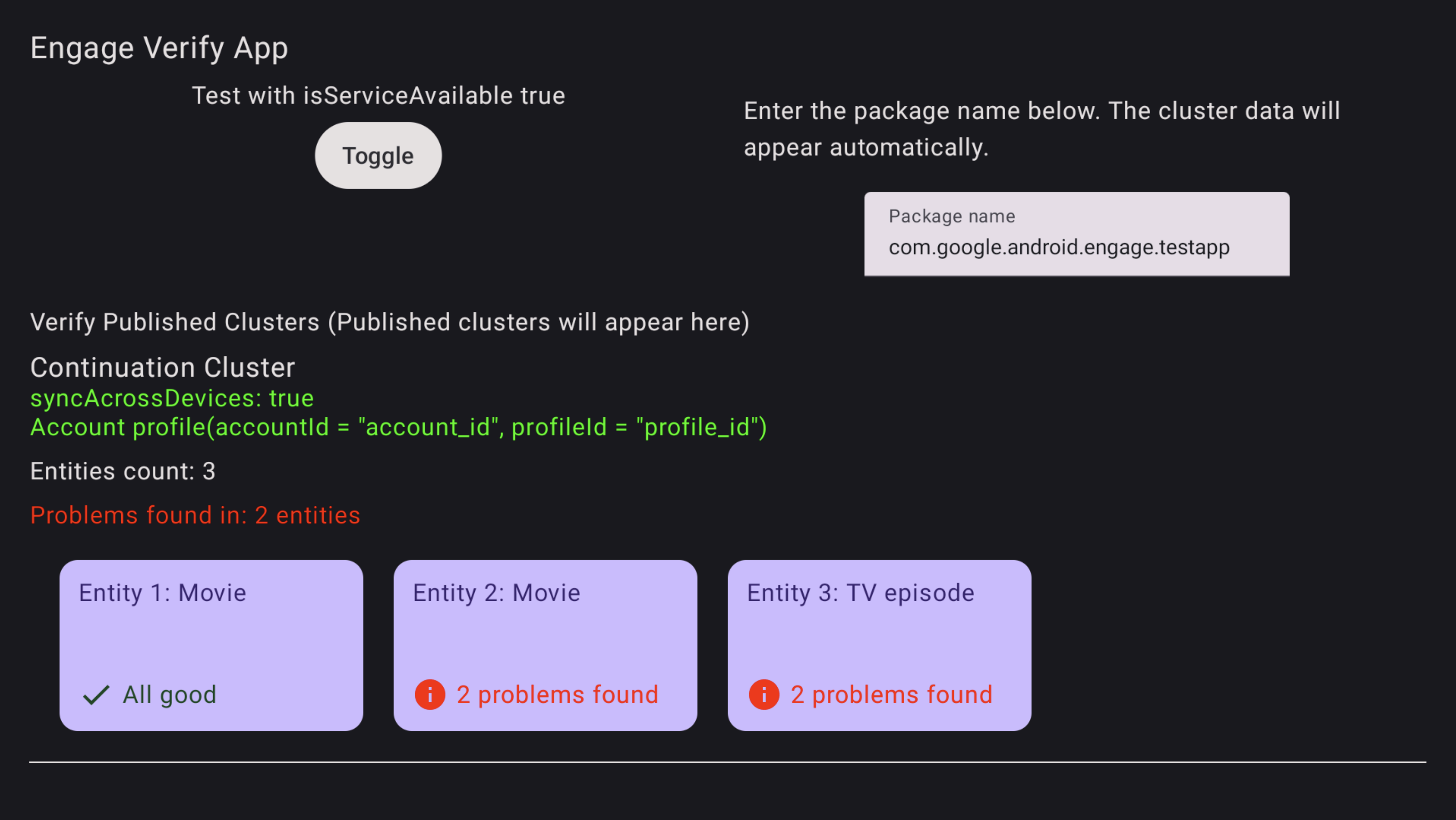
図 2.検証アプリのエラー エラーのあるエンティティのトラブルシューティングを行うには、テレビのリモコンを使用して検証アプリでエンティティを選択してクリックします。特定の問題が表示され、確認のために赤でハイライト表示されます(以下の例を参照)。
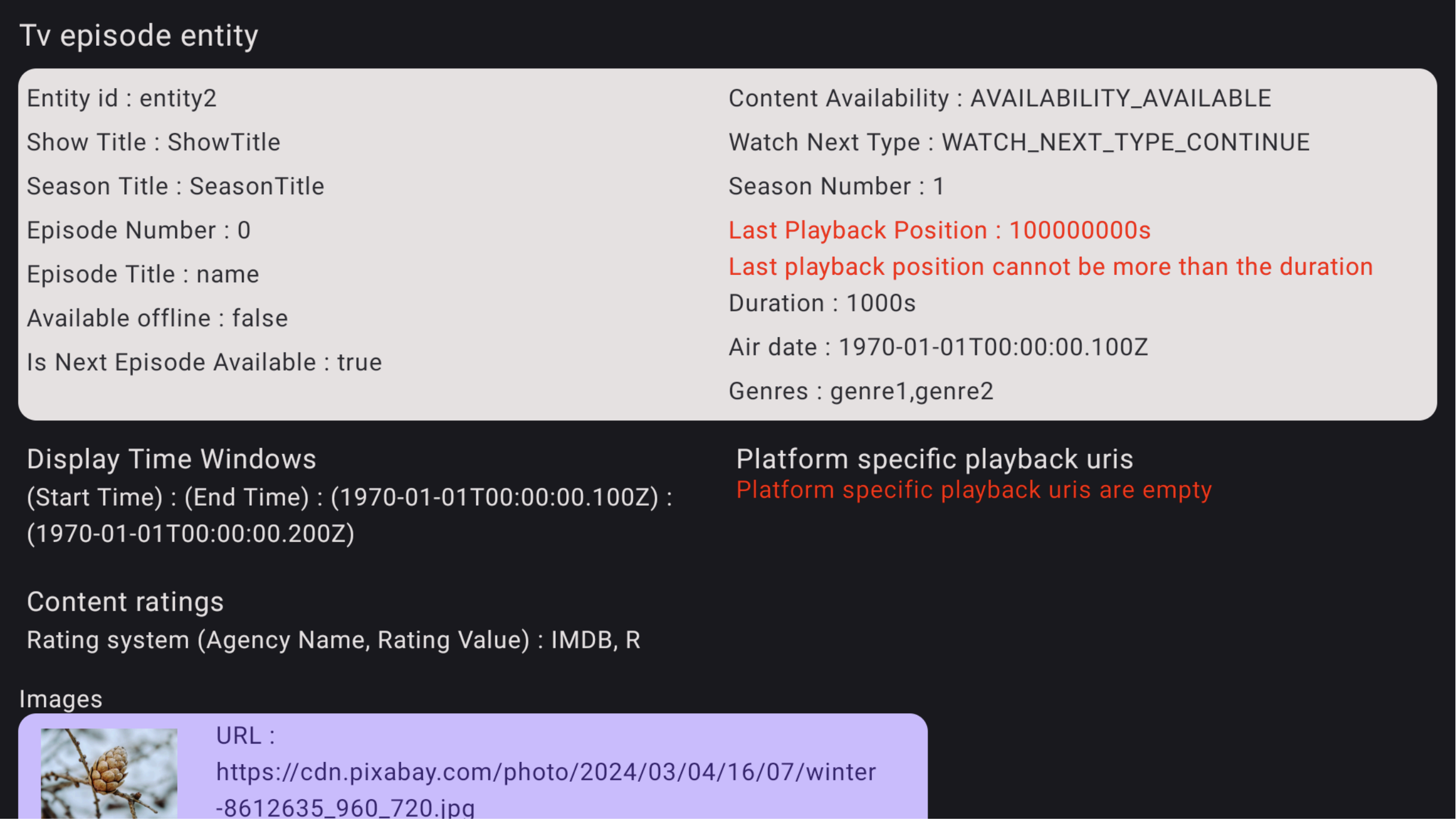
図 3.検証アプリのエラーの詳細