
与之前的版本一样,Android 15 包含一些可能会影响您的应用的行为变更。以下行为变更仅影响以 Android 15 或更高版本为目标平台的应用。如果您的应用以 Android 15 或更高版本为目标平台,您应该修改自己的应用以适当地支持这些行为(如果适用)。
请务必查看对 Android 15 上运行的所有应用都有影响的行为变更列表(无论应用的 targetSdkVersion 如何)。
核心功能
Android 15 修改或扩展了 Android 系统的各种核心功能。
前台服务变更
我们将对 Android 15 中的前台服务进行以下更改。
数据同步前台服务超时行为
Android 15 introduces a new timeout behavior to dataSync for apps targeting
Android 15 (API level 35) or higher. This behavior also applies to the new
mediaProcessing foreground service type.
The system permits an app's dataSync services to run for a total of 6 hours
in a 24-hour period, after which the system calls the running service's
Service.onTimeout(int, int) method (introduced in Android
15). At this time, the service has a few seconds to call
Service.stopSelf(). When Service.onTimeout() is called, the
service is no longer considered a foreground service. If the service does not
call Service.stopSelf(), the system throws an internal exception. The
exception is logged in Logcat with the following message:
Fatal Exception: android.app.RemoteServiceException: "A foreground service of
type dataSync did not stop within its timeout: [component name]"
To avoid problems with this behavior change, you can do one or more of the following:
- Have your service implement the new
Service.onTimeout(int, int)method. When your app receives the callback, make sure to callstopSelf()within a few seconds. (If you don't stop the app right away, the system generates a failure.) - Make sure your app's
dataSyncservices don't run for more than a total of 6 hours in any 24-hour period (unless the user interacts with the app, resetting the timer). - Only start
dataSyncforeground services as a result of direct user interaction; since your app is in the foreground when the service starts, your service has the full six hours after the app goes to the background. - Instead of using a
dataSyncforeground service, use an alternative API.
If your app's dataSync foreground services have run for 6 hours in the last
24, you cannot start another dataSync foreground service unless the user
has brought your app to the foreground (which resets the timer). If you try to
start another dataSync foreground service, the system throws
ForegroundServiceStartNotAllowedException
with an error message like "Time limit already exhausted for foreground service
type dataSync".
Testing
To test your app's behavior, you can enable data sync timeouts even if your app
is not targeting Android 15 (as long as the app is running on an Android 15
device). To enable timeouts, run the following adb command:
adb shell am compat enable FGS_INTRODUCE_TIME_LIMITS your-package-name
You can also adjust the timeout period, to make it easier to test how your
app behaves when the limit is reached. To set a new timeout period, run the
following adb command:
adb shell device_config put activity_manager data_sync_fgs_timeout_duration duration-in-milliseconds
新的媒体处理前台服务类型
Android 15 introduces a new foreground service type, mediaProcessing. This
service type is appropriate for operations like transcoding media files. For
example, a media app might download an audio file and need to convert it to a
different format before playing it. You can use a mediaProcessing foreground
service to make sure the conversion continues even while the app is in the
background.
The system permits an app's mediaProcessing services to run for a total of 6
hours in a 24-hour period, after which the system calls the running service's
Service.onTimeout(int, int) method (introduced in Android
15). At this time, the service has a few seconds to call
Service.stopSelf(). If the service does not
call Service.stopSelf(), the system throws an internal exception. The
exception is logged in Logcat with the following message:
Fatal Exception: android.app.RemoteServiceException: "A foreground service of
type mediaProcessing did not stop within its timeout: [component name]"
To avoid having the exception, you can do one of the following:
- Have your service implement the new
Service.onTimeout(int, int)method. When your app receives the callback, make sure to callstopSelf()within a few seconds. (If you don't stop the app right away, the system generates a failure.) - Make sure your app's
mediaProcessingservices don't run for more than a total of 6 hours in any 24-hour period (unless the user interacts with the app, resetting the timer). - Only start
mediaProcessingforeground services as a result of direct user interaction; since your app is in the foreground when the service starts, your service has the full six hours after the app goes to the background. - Instead of using a
mediaProcessingforeground service, use an alternative API, like WorkManager.
If your app's mediaProcessing foreground services have run for 6 hours in the
last 24, you cannot start another mediaProcessing foreground service unless
the user has brought your app to the foreground (which resets the timer). If you
try to start another mediaProcessing foreground service, the system throws
ForegroundServiceStartNotAllowedException
with an error message like "Time limit already exhausted for foreground service
type mediaProcessing".
For more information about the mediaProcessing service type, see Changes to
foreground service types for Android 15: Media processing.
Testing
To test your app's behavior, you can enable media processing timeouts even if
your app is not targeting Android 15 (as long as the app is running on an
Android 15 device). To enable timeouts, run the following adb command:
adb shell am compat enable FGS_INTRODUCE_TIME_LIMITS your-package-name
You can also adjust the timeout period, to make it easier to test how your
app behaves when the limit is reached. To set a new timeout period, run the
following adb command:
adb shell device_config put activity_manager media_processing_fgs_timeout_duration duration-in-milliseconds
对启动前台服务的 BOOT_COMPLETED 广播接收器的限制
There are new restrictions on BOOT_COMPLETED broadcast receivers launching
foreground services. BOOT_COMPLETED receivers are not allowed to launch the
following types of foreground services:
dataSynccameramediaPlaybackphoneCallmediaProjectionmicrophone(this restriction has been in place formicrophonesince Android 14)
If a BOOT_COMPLETED receiver tries to launch any of those types of foreground
services, the system throws ForegroundServiceStartNotAllowedException.
Testing
To test your app's behavior, you can enable these new restrictions even if your
app is not targeting Android 15 (as long as the app is running on an Android 15
device). Run the following adb command:
adb shell am compat enable FGS_BOOT_COMPLETED_RESTRICTIONS your-package-name
To send a BOOT_COMPLETED broadcast without restarting the device,
run the following adb command:
adb shell am broadcast -a android.intent.action.BOOT_COMPLETED your-package-name
在应用拥有 SYSTEM_ALERT_WINDOW 权限时启动前台服务的限制
Previously, if an app held the SYSTEM_ALERT_WINDOW permission, it could launch
a foreground service even if the app was currently in the background (as
discussed in exemptions from background start restrictions).
If an app targets Android 15, this exemption is now narrower. The app now needs
to have the SYSTEM_ALERT_WINDOW permission and also have a visible overlay
window. That is, the app needs to first launch a
TYPE_APPLICATION_OVERLAY window and the window
needs to be visible before you start a foreground service.
If your app attempts to start a foreground service from the background without
meeting these new requirements (and it does not have some other exemption), the
system throws ForegroundServiceStartNotAllowedException.
If your app declares the SYSTEM_ALERT_WINDOW permission
and launches foreground services from the background, it may be affected by this
change. If your app gets a ForegroundServiceStartNotAllowedException, check
your app's order of operations and make sure your app already has an active
overlay window before it attempts to start a foreground service from the
background. You can check if your overlay window is currently visible
by calling View.getWindowVisibility(), or you
can override View.onWindowVisibilityChanged()
to get notified whenever the visibility changes.
Testing
To test your app's behavior, you can enable these new restrictions even if your
app is not targeting Android 15 (as long as the app is running on an Android 15
device). To enable these new restrictions on starting foreground services
from the background, run the following adb command:
adb shell am compat enable FGS_SAW_RESTRICTIONS your-package-name
更改了应用可以修改“勿扰”模式全局状态的时间
以 Android 15(API 级别 35)及更高版本为目标平台的应用无法再更改设备上的勿扰 (DND) 功能的全局状态或政策(无论是通过修改用户设置还是关闭勿扰模式)。相反,应用必须提供 AutomaticZenRule,系统会将其与现有的“最严格的政策优先”方案合并为一个全局政策。对之前会影响全局状态的现有 API 的调用(setInterruptionFilter、setNotificationPolicy)会导致创建或更新隐式 AutomaticZenRule,该 AutomaticZenRule 会根据这些 API 调用的调用周期开启和关闭。
请注意,只有当应用调用 setInterruptionFilter(INTERRUPTION_FILTER_ALL) 并希望该调用停用之前由其所有者激活的 AutomaticZenRule 时,此更改才会影响可观察到的行为。
OpenJDK API 变更
Android 15 continues the work of refreshing Android's core libraries to align with the features in the latest OpenJDK LTS releases.
Some of these changes can affect app compatibility for apps targeting Android 15 (API level 35):
Changes to string formatting APIs: Validation of argument index, flags, width, and precision are now more strict when using the following
String.format()andFormatter.format()APIs:String.format(String, Object[])String.format(Locale, String, Object[])Formatter.format(String, Object[])Formatter.format(Locale, String, Object[])
For example, the following exception is thrown when an argument index of 0 is used (
%0in the format string):IllegalFormatArgumentIndexException: Illegal format argument index = 0In this case, the issue can be fixed by using an argument index of 1 (
%1in the format string).Changes to component type of
Arrays.asList(...).toArray(): When usingArrays.asList(...).toArray(), the component type of the resulting array is now anObject—not the type of the underlying array's elements. So the following code throws aClassCastException:String[] elements = (String[]) Arrays.asList("one", "two").toArray();For this case, to preserve
Stringas the component type in the resulting array, you could useCollection.toArray(Object[])instead:String[] elements = Arrays.asList("two", "one").toArray(new String[0]);Changes to language code handling: When using the
LocaleAPI, language codes for Hebrew, Yiddish, and Indonesian are no longer converted to their obsolete forms (Hebrew:iw, Yiddish:ji, and Indonesian:in). When specifying the language code for one of these locales, use the codes from ISO 639-1 instead (Hebrew:he, Yiddish:yi, and Indonesian:id).Changes to random int sequences: Following the changes made in https://bugs.openjdk.org/browse/JDK-8301574, the following
Random.ints()methods now return a different sequence of numbers than theRandom.nextInt()methods do:Generally, this change shouldn't result in app-breaking behavior, but your code shouldn't expect the sequence generated from
Random.ints()methods to matchRandom.nextInt().
The new SequencedCollection API can affect your app's compatibility
after you update compileSdk in your app's build configuration to use
Android 15 (API level 35):
Collision with
MutableList.removeFirst()andMutableList.removeLast()extension functions inkotlin-stdlibThe
Listtype in Java is mapped to theMutableListtype in Kotlin. Because theList.removeFirst()andList.removeLast()APIs have been introduced in Android 15 (API level 35), the Kotlin compiler resolves function calls, for examplelist.removeFirst(), statically to the newListAPIs instead of to the extension functions inkotlin-stdlib.If an app is re-compiled with
compileSdkset to35andminSdkset to34or lower, and then the app is run on Android 14 and lower, a runtime error is thrown:java.lang.NoSuchMethodError: No virtual method removeFirst()Ljava/lang/Object; in class Ljava/util/ArrayList;The existing
NewApilint option in Android Gradle Plugin can catch these new API usages../gradlew lintMainActivity.kt:41: Error: Call requires API level 35 (current min is 34): java.util.List#removeFirst [NewApi] list.removeFirst()To fix the runtime exception and lint errors, the
removeFirst()andremoveLast()function calls can be replaced withremoveAt(0)andremoveAt(list.lastIndex)respectively in Kotlin. If you're using Android Studio Ladybug | 2024.1.3 or higher, it also provides a quick fix option for these errors.Consider removing
@SuppressLint("NewApi")andlintOptions { disable 'NewApi' }if the lint option has been disabled.Collision with other methods in Java
New methods have been added into the existing types, for example,
ListandDeque. These new methods might not be compatible with the methods with the same name and argument types in other interfaces and classes. In the case of a method signature collision with incompatibility, thejavaccompiler outputs a build-time error. For example:Example error 1:
javac MyList.javaMyList.java:135: error: removeLast() in MyList cannot implement removeLast() in List public void removeLast() { ^ return type void is not compatible with Object where E is a type-variable: E extends Object declared in interface ListExample error 2:
javac MyList.javaMyList.java:7: error: types Deque<Object> and List<Object> are incompatible; public class MyList implements List<Object>, Deque<Object> { both define reversed(), but with unrelated return types 1 errorExample error 3:
javac MyList.javaMyList.java:43: error: types List<E#1> and MyInterface<E#2> are incompatible; public static class MyList implements List<Object>, MyInterface<Object> { class MyList inherits unrelated defaults for getFirst() from types List and MyInterface where E#1,E#2 are type-variables: E#1 extends Object declared in interface List E#2 extends Object declared in interface MyInterface 1 errorTo fix these build errors, the class implementing these interfaces should override the method with a compatible return type. For example:
@Override
public Object getFirst() {
    return List.super.getFirst();
}
安全
Android 15 包含多项旨在提升系统安全性的变更,以帮助保护应用和用户免受恶意应用的侵害。
受限的 TLS 版本
Android 15 restricts the usage of TLS versions 1.0 and 1.1. These versions had previously been deprecated in Android, but are now disallowed for apps targeting Android 15.
限制后台 activity 启动
Android 15 做出了一些变更,可防止恶意后台应用将其他应用置于前台、提升自身权限并滥用用户互动,从而保护用户免受恶意应用的侵害,并让用户更好地控制自己的设备。自 Android 10(API 级别 29)起,后台 activity 启动受到限制。
其他更改
- 将
PendingIntent创建者更改为默认阻止后台活动启动。这有助于防止应用意外创建可能被恶意行为者滥用的PendingIntent。 - 除非
PendingIntent发送方允许,否则请勿将应用转至前台。此变更旨在防止恶意应用滥用在后台启动 activity 的功能。默认情况下,除非创建者允许后台 activity 启动权限或发送者具有后台 activity 启动权限,否则不允许应用将任务堆栈带到前台。 - 控制任务堆栈的顶层 activity 如何完成其任务。如果顶部 activity 完成了一项任务,Android 将返回到上次处于活跃状态的任务。此外,如果非顶部 activity 完成其任务,Android 会返回到主屏幕;它不会阻止此非顶部 activity 完成。
- 防止从其他应用启动任意 activity 进入您自己的任务。此变更可防止恶意应用通过创建看似来自其他应用的 activity 来对用户进行钓鱼式攻击。
- 阻止将非可见窗口纳入后台 activity 启动的考虑范围。这有助于防止恶意应用滥用后台活动启动来向用户显示不必要或恶意的内容。
更安全的 intent
Android 15 针对 intent 引入了 StrictMode。
如需查看有关 Intent 使用违规行为的详细日志,请使用以下方法:
Kotlin
fun onCreate() {
    StrictMode.setVmPolicy(VmPolicy.Builder()
        .detectUnsafeIntentLaunch()
        .build()
    )
}
Java
public void onCreate() {
    StrictMode.setVmPolicy(new VmPolicy.Builder()
            .detectUnsafeIntentLaunch()
            .build());
}
用户体验和系统界面
Android 15 包含一些旨在打造更一致、更直观的用户体验的变更。
窗口边衬区变更
Android 15 中与窗口内边距相关的两项变更:默认强制执行边到边,此外还有配置变更,例如系统栏的默认配置。
全面实施政策
如果应用以 Android 15(API 级别 35)为目标平台,则在搭载 Android 15 的设备上默认以无边框显示。
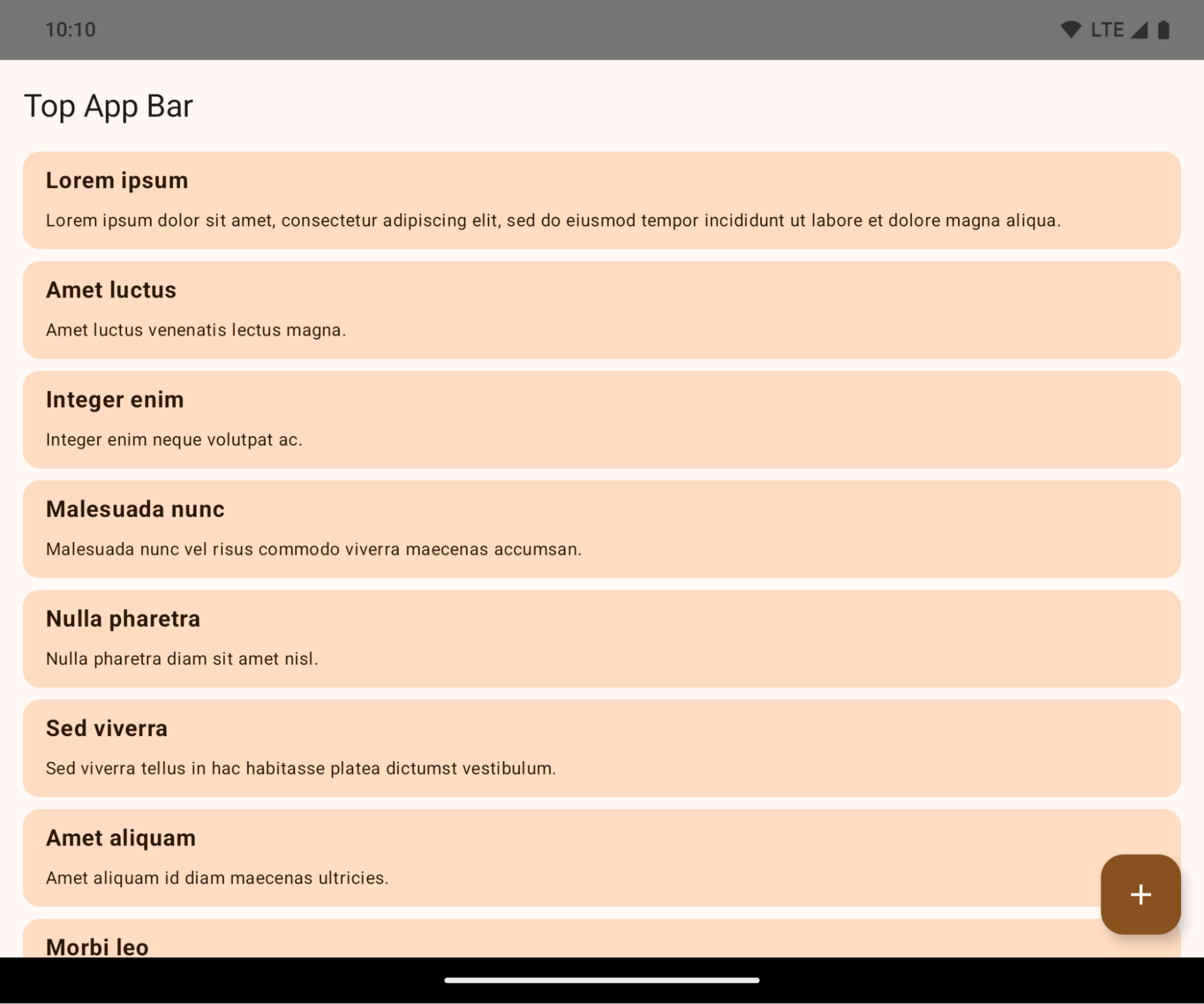
这是一项重大变更,可能会对应用的界面产生负面影响。这些更改会影响以下界面区域:
- 手势柄导航栏
- 默认透明。
- 底部偏移量处于停用状态,因此内容会绘制在系统导航栏后面,除非应用了边衬区。
setNavigationBarColor和R.attr#navigationBarColor已弃用,不会影响手势导航。setNavigationBarContrastEnforced和R.attr#navigationBarContrastEnforced继续对使用手势进行导航没有任何影响。
- “三按钮”导航
- 默认情况下,不透明度设置为 80%,颜色可能与窗口背景颜色一致。
- 底部偏移量已停用,因此内容会绘制在系统导航栏后面,除非应用了边衬区。
setNavigationBarColor和R.attr#navigationBarColor默认设置为与窗口背景保持一致。窗口背景必须是颜色可绘制对象,才能应用此默认值。此 API 已弃用,但仍会影响三按钮导航。setNavigationBarContrastEnforced和R.attr#navigationBarContrastEnforced默认值为 true,这会在三按钮导航栏中添加 80% 不透明度的背景。
- 状态栏
- 默认透明。
- 顶部偏移量处于停用状态,因此内容会绘制在状态栏后面,除非应用了边衬区。
setStatusBarColor和R.attr#statusBarColor已弃用,对 Android 15 没有影响。setStatusBarContrastEnforced和R.attr#statusBarContrastEnforced已废弃,但仍会对 Android 15 产生影响。
- 刘海屏
- 非浮动窗口的
layoutInDisplayCutoutMode必须为LAYOUT_IN_DISPLAY_CUTOUT_MODE_ALWAYS。SHORT_EDGES、NEVER和DEFAULT会被解读为ALWAYS,这样用户就不会看到因刘海屏而产生的黑条,并且应用会显示在屏幕的整个边缘。
- 非浮动窗口的
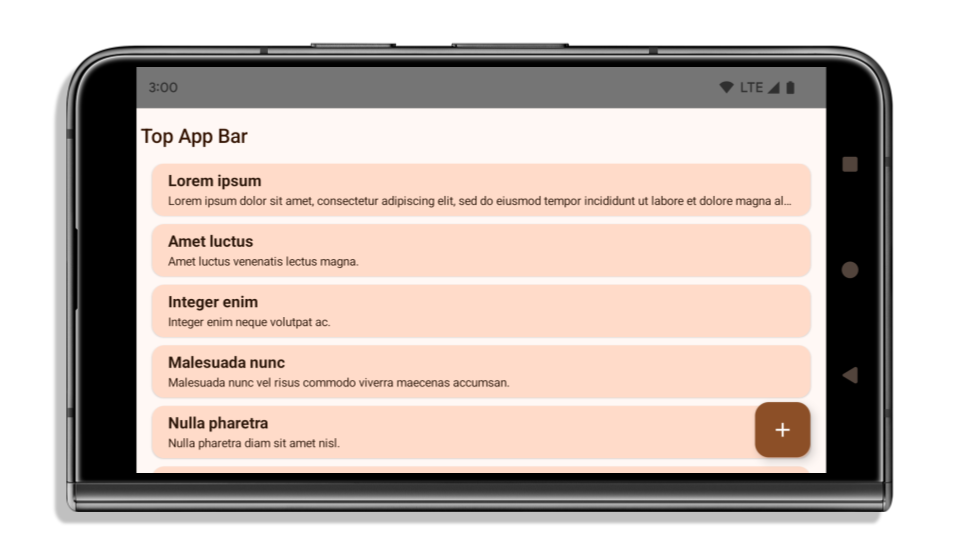
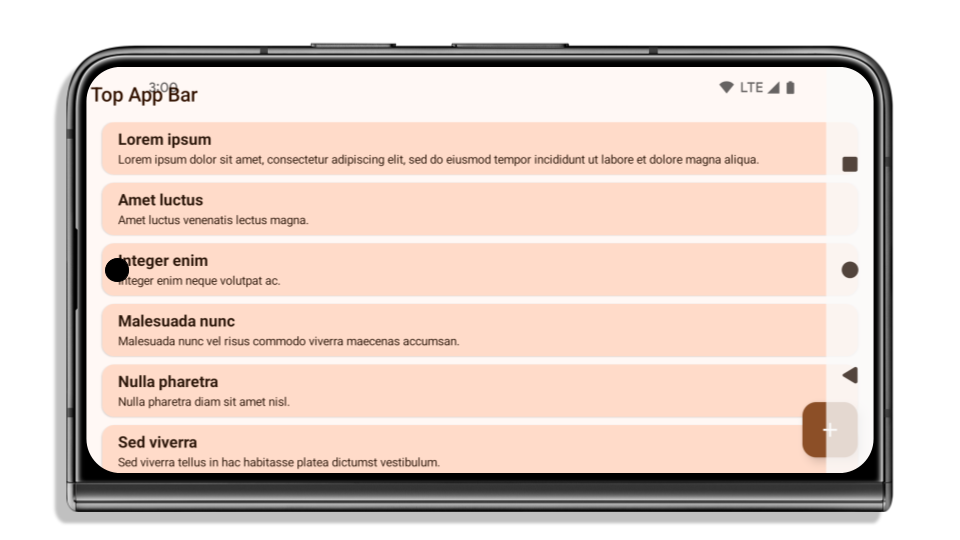
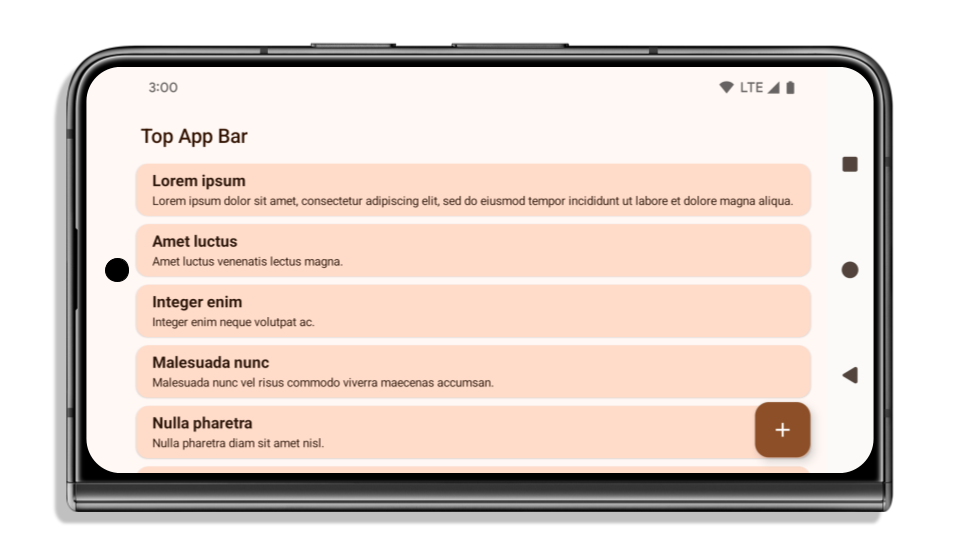
以下示例展示了应用在以 Android 15(API 级别 35)为目标平台之前和之后,以及在应用边衬区之前和之后的效果。此示例并不全面,在 Android Auto 上可能会显示不同的内容。
如果应用已实现全屏显示,需要检查哪些方面
如果您的应用已实现全屏显示并应用边衬区,则基本上不会受到影响,但以下情形除外。不过,即使您认为自己不受影响,我们仍建议您测试应用。
- 您有一个非浮动窗口,例如使用
SHORT_EDGES、NEVER或DEFAULT而不是LAYOUT_IN_DISPLAY_CUTOUT_MODE_ALWAYS的Activity。如果您的应用在启动时崩溃,这可能是由启动画面引起的。您可以将核心启动画面依赖项升级到 1.2.0-alpha01 或更高版本,也可以设置window.attributes.layoutInDisplayCutoutMode = WindowManager.LayoutInDisplayCutoutMode.always。 - 可能存在流量较低且界面被遮挡的屏幕。验证这些访问频率较低的界面是否没有被遮挡的界面。低流量屏幕包括:
- 初始配置或登录界面
- “设置”页面
如果您的应用尚未实现全屏显示,需要检查哪些方面
如果您的应用尚未实现全屏显示,则很可能会受到影响。除了已实现全屏显示的边缘到边缘应用的相关场景之外,您还应考虑以下事项:
- 如果您的应用在 Compose 中使用 Material 3 组件 (
androidx.compose.material3),例如TopAppBar、BottomAppBar和NavigationBar,这些组件很可能不会受到影响,因为它们会自动处理边衬区。 - 如果您的应用使用的是 Compose 中的 Material 2 组件 (
androidx.compose.material),这些组件不会自动处理边衬区。不过,您可以获得边衬区的访问权限,然后手动应用边衬区。在 androidx.compose.material 1.6.0 及更高版本中,使用windowInsets参数可为BottomAppBar、TopAppBar、BottomNavigation和NavigationRail手动应用边衬区。 同样,请为Scaffold使用contentWindowInsets参数。 - 如果应用使用了视图和 Material 组件 (
com.google.android.material),则大多数基于视图的 Material 组件(例如BottomNavigationView、BottomAppBar、NavigationRailView或NavigationView)都会处理边衬区,因此不需要执行额外的操作。不过,如果使用的是AppBarLayout,则需要添加android:fitsSystemWindows="true"。 - 对于自定义可组合项,请手动应用边衬区作为内边距。如果您的内容位于
Scaffold中,则可以使用Scaffold内边距值来使用边衬区。否则,请使用WindowInsets之一应用内边距。 - 如果应用使用的是视图和
BottomSheet、SideSheet或自定义容器,请使用ViewCompat.setOnApplyWindowInsetsListener应用内边距。对于RecyclerView,请使用此监听器应用内边距,同时添加clipToPadding="false"。
如果应用必须提供自定义后台保护,您需要检查哪些方面
如果您的应用必须为三按钮导航或状态栏提供自定义背景保护,则应使用 WindowInsets.Type#tappableElement() 获取三按钮导航栏高度或 WindowInsets.Type#statusBars,在系统栏后面放置一个可组合项或视图。
其他全屏显示资源
如需了解有关应用边衬区的其他注意事项,请参阅全屏视图和全屏 Compose 指南。
已弃用的 API
以下 API 已弃用,但未停用:
R.attr#enforceStatusBarContrastR.attr#navigationBarColor(适用于三按钮导航,alpha 为 80%)Window#isStatusBarContrastEnforcedWindow#setNavigationBarColor(适用于三按钮导航,alpha 为 80%)Window#setStatusBarContrastEnforced
以下 API 已弃用并停用:
R.attr#navigationBarColor(用于手势导航)R.attr#navigationBarDividerColorR.attr#statusBarColorWindow#setDecorFitsSystemWindowsWindow#getNavigationBarColorWindow#getNavigationBarDividerColorWindow#getStatusBarColorWindow#setNavigationBarColor(用于手势导航)Window#setNavigationBarDividerColorWindow#setStatusBarColor
稳定配置
If your app targets Android 15 (API level 35) or higher, Configuration no
longer excludes the system bars. If you use the screen size in the
Configuration class for layout calculation, you should replace it with better
alternatives like an appropriate ViewGroup, WindowInsets, or
WindowMetricsCalculator depending on your need.
Configuration has been available since API 1. It is typically obtained from
Activity.onConfigurationChanged. It provides information like window density,
orientation, and sizes. One important characteristic about the window sizes
returned from Configuration is that it previously excluded the system bars.
The configuration size is typically used for resource selection, such as
/res/layout-h500dp, and this is still a valid use case. However, using it for
layout calculation has always been discouraged. If you do so, you should move
away from it now. You should replace the use of Configuration with something
more suitable depending on your use case.
If you use it to calculate the layout, use an appropriate ViewGroup, such as
CoordinatorLayout or ConstraintLayout. If you use it to determine the height
of the system navbar, use WindowInsets. If you want to know the current size
of your app window, use computeCurrentWindowMetrics.
The following list describes the fields affected by this change:
Configuration.screenWidthDpandscreenHeightDpsizes no longer exclude the system bars.Configuration.smallestScreenWidthDpis indirectly affected by changes toscreenWidthDpandscreenHeightDp.Configuration.orientationis indirectly affected by changes toscreenWidthDpandscreenHeightDpon close-to-square devices.Display.getSize(Point)is indirectly affected by the changes inConfiguration. This was deprecated beginning in API level 30.Display.getMetrics()has already worked like this since API level 33.
elegantTextHeight 属性默认值为 true
对于以 Android 15(API 级别 35)为目标平台的应用,elegantTextHeight TextView 属性默认会变为 true,将默认使用的紧凑字体替换为一些具有较大垂直测量的脚本,使其更易于阅读。紧凑字体旨在防止布局中断;Android 13(API 级别 33)允许文本布局利用 fallbackLineSpacing 属性拉伸垂直高度,从而防止许多此类中断。
在 Android 15 中,系统中仍保留了紧凑字体,因此您的应用可以将 elegantTextHeight 设置为 false 以获得与之前相同的行为,但即将发布的版本不太可能支持此字体。因此,如果您的应用支持以下脚本:阿拉伯语、老挝语、缅甸语、泰米尔语、古吉拉特语、卡纳达语、马拉雅拉姆语、奥里亚语、泰卢固语或泰语,请将 elegantTextHeight 设置为 true 以测试您的应用。

elegantTextHeight 行为。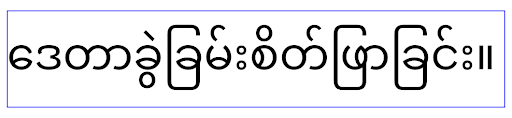
elegantTextHeight 行为。TextView 宽度因复杂的字母形状而发生变化
In previous versions of Android, some cursive fonts or languages that have
complex shaping might draw the letters in the previous or next character's area.
In some cases, such letters were clipped at the beginning or ending position.
Starting in Android 15, a TextView allocates width for drawing enough space
for such letters and allows apps to request extra paddings to the left to
prevent clipping.
Because this change affects how a TextView decides the width, TextView
allocates more width by default if the app targets Android 15 (API level 35) or
higher. You can enable or disable this behavior by calling the
setUseBoundsForWidth API on TextView.
Because adding left padding might cause a misalignment for existing layouts, the
padding is not added by default even for apps that target Android 15 or higher.
However, you can add extra padding to preventing clipping by calling
setShiftDrawingOffsetForStartOverhang.
The following examples show how these changes can improve text layout for some fonts and languages.

<TextView
    android:fontFamily="cursive"
    android:text="java" />
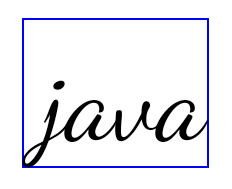
<TextView
    android:fontFamily="cursive"
    android:text="java"
    android:useBoundsForWidth="true"
    android:shiftDrawingOffsetForStartOverhang="true" />
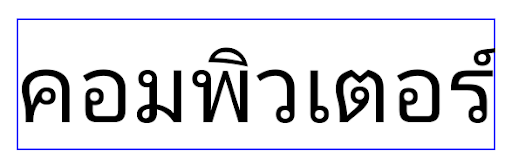
<TextView
    android:text="คอมพิวเตอร์" />
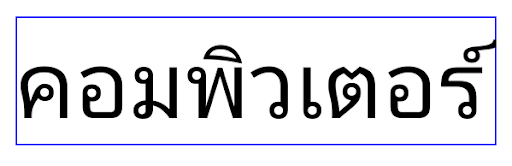
<TextView
    android:text="คอมพิวเตอร์"
    android:useBoundsForWidth="true"
    android:shiftDrawingOffsetForStartOverhang="true" />
EditText 的语言区域感知默认行高
在较低版本的 Android 中,文本布局会拉伸文本的高度,以满足与当前语言区域匹配的字体的行高。例如,如果内容是日语,由于日语字体的行高略高于拉丁字体,因此文本的高度会略高。不过,尽管行高存在这些差异,但无论使用的是哪种语言区域,EditText 元素的大小都是统一的,如下图所示:

EditText 元素。EditText 的高度相同,即使这些语言的行高各不相同。对于以 Android 15(API 级别 35)为目标平台的应用,现在为 EditText 预留了最小行高,以匹配指定语言区域的参考字体,如下图所示:

EditText 元素。EditText 的高度现在包含足够的空间来容纳这些语言字体的默认行高。如有需要,您的应用可以将 useLocalePreferredLineHeightForMinimum 属性指定为 false,以恢复之前的行为;您的应用还可以在 Kotlin 和 Java 中使用 setMinimumFontMetrics API 设置自定义最小垂直指标。
摄像头和媒体
Android 15 对以 Android 15 或更高版本为目标平台的应用的相机和媒体行为做出了以下更改。
有关请求音频焦点的限制
Apps that target Android 15 (API level 35) must be the top app or running a
foreground service in order to request audio focus. If an app
attempts to request focus when it does not meet one of these requirements, the
call returns AUDIOFOCUS_REQUEST_FAILED.
You can learn more about audio focus at Manage audio focus.
更新后的非 SDK 限制
Android 15 包含更新后的受限非 SDK 接口列表(基于与 Android 开发者之间的协作以及最新的内部测试)。在限制使用非 SDK 接口之前,我们会尽可能确保有可用的公开替代方案。
如果您的应用并非以 Android 15 为目标平台,其中一些变更可能不会立即对您产生影响。不过,虽然您的应用可以访问某些非 SDK 接口(具体取决于应用的目标 API 级别),但只要您使用任何非 SDK 方法或字段,就始终会有很高风险导致应用功能异常。
如果您不确定自己的应用是否使用了非 SDK 接口,则可以通过测试该应用来进行确认。如果您的应用依赖非 SDK 接口,则应开始计划迁移到 SDK 替代方案。不过,我们知道某些应用存在使用非 SDK 接口的合理场景。如果您无法为应用中的某项功能找到使用非 SDK 接口的替代方案,则应该请求新的公共 API。
To learn more about the changes in this release of Android, see Updates to non-SDK interface restrictions in Android 15. To learn more about non-SDK interfaces generally, see Restrictions on non-SDK interfaces.