

Android 15 introduce fantastiche funzionalità e API per gli sviluppatori. Le seguenti sezioni riepilogano queste funzionalità per aiutarti a iniziare a utilizzare le API correlate.
Per un elenco dettagliato delle API aggiunte, modificate e rimosse, leggi il report diff API. Per informazioni dettagliate sulle API aggiunte, visita il riferimento API Android. Per Android 15, cerca le API aggiunte nel livello API 35. Per scoprire le aree in cui le modifiche alla piattaforma potrebbero influire sulle tue app, assicurati di consultare le modifiche al comportamento di Android 15 per le app che hanno come target Android 15 e per tutte le app.
Fotocamera e contenuti multimediali
Android 15 include una serie di funzionalità che migliorano l'esperienza con la fotocamera e i contenuti multimediali e che ti danno accesso a strumenti e hardware per supportare i creator nel dare vita alla loro visione su Android.
Per saperne di più sulle funzionalità e sulle soluzioni per sviluppatori più recenti per i contenuti multimediali e la fotocamera di Android, guarda il talk Building modern Android media and camera experiences di Google I/O.
Aumento luce
Android 15 introduces Low Light Boost, an auto-exposure mode available to both Camera 2 and the night mode camera extension. Low Light Boost adjusts the exposure of the Preview stream in low-light conditions. This is different from how the night mode camera extension creates still images, because night mode combines a burst of photos to create a single, enhanced image. While night mode works very well for creating a still image, it can't create a continuous stream of frames, but Low Light Boost can. Thus, Low Light Boost enables camera capabilities, such as:
- Providing an enhanced image preview, so users are better able to frame their low-light pictures
- Scanning QR codes in low light
If you enable Low Light Boost, it automatically turns on when there's a low light level, and turns off when there's more light.
Apps can record off the Preview stream in low-light conditions to save a brightened video.
For more information, see Low Light Boost.
Controlli della videocamera in-app
Android 15 adds an extension for more control over the camera hardware and its algorithms on supported devices:
- Advanced flash strength adjustments enabling precise control of flash
intensity in both
SINGLEandTORCHmodes while capturing images.
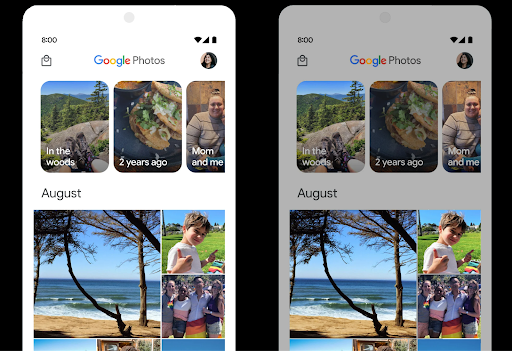
Controllo dell'headroom HDR
Android 15 chooses HDR headroom that is appropriate for the underlying device
capabilities and bit-depth of the panel. For pages that have lots of SDR
content, such as a messaging app displaying a single HDR thumbnail, this
behavior can end up adversely influencing the perceived brightness of the SDR
content. Android 15 lets you control the HDR headroom with
setDesiredHdrHeadroom to strike a balance between SDR
and HDR content.
Controllo del loudness

Android 15 引入了对 CTA-2075 响度标准的支持,可帮助您避免音频响度不一致,并确保用户在切换内容时不必不断调整音量。系统利用输出设备(头戴式耳机和扬声器)的已知特性以及 AAC 音频内容中提供的响度元数据,智能调整音频响度和动态范围压缩级别。
如需启用此功能,您需要确保 AAC 内容中提供响度元数据,并在应用中启用平台功能。为此,您可以通过使用关联的 AudioTrack 中的音频会话 ID 调用其 create 工厂方法来实例化 LoudnessCodecController 对象;这会自动开始应用音频更新。您可以传递 OnLoudnessCodecUpdateListener 来修改或过滤响度参数,然后再将其应用于 MediaCodec。
// Media contains metadata of type MPEG_4 OR MPEG_D
val mediaCodec = …
val audioTrack = AudioTrack.Builder()
                                .setSessionId(sessionId)
                                .build()
...
// Create new loudness controller that applies the parameters to the MediaCodec
try {
   val lcController = LoudnessCodecController.create(mSessionId)
   // Starts applying audio updates for each added MediaCodec
}
AndroidX media3 ExoPlayer 也将更新,以使用
LoudnessCodecController API,可实现无缝应用集成。
Dispositivi MIDI virtuali 2.0
Android 13 ha aggiunto il supporto per la connessione ai dispositivi MIDI 2.0 tramite USB, che comunicano utilizzando Universal MIDI Packets (UMP). Android 15 estende il supporto UMP alle app MIDI virtuali, consentendo alle app di composizione di controllare le app di sintesi come un dispositivo MIDI 2.0 virtuale, proprio come faresti con un dispositivo MIDI 2.0 USB.
Decodifica software AV1 più efficiente

dav1d, the popular AV1 software decoder from VideoLAN is available for Android devices that don't support AV1 decode in hardware. dav1d is up to 3x more performant than the legacy AV1 software decoder, enabling HD AV1 playback for more users, including some low and mid tier devices.
Your app needs to opt-in to using dav1d by invoking it by name
"c2.android.av1-dav1d.decoder". dav1d will be made the default AV1 software
decoder in a subsequent update. This support is standardized and backported to
Android 11 devices that receive Google Play system updates.
Produttività e strumenti per gli sviluppatori
Sebbene la maggior parte del nostro lavoro per migliorare la tua produttività si concentri su strumenti come Android Studio, Jetpack Compose e le librerie Android Jetpack, cerchiamo sempre modi nella piattaforma per aiutarti a realizzare più facilmente la tua visione.
Aggiornamenti di OpenJDK 17
Android 15 continues the work of refreshing Android's core libraries to align with the features in the latest OpenJDK LTS releases.
The following key features and improvements are included:
- Quality-of-life improvements around NIO buffers
- Streams
- Additional
mathandstrictmathmethods utilpackage updates including sequencedcollection,map, andsetByteBuffersupport inDeflater- Security updates such as
X500PrivateCredentialand security key updates
These APIs are updated on over a billion devices running Android 12 (API level 31) and higher through Google Play System updates, so you can target the latest programming features.
Miglioramenti al PDF
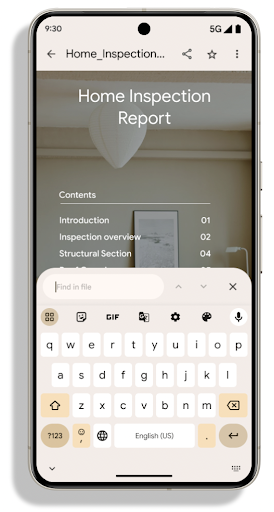
Android 15 includes substantial improvements to the PdfRenderer
APIs. Apps can incorporate advanced features such as rendering
password-protected files, annotations, form editing,
searching, and selection with copy. Linearized PDF
optimizations are supported to speed local PDF viewing and reduce resource use.
The Jetpack PDF library uses these APIs to simplify adding PDF
viewing capabilities to your app.
The PdfRenderer has been moved to a module that can be updated using Google
Play system updates independent of the platform release, and we're supporting
these changes back to Android 11 (API level 30) by creating a compatible
pre-Android 15 version of the API surface, called
PdfRendererPreV.
Miglioramenti al cambio di lingua automatico
Android 14 ha aggiunto il riconoscimento multilingue on-device nell'audio con il passaggio automatico tra le lingue, ma questo può causare l'eliminazione di parole, soprattutto quando le lingue cambiano con una pausa minore tra le due frasi. Android 15 aggiunge controlli aggiuntivi per aiutare le app a ottimizzare questo passaggio in base al loro caso d'uso.
EXTRA_LANGUAGE_SWITCH_INITIAL_ACTIVE_DURATION_TIME_MILLIS limita il passaggio automatico all'inizio della sessione audio, mentre EXTRA_LANGUAGE_SWITCH_MATCH_SWITCHES disattiva il passaggio di lingua dopo un numero definito di passaggi. Queste opzioni sono particolarmente utili se prevedi che durante la sessione verrà parlata una sola lingua che deve essere rilevata automaticamente.
API OpenType Variable Font migliorata
Android 15 提高了 OpenType 可变字体的易用性。您可以创建
来自可变字体的 FontFamily 实例,而不指定粗细轴
使用 buildVariableFamily API。文本渲染程序会替换 wght 轴的值,以匹配显示的文本。
使用该 API 可以大大简化创建 Typeface 的代码:
Kotlin
val newTypeface = Typeface.CustomFallbackBuilder(
            FontFamily.Builder(
                Font.Builder(assets, "RobotoFlex.ttf").build())
                    .buildVariableFamily())
    .build()
Java
Typeface newTypeface = Typeface.CustomFallbackBuilder(
            new FontFamily.Builder(
                new Font.Builder(assets, "RobotoFlex.ttf").build())
                    .buildVariableFamily())
    .build();
以前,如需创建相同的 Typeface,您需要更多代码:
Kotlin
val oldTypeface = Typeface.CustomFallbackBuilder(
            FontFamily.Builder(
                Font.Builder(assets, "RobotoFlex.ttf")
                    .setFontVariationSettings("'wght' 400")
                    .setWeight(400)
                    .build())
                .addFont(
                    Font.Builder(assets, "RobotoFlex.ttf")
                        .setFontVariationSettings("'wght' 100")
                        .setWeight(100)
                        .build()
                )
                .addFont(
                    Font.Builder(assets, "RobotoFlex.ttf")
                        .setFontVariationSettings("'wght' 200")
                        .setWeight(200)
                        .build()
                )
                .addFont(
                    Font.Builder(assets, "RobotoFlex.ttf")
                        .setFontVariationSettings("'wght' 300")
                        .setWeight(300)
                        .build()
                )
                .addFont(
                    Font.Builder(assets, "RobotoFlex.ttf")
                        .setFontVariationSettings("'wght' 500")
                        .setWeight(500)
                        .build()
                )
                .addFont(
                    Font.Builder(assets, "RobotoFlex.ttf")
                        .setFontVariationSettings("'wght' 600")
                        .setWeight(600)
                        .build()
                )
                .addFont(
                    Font.Builder(assets, "RobotoFlex.ttf")
                        .setFontVariationSettings("'wght' 700")
                        .setWeight(700)
                        .build()
                )
                .addFont(
                    Font.Builder(assets, "RobotoFlex.ttf")
                        .setFontVariationSettings("'wght' 800")
                        .setWeight(800)
                        .build()
                )
                .addFont(
                    Font.Builder(assets, "RobotoFlex.ttf")
                        .setFontVariationSettings("'wght' 900")
                        .setWeight(900)
                        .build()
                ).build()
        ).build()
Java
Typeface oldTypeface = new Typeface.CustomFallbackBuilder(
    new FontFamily.Builder(
        new Font.Builder(assets, "RobotoFlex.ttf")
            .setFontVariationSettings("'wght' 400")
            .setWeight(400)
            .build()
    )
    .addFont(
        new Font.Builder(assets, "RobotoFlex.ttf")
            .setFontVariationSettings("'wght' 100")
            .setWeight(100)
            .build()
    )
    .addFont(
        new Font.Builder(assets, "RobotoFlex.ttf")
            .setFontVariationSettings("'wght' 200")
            .setWeight(200)
            .build()
    )
    .addFont(
        new Font.Builder(assets, "RobotoFlex.ttf")
            .setFontVariationSettings("'wght' 300")
            .setWeight(300)
            .build()
    )
    .addFont(
        new Font.Builder(assets, "RobotoFlex.ttf")
            .setFontVariationSettings("'wght' 500")
            .setWeight(500)
            .build()
    )
    .addFont(
        new Font.Builder(assets, "RobotoFlex.ttf")
            .setFontVariationSettings("'wght' 600")
            .setWeight(600)
            .build()
    )
    .addFont(
        new Font.Builder(assets, "RobotoFlex.ttf")
            .setFontVariationSettings("'wght' 700")
            .setWeight(700)
            .build()
    )
    .addFont(
        new Font.Builder(assets, "RobotoFlex.ttf")
            .setFontVariationSettings("'wght' 800")
            .setWeight(800)
            .build()
    )
    .addFont(
        new Font.Builder(assets, "RobotoFlex.ttf")
            .setFontVariationSettings("'wght' 900")
            .setWeight(900)
            .build()
    )
    .build()
).build();
以下示例展示了同时使用旧版和新版 API 创建的 Typeface 的呈现方式:
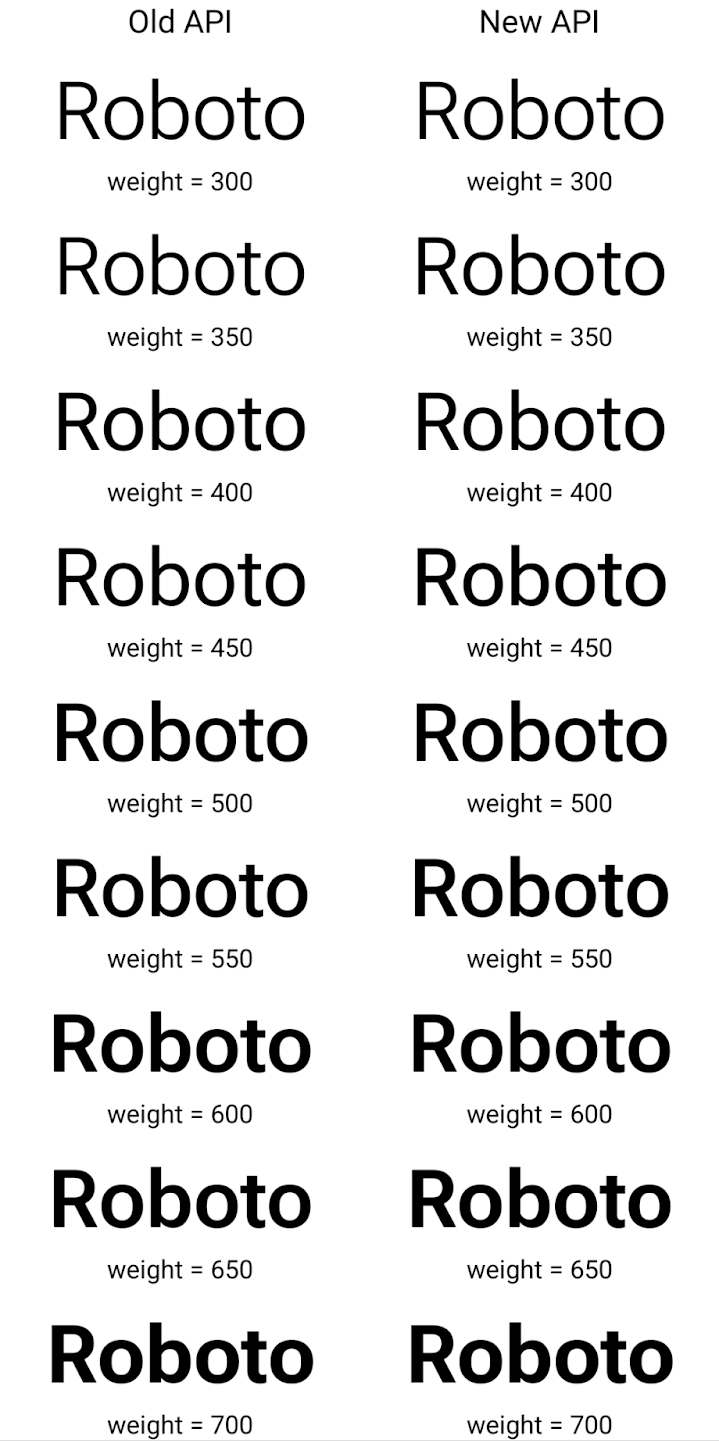
在此示例中,使用旧 API 创建的 Typeface 不包含
为 350、450、550 和 650 创建准确的字体粗细
Font 实例,因此渲染程序会回退到最接近的权重。在
在此示例中,系统会渲染 300 而不是 350,渲染 400 而不是 450,
依此类推。相比之下,使用新 API 创建的 Typeface 会为给定重量动态创建 Font 实例,因此系统也会为 350、450、550 和 650 呈现准确的重量。
Controlli granulari delle interruzioni di riga
从 Android 15 开始,TextView 和底层行断开符可以将给定部分文本保留在同一行中,以提高可读性。您可以通过在字符串资源或 createNoBreakSpan 中使用 <nobreak> 标记来充分利用此换行符自定义功能。同样,您可以使用 <nohyphen> 标记或 createNoHyphenationSpan 来防止对字词进行分词。
例如,以下字符串资源不包含换行符,在呈现时,文本“Pixel 8 Pro”会在不合适的位置换行:
<resources>
    <string name="pixel8pro">The power and brains behind Pixel 8 Pro.</string>
</resources>
相比之下,此字符串资源包含 <nobreak> 标记,该标记会将字词“Pixel 8 Pro”换行,并防止换行:
<resources>
    <string name="pixel8pro">The power and brains behind <nobreak>Pixel 8 Pro.</nobreak></string>
</resources>
以下图片展示了这些字符串呈现方式的差异:
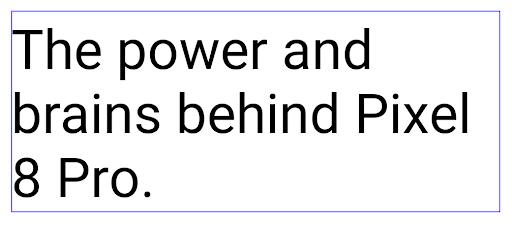
<nobreak> 标记换行。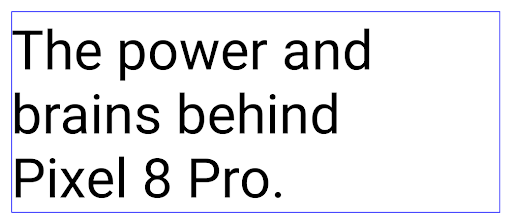
<nobreak> 标记封装“Pixel 8 Pro.”短语的同一行文本的布局。Archiviazione app
Android and Google Play announced support for app archiving last year, allowing users to free up space by partially removing infrequently used apps from the device that were published using Android App Bundle on Google Play. Android 15 includes OS level support for app archiving and unarchiving, making it easier for all app stores to implement it.
Apps with the REQUEST_DELETE_PACKAGES permission can call the
PackageInstaller requestArchive method to request archiving an
installed app package, which removes the APK and any cached files, but persists
user data. Archived apps are returned as displayable apps through the
LauncherApps APIs; users will see a UI treatment to highlight that those
apps are archived. If a user taps on an archived app, the responsible installer
will get a request to unarchive it, and the restoration process can be
monitored by the ACTION_PACKAGE_ADDED broadcast.
Attivare la modalità a 16 kB su un dispositivo utilizzando le opzioni sviluppatore
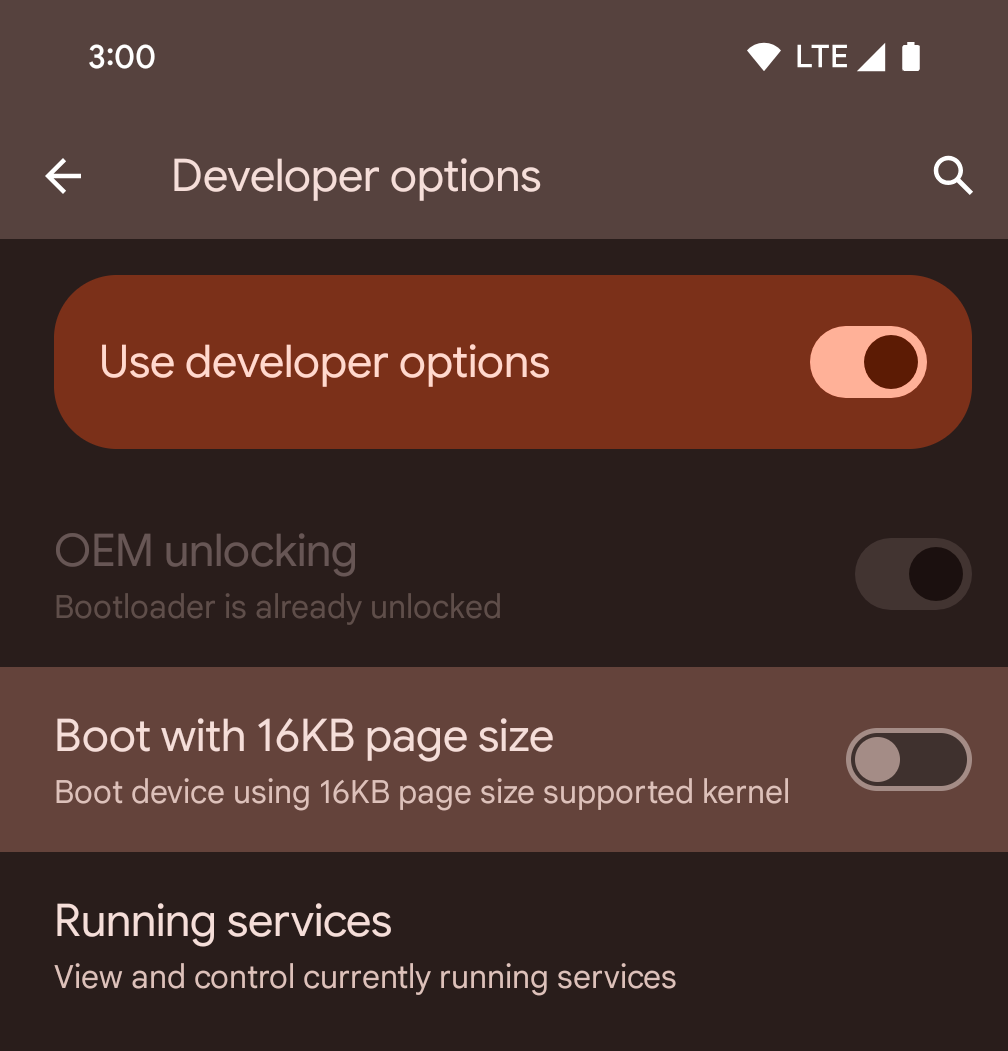
Attiva l'opzione per sviluppatori Avvia con dimensione pagina 16 kB per avviare un dispositivo in modalità a 16 kB.
Nelle versioni QPR di Android 15, puoi utilizzare l'opzione sviluppatore disponibile su alcuni dispositivi per avviare il dispositivo in modalità 16 KB ed eseguire test sul dispositivo. Prima di utilizzare l'opzione sviluppatore, vai a Impostazioni > Sistema > Aggiornamenti software e applica gli aggiornamenti disponibili.
Questa opzione sviluppatore è disponibile sui seguenti dispositivi:
Pixel 8 e 8 Pro (con Android 15 QPR1 o versioni successive)
Pixel 8a (con Android 15 QPR1 o versioni successive)
Pixel 9, 9 Pro e 9 Pro XL (con Android 15 QPR2 Beta 2 o versioni successive)
Grafica
Android 15 offre i più recenti miglioramenti grafici, tra cui ANGLE e aggiunte al sistema grafico Canvas.
Modernizzazione dell'accesso alla GPU di Android

Android hardware has evolved quite a bit from the early days where the core OS would run on a single CPU and GPUs were accessed using APIs based on fixed-function pipelines. The Vulkan® graphics API has been available in the NDK since Android 7.0 (API level 24) with a lower-level abstraction that better reflects modern GPU hardware, scales better to support multiple CPU cores, and offers reduced CPU driver overhead — leading to improved app performance. Vulkan is supported by all modern game engines.
Vulkan is Android's preferred interface to the GPU. Therefore, Android 15 includes ANGLE as an optional layer for running OpenGL® ES on top of Vulkan. Moving to ANGLE will standardize the Android OpenGL implementation for improved compatibility, and, in some cases, improved performance. You can test out your OpenGL ES app stability and performance with ANGLE by enabling the developer option in Settings -> System -> Developer Options -> Experimental: Enable ANGLE on Android 15.
The Android ANGLE on Vulkan roadmap
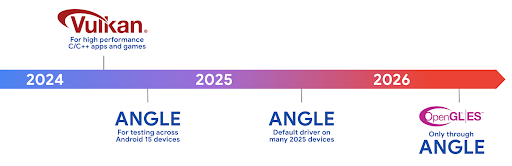
As part of streamlining our GPU stack, going forward we will be shipping ANGLE as the GL system driver on more new devices, with the future expectation that OpenGL/ES will be only available through ANGLE. That being said, we plan to continue support for OpenGL ES on all devices.
Recommended next steps
Use the developer options to select the ANGLE driver for OpenGL ES and test your app. For new projects, we strongly encourage using Vulkan for C/C++.
Miglioramenti per Canvas
Android 15 continues our modernization of Android's Canvas graphics system with additional capabilities:
Matrix44provides a 4x4 matrix for transforming coordinates that should be used when you want to manipulate the canvas in 3D.clipShaderintersects the current clip with the specified shader, whileclipOutShadersets the clip to the difference of the current clip and the shader, each treating the shader as an alpha mask. This supports the drawing of complex shapes efficiently.
Prestazioni e batteria
Android continua a concentrarsi sull'aiuto per migliorare le prestazioni e la qualità delle tue app. Android 15 introduce API che contribuiscono a rendere più efficienti le attività nella tua app, a ottimizzare le prestazioni dell'app e a raccogliere approfondimenti sulle tue app.
Per le best practice per l'efficienza della batteria, il debug dell'utilizzo di rete ed energia e dettagli su come stiamo migliorando l'efficienza della batteria del lavoro in background in Android 15 e nelle versioni recenti di Android, guarda il talk Migliorare l'efficienza della batteria del lavoro in background su Android di Google I/O.
API ApplicationStartInfo
In previous versions of Android, app startup has been a bit of a mystery. It was
challenging to determine within your app whether it started from a cold, warm,
or hot state. It was also difficult to know how long your app spent during the
various launch phases: forking the process, calling onCreate, drawing the
first frame, and more. When your Application class was instantiated, you had no
way of knowing whether the app started from a broadcast, a content provider, a
job, a backup, boot complete, an alarm, or an Activity.
The ApplicationStartInfo API on Android 15 provides
all of this and more. You can even choose to add your own timestamps into the
flow to help collect timing data in one place. In addition to collecting
metrics, you can use ApplicationStartInfo to help directly optimize app
startup; for example, you can eliminate the costly instantiation of UI-related
libraries within your Application class when your app is starting up due to a
broadcast.
Informazioni dettagliate sulle dimensioni dell'app
Since Android 8.0 (API level 26), Android has included the
StorageStats.getAppBytes API that summarizes the installed
size of an app as a single number of bytes, which is a sum of the APK size, the
size of files extracted from the APK, and files that were generated on the
device such as ahead-of-time (AOT) compiled code. This number is not very
insightful in terms of how your app is using storage.
Android 15 adds the
StorageStats.getAppBytesByDataType([type]) API, which lets
you get insight into how your app is using up all that space, including APK file
splits, AOT and speedup related code, dex metadata, libraries, and guided
profiles.
Profilazione gestita dalle app
Android 15 包含 ProfilingManager 类,可让您从应用内部收集性能分析信息,例如堆转储、堆分析报告、堆栈采样等。它使用提供的标记为您的应用提供回调,以标识输出文件,该文件将传递给应用的文件目录。该 API 会进行速率限制,以尽可能降低对性能的影响。
为了简化在应用中构建性能分析请求的过程,我们建议您使用 Core 1.15.0-rc01 或更高版本中的相应 Profiling AndroidX API。
Miglioramenti al database SQLite
Android 15 introduces SQLite APIs that expose advanced features from the underlying SQLite engine that target specific performance issues that can manifest in apps. These APIs are included with the update of SQLite to version 3.44.3.
Developers should consult best practices for SQLite performance to get the most out of their SQLite database, especially when working with large databases or when running latency-sensitive queries.
- Read-only deferred transactions: when issuing transactions that are
read-only (don't include write statements), use
beginTransactionReadOnly()andbeginTransactionWithListenerReadOnly(SQLiteTransactionListener)to issue read-onlyDEFERREDtransactions. Such transactions can run concurrently with each other, and if the database is in WAL mode, they can run concurrently withIMMEDIATEorEXCLUSIVEtransactions. - Row counts and IDs: APIs were added to retrieve the count of changed
rows or the last inserted row ID without issuing an additional query.
getLastChangedRowCount()returns the number of rows that were inserted, updated, or deleted by the most recent SQL statement within the current transaction, whilegetTotalChangedRowCount()returns the count on the current connection.getLastInsertRowId()returns therowidof the last row to be inserted on the current connection. - Raw statements: issue a raw SQlite statement, bypassing convenience wrappers and any additional processing overhead that they may incur.
Aggiornamenti di Android Dynamic Performance Framework
Android 15 continues our investment in the Android Dynamic Performance Framework (ADPF), a set of APIs that allow games and performance intensive apps to interact more directly with power and thermal systems of Android devices. On supported devices, Android 15 adds ADPF capabilities:
- A power-efficiency mode for hint sessions to indicate that their associated threads should prefer power saving over performance, great for long-running background workloads.
- GPU and CPU work durations can both be reported in hint sessions, allowing the system to adjust CPU and GPU frequencies together to best meet workload demands.
- Thermal headroom thresholds to interpret possible thermal throttling status based on headroom prediction.
To learn more about how to use ADPF in your apps and games, head over to the documentation.
Privacy
Android 15 include una serie di funzionalità che aiutano gli sviluppatori di app a proteggere la privacy degli utenti.
Rilevamento della registrazione dello schermo
Android 15 adds support for apps to detect that they are being recorded. A callback is invoked whenever the app transitions between being visible or invisible within a screen recording. An app is considered visible if activities owned by the registering process's UID are being recorded. This way, if your app is performing a sensitive operation, you can inform the user that they're being recorded.
val mCallback = Consumer<Int> { state ->
  if (state == SCREEN_RECORDING_STATE_VISIBLE) {
    // We're being recorded
  } else {
    // We're not being recorded
  }
}

override fun onStart() {
   super.onStart()
   val initialState =
      windowManager.addScreenRecordingCallback(mainExecutor, mCallback)
   mCallback.accept(initialState)
}

override fun onStop() {
    super.onStop()
    windowManager.removeScreenRecordingCallback(mCallback)
}
Funzionalità ampliate di IntentFilter
Android 15 builds in support for more precise Intent resolution through
UriRelativeFilterGroup, which contains a set of
UriRelativeFilter objects that form a set of Intent
matching rules that must each be satisfied, including URL query parameters, URL
fragments, and blocking or exclusion rules.
These rules can be defined in the AndroidManifest XML file with the
<uri-relative-filter-group> tag, which can optionally include an
android:allow tag. These tags can contain <data> tags that use existing data
tag attributes as well as the android:query and android:fragment
attributes.
Here's an example of the AndroidManifest syntax:
<intent-filter android:autoVerify="true">
  <action android:name="android.intent.action.VIEW" />
  <category android:name="android.intent.category.BROWSABLE" />
  <category android:name="android.intent.category.DEFAULT" />
  <data android:scheme="http" />
  <data android:scheme="https" />
  <data android:host="astore.com" />
  <uri-relative-filter-group>
    <data android:pathPrefix="/auth" />
    <data android:query="region=na" />
  </uri-relative-filter-group>
  <uri-relative-filter-group android:allow="false">
    <data android:pathPrefix="/auth" />
    <data android:query="mobileoptout=true" />
  </uri-relative-filter-group>
  <uri-relative-filter-group android:allow="false">
    <data android:pathPrefix="/auth" />
    <data android:fragmentPrefix="faq" />
  </uri-relative-filter-group>
</intent-filter>
Spazio privato
Private space lets users create a separate space on their device where they can keep sensitive apps away from prying eyes, under an additional layer of authentication. The private space uses a separate user profile. The user can choose to use the device lock or a separate lock factor for the private space.
Apps in the private space show up in a separate container in the launcher, and are hidden from the recents view, notifications, settings, and from other apps when the private space is locked. User-generated and downloaded content (such as media or files) and accounts are separated between the private space and the main space. The system sharesheet and the photo picker can be used to give apps access to content across spaces when the private space is unlocked.
Users can't move existing apps and their data into the private space. Instead, users select an install option in the private space to install an app using whichever app store they prefer. Apps in the private space are installed as separate copies from any apps in the main space (new copies of the same app).
When a user locks the private space, the profile is stopped. While the profile is stopped, apps in the private space are no longer active and can't perform foreground or background activities, including showing notifications.
We recommend that you test your app with private space to make sure your app works as expected, especially if your app falls into one of the following categories:
- Apps with logic for work profiles that assumes that any installed copies of their app that aren't in the main profile are in the work profile.
- Medical apps
- Launcher apps
- App store apps
Eseguire query sulla selezione più recente dell'utente per l'accesso alle foto selezionate
现在,如果应用获得了部分访问权限,则只能突出显示最近选择的照片和视频。此功能可以改善频繁请求访问照片和视频的应用的用户体验。如需在应用中使用此功能,请在通过 ContentResolver 查询 MediaStore 时启用 QUERY_ARG_LATEST_SELECTION_ONLY 参数。
Kotlin
val externalContentUri = MediaStore.Files.getContentUri("external")

val mediaColumns = arrayOf(
   FileColumns._ID,
   FileColumns.DISPLAY_NAME,
   FileColumns.MIME_TYPE,
)

val queryArgs = bundleOf(
   // Return only items from the last selection (selected photos access)
   QUERY_ARG_LATEST_SELECTION_ONLY to true,
   // Sort returned items chronologically based on when they were added to the device's storage
   QUERY_ARG_SQL_SORT_ORDER to "${FileColumns.DATE_ADDED} DESC",
   QUERY_ARG_SQL_SELECTION to "${FileColumns.MEDIA_TYPE} = ? OR ${FileColumns.MEDIA_TYPE} = ?",
   QUERY_ARG_SQL_SELECTION_ARGS to arrayOf(
       FileColumns.MEDIA_TYPE_IMAGE.toString(),
       FileColumns.MEDIA_TYPE_VIDEO.toString()
   )
)
Java
Uri externalContentUri = MediaStore.Files.getContentUri("external");

String[] mediaColumns = {
    FileColumns._ID,
    FileColumns.DISPLAY_NAME,
    FileColumns.MIME_TYPE
};

Bundle queryArgs = new Bundle();
queryArgs.putBoolean(MediaStore.QUERY_ARG_LATEST_SELECTION_ONLY, true);
queryArgs.putString(MediaStore.QUERY_ARG_SQL_SORT_ORDER, FileColumns.DATE_ADDED + " DESC");
queryArgs.putString(MediaStore.QUERY_ARG_SQL_SELECTION, FileColumns.MEDIA_TYPE + " = ? OR " + FileColumns.MEDIA_TYPE + " = ?");
queryArgs.putStringArray(MediaStore.QUERY_ARG_SQL_SELECTION_ARGS, new String[] {
    String.valueOf(FileColumns.MEDIA_TYPE_IMAGE),
    String.valueOf(FileColumns.MEDIA_TYPE_VIDEO)
});
Privacy Sandbox su Android
Android 15 includes the latest Android Ad Services extensions, incorporating the latest version of the Privacy Sandbox on Android. This addition is part of our work to develop technologies that improve user privacy and enable effective, personalized advertising experiences for mobile apps. Our privacy sandbox page has more information about the Privacy Sandbox on Android developer preview and beta programs to help you get started.
Connessione Salute
Android 15 integrates the latest extensions around Health Connect by Android, a secure and centralized platform to manage and share app-collected health and fitness data. This update adds support for additional data types across fitness, nutrition, skin temperature, training plans, and more.
Skin temperature tracking allows users to store and share more accurate temperature data from a wearable or other tracking device.
Training plans are structured workout plans to help a user achieve their fitness goals. Training plans support includes a variety of completion and performance goals:
- Completion goals around calories burned, distance, duration, repetition, and steps.
- Performance goals around as many repetitions as possible (AMRAP), cadence, heart rate, power, perceived rate of exertion, and speed.
Learn more about the latest updates to Health Connect in Android in the Building adaptable experiences with Android Health talk from Google I/O.
Condivisione della schermata dell'app
Android 15 supporta la condivisione dello schermo delle app, quindi gli utenti possono condividere o registrare solo una finestra dell'app anziché l'intero schermo del dispositivo. Questa funzionalità, attivata per la prima volta in Android 14 QPR2, include callback di MediaProjection che consentono alla tua app di personalizzare l'esperienza di condivisione schermo dell'app. Tieni presente che per le app che hanno come target Android 14 (livello API 34) o versioni successive, il consenso dell'utente è obbligatorio per ogni sessione di acquisizione MediaProjection.
Esperienza utente e UI di sistema
Android 15 offre a sviluppatori di app e utenti maggiore controllo e flessibilità per configurare il dispositivo in base alle proprie esigenze.
Per scoprire di più su come utilizzare i miglioramenti più recenti di Android 15 per migliorare l'esperienza utente della tua app, guarda la presentazione Migliorare l'esperienza utente della tua app Android di Google I/O.
Anteprime dei widget più ricche con l'API Generated Previews
Before Android 15, the only way to provide widget picker previews was to specify a static image or layout resource. These previews often differ significantly from the look of the actual widget when it is placed on the home screen. Also, static resources can't be created with Jetpack Glance, so a Glance developer had to screenshot their widget or create an XML layout to have a widget preview.
Android 15 adds support for generated previews. This means that app widget
providers can generate RemoteViews to use as the picker preview, instead
of a static resource.
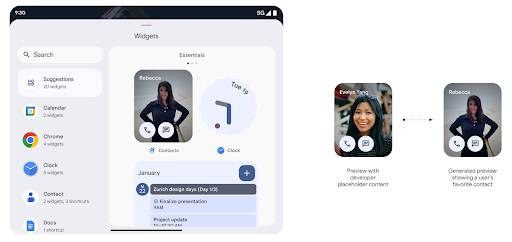
Push API
Apps can provide generated previews through a push API. Apps can provide
previews at any point in their lifecycle, and don't receive an explicit request
from the host to provide previews. Previews are persisted in AppWidgetService,
and hosts can request them on-demand. The following example loads an XML widget
layout resource and sets it as the preview:
AppWidgetManager.getInstance(appContext).setWidgetPreview(
   ComponentName(
       appContext,
       SociaLiteAppWidgetReceiver::class.java
   ),
   AppWidgetProviderInfo.WIDGET_CATEGORY_HOME_SCREEN,
   RemoteViews("com.example", R.layout.widget_preview)
)
The expected flow is:
- At any time, the widget provider calls
setWidgetPreview. The provided previews are persisted inAppWidgetServicewith other provider info. setWidgetPreviewnotifies hosts of an updated preview through theAppWidgetHost.onProvidersChangedcallback. In response, the widget host reloads all of its provider information.- When displaying a widget preview, the host checks
AppWidgetProviderInfo.generatedPreviewCategories, and if the chosen category is available, callsAppWidgetManager.getWidgetPreviewto return the saved preview for this provider.
When to call setWidgetPreview
Because there is no callback to provide previews, apps can choose to send previews at any point when they are running. How often to update the preview depends on the widget's use case.
The following list describes the two main categories of preview use cases:
- Providers that show real data in their widget previews, such as personalized or recent information. These providers can set the preview once the user has signed in or has done initial configuration in their app. After this, they can set up a periodic task to update the previews at their chosen cadence. Examples of this type of widget could be a photo, calendar, weather or news widget.
- Providers that show static information in previews or quick-action widgets that don't display any data. These providers can set previews once, when the app first launches. Examples of this type of widget include a drive quick actions widget or chrome shortcuts widget.
Some providers might show static previews on the hub mode picker, but real information on the homescreen picker. These providers should follow the guidance for both of these use cases to set previews.
Picture in picture
Android 15 introduces changes in Picture-in-Picture (PiP) ensuring an even smoother transition when entering into PiP mode. This will be beneficial for apps having UI elements overlaid on top of their main UI, which goes into PiP.
Developers use the onPictureInPictureModeChanged callback to define logic
that toggles the visibility of the overlaid UI elements. This callback is
triggered when the PiP enter or exit animation is completed. Beginning in
Android 15, the PictureInPictureUiState class includes another state.
With this UI state, apps targeting Android 15 (API level 35) will observe the
Activity#onPictureInPictureUiStateChanged callback being invoked with
isTransitioningToPip() as soon as the PiP animation starts. There are
many UI elements that are not relevant for the app when it is in PiP mode, for
example views or layout that include information such as suggestions, upcoming
video, ratings, and titles. When the app goes to PiP mode, use the
onPictureInPictureUiStateChanged callback to hide these UI elements. When the
app goes to full screen mode from the PiP window, use
onPictureInPictureModeChanged callback to unhide these elements, as shown in
the following examples:
override fun onPictureInPictureUiStateChanged(pipState: PictureInPictureUiState) {
        if (pipState.isTransitioningToPip()) {
          // Hide UI elements
        }
    }
override fun onPictureInPictureModeChanged(isInPictureInPictureMode: Boolean) {
        if (isInPictureInPictureMode) {
          // Unhide UI elements
        }
    }
This quick visibility toggle of irrelevant UI elements (for a PiP window) helps ensure a smoother and flicker-free PiP enter animation.
Regole Non disturbare migliorate
AutomaticZenRule lets apps customize Attention
Management (Do Not Disturb) rules and decide when to activate or deactivate
them. Android 15 greatly enhances these rules with the goal of improving the
user experience. The following enhancements are included:
- Adding types to
AutomaticZenRule, allowing the system to apply special treatment to some rules. - Adding an icon to
AutomaticZenRule, helping to make the modes be more recognizable. - Adding a
triggerDescriptionstring toAutomaticZenRulethat describes the conditions on which the rule should become active for the user. - Added
ZenDeviceEffectstoAutomaticZenRule, allowing rules to trigger things like grayscale display, night mode, or dimming the wallpaper.
Impostare VibrationEffect per i canali di notifica
Android 15 supports setting rich vibrations for incoming notifications by
channel using NotificationChannel.setVibrationEffect, so
your users can distinguish between different types of notifications without
having to look at their device.
Etichetta della barra di stato della proiezione di contenuti multimediali e arresto automatico
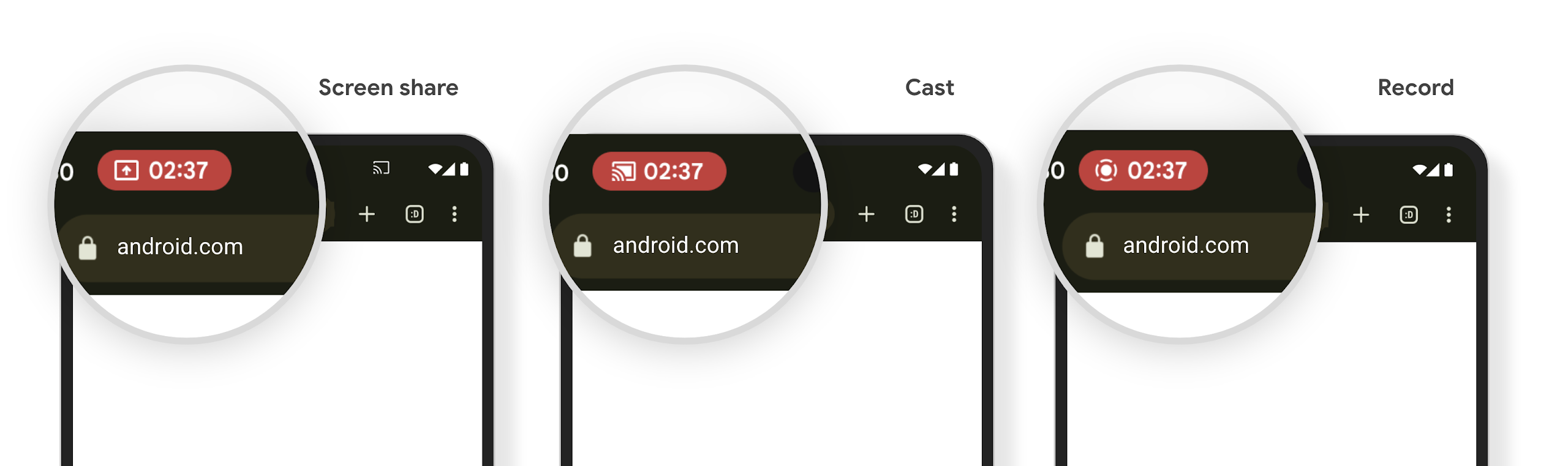
La proiezione di contenuti multimediali può esporre informazioni private degli utenti. Un nuovo chip della barra di stato in evidenza informa gli utenti di eventuali proiezioni dello schermo in corso. Gli utenti possono toccare il chip per interrompere la trasmissione, la condivisione o la registrazione dello schermo. Inoltre, per un'esperienza utente più intuitiva, qualsiasi proiezione dello schermo in corso ora si interrompe automaticamente quando lo schermo del dispositivo è bloccato.
Schermi grandi e fattori di forma
Android 15 offre alle tue app il supporto per sfruttare al meglio i fattori di forma di Android, inclusi schermi di grandi dimensioni, smartphone con apertura a libro e pieghevoli.
Multitasking migliore su schermo grande
Android 15 gives users better ways to multitask on large screen devices. For example, users can save their favorite split-screen app combinations for quick access and pin the taskbar on screen to quickly switch between apps. This means that making sure your app is adaptive is more important than ever.
Google I/O has sessions on Building adaptive Android apps and Building UI with the Material 3 adaptive library that can help, and our documentation has more to help you Design for large screens.
Supporto dello schermo della cover
Your app can declare a property that Android 15 uses to
allow your Application or Activity to be presented on the small cover
screens of supported flippable devices. These screens are too small to be
considered as compatible targets for Android apps to run on, but your app can
opt in to supporting them, making your app available in more places.
Connettività
Android 15 aggiorna la piattaforma per consentire alla tua app di accedere agli ultimi progressi nelle tecnologie di comunicazione e wireless.
Supporto satellitare
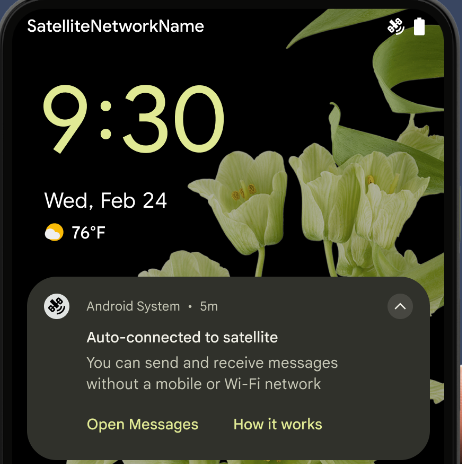
Android 15 continues to extend platform support for satellite connectivity and includes some UI elements to ensure a consistent user experience across the satellite connectivity landscape.
Apps can use ServiceState.isUsingNonTerrestrialNetwork() to
detect when a device is connected to a satellite, giving them more awareness of
why full network services might be unavailable. Additionally, Android 15
provides support for SMS and MMS apps as well as preloaded RCS apps to use
satellite connectivity for sending and receiving messages.
Esperienze NFC più fluide
Android 15 正在努力打造更顺畅、更可靠的感应式付款体验,同时继续支持 Android 强大的 NFC 应用生态系统。在受支持的设备上,应用可以请求 NfcAdapter 进入观察模式,在该模式下,设备会监听但不会响应 NFC 读卡器,并将应用的 NFC 服务 PollingFrame
对象发送以进行处理。PollingFrame 对象可用于在与 NFC 读卡器进行首次通信之前进行身份验证,在许多情况下,这支持一触式交易。
此外,应用可以在受支持的设备上注册过滤器,以便在有轮询循环活动时收到通知,从而能够与多个感知 NFC 的应用顺畅运行。
Ruolo del portafoglio
Android 15 introduce un ruolo Wallet che consente un'integrazione più stretta con l'app Wallet preferita dall'utente. Questo ruolo sostituisce l'impostazione di pagamento contactless predefinita NFC. Gli utenti possono gestire il proprietario del ruolo Wallet andando a Impostazioni > App > App predefinite.
Il ruolo Wallet viene utilizzato per instradare i tocchi NFC per gli AID registrati nella categoria pagamenti. I tocchi vanno sempre al titolare del ruolo Wallet, a meno che un'altra app registrata per lo stesso AID non sia in esecuzione in primo piano.
Questo ruolo viene utilizzato anche per determinare dove deve essere inserito il riquadro di accesso rapido a Wallet quando viene attivato. Quando il ruolo è impostato su "Nessuna", il riquadro Accesso rapido non è disponibile e i tocchi NFC per la categoria di pagamento vengono inviati solo all'app in primo piano.
Sicurezza
Android 15 ti aiuta a migliorare la sicurezza della tua app, proteggere i dati dell'app e offre agli utenti maggiore trasparenza e controllo sui propri dati. Guarda il talk Safeguarding user security on Android di Google I/O per scoprire di più su cosa stiamo facendo per migliorare le misure di salvaguardia degli utenti e proteggere la tua app da nuove minacce.
Integrare Gestore delle credenziali con la compilazione automatica
Starting with Android 15, developers can link specific views like username or password fields with Credential Manager requests, making it easier to provide a tailored user experience during the sign-in process. When the user focuses on one of these views, a corresponding request is sent to Credential Manager. The resulting credentials are aggregated across providers and displayed in autofill fallback UIs, such as inline suggestions or drop-down suggestions. The Jetpack androidx.credentials library is the preferred endpoint for developers to use and will soon be available to further enhance this feature in Android 15 and higher.
Integrare la registrazione e l'accesso con un solo tocco con le richieste biometriche
Credential Manager integrates biometric prompts into the credential creation and sign-in processes, eliminating the need for providers to manage biometric prompts. As a result, credential providers only need to focus on the results of the create and get flows, augmented with the biometric flow result. This simplified process creates a more efficient and streamlined credential creation and retrieval process.
Gestione delle chiavi per la crittografia end-to-end
We are introducing the E2eeContactKeysManager in Android 15, which
facilitates end-to-end encryption (E2EE) in your Android apps by providing an
OS-level API for the storage of cryptographic public keys.
The E2eeContactKeysManager is designed to integrate with the platform
contacts app to give users a centralized way to manage and verify their
contacts' public keys.
Controlli delle autorizzazioni sugli URI dei contenuti
Android 15 introduces a set of APIs that perform permission checks on content URIs:
Context.checkContentUriPermissionFull: This performs a full permission check on content URIs.Activitymanifest attributerequireContentUriPermissionFromCaller: This enforces specified permissions on the provided content URIs at activity launch.ComponentCallerclass forActivitycallers: This represents the app that launched the activity.
Accessibilità
Android 15 aggiunge funzionalità che migliorano l'accessibilità per gli utenti.
Braille migliorato
In Android 15, abbiamo reso possibile per TalkBack supportare i display braille che utilizzano lo standard HID sia tramite USB che tramite Bluetooth sicuro.
Questo standard, molto simile a quello utilizzato da mouse e tastiere, aiuterà Android a supportare nel tempo una gamma più ampia di display braille.
Internazionalizzazione
Android 15 aggiunge funzionalità e capacità che completano l'esperienza utente quando un dispositivo viene utilizzato in lingue diverse.
Carattere variabile CJK
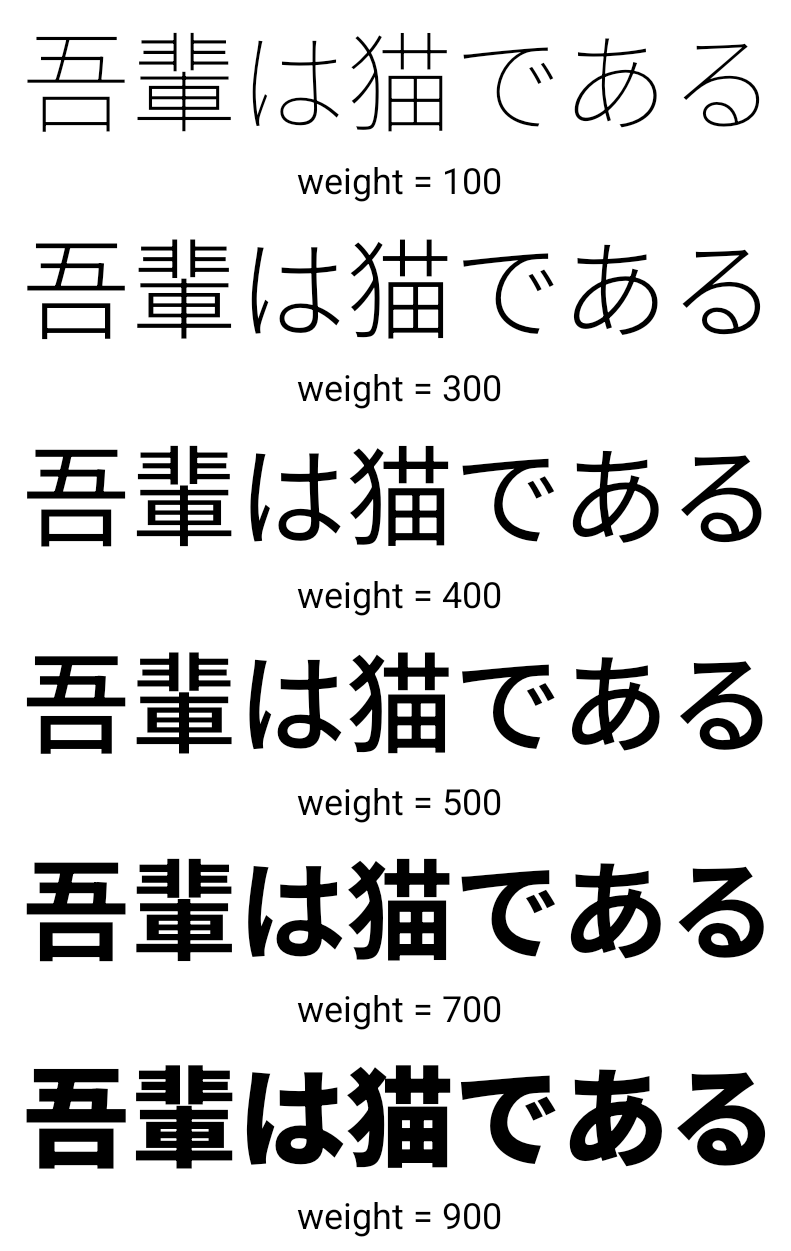
从 Android 15 开始,面向中文、日文和韩文 (CJK) 语言的字体文件 NotoSansCJK 现在是可变字体。可变字体为中日韩语言的创意排版提供了更多可能性。设计师可以探索更多样式的排版,并制作出以前难以实现或根本无法实现的视觉效果出色的布局。
Giustificazione tra i caratteri
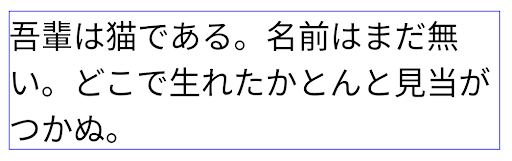
A partire da Android 15, il testo può essere giustificato utilizzando la spaziatura tra le lettere
utilizzando JUSTIFICATION_MODE_INTER_CHARACTER. La giustificazione tra parole era
introdotto per la prima volta in Android 8.0 (livello API 26) e
giustificazione offre funzionalità simili per i linguaggi che utilizzano
spazio vuoto per la segmentazione, ad esempio cinese, giapponese e altri.
JUSTIFICATION_MODE_NONE.
JUSTIFICATION_MODE_NONE.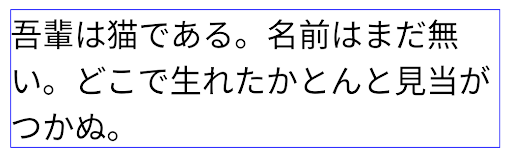
JUSTIFICATION_MODE_INTER_WORD.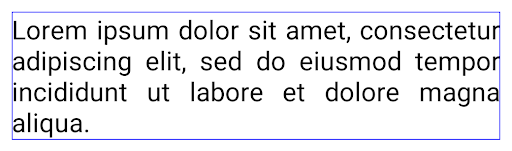
JUSTIFICATION_MODE_INTER_WORD.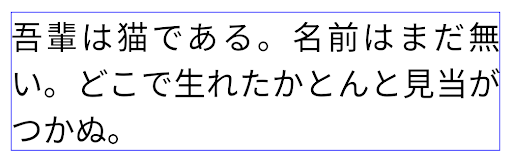
JUSTIFICATION_MODE_INTER_CHARACTER.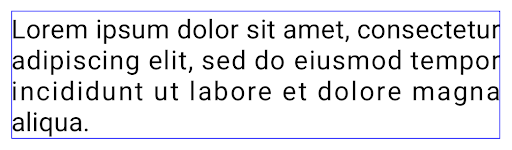
JUSTIFICATION_MODE_INTER_CHARACTER.Configurazione dell'interruzione di riga automatica
Android 从以下语言开始支持基于短语的日语和韩语换行:
Android 13(API 级别 33)。不过,虽然基于短语的行分隔符可以提高短文本行的可读性,但对于长文本行,效果并不理想。在 Android 15 中,应用只能使用 LINE_BREAK_WORD_STYLE_AUTO 选项,针对短文本行应用基于短语的行分隔符。此选项会为文本选择最佳字词样式选项。
对于短文本行,则使用基于短语的换行符,功能相同
为 LINE_BREAK_WORD_STYLE_PHRASE,如
以下图片:
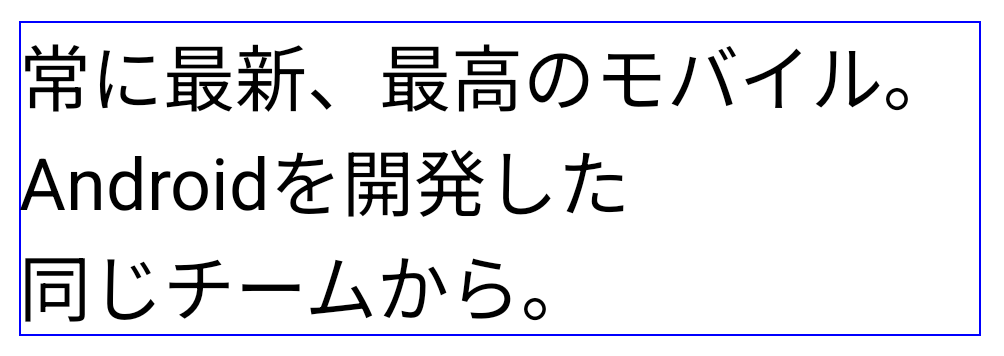
LINE_BREAK_WORD_STYLE_AUTO
应用基于短语的换行符,以提高文本的可读性。
这与应用
LINE_BREAK_WORD_STYLE_PHRASE。对于较长的文本行,LINE_BREAK_WORD_STYLE_AUTO 会使用 no
换行字词样式,
LINE_BREAK_WORD_STYLE_NONE,如
以下图片:
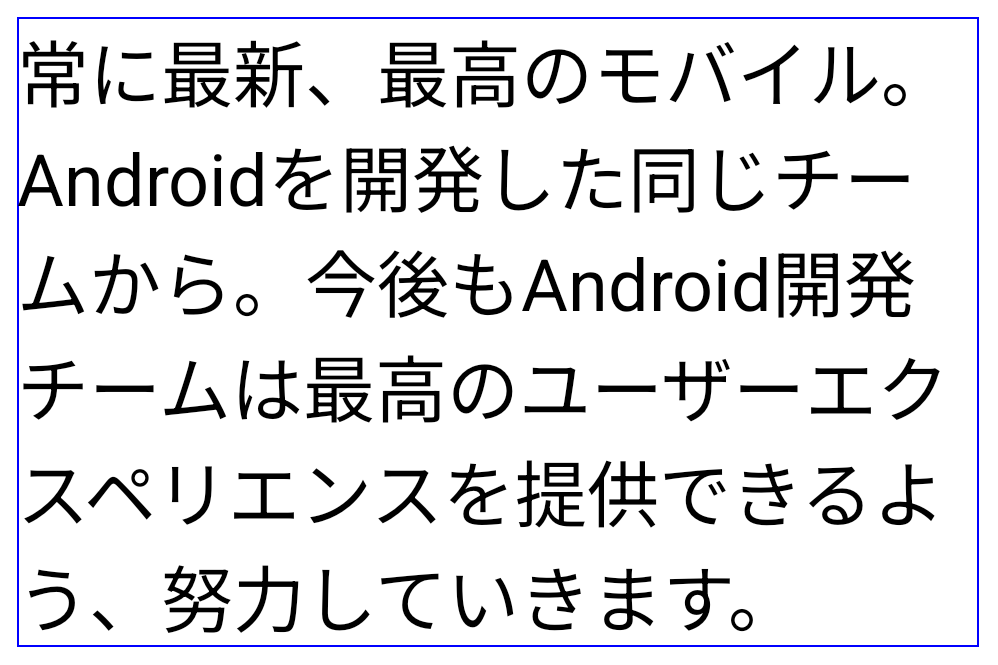
LINE_BREAK_WORD_STYLE_AUTO
应用不换行的字词样式,以提高文本的可读性。
这与应用
LINE_BREAK_WORD_STYLE_NONE。Carattere Hentaigana giapponese aggiuntivo
In Android 15, un file del carattere per l'hiragana giapponese antico (noto come hentaigana) è incluso per impostazione predefinita. Le forme uniche dei caratteri hentaigana possono aggiungere un tocco distintivo all'artwork o al design, contribuendo al contempo a preservare la trasmissione e la comprensione accurate dei documenti giapponesi antichi.

VideoLAN cone Copyright (c) 1996-2010 VideoLAN. This logo or a modified version may be used or modified by anyone to refer to the VideoLAN project or any product developed by the VideoLAN team, but does not indicate endorsement by the project.
Vulkan and the Vulkan logo are registered trademarks of the Khronos Group Inc.
OpenGL is a registered trademark and the OpenGL ES logo is a trademark of Hewlett Packard Enterprise used by permission by Khronos.