
The Credential Manager Holder API enables your Android holder (also called "wallet") app to manage and present digital credentials to verifiers.
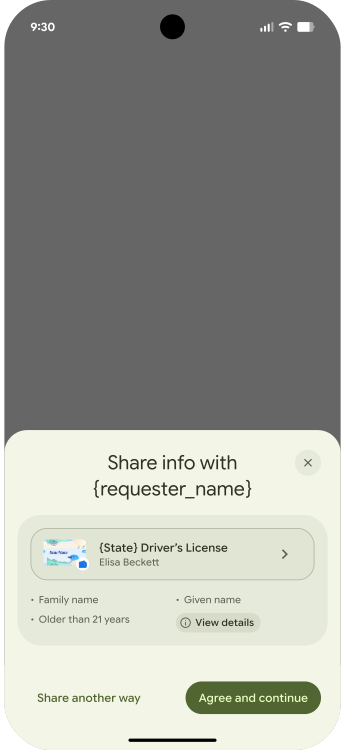
Core concepts
It is important to familiarize yourself with the following concepts before utilizing the Holder API.
Credential formats
Credentials can be stored in holder apps in different credential formats. These formats are specifications for how a credential should be represented, and each one contains the following information about the credential:
- Type: The category such a university degree or a mobile drivers license.
- Properties: Attributes such as first and last name.
- Encoding: The way the credential is structured, for example SD-JWT or mdoc
- Validity: Method to cryptographically verify the credential's authenticity.
Each credential format does the encoding and validation slightly differently, but functionally they are the same.
The registry supports two formats:
- SD-JWT: conforms to the IETF SD-JWT-based Verifiable Credentials (SD-JWT VC) specification.
- Mobile Documents or mdocs: conforms to the ISO/IEC 18013-5:2021 specification.
A verifier may make an OpenID4VP request for SD-JWT and mdocs when using Credential Manager. The choice varies depending on the use case and the industry choice.
Credential metadata registration
Credential Manager doesn't store a holder's credentials directly, but rather the
credentials' metadata. A holder app must first register credential metadata
with Credential Manager using RegistryManager. This registration process
creates a registry record which serves two key purposes:
- Matching: Registered credential metadata is used to match with future verifier requests.
- Display: Customized UI elements are shown to the user on the credential selector interface.
You will use the OpenId4VpRegistry class to register your digital credentials,
as it supports both mdoc and SD-JWT credential formats. Verifiers will send
OpenID4VP requests to request these credentials.
Register your app's credentials
To use the Credential Manager Holder API, add the following dependencies to your app module's build script:
Groovy
dependencies {
    // Use to implement credentials registrys

    implementation "androidx.credentials.registry:registry-digitalcredentials-mdoc:1.0.0-alpha04"
    implementation "androidx.credentials.registry:registry-digitalcredentials-preview:1.0.0-alpha04"
    implementation "androidx.credentials.registry:registry-provider:1.0.0-alpha04"
    implementation "androidx.credentials.registry:registry-provider-play-services:1.0.0-alpha04"

}
Kotlin
dependencies {
    // Use to implement credentials registrys

    implementation("androidx.credentials.registry:registry-digitalcredentials-mdoc:1.0.0-alpha04")
    implementation("androidx.credentials.registry:registry-digitalcredentials-preview:1.0.0-alpha04")
    implementation("androidx.credentials.registry:registry-provider:1.0.0-alpha04")
    implementation("androidx.credentials.registry:registry-provider-play-services:1.0.0-alpha04")

}
Create the RegistryManager
Create a RegistryManager instance and register an OpenId4VpRegistry request
with it.
// Create the registry manager
val registryManager = RegistryManager.create(context)

// The guide covers how to build this out later
val registryRequest = OpenId4VpRegistry(credentialEntries, id)

try {
    registryManager.registerCredentials(registryRequest)
} catch (e: Exception) {
    // Handle exceptions
}
Build an OpenId4VpRegistry request
As mentioned earlier, you will need to register an OpenId4VpRegistry to handle
an OpenID4VP request from a verifier. We'll assume you have some local data
types loaded with your wallet credentials (for example, sdJwtsFromStorage).
You will now convert them into our Jetpack DigitalCredentialEntry equivalents
based on their format - SdJwtEntry or MdocEntry for SD-JWT or mdoc,
respectively.
Add Sd-JWTs into the registry
Map each local SD-JWT credential to an SdJwtEntry for the registry:
fun mapToSdJwtEntries(sdJwtsFromStorage: List<StoredSdJwtEntry>): List<SdJwtEntry> {
    val list = mutableListOf<SdJwtEntry>()

    for (sdJwt in sdJwtsFromStorage) {
        list.add(
            SdJwtEntry(
                verifiableCredentialType = sdJwt.getVCT(),
                claims = sdJwt.getClaimsList(),
                entryDisplayPropertySet = sdJwt.toDisplayProperties(),
                id = sdJwt.getId() // Make sure this cannot be readily guessed
            )
        )
    }
    return list
}
Add mdocs into the Registry
Map your local mdoc credentials into the Jetpack type MdocEntry:
fun mapToMdocEntries(mdocsFromStorage: List<StoredMdocEntry>): List<MdocEntry> {
    val list = mutableListOf<MdocEntry>()

    for (mdoc in mdocsFromStorage) {
        list.add(
            MdocEntry(
                docType = mdoc.retrieveDocType(),
                fields = mdoc.getFields(),
                entryDisplayPropertySet = mdoc.toDisplayProperties(),
                id = mdoc.getId() // Make sure this cannot be readily guessed
            )
        )
    }
    return list
}
Key points about the code
- One method of configuring the
idfield is to register an encrypted credential identifier, so only you can decrypt the value. - The UI display fields for both formats should be localized.
Register your credentials
Combine your converted entries and register the request with the
RegistryManager:
val credentialEntries = mapToSdJwtEntries(sdJwtsFromStorage) + mapToMdocEntries(mdocsFromStorage)

val openidRegistryRequest = OpenId4VpRegistry(
    credentialEntries = credentialEntries,
    id = "my-wallet-openid-registry-v1" // A stable, unique ID to identify your registry record.
)
Now, we are ready to register your credentials with CredentialManager.
try {
    val response = registryManager.registerCredentials(openidRegistryRequest)
} catch (e: Exception) {
    // Handle failure
}
You've now registered your credentials with Credential Manager.
App metadata management
The metadata your holder app registers with CredentialManager has the following properties:
- Persistence: The information is saved locally, persisting across reboots.
- Siloed Storage: Each app's registry records are stored separately, meaning one app cannot change another app's registry records.
- Keyed Updates: Each app's registry records are keyed by an
id, which allows re-identifying, updating, or deleting records. - Updating Metadata: It is good practice to update the persisted metadata
whenever your app changes or is first loaded. If a registry is called multiple
times under the same
id, the latest call overwrites all prior records. To update, re-register without needing to clear the old record first.
Optional: Create a matcher
A matcher is a Wasm binary that Credential Manager runs in a sandbox to filter your registered credentials against an incoming Verifier request.
- Default matcher: The
OpenId4VpRegistryclass automatically includes the defaultOpenId4VPmatcher (OpenId4VpDefaults.DEFAULT_MATCHER) when you instantiate it. For all standard OpenID4VP use cases, the library handles matching for you. - Custom matcher: You would only implement a custom matcher if you are supporting a non-standard protocol that requires its own matching logic.
Handle a selected credential
When a user selects a credential, your holder app needs to handle the request.
You will need to define an Activity that listens to the
androidx.credentials.registry.provider.action.GET_CREDENTIAL intent filter.
Our sample wallet demonstrates this procedure.
The intent launches your activity with the Verifier request and calling origin,
which you extract with the
PendingIntentHandler.retrieveProviderGetCredentialRequest function. This
returns a ProviderGetCredentialRequest containing all the information
associated with the verifier request. There are three key components:
- The calling app: The app that made the request, retrievable with
getCallingAppInfo. - The selected credential: Information about which candidate the user has
chosen, retrieved through the
selectedCredentialSet extension method; this will match the credential ID you registered. - Specific requests: The specific request made by the verifier, retrieved
from the
getCredentialOptionsmethod. For a Digital Credentials request flow, you can expect to find a singleGetDigitalCredentialOptionin this list.
Most commonly, the verifier makes a digital credential presentation request, which you can process with the following sample code:
request.credentialOptions.forEach { option ->
    if (option is GetDigitalCredentialOption) {
        Log.i(TAG, "Got DC request: ${option.requestJson}")
        processRequest(option.requestJson)
    }
}
An example of this can be seen in the sample wallet.
Check the verifier identity
- Extract the
ProviderGetCredentialRequestfrom the intent:
val request = PendingIntentHandler.retrieveProviderGetCredentialRequest(intent)
- Check for Privileged Origin: Privileged apps (like web browsers) can
make calls on behalf of other verifiers by setting the origin parameter. To
retrieve this origin, you must pass a list of privileged and trusted callers
(an allow list in JSON format) to the
CallingAppInfo'sgetOrigin()API.
val origin = request?.callingAppInfo?.getOrigin(
    privilegedAppsJson // Your allow list JSON
)
If origin is not empty: The origin is returned if the packageName and the
certificate fingerprints obtained from signingInfo match those of an app found
in the allow list passed to the getOrigin() API. After the origin value is
obtained, the provider app should consider this a privileged call and set this
origin on the OpenID4VP response, instead of computing the origin using the
calling app's signature.
Google Password Manager uses an openly-available allow list for calls to
getOrigin(). As a credential provider, you can use this list or provide your
own in the JSON format described by the API. It is up to the provider to select
which list is used. To get privileged access with third party credential
providers, refer to the documentation provided by the third party.
If origin is empty, the verifier request is from an Android app. The app
origin to be put in the OpenID4VP response should be calculated as
android:apk-key-hash:<encoded SHA 256 fingerprint>.
val appSigningInfo = request?.callingAppInfo?.signingInfoCompat?.signingCertificateHistory[0]?.toByteArray()
val md = MessageDigest.getInstance("SHA-256")
val certHash = Base64.encodeToString(md.digest(appSigningInfo), Base64.NO_WRAP or Base64.NO_PADDING)
return "android:apk-key-hash:$certHash"
Render the Holder UI
When a credential is selected, the holder app is invoked, guiding the user through the app's UI. There are two standard ways to handle this workflow:
- If additional user authentication is needed to release the credential, use the BiometricPrompt API. This is demonstrated in the sample.
- Otherwise, many wallets opt for a silent return by rendering an empty activity that immediately passes the data back to the calling app. This minimizes user clicks and provides a more seamless experience.
Return the credential response
Once your holder app is ready to send the result back, finish the activity with the credential response:
PendingIntentHandler.setGetCredentialResponse(
    resultData,
    GetCredentialResponse(DigitalCredential(response.responseJson))
)
setResult(RESULT_OK, resultData)
finish()
If there is an exception, you can similarly send the credential exception:
PendingIntentHandler.setGetCredentialException(
    resultData,
    GetCredentialUnknownException() // Configure the proper exception
)
setResult(RESULT_OK, resultData)
finish()
Refer to the sample app for a full example of returning the credential response in context.