

Android 15 面向开发者引入了一些出色的功能和 API。以下各部分总结了这些功能,可帮助您开始使用相关 API。
如需查看新增、修改和移除的 API 的详细列表,请参阅 API 差异报告。如需详细了解添加的 API,请访问 Android API 参考文档。对于 Android 15,请查找在 API 级别 35 中添加的 API。如需了解平台变更可能会在哪些方面影响您的应用,请务必查看会影响以 Android 15 为目标平台的应用和所有应用的 Android 15 行为变更。
摄像头和媒体
Android 15 包含各种功能,可改善相机和媒体体验,并让您能够使用工具和硬件来帮助创作者在 Android 上实现自己的创意。
如需详细了解 Android 媒体和相机方面的最新功能和开发者解决方案,请观看 Google I/O 大会上的打造现代 Android 媒体和相机体验讲座。
弱光增强
Android 15 introduces Low Light Boost, an auto-exposure mode available to both Camera 2 and the night mode camera extension. Low Light Boost adjusts the exposure of the Preview stream in low-light conditions. This is different from how the night mode camera extension creates still images, because night mode combines a burst of photos to create a single, enhanced image. While night mode works very well for creating a still image, it can't create a continuous stream of frames, but Low Light Boost can. Thus, Low Light Boost enables camera capabilities, such as:
- Providing an enhanced image preview, so users are better able to frame their low-light pictures
- Scanning QR codes in low light
If you enable Low Light Boost, it automatically turns on when there's a low light level, and turns off when there's more light.
Apps can record off the Preview stream in low-light conditions to save a brightened video.
For more information, see Low Light Boost.
应用内相机控件
Android 15 添加了一个扩展程序,可让您更好地控制支持的设备上的相机硬件及其算法:
HDR 余量控制
Android 15 chooses HDR headroom that is appropriate for the underlying device
capabilities and bit-depth of the panel. For pages that have lots of SDR
content, such as a messaging app displaying a single HDR thumbnail, this
behavior can end up adversely influencing the perceived brightness of the SDR
content. Android 15 lets you control the HDR headroom with
setDesiredHdrHeadroom to strike a balance between SDR
and HDR content.

响度控制

Android 15 introduces support for the CTA-2075 loudness standard to help you avoid audio loudness inconsistencies and ensure users don't have to constantly adjust volume when switching between content. The system leverages known characteristics of the output devices (headphones and speaker) along with loudness metadata available in AAC audio content to intelligently adjust the audio loudness and dynamic range compression levels.
To enable this feature, you need to ensure loudness metadata is available in
your AAC content and enable the platform feature in your app. For this, you
instantiate a LoudnessCodecController object by
calling its create factory method with the audio
session ID from the associated AudioTrack; this
automatically starts applying audio updates. You can pass an
OnLoudnessCodecUpdateListener to modify or filter
loudness parameters before they are applied on the
MediaCodec.
// Media contains metadata of type MPEG_4 OR MPEG_D
val mediaCodec = …
val audioTrack = AudioTrack.Builder()
                                .setSessionId(sessionId)
                                .build()
...
// Create new loudness controller that applies the parameters to the MediaCodec
try {
   val lcController = LoudnessCodecController.create(mSessionId)
   // Starts applying audio updates for each added MediaCodec
}
AndroidX media3 ExoPlayer will also be updated to use the
LoudnessCodecController APIs for a seamless app integration.
虚拟 MIDI 2.0 设备
Android 13 添加了对使用 USB 连接 MIDI 2.0 设备的支持,这些设备使用通用 MIDI 数据包 (UMP) 进行通信。Android 15 将 UMP 支持扩展到了虚拟 MIDI 应用,使作曲应用能够像使用 USB MIDI 2.0 设备一样,将虚拟 MIDI 2.0 设备用作控制合成器应用的设备。
更高效的 AV1 软件解码

dav1d, the popular AV1 software decoder from VideoLAN is available for Android devices that don't support AV1 decode in hardware. dav1d is up to 3x more performant than the legacy AV1 software decoder, enabling HD AV1 playback for more users, including some low and mid tier devices.
Your app needs to opt-in to using dav1d by invoking it by name
"c2.android.av1-dav1d.decoder". dav1d will be made the default AV1 software
decoder in a subsequent update. This support is standardized and backported to
Android 11 devices that receive Google Play system updates.
开发者工作效率和工具
虽然我们的大部分工作都是围绕 Android Studio、Jetpack Compose 和 Android Jetpack 库等工具来提高您的工作效率,但我们始终在寻找平台中的方法,以帮助您更轻松地实现自己的愿景。
OpenJDK 17 更新
Android 15 将继续更新 Android 的核心库,以与最新 OpenJDK LTS 版本中的功能保持一致。
其中包含以下主要功能和改进:
- 改进了 NIO 缓冲区的使用体验
- 数据流
- 其他
math和strictmath方法 util软件包更新,包括顺序的collection、map和setDeflater中的ByteBuffer支持- 安全更新,例如
X500PrivateCredential和安全密钥更新
这些 API 会通过 Google Play 系统更新在搭载 Android 12(API 级别 31)及更高版本的 10 亿多部设备上更新,以便您以最新的编程功能为目标平台。
PDF 改进
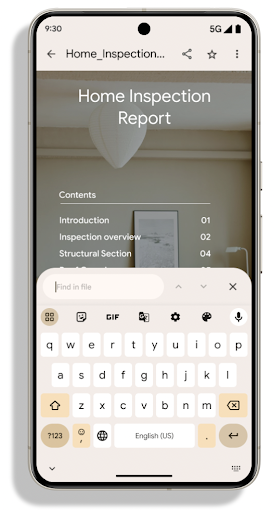
Android 15 对 PdfRenderer API 进行了重大改进。应用可以整合呈现等高级功能
受密码保护的文件、注释、表单编辑、
searching,而 selection 则包含副本。支持线性化 PDF 优化,此功能可加快本地 PDF 查看速度并减少资源使用量。Jetpack PDF 库使用这些 API 来简化 PDF 的添加
查看功能。
PdfRenderer 已移至一个可使用 Google
Play 系统更新独立于平台版本,并且我们支持
将这些变更还原到 Android 11(API 级别 30),方法是创建兼容的
Android 15 之前版本的 API Surface,称为
PdfRendererPreV。
自动切换语言功能的改进
Android 14 在音频中添加了设备端多语言识别功能,并支持在语言之间自动切换,但这可能会导致丢失字词,尤其是当两次语音之间语言切换的间隔时间较短时。Android 15 添加了其他控件,以帮助应用根据其用例调整此切换。EXTRA_LANGUAGE_SWITCH_INITIAL_ACTIVE_DURATION_TIME_MILLIS 会将自动切换限制在音频会话开始时,而 EXTRA_LANGUAGE_SWITCH_MATCH_SWITCHES 会在发生指定次数的切换后停用语言切换。如果您预计会话期间只会使用一种语言,并且该语言应被自动检测到,这些选项会特别有用。
改进的 OpenType Variable Font API
Android 15 提高了 OpenType 可变字体的易用性。您可以创建
来自可变字体的 FontFamily 实例,而不指定粗细轴
使用 buildVariableFamily API。文本渲染程序会替换 wght 轴的值,以匹配显示的文本。
使用该 API 可以大大简化创建 Typeface 的代码:
Kotlin
val newTypeface = Typeface.CustomFallbackBuilder(
            FontFamily.Builder(
                Font.Builder(assets, "RobotoFlex.ttf").build())
                    .buildVariableFamily())
    .build()
Java
Typeface newTypeface = Typeface.CustomFallbackBuilder(
            new FontFamily.Builder(
                new Font.Builder(assets, "RobotoFlex.ttf").build())
                    .buildVariableFamily())
    .build();
以前,如需创建相同的 Typeface,您需要更多代码:
Kotlin
val oldTypeface = Typeface.CustomFallbackBuilder(
            FontFamily.Builder(
                Font.Builder(assets, "RobotoFlex.ttf")
                    .setFontVariationSettings("'wght' 400")
                    .setWeight(400)
                    .build())
                .addFont(
                    Font.Builder(assets, "RobotoFlex.ttf")
                        .setFontVariationSettings("'wght' 100")
                        .setWeight(100)
                        .build()
                )
                .addFont(
                    Font.Builder(assets, "RobotoFlex.ttf")
                        .setFontVariationSettings("'wght' 200")
                        .setWeight(200)
                        .build()
                )
                .addFont(
                    Font.Builder(assets, "RobotoFlex.ttf")
                        .setFontVariationSettings("'wght' 300")
                        .setWeight(300)
                        .build()
                )
                .addFont(
                    Font.Builder(assets, "RobotoFlex.ttf")
                        .setFontVariationSettings("'wght' 500")
                        .setWeight(500)
                        .build()
                )
                .addFont(
                    Font.Builder(assets, "RobotoFlex.ttf")
                        .setFontVariationSettings("'wght' 600")
                        .setWeight(600)
                        .build()
                )
                .addFont(
                    Font.Builder(assets, "RobotoFlex.ttf")
                        .setFontVariationSettings("'wght' 700")
                        .setWeight(700)
                        .build()
                )
                .addFont(
                    Font.Builder(assets, "RobotoFlex.ttf")
                        .setFontVariationSettings("'wght' 800")
                        .setWeight(800)
                        .build()
                )
                .addFont(
                    Font.Builder(assets, "RobotoFlex.ttf")
                        .setFontVariationSettings("'wght' 900")
                        .setWeight(900)
                        .build()
                ).build()
        ).build()
Java
Typeface oldTypeface = new Typeface.CustomFallbackBuilder(
    new FontFamily.Builder(
        new Font.Builder(assets, "RobotoFlex.ttf")
            .setFontVariationSettings("'wght' 400")
            .setWeight(400)
            .build()
    )
    .addFont(
        new Font.Builder(assets, "RobotoFlex.ttf")
            .setFontVariationSettings("'wght' 100")
            .setWeight(100)
            .build()
    )
    .addFont(
        new Font.Builder(assets, "RobotoFlex.ttf")
            .setFontVariationSettings("'wght' 200")
            .setWeight(200)
            .build()
    )
    .addFont(
        new Font.Builder(assets, "RobotoFlex.ttf")
            .setFontVariationSettings("'wght' 300")
            .setWeight(300)
            .build()
    )
    .addFont(
        new Font.Builder(assets, "RobotoFlex.ttf")
            .setFontVariationSettings("'wght' 500")
            .setWeight(500)
            .build()
    )
    .addFont(
        new Font.Builder(assets, "RobotoFlex.ttf")
            .setFontVariationSettings("'wght' 600")
            .setWeight(600)
            .build()
    )
    .addFont(
        new Font.Builder(assets, "RobotoFlex.ttf")
            .setFontVariationSettings("'wght' 700")
            .setWeight(700)
            .build()
    )
    .addFont(
        new Font.Builder(assets, "RobotoFlex.ttf")
            .setFontVariationSettings("'wght' 800")
            .setWeight(800)
            .build()
    )
    .addFont(
        new Font.Builder(assets, "RobotoFlex.ttf")
            .setFontVariationSettings("'wght' 900")
            .setWeight(900)
            .build()
    )
    .build()
).build();
以下示例展示了同时使用旧版和新版 API 创建的 Typeface 的呈现方式:

在此示例中,使用旧 API 创建的 Typeface 不包含
为 350、450、550 和 650 创建准确的字体粗细
Font 实例,因此渲染程序会回退到最接近的权重。在
在此示例中,系统会渲染 300 而不是 350,渲染 400 而不是 450,
依此类推。相比之下,使用新 API 创建的 Typeface 会为给定重量动态创建 Font 实例,因此系统也会为 350、450、550 和 650 呈现准确的重量。
精细的换行控制
Starting in Android 15, a TextView and the underlying
line breaker can preserve the given portion of text in the same line to improve
readability. You can take advantage of this line break customization by using
the <nobreak> tag in string resources or
createNoBreakSpan. Similarly, you can preserve words from
hyphenation by using the <nohyphen> tag or
createNoHyphenationSpan.
For example, the following string resource doesn't include a line break, and renders with the text "Pixel 8 Pro." breaking in an undesirable place:
<resources>
    <string name="pixel8pro">The power and brains behind Pixel 8 Pro.</string>
</resources>
In contrast, this string resource includes the <nobreak> tag, which wraps the
phrase "Pixel 8 Pro." and prevents line breaks:
<resources>
    <string name="pixel8pro">The power and brains behind <nobreak>Pixel 8 Pro.</nobreak></string>
</resources>
The difference in how these strings are rendered is shown in the following images:

<nobreak> tag.
<nobreak> tag.应用归档
Android and Google Play announced support for app archiving last year, allowing users to free up space by partially removing infrequently used apps from the device that were published using Android App Bundle on Google Play. Android 15 includes OS level support for app archiving and unarchiving, making it easier for all app stores to implement it.
Apps with the REQUEST_DELETE_PACKAGES permission can call the
PackageInstaller requestArchive method to request archiving an
installed app package, which removes the APK and any cached files, but persists
user data. Archived apps are returned as displayable apps through the
LauncherApps APIs; users will see a UI treatment to highlight that those
apps are archived. If a user taps on an archived app, the responsible installer
will get a request to unarchive it, and the restoration process can be
monitored by the ACTION_PACKAGE_ADDED broadcast.
使用开发者选项在设备上启用 16 KB 模式
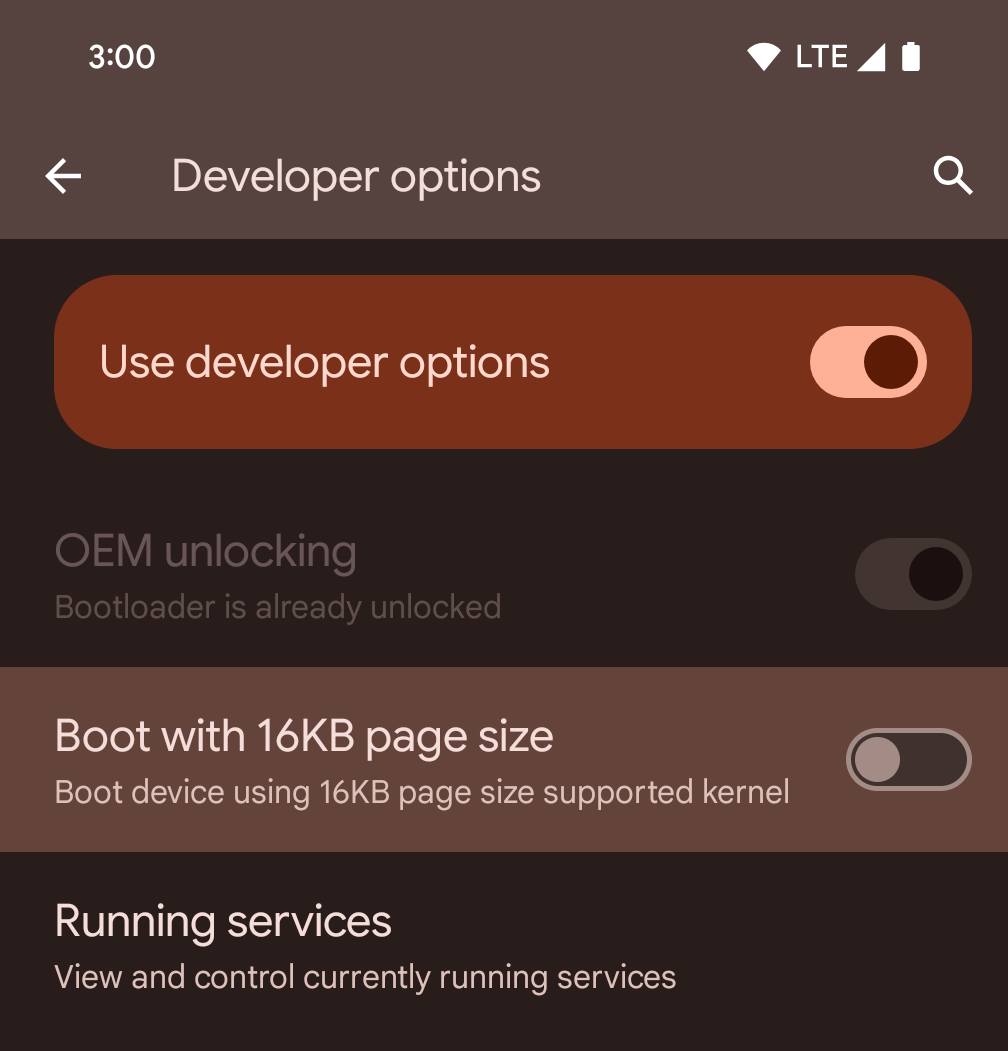
切换以 16KB 页面大小启动设备开发者选项,以在 16 KB 模式下启动设备。
在 Android 15 的 QPR 版本中,您可以使用某些设备上提供的开发者选项,以 16 KB 模式启动设备并执行设备端测试。在使用开发者选项之前,请依次前往设置 > 系统 > 软件更新,并应用所有可用的更新。
此开发者选项适用于以下设备:
Pixel 8 和 Pixel 8 Pro(搭载 Android 15 QPR1 或更高版本)
Pixel 8a(搭载 Android 15 QPR1 或更高版本)
Pixel 9、9 Pro 和 9 Pro XL(搭载 Android 15 QPR2 或更高版本)
Pixel 9a(搭载 Android 16 或更高版本)
图形
Android 15 带来了最新的图形改进,包括 ANGLE 和对 Canvas 图形系统的添加。
实现 Android GPU 访问的现代化

与早期相比,Android 硬件已经有了很大的进步。早期,核心操作系统在单个 CPU 上运行,并且使用基于固定功能流水线的 API 访问 GPU。从 Android 7.0(API 级别 24)开始,NDK 中就提供了 Vulkan® 图形 API,其较低级别的抽象更好地反映了现代 GPU 硬件,可更好地扩缩以支持多个 CPU 核心,并可降低 CPU 驱动程序开销,从而提升应用性能。所有现代游戏引擎都支持 Vulkan。
Vulkan 是 Android 与 GPU 的首选接口。因此,Android 15 包含 ANGLE 作为可选层,用于在 Vulkan 基础上运行 OpenGL® ES。改用 ANGLE 将标准化 Android OpenGL 实现,提高兼容性,在某些情况下还有助于提升性能。在 Android 15 中,您可以依次前往设置 -> 系统 -> 开发者选项 -> 实验性功能:启用 ANGLE,启用开发者选项,以便通过 ANGLE 测试 OpenGL ES 应用的稳定性和性能。
Android ANGLE on Vulkan 路线图
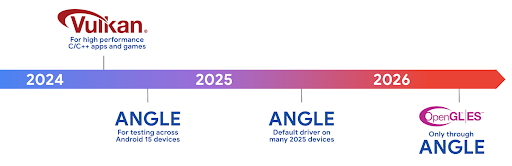
为了简化 GPU 堆栈,我们今后将在更多新设备上将 ANGLE 作为 GL 系统驱动程序提供,未来 OpenGL/ES 将只能通过 ANGLE 获得支持。尽管如此,我们计划继续在所有设备上支持 OpenGL ES。
建议的后续措施
使用开发者选项为 OpenGL ES 选择 ANGLE 驱动程序,然后测试您的应用。对于新项目,我们强烈建议您为 C/C++ 使用 Vulkan。
Canvas 方面的改进
Android 15 继续对 Android 的 Canvas 图形系统进行现代化改造,并新增了以下功能:
Matrix44提供一个 4x4 矩阵来转换坐标,当您想在 3D 中操控画布时,应使用此矩阵。clipShader会将当前剪裁区域与指定的着色器相交,而clipOutShader会将剪裁区域设为当前剪裁区域与着色器的差值,每个操作都会将着色器视为一个 Alpha 遮罩。这支持高效地绘制复杂形状。
性能和电池
Android 一直致力于帮助您提升应用的性能和质量。Android 15 引入了多项 API,可帮助您更高效地执行应用中的任务、优化应用性能,并收集有关应用的分析洞见。
如需了解省电的最佳实践、调试网络和电源使用情况,以及我们如何在 Android 15 和最新版 Android 中提高后台工作的电池效率,请观看 Google I/O 大会上的提高 Android 上后台工作的电池效率讲座。
ApplicationStartInfo API
In previous versions of Android, app startup has been a bit of a mystery. It was
challenging to determine within your app whether it started from a cold, warm,
or hot state. It was also difficult to know how long your app spent during the
various launch phases: forking the process, calling onCreate, drawing the
first frame, and more. When your Application class was instantiated, you had no
way of knowing whether the app started from a broadcast, a content provider, a
job, a backup, boot complete, an alarm, or an Activity.
The ApplicationStartInfo API on Android 15 provides
all of this and more. You can even choose to add your own timestamps into the
flow to help collect timing data in one place. In addition to collecting
metrics, you can use ApplicationStartInfo to help directly optimize app
startup; for example, you can eliminate the costly instantiation of UI-related
libraries within your Application class when your app is starting up due to a
broadcast.
详细的应用大小信息
从 Android 8.0(API 级别 26)开始,Android 包含 StorageStats.getAppBytes API,该 API 会将应用的安装大小总结为一个字节数,该数值是 APK 大小、从 APK 中提取的文件的大小以及在设备上生成的文件(例如提前编译 [AOT] 代码)的总和。此数字对于了解应用的存储空间使用情况而言,没有太大帮助。
Android 15 添加了 StorageStats.getAppBytesByDataType([type]) API,可让您深入了解应用如何使用所有这些空间,包括 APK 文件分块、AOT 和加速相关代码、DEX 元数据、库和引导式配置文件。
由应用管理的性能分析
Android 15 includes the ProfilingManager class,
which lets you collect profiling information from within your app such as heap
dumps, heap profiles, stack sampling, and more. It provides a callback to your
app with a supplied tag to identify the output file, which is delivered to your
app's files directory. The API does rate limiting to minimize the performance
impact.
To simplify constructing profiling requests in your app, we recommend using the
corresponding Profiling AndroidX API, available
in Core 1.15.0-rc01 or higher.
SQLite 数据库方面的改进
Android 15 introduces SQLite APIs that expose advanced features from the underlying SQLite engine that target specific performance issues that can manifest in apps. These APIs are included with the update of SQLite to version 3.44.3.
Developers should consult best practices for SQLite performance to get the most out of their SQLite database, especially when working with large databases or when running latency-sensitive queries.
- Read-only deferred transactions: when issuing transactions that are
read-only (don't include write statements), use
beginTransactionReadOnly()andbeginTransactionWithListenerReadOnly(SQLiteTransactionListener)to issue read-onlyDEFERREDtransactions. Such transactions can run concurrently with each other, and if the database is in WAL mode, they can run concurrently withIMMEDIATEorEXCLUSIVEtransactions. - Row counts and IDs: APIs were added to retrieve the count of changed
rows or the last inserted row ID without issuing an additional query.
getLastChangedRowCount()returns the number of rows that were inserted, updated, or deleted by the most recent SQL statement within the current transaction, whilegetTotalChangedRowCount()returns the count on the current connection.getLastInsertRowId()returns therowidof the last row to be inserted on the current connection. - Raw statements: issue a raw SQlite statement, bypassing convenience wrappers and any additional processing overhead that they may incur.
Android 动态性能框架更新
Android 15 continues our investment in the Android Dynamic Performance Framework (ADPF), a set of APIs that allow games and performance intensive apps to interact more directly with power and thermal systems of Android devices. On supported devices, Android 15 adds ADPF capabilities:
- A power-efficiency mode for hint sessions to indicate that their associated threads should prefer power saving over performance, great for long-running background workloads.
- GPU and CPU work durations can both be reported in hint sessions, allowing the system to adjust CPU and GPU frequencies together to best meet workload demands.
- Thermal headroom thresholds to interpret possible thermal throttling status based on headroom prediction.
To learn more about how to use ADPF in your apps and games, head over to the documentation.
隐私权
Android 15 包含多种功能,可帮助应用开发者保护用户隐私。
屏幕录制检测
Android 15 adds support for apps to detect that they are being recorded. A callback is invoked whenever the app transitions between being visible or invisible within a screen recording. An app is considered visible if activities owned by the registering process's UID are being recorded. This way, if your app is performing a sensitive operation, you can inform the user that they're being recorded.
val mCallback = Consumer<Int> { state ->
  if (state == SCREEN_RECORDING_STATE_VISIBLE) {
    // We're being recorded
  } else {
    // We're not being recorded
  }
}

override fun onStart() {
   super.onStart()
   val initialState =
      windowManager.addScreenRecordingCallback(mainExecutor, mCallback)
   mCallback.accept(initialState)
}

override fun onStop() {
    super.onStop()
    windowManager.removeScreenRecordingCallback(mCallback)
}
扩展了 IntentFilter 功能
Android 15 builds in support for more precise Intent resolution through
UriRelativeFilterGroup, which contains a set of
UriRelativeFilter objects that form a set of Intent
matching rules that must each be satisfied, including URL query parameters, URL
fragments, and blocking or exclusion rules.
These rules can be defined in the AndroidManifest XML file with the
<uri-relative-filter-group> tag, which can optionally include an
android:allow tag. These tags can contain <data> tags that use existing data
tag attributes as well as the android:query and android:fragment
attributes.
Here's an example of the AndroidManifest syntax:
<intent-filter android:autoVerify="true">
  <action android:name="android.intent.action.VIEW" />
  <category android:name="android.intent.category.BROWSABLE" />
  <category android:name="android.intent.category.DEFAULT" />
  <data android:scheme="http" />
  <data android:scheme="https" />
  <data android:host="astore.com" />
  <uri-relative-filter-group>
    <data android:pathPrefix="/auth" />
    <data android:query="region=na" />
  </uri-relative-filter-group>
  <uri-relative-filter-group android:allow="false">
    <data android:pathPrefix="/auth" />
    <data android:query="mobileoptout=true" />
  </uri-relative-filter-group>
  <uri-relative-filter-group android:allow="false">
    <data android:pathPrefix="/auth" />
    <data android:fragmentPrefix="faq" />
  </uri-relative-filter-group>
</intent-filter>
私密空间
Private space lets users create a separate space on their device where they can keep sensitive apps away from prying eyes, under an additional layer of authentication. The private space uses a separate user profile. The user can choose to use the device lock or a separate lock factor for the private space.
Apps in the private space show up in a separate container in the launcher, and are hidden from the recents view, notifications, settings, and from other apps when the private space is locked. User-generated and downloaded content (such as media or files) and accounts are separated between the private space and the main space. The system sharesheet and the photo picker can be used to give apps access to content across spaces when the private space is unlocked.
Users can't move existing apps and their data into the private space. Instead, users select an install option in the private space to install an app using whichever app store they prefer. Apps in the private space are installed as separate copies from any apps in the main space (new copies of the same app).
When a user locks the private space, the profile is stopped. While the profile is stopped, apps in the private space are no longer active and can't perform foreground or background activities, including showing notifications.
We recommend that you test your app with private space to make sure your app works as expected, especially if your app falls into one of the following categories:
- Apps with logic for work profiles that assumes that any installed copies of their app that aren't in the main profile are in the work profile.
- Medical apps
- Launcher apps
- App store apps
查询用户最近一次针对“选择性照片访问权限”做出的选择
Apps can now highlight only the most-recently-selected photos and videos when
partial access to media permissions is granted. This feature can improve
the user experience for apps that frequently request access to photos and
videos. To use this feature in your app, enable the
QUERY_ARG_LATEST_SELECTION_ONLY argument when querying MediaStore
through ContentResolver.
Kotlin
val externalContentUri = MediaStore.Files.getContentUri("external")

val mediaColumns = arrayOf(
   FileColumns._ID,
   FileColumns.DISPLAY_NAME,
   FileColumns.MIME_TYPE,
)

val queryArgs = bundleOf(
   // Return only items from the last selection (selected photos access)
   QUERY_ARG_LATEST_SELECTION_ONLY to true,
   // Sort returned items chronologically based on when they were added to the device's storage
   QUERY_ARG_SQL_SORT_ORDER to "${FileColumns.DATE_ADDED} DESC",
   QUERY_ARG_SQL_SELECTION to "${FileColumns.MEDIA_TYPE} = ? OR ${FileColumns.MEDIA_TYPE} = ?",
   QUERY_ARG_SQL_SELECTION_ARGS to arrayOf(
       FileColumns.MEDIA_TYPE_IMAGE.toString(),
       FileColumns.MEDIA_TYPE_VIDEO.toString()
   )
)
Java
Uri externalContentUri = MediaStore.Files.getContentUri("external");

String[] mediaColumns = {
    FileColumns._ID,
    FileColumns.DISPLAY_NAME,
    FileColumns.MIME_TYPE
};

Bundle queryArgs = new Bundle();
queryArgs.putBoolean(MediaStore.QUERY_ARG_LATEST_SELECTION_ONLY, true);
queryArgs.putString(MediaStore.QUERY_ARG_SQL_SORT_ORDER, FileColumns.DATE_ADDED + " DESC");
queryArgs.putString(MediaStore.QUERY_ARG_SQL_SELECTION, FileColumns.MEDIA_TYPE + " = ? OR " + FileColumns.MEDIA_TYPE + " = ?");
queryArgs.putStringArray(MediaStore.QUERY_ARG_SQL_SELECTION_ARGS, new String[] {
    String.valueOf(FileColumns.MEDIA_TYPE_IMAGE),
    String.valueOf(FileColumns.MEDIA_TYPE_VIDEO)
});
Privacy Sandbox on Android
Android 15 包含最新的 Android 广告服务扩展,其中包含最新版本的 Privacy Sandbox on Android。我们一直致力于开发可更好地保护用户隐私,并为移动应用打造高效的个性化广告体验的技术,此次添加新功能就是其中的一项举措。我们的 Privacy Sandbox 页面详细介绍了 Privacy Sandbox on Android 开发者预览版和 Beta 版计划,可帮助您上手使用。
健康数据共享
Android 15 集成了与 Health Connect by Android 相关的最新扩展程序。Health Connect by Android 是一个安全的集中式平台,可用于管理和共享应用收集的健康与健身数据。此次更新 增加了对健身、 营养、体表温度、训练计划等。
体表温度追踪功能让用户可以更精确地存储和分享体表温度 来自穿戴式设备或其他跟踪设备的体温数据。
训练计划是一种结构化的锻炼计划,可帮助用户实现健身目标。训练计划支持各种完成和表现目标:
如需详细了解 Android 中 Health Connect 的最新更新,请参阅 利用 Android 打造自适应体验 健康演讲。
应用屏幕共享
Android 15 supports app screen sharing so users can share or record just an
app window rather than the entire device screen. This feature, first enabled in
Android 14 QPR2, includes
MediaProjection callbacks that allow your app
to customize the app screen sharing experience. Note that for apps targeting
Android 14 (API level 34) or higher,
user consent is required for each
MediaProjection capture session.
用户体验和系统界面
Android 15 可让应用开发者和用户更灵活地控制和配置设备,以满足自身需求。
如需详细了解如何利用 Android 15 中的最新改进来提升应用的用户体验,请观看 Google I/O 大会上的提升 Android 应用的用户体验讲座。
通过“生成的预览”API 获得更丰富的 widget 预览
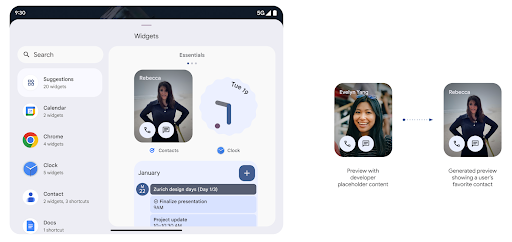
Before Android 15, the only way to provide widget picker previews was to specify a static image or layout resource. These previews often differ significantly from the look of the actual widget when it is placed on the home screen. Also, static resources can't be created with Jetpack Glance, so a Glance developer had to screenshot their widget or create an XML layout to have a widget preview.
Android 15 adds support for generated previews. This means that app widget
providers can generate RemoteViews to use as the picker preview, instead
of a static resource.
Push API
Apps can provide generated previews through a push API. Apps can provide
previews at any point in their lifecycle, and don't receive an explicit request
from the host to provide previews. Previews are persisted in AppWidgetService,
and hosts can request them on-demand. The following example loads an XML widget
layout resource and sets it as the preview:
AppWidgetManager.getInstance(appContext).setWidgetPreview(
   ComponentName(
       appContext,
       SociaLiteAppWidgetReceiver::class.java
   ),
   AppWidgetProviderInfo.WIDGET_CATEGORY_HOME_SCREEN,
   RemoteViews("com.example", R.layout.widget_preview)
)
The expected flow is:
- At any time, the widget provider calls
setWidgetPreview. The provided previews are persisted inAppWidgetServicewith other provider info. setWidgetPreviewnotifies hosts of an updated preview through theAppWidgetHost.onProvidersChangedcallback. In response, the widget host reloads all of its provider information.- When displaying a widget preview, the host checks
AppWidgetProviderInfo.generatedPreviewCategories, and if the chosen category is available, callsAppWidgetManager.getWidgetPreviewto return the saved preview for this provider.
When to call setWidgetPreview
Because there is no callback to provide previews, apps can choose to send previews at any point when they are running. How often to update the preview depends on the widget's use case.
The following list describes the two main categories of preview use cases:
- Providers that show real data in their widget previews, such as personalized or recent information. These providers can set the preview once the user has signed in or has done initial configuration in their app. After this, they can set up a periodic task to update the previews at their chosen cadence. Examples of this type of widget could be a photo, calendar, weather or news widget.
- Providers that show static information in previews or quick-action widgets that don't display any data. These providers can set previews once, when the app first launches. Examples of this type of widget include a drive quick actions widget or chrome shortcuts widget.
Some providers might show static previews on the hub mode picker, but real information on the homescreen picker. These providers should follow the guidance for both of these use cases to set previews.
画中画
Android 15 introduces changes in Picture-in-Picture (PiP) ensuring an even smoother transition when entering into PiP mode. This will be beneficial for apps having UI elements overlaid on top of their main UI, which goes into PiP.
Developers use the onPictureInPictureModeChanged callback to define logic
that toggles the visibility of the overlaid UI elements. This callback is
triggered when the PiP enter or exit animation is completed. Beginning in
Android 15, the PictureInPictureUiState class includes another state.
With this UI state, apps targeting Android 15 (API level 35) will observe the
Activity#onPictureInPictureUiStateChanged callback being invoked with
isTransitioningToPip() as soon as the PiP animation starts. There are
many UI elements that are not relevant for the app when it is in PiP mode, for
example views or layout that include information such as suggestions, upcoming
video, ratings, and titles. When the app goes to PiP mode, use the
onPictureInPictureUiStateChanged callback to hide these UI elements. When the
app goes to full screen mode from the PiP window, use
onPictureInPictureModeChanged callback to unhide these elements, as shown in
the following examples:
override fun onPictureInPictureUiStateChanged(pipState: PictureInPictureUiState) {
        if (pipState.isTransitioningToPip()) {
          // Hide UI elements
        }
    }
override fun onPictureInPictureModeChanged(isInPictureInPictureMode: Boolean) {
        if (isInPictureInPictureMode) {
          // Unhide UI elements
        }
    }
This quick visibility toggle of irrelevant UI elements (for a PiP window) helps ensure a smoother and flicker-free PiP enter animation.
改进了“勿扰”规则
AutomaticZenRule lets apps customize Attention
Management (Do Not Disturb) rules and decide when to activate or deactivate
them. Android 15 greatly enhances these rules with the goal of improving the
user experience. The following enhancements are included:
- Adding types to
AutomaticZenRule, allowing the system to apply special treatment to some rules. - Adding an icon to
AutomaticZenRule, helping to make the modes be more recognizable. - Adding a
triggerDescriptionstring toAutomaticZenRulethat describes the conditions on which the rule should become active for the user. - Added
ZenDeviceEffectstoAutomaticZenRule, allowing rules to trigger things like grayscale display, night mode, or dimming the wallpaper.
为通知渠道设置 VibrationEffect
Android 15 支持为传入的通知设置丰富的振动,方法是
频道使用的是NotificationChannel.setVibrationEffect,因此
您的用户可以区分不同类型的通知
不需要看他们的设备
媒体投屏状态栏条状标签和自动停止
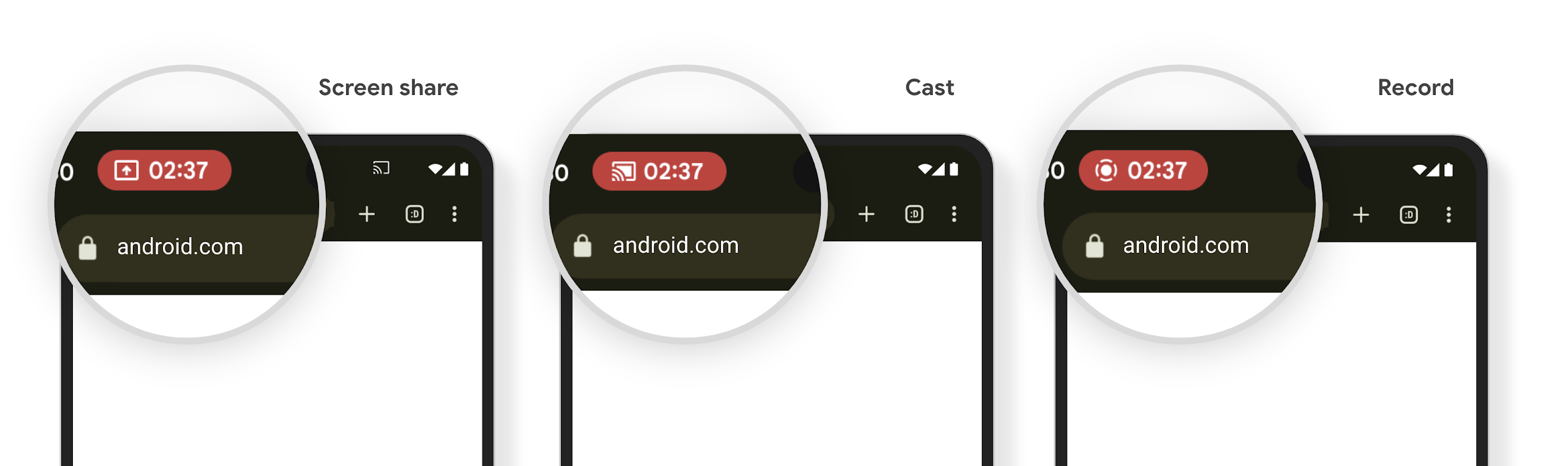
Media projection can expose private user information. A new, prominent status bar chip makes users aware of any ongoing screen projection. Users can tap the chip to stop screen casting, sharing, or recording. Also, for a more intuitive user experience, any in‑progress screen projection now automatically stops when the device screen is locked.
大屏设备和设备规格
Android 15 为您的应用提供支持,让它们能够充分利用 Android 的设备类型,包括大屏设备、翻盖设备和可折叠设备。
改进了大屏设备上的多任务处理
Android 15 为用户提供了在大屏设备上更好地进行多任务处理的方式。对于 例如,用户可以保存自己喜爱的分屏应用组合, 访问并固定屏幕上的任务栏,以便在应用之间快速切换。这意味着 让应用具备自适应能力比以往任何时候都更加重要。
Google I/O 大会上有一些关于构建自适应 Android 的会议 应用和使用 Material 3 构建界面 自适应库 我们的文档中提供了更多帮助信息,帮助您针对大型语言 。
封面屏幕支持
您的应用可以声明一个属性,Android 15 会使用该属性来允许您的 Application 或 Activity 显示在受支持的可翻转设备的小封面屏幕上。这些屏幕太小,无法被视为适合运行 Android 应用的兼容目标平台,但您的应用可以选择支持它们,从而让您的应用在更多平台上可用。
连接
Android 15 更新了平台,让您的应用能够使用通信和无线技术方面的最新进展。
卫星支持
Android 15 继续扩大对卫星连接的平台支持,并包含一些界面元素,以确保在整个卫星连接环境中提供一致的用户体验。
应用可以使用 ServiceState.isUsingNonTerrestrialNetwork() 执行以下操作:
检测设备是否连接到卫星,让他们更清楚地了解
可能会导致完全网络服务不可用的原因此外,Android 15 支持短信和彩信应用以及预加载的 RCS 应用,以便使用卫星连接发送和接收消息。

更顺畅的 NFC 体验
Android 15 正在努力打造更顺畅、更可靠的感应式付款体验,同时继续支持 Android 强大的 NFC 应用生态系统。在受支持的设备上,应用可以请求 NfcAdapter 进入观察模式,在该模式下,设备会监听但不会响应 NFC 读卡器,并将应用的 NFC 服务 PollingFrame
对象发送以进行处理。PollingFrame 对象可用于在与 NFC 读卡器进行首次通信之前进行身份验证,在许多情况下,这支持一触式交易。
此外,应用可以在受支持的设备上注册过滤器,以便在有轮询循环活动时收到通知,从而能够与多个感知 NFC 的应用顺畅运行。
钱包角色
Android 15 引入了钱包角色,可与用户的首选钱包应用更紧密地集成。此角色会取代 NFC 默认的感应式付款设置。用户可以前往设置 > 应用 > 默认应用,管理钱包角色持有者。
在为在付款类别中注册的 AID 路由 NFC 感应式付款时,系统会使用钱包角色。点按操作始终会转到 Google 钱包角色持有者,除非有已注册相同 AID 的其他应用在前台运行。
此角色还用于确定“Google 钱包”快速访问功能块在启用后应显示在何处。将角色设为“无”时,“快速访问”功能块不可用,并且支付类别 NFC 点按仅传送到前台应用。
安全
Android 15 可帮助您增强应用安全性、保护应用数据,并让用户更清楚地了解并更好地控制自己的数据。如需详细了解我们为改进用户保护措施和保护您的应用免遭新威胁侵扰而采取的措施,请观看 Google I/O 大会上的在 Android 上保障用户安全讲座。
将 Credential Manager 与自动填充功能集成
从 Android 15 开始,开发者可以将用户名或密码字段等特定视图与 Credential Manager 请求相关联,从而更轻松地在登录过程中提供量身定制的用户体验。当用户聚焦于其中一个视图时,系统会向 Credential Manager 发送相应请求。系统会汇总来自各个提供商的凭据,并在自动填充后备界面(例如内嵌建议或下拉菜单建议)中显示这些凭据。Jetpack androidx.credentials 库是开发者首选的端点,很快将在 Android 15 及更高版本中推出,以进一步增强此功能。
将一键注册和登录与生物识别提示集成
Credential Manager integrates biometric prompts into the credential creation and sign-in processes, eliminating the need for providers to manage biometric prompts. As a result, credential providers only need to focus on the results of the create and get flows, augmented with the biometric flow result. This simplified process creates a more efficient and streamlined credential creation and retrieval process.
端到端加密的密钥管理
We are introducing the E2eeContactKeysManager in Android 15, which
facilitates end-to-end encryption (E2EE) in your Android apps by providing an
OS-level API for the storage of cryptographic public keys.
The E2eeContactKeysManager is designed to integrate with the platform
contacts app to give users a centralized way to manage and verify their
contacts' public keys.
对内容 URI 进行权限检查
Android 15 引入了一组用于对内容 URI 执行权限检查的 API:
Context.checkContentUriPermissionFull:此选项会对内容 URI 执行完整权限检查。Activity清单属性requireContentUriPermissionFromCaller:此属性会在 activity 启动时对提供的内容 URI 强制执行指定权限。Activity调用方的ComponentCaller类:此类表示启动 activity 的应用。
无障碍
Android 15 新增了一些可提升用户无障碍体验的功能。
更好的盲文
在 Android 15 中,我们让 TalkBack 能够支持通过 USB 和安全蓝牙使用 HID 标准的盲文显示屏。
此标准与鼠标和键盘使用的标准非常相似,将有助于 Android 随着时间的推移支持更多类型的盲文显示屏。
国际化
Android 15 新增了多项功能,可在设备以不同语言运行时提升用户体验。
CJK 可变字体
从 Android 15 开始,面向中文、日文和韩文 (CJK) 语言的字体文件 NotoSansCJK 现在是可变字体。可变字体为中日韩语言的创意排版提供了更多可能性。设计师可以探索更多样式的排版,并制作出以前难以实现或根本无法实现的视觉效果出色的布局。

字符间两端对齐
Starting with Android 15, text can be justified utilizing letter spacing by
using JUSTIFICATION_MODE_INTER_CHARACTER. Inter-word justification was
first introduced in Android 8.0 (API level 26), and inter-character
justification provides similar capabilities for languages that use the
whitespace character for segmentation, such as Chinese, Japanese, and others.

JUSTIFICATION_MODE_NONE.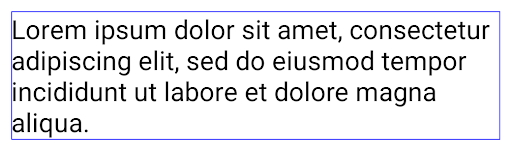
JUSTIFICATION_MODE_NONE.
JUSTIFICATION_MODE_INTER_WORD.
JUSTIFICATION_MODE_INTER_WORD.
JUSTIFICATION_MODE_INTER_CHARACTER.
JUSTIFICATION_MODE_INTER_CHARACTER.自动换行配置
Android started supporting phrase-based line breaks for Japanese and Korean in
Android 13 (API level 33). However, while phrase-based line breaks improve the
readability of short lines of text, they don't work well for long lines of text.
In Android 15, apps can apply phrase-based line breaks only for short lines
of text, using the LINE_BREAK_WORD_STYLE_AUTO
option. This option selects the best word style option for the text.
For short lines of text, phrase-based line breaks are used, functioning the same
as LINE_BREAK_WORD_STYLE_PHRASE, as shown in the
following image:

LINE_BREAK_WORD_STYLE_AUTO
applies phrase-based line breaks to improve the readability of the text.
This is the same as applying
LINE_BREAK_WORD_STYLE_PHRASE.For longer lines of text, LINE_BREAK_WORD_STYLE_AUTO uses a no
line-break word style, functioning the same as
LINE_BREAK_WORD_STYLE_NONE, as shown in the
following image:

LINE_BREAK_WORD_STYLE_AUTO
applies no line-break word style to improve the readability of the text.
This is the same as applying
LINE_BREAK_WORD_STYLE_NONE.其他日语变体假名字体
In Android 15, a font file for old Japanese Hiragana (known as Hentaigana) is bundled by default. The unique shapes of Hentaigana characters can add a distinctive flair to artwork or design while also helping to preserve accurate transmission and understanding of ancient Japanese documents.

VideoLAN 圆锥图标 版权所有 (c) 1996-2010 VideoLAN。任何人都可以使用此徽标或修改版徽标来提及 VideoLAN 项目或 VideoLAN 团队开发的任何产品,但这并不表示该项目对其表示认可。
Vulkan 和 Vulkan 徽标是 Khronos Group Inc.的注册商标。
OpenGL 是注册商标,OpenGL ES 徽标是 Hewlett Packard Enterprise 的商标,已获得 Khronos 的许可。