


Spatial Containers let your app render 3D OpenXR content inside a system-managed 3D volumetric bounding box in Full Space Mode, or transition at runtime into a full-screen unbounded experience.
Follow this guide to configure and use Spatial Containers in your project.

How Spatial Containers work
When you enable the Spatial Container OpenXR feature:
- Your entire active 3D scene is placed inside a single primary spatial
container centered at the scene origin
(0, 0, 0). You don't need to tag or assign individual GameObjects to place them inside the container. - Your app launches into managed Full Space Mode inside a bounded 3D box using
the Suggested Bounds configured in your project settings (
2.0m × 2.0m ×
2.0m
by default). In bounded mode, the system automatically clips any 3D geometry in your scene that extends outside the bounding box's dimensions. - By default, the Android XR system provides window controls so the user can
grab, move, and reposition the bounded container in 3D space, or minimize
and close it. At runtime, your app can resize the container
(
TrySuggestBounds), switch between bounded mode and full-screen immersive mode (TryRequestBoundsMode), and react to bounds and state changes usingXRSpatialContainerFeature.
Prerequisites
Before beginning, ensure your development environment and target device meet the following requirements:
- Unity version: Unity 6 version 6000.0.58f2 or higher.
- Project setup: Complete all steps in the Unity project setup guide.
- Unity packages: Complete all steps in the Android XR Extensions for Unity quickstart guide. When importing packages, use version 1.5.0 or higher of the Android XR Extensions for Unity. This is provided as a tar file in each release.
- Target device: An Android XR device supporting Spatial API Level 4
or higher. At runtime, check
XRSpatialContainerFeature.IsExtensionEnabledto verify whether the extension is available on the device.
Enable Full Space Mode and Spatial Containers
By default, full-screen OpenXR apps launch in unmanaged Full Space Mode
(XR_ACTIVITY_START_MODE_FULL_SPACE_UNMANAGED). Because Spatial Containers only
support managed Full Space Mode (XR_ACTIVITY_START_MODE_FULL_SPACE_MANAGED),
clear Immersive XR in the Session Management feature settings and configure
your activity to start in XR_ACTIVITY_START_MODE_FULL_SPACE_MANAGED.
Enable the OpenXR and Spatial Container features
- Navigate to Edit > Project Settings > XR Plug-in Management.
Select the Android tab, select OpenXR, and select Android XR (Extensions) feature group.
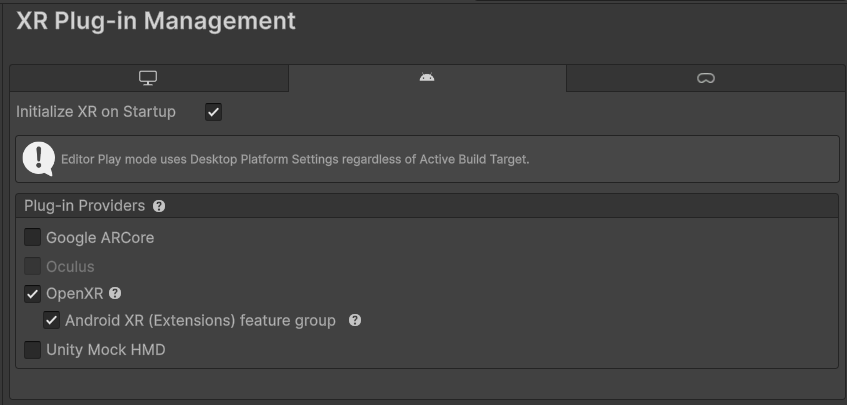
Figure 2. Enable OpenXR and the Android XR (Extensions) feature group. Under XR Plug-in Management, select OpenXR to view the OpenXR Feature Groups.
Click Settings next to Android XR (Extensions): Session Management and configure the following settings:
- Clear Immersive XR. Clearing Immersive XR prevents the build
from injecting
XR_ACTIVITY_START_MODE_FULL_SPACE_UNMANAGED. - Select Use XR Spatial API, set Requirement to Required, and set Target API Level to Automatic (highest supported).
- Clear Subsampling (Vulkan). Vulkan subsampling is not compatible with Spatial Containers.
- Clear Immersive XR. Clearing Immersive XR prevents the build
from injecting
In the OpenXR Feature Groups list, enable Spatial Container (
Google.XR.Extensions.XRSpatialContainerFeature).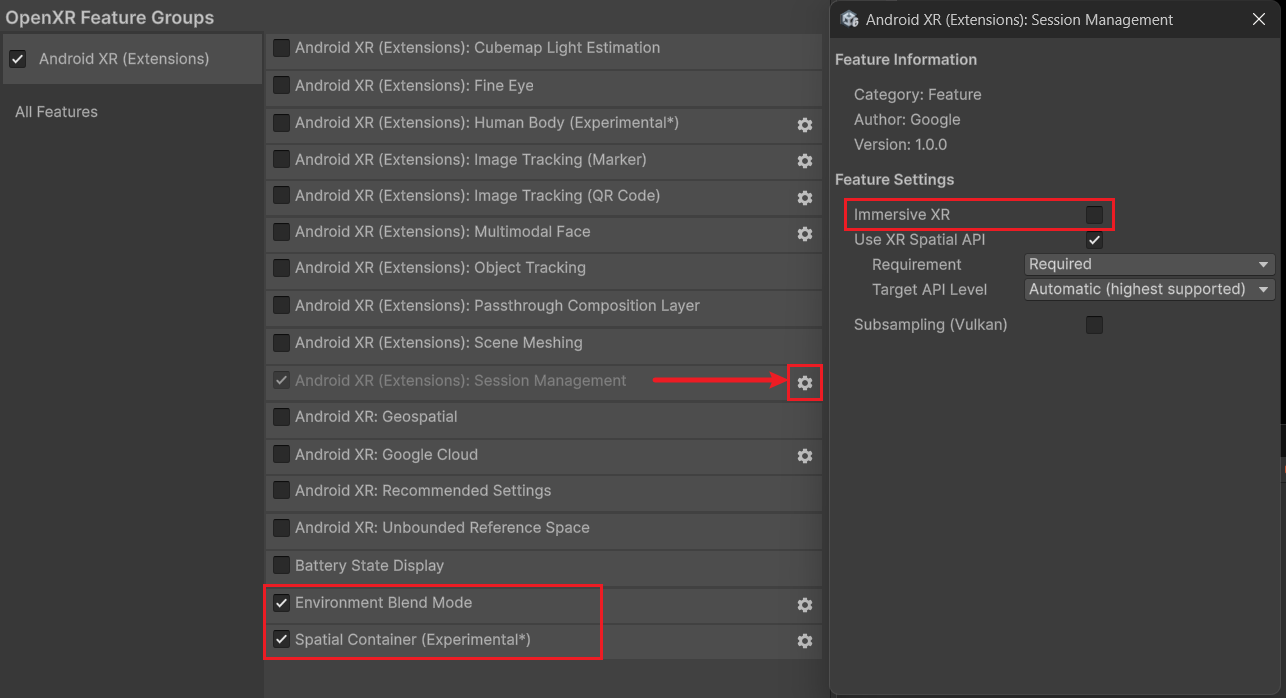
Figure 3. Clear Immersive XR in Android XR (Extensions): Session Management and enable Spatial Container. Click Settings next to Spatial Container and set Suggested Bounds to the initial width (
X), height (Y), and depth (Z) of the spatial container in meters when in bounded mode. The default value is(2.0, 2.0, 2.0), and all three values must be greater than0.
Configure Full Space Mode in AndroidManifest.xml
When you clear Immersive XR and enable Spatial Container, the Android XR
Extensions for Unity build hook automatically sets
android.window.PROPERTY_XR_ACTIVITY_START_MODE to
XR_ACTIVITY_START_MODE_FULL_SPACE_MANAGED in your app's AndroidManifest.xml
during the build.
If your project uses a Custom Main Manifest in Edit > Project Settings >
Player > Android > Publishing Settings
(Assets/Plugins/Android/AndroidManifest.xml), or if another package overrides
the start mode property, ensure that
android.window.PROPERTY_XR_ACTIVITY_START_MODE is set to
XR_ACTIVITY_START_MODE_FULL_SPACE_MANAGED:
<manifest ...>
    <application ...>
        <property
            android:name="android.window.PROPERTY_XR_ACTIVITY_START_MODE"
            android:value="XR_ACTIVITY_START_MODE_FULL_SPACE_MANAGED" />
        ...
    </application>
</manifest>
Configure transparent camera background for bounded mode
Configure your camera so that the surrounding environment remains visible outside your 3D models in bounded mode:
- Select your scene's Main Camera inside the XR Origin.
- Set Background Type to Solid Color and set the background color's
alpha channel (
A) to0(RGBA(0, 0, 0, 0)).
Add and request feature-specific permissions
Creating and rendering a basic spatial container does not require dangerous
runtime permissions. However, if your app uses scene understanding features
such as locking and anchoring a spatial container to the physical floor, your
app must request the android.permission.SCENE_UNDERSTANDING_COARSE
permission at runtime (and android.permission.HEAD_TRACKING if your app tracks
the user's head pose).
See Understand permissions for XR for a full overview of Android XR
permissions. If your app uses floor locking or scene understanding, request
SCENE_UNDERSTANDING_COARSE at runtime:
string permission =
    XRSpatialContainerFeature.RequiredPermission.ToPermissionString();

if (!Permission.HasUserAuthorizedPermission(permission))
{
    Permission.RequestUserPermission(permission);
}
Work with Spatial Containers at runtime
The XRSpatialContainerFeature OpenXR feature manages the spatial
container lifecycle and provides static methods and events to inspect the
container's current state and bounds, respond to bounds and state changes, and
request transitions between bounded mode and immersive mode. To verify at
runtime that the Spatial Container extension is supported and active on the
current device, check XRSpatialContainerFeature.IsExtensionEnabled.
Listen for bounds and state changes
Subscribe to XRSpatialContainerFeature events in OnEnable and unsubscribe in
OnDisable to respond when the container is resized or its state flags
(XRSpatialContainerStateFlags) change.
OnSpatialContainerStateChanged fires whenever any of the following
XRSpatialContainerStateFlags values change:
XRSpatialContainerStateFlags.Visible: Indicates whether the container is currently visible (true) or hidden (false). Pause animations, audio, or simulation updates whenstateisfalse.XRSpatialContainerStateFlags.Interactive: Indicates whether the container is focused and receiving user input (true) or unfocused (false). Enable or disable interactive highlights and input handling when focus changes.XRSpatialContainerStateFlags.Immersive: Indicates whether the container is in immersive mode (true) or bounded mode (false). Toggle environment visuals (such as skyboxes or passthrough) and mode-specific UI controls.
void OnEnable()
{
    XRSpatialContainerFeature.OnSpatialContainerBoundsChanged += OnBoundsChanged;
    XRSpatialContainerFeature.OnSpatialContainerStateChanged += OnStateChanged;
}

void OnDisable()
{
    XRSpatialContainerFeature.OnSpatialContainerBoundsChanged -= OnBoundsChanged;
    XRSpatialContainerFeature.OnSpatialContainerStateChanged -= OnStateChanged;
}

private void OnStateChanged(XRSpatialContainerStateFlags flag, bool state)
{
    switch (flag)
    {
        case XRSpatialContainerStateFlags.Visible:
            // Pause or resume simulation and audio based on visibility
            break;
        case XRSpatialContainerStateFlags.Interactive:
            // Enable or disable input handling and focus highlights
            break;
        case XRSpatialContainerStateFlags.Immersive:
            // Update environment visuals for immersive (true) or bounded (false) mode
            break;
    }
}
Scale content to container bounds
When in bounded mode, scale your 3D content uniformly by the smallest dimension
of bounds so that it preserves its aspect ratio and always fits inside the
smallest side of the container. When infiniteBounds is true (immersive
mode), restore your content to its full 1:1 world scale:
private void OnBoundsChanged(Vector3 bounds, bool infiniteBounds)
{
    if (infiniteBounds)
    {
        contentRoot.localScale = Vector3.one;
        return;
    }

    float minScale = Mathf.Min(bounds.x, bounds.y, bounds.z);
    contentRoot.localScale = Vector3.one * minScale;
}
Switch between bounded and immersive modes
Call TryRequestBoundsMode to transition the spatial container between bounded
mode (false) and immersive mode (true):
// Request transitioning to immersive mode (pass false for bounded mode)
XRSpatialContainerFeature.TryRequestBoundsMode(immersive: true);
See the XRSpatialContainerFeature reference documentation for full
details on all methods, properties, and events.
See also
OpenXR™ and the OpenXR logo are trademarks owned by The Khronos Group Inc. and are registered as a trademark in China, the European Union, Japan and the United Kingdom.