
Passkeys have become the standard for secure, user-friendly authentication, and a growing number of services are adopting them across both websites and Android apps. When you start adding passkeys to an Android app, however, you often face a key architectural question: do you call native APIs directly, open your existing web sign-in page in a browser tab, or run passkeys inside an in-app WebView?
Overview
You can support passkeys in Android apps through three main approaches: Credential Manager, Auth Tab, and WebView. Official documentation covers the step-by-step implementation details for each option. Choosing an architecture that minimizes user friction while keeping development and maintenance costs manageable comes down to understanding each option's characteristics and constraints at a high level. This guide explains how to choose the right approach based on your app's design and existing authentication infrastructure. The following table compares these approaches:
| Feature | Credential Manager | Auth Tab | WebView |
|---|---|---|---|
| Recommended use case | Apps with native sign-in UI | Reusing an existing web sign-in page, or an OAuth or OpenID Connect (OIDC) identity provider (IdP) | Existing hybrid WebView apps (first-party domain only) |
| UI and user experience | Native OS bottom sheet and keyboard autofill integration | Dedicated, minimal browser tab for authentication | Embedded web page with native OS bottom sheet |
| Autofill and Conditional UI | Supported (Credential Manager autofill) | Supported (WebAuthn Conditional UI) | Not supported |
| Session and credential sharing | Shares passkeys across web and app using assetlinks.json and shared rpId (Chrome cookies not shared) |
Shares cookies and credential state with Chrome (can be disabled using ephemeral browsing) | Shares passkeys using assetlinks.json, but isolates cookies and sessions from Chrome |
Digital Asset Links (assetlinks.json) |
Required on the relying party web domain | Required on your redirect URI domain for HTTPS redirects (recommended over custom schemes, which don't require it) | Required on the relying party web domain (can't be used with external or third-party IdPs) |
Credential Manager
If your Android app has native sign-in or registration screens, the Credential Manager Jetpack library is the primary recommended approach.
Credential Manager's main advantage is that it unifies passkeys, passwords, and
Sign in with Google in a single, streamlined system bottom sheet. When a user
signs in, they complete biometric authentication with one tap without leaving
your app, reducing sign-in friction. Even if a user dismisses the initial bottom
sheet and taps a username or password input field, you can use
PendingGetCredentialRequest to display passkeys, passwords, and Sign in
with Google directly in the keyboard or drop-down autofill suggestions. This
fallback provides a native autofill integration equivalent to WebAuthn
Conditional UI.

Credential Manager also provides full feature parity with modern web passkey lifecycle capabilities. With Credential Manager, you can do the following:
- Use automatic passkey creation (
isConditional = trueinCreatePublicKeyCredentialRequest) to silently create a passkey after a successful password sign-in. - Use the Signal API to keep your credentials and usernames consistent with credential providers.
- Implement Restore Credentials to automatically sign users back into your app when they set up a new device.
Passkeys are supported on devices running Android 9 (API level 28) and higher,
while other credentials, such as passwords, remain supported on lower Android
versions through Google Play services. On Android 14 (API level 34) and higher,
Credential Manager also works with any third-party credential provider selected
by the user. Additional capabilities, such as View-based autofill integration
(PendingGetCredentialRequest) and the Signal API, require Android 15 (API
level 35) and higher.
Share credentials across web and app
To get started, follow Prerequisites to host a Digital Asset Links
(assetlinks.json) file on your web domain to associate your website and
Android app. Associating your website and app through assetlinks.json means
they share the same relying party ID (rpId), so passkeys created on your
website in Chrome work in your native Android app through Credential Manager,
and passkeys created in your app work on your website. Credential Manager shares
credentials across your website and app; you need Auth Tab only when you want to
reuse your web sign-in UI or IdP page.
As described in Create a passkey, you must also configure your server to
verify Android app origins
(android:apk-key-hash:ENCODED_SHA256_HASH, formatted using
the unpadded Base64URL-encoded SHA-256 hash of your APK signing certificate). If
your app has a native UI and you want an OS-integrated experience to
sign in with passkeys, choose Credential Manager.
Auth Tab
Many services operate an identity provider (IdP) microservice built on OAuth or OpenID Connect (OIDC), or want to reuse an existing passkey-enabled web sign-in page across mobile apps. Historically, apps used Custom Tabs for these flows. Starting in Chrome 137 and AndroidX Browser 1.9.0, Auth Tab provides a dedicated browser tab tailored specifically for authentication flows.
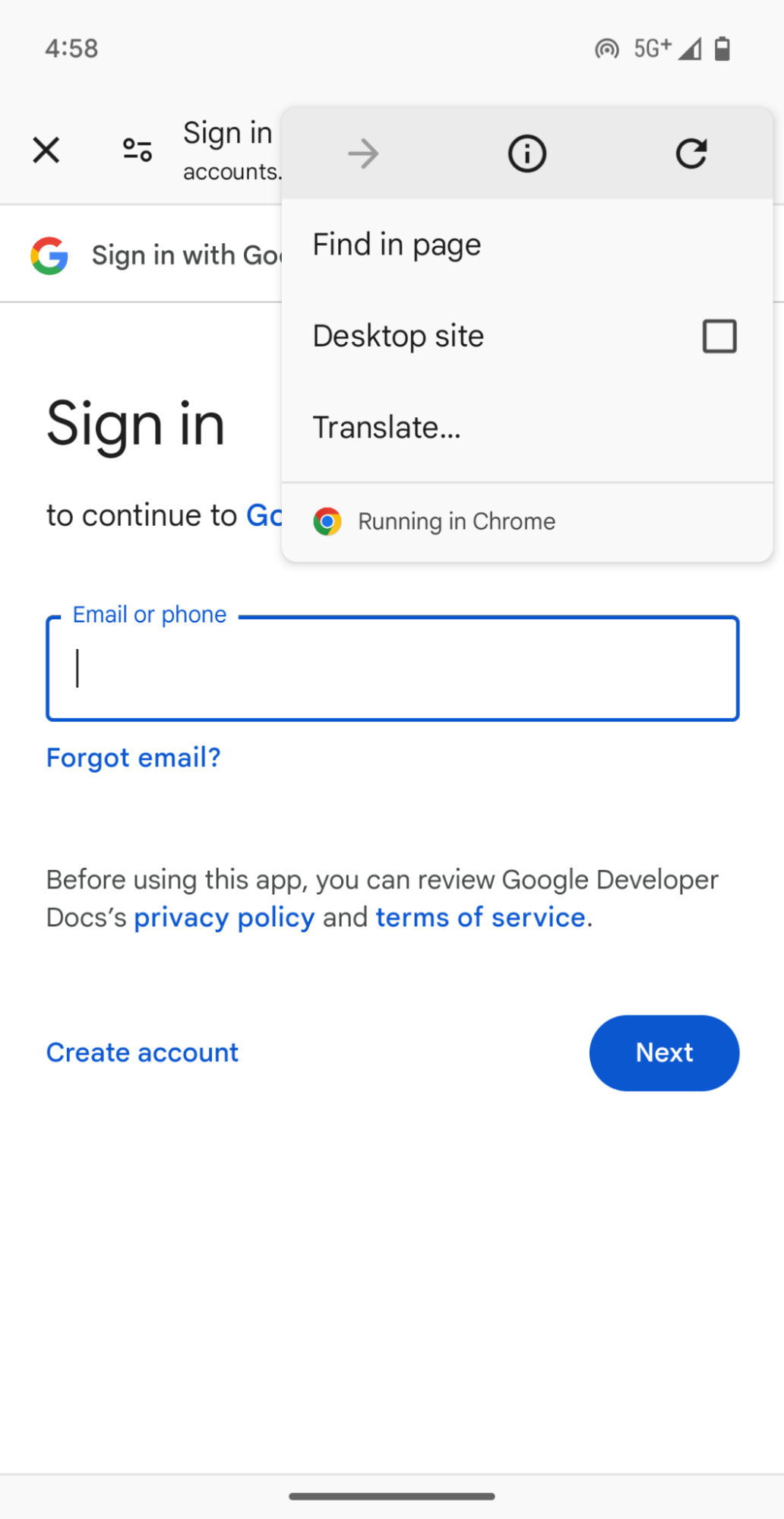
Standard Custom Tabs are designed as general-purpose in-app browsers, displaying UI elements unrelated to sign-in—such as the share menu, bookmarks, and Open in Chrome—that can distract users. They also require declaring intent filters in your manifest file to receive post-authentication redirects, adding boilerplate code and needing safeguards against intent interception by malicious apps.
Auth Tab solves these authentication-specific challenges. It removes unnecessary browser UI, such as the minimize button and share menu, and presents a focused interface with only essential sign-in capabilities, including passkey and password autofill. Instead of routing through OS intents, Auth Tab delivers authentication redirects directly to an in-app callback using either a custom scheme or an HTTPS URL verified with Digital Asset Links, strengthening security and reducing implementation boilerplate.
Session sharing and Custom Tabs fallback
By default, Auth Tab also shares cookies and credential state directly with the
system Chrome browser. This sharing lets your app take advantage of active
signed-in sessions in Chrome and run your existing WebAuthn implementation as
is—including Conditional UI and
Immediate UI mode (the web equivalent of Credential Manager's
preferImmediatelyAvailableCredentials). Conversely, if your use case requires
an isolated authentication session that doesn't share cookies or browsing
history with the browser, you can enable ephemeral browsing by
calling AuthTabIntent.Builder.setEphemeralBrowsingEnabled(true).
While you bundle androidx.browser:browser (version 1.9.0 or higher) with your
app, whether Auth Tab runs at runtime depends on the user's default browser. If
the default browser is a version of Chrome lower than 137 or a third-party
browser that doesn't support Auth Tab, Auth Tab automatically falls back to
launching a standard Custom Tab. When this fallback occurs, the
post-authentication redirect returns through an intent filter in
AndroidManifest.xml as in standard Custom Tabs, rather than through Auth Tab's
callback (ActivityResultCallback). In production, Google recommends
either checking default browser support beforehand using
CustomTabsClient.isAuthTabSupported(context, provider) to branch your
flow or retaining the manifest intent filter so your app can handle results from
either path. For concrete fallback implementation examples, see
Android Browser Helper.
OAuth and OIDC security requirements
Auth Tab secures and simplifies only the client-side redirect channel from the
browser back to your app; it doesn't automatically secure the OAuth or OIDC
protocol itself. Especially given the Custom Tabs fallback behavior, you must
follow OAuth 2.0 for Native Apps (RFC 8252). Specifically,
combine PKCE (Proof Key for Code Exchange, RFC 7636) using the
code_challenge and code_verifier parameters to prevent authorization code
interception, state parameter validation to prevent cross-site request forgery
(CSRF) and session fixation attacks, and nonce parameter generation and
validation in OpenID Connect to prevent ID token replay attacks. With these
protections in place, Google recommends migrating web-based sign-in
architectures away from standard Custom Tabs to Auth Tab.
WebView
Some apps are built around a hybrid WebView architecture where breaking out only the sign-in screen into native UI (Credential Manager) or a browser tab (Auth Tab) isn't practical. In those cases, you can enable WebAuthn support directly inside WebView.
To use passkeys in WebView, add both the AndroidX WebKit library
(androidx.webkit:webkit version 1.12.0 or higher) and the Credential Manager
dependencies (androidx.credentials:credentials and
androidx.credentials:credentials-play-services-auth) to your build.gradle
file. Next, check for feature support using
WebViewFeature.isFeatureSupported(WebViewFeature.WEB_AUTHENTICATION) and
explicitly enable WebAuthn support by calling
WebSettingsCompat.setWebAuthenticationSupport(webView.settings,
WebSettingsCompat.WEB_AUTHENTICATION_SUPPORT_FOR_APP)
.
This configuration automatically bridges passkey creation and authentication
requests from web pages in WebView to Credential Manager.
Domain and UX constraints
As with native Credential Manager integrations, you must follow
Prerequisites to host a Digital Asset Links (assetlinks.json) file on
your relying party web domain to associate your app. Your server receives
android:apk-key-hash:ENCODED_SHA256_HASH (the
Base64URL-encoded SHA-256 certificate hash) as the origin. Because this approach
requires hosting assetlinks.json on the relying party domain to trust your
Android app's signing certificate, it works only when you control the relying
party web domain (first-party web sign-in). If your authentication flow
redirects to an external or third-party IdP where you can't host
assetlinks.json for your app package, you must use Auth Tab (or native Sign in
with Google through Credential Manager) instead of WebView.
Be aware of two UX and functional constraints: WebView doesn't support
Conditional UI (mediation: "conditional" autofill integration when a user
focuses on an input field), and it doesn't share cookies or sign-in sessions
with the system Chrome browser. Because of these constraints, Google recommends
Credential Manager or Auth Tab when designing new authentication flows. However,
if you want to add passkey support to an existing first-party hybrid app without
major architectural changes, you can integrate passkeys with WebView.
Summary
Starting from your app's current UI and authentication infrastructure helps you choose the right passkey approach:
- If your app has a native sign-in UI and you want an OS-integrated experience without switching to a browser screen, choose Credential Manager to sign in with a passkey.
- If you operate an OAuth or OIDC IdP microservice, redirect to an external
IdP, or want to reuse your existing passkey-enabled web sign-in page
(including Conditional UI) and share active browser sessions with Chrome,
adopt Auth Tab and implement the security requirements in
OAuth 2.0 for Native Apps (RFC 8252)—specifically PKCE,
state, andnonce. - If your app is built on a hybrid WebView architecture where sign-in must stay within embedded first-party web screens, use WebView while accounting for the lack of Conditional UI support and isolated cookies.
Next steps
- About passkeys
- Create a passkey
- Sign in with a passkey
- User authentication with passkeys
- Authenticate users with WebView
- Auth Tab guide
- Chrome Identity documentation