


您的应用可能具有多步骤用户任务。例如,您的应用可能需要引导 用户购买其他内容、设置复杂的配置设置,或者 只是确认决定。所有这些任务都需要引导用户完成一个或多个有序步骤或 决定。
已弃用的 androidx.leanback library 提供了用于实现多步骤
用户任务的类。本页面讨论了如何使用
GuidedStepSupportFragment 类
引导用户完成一系列决定,以使用
GuidedStepSupportFragment 完成任务。
提供步骤详情
A GuidedStepSupportFragment 表示一系列步骤中的单个步骤。在视觉上,它提供了一个引导视图,其中包含该步骤可能执行的操作或决定的列表。
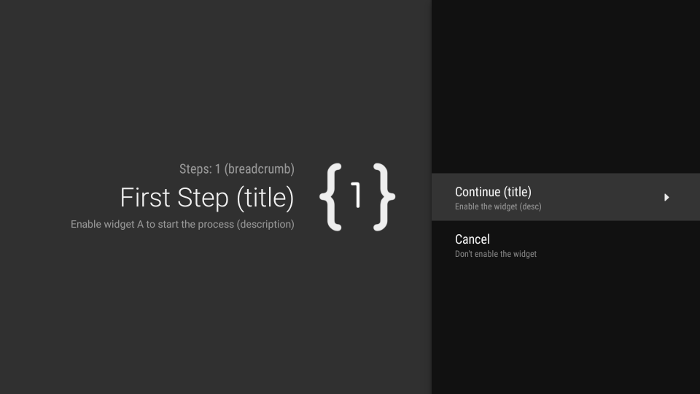
图 1. 引导步骤示例。
对于多步骤任务中的每个步骤,请扩展
GuidedStepSupportFragment 并提供有关
用户可以执行的步骤和操作的上下文信息。替换
onCreateGuidance()
并返回新的
GuidanceStylist.Guidance,其中包含步骤标题、说明和图标等上下文信息,如以下示例所示:
Kotlin
override fun onCreateGuidance(savedInstanceState: Bundle?): GuidanceStylist.Guidance {
    return GuidanceStylist.Guidance(
            getString(R.string.guidedstep_first_title),
            getString(R.string.guidedstep_first_description),
            getString(R.string.guidedstep_first_breadcrumb),
            activity.getDrawable(R.drawable.guidedstep_main_icon_1)
    )
}
Java
@Override
public GuidanceStylist.Guidance onCreateGuidance(Bundle savedInstanceState) {
    String title = getString(R.string.guidedstep_first_title);
    String breadcrumb = getString(R.string.guidedstep_first_breadcrumb);
    String description = getString(R.string.guidedstep_first_description);
    Drawable icon = getActivity().getDrawable(R.drawable.guidedstep_main_icon_1);
    return new GuidanceStylist.Guidance(title, description, breadcrumb, icon);
}
通过在 Activity 的 onCreate() 方法中调用 GuidedStepSupportFragment.add()
,将 GuidedStepSupportFragment 子类添加到所需的
Activity 中。
如果您的 Activity 仅包含 GuidedStepSupportFragment
对象,请使用 GuidedStepSupportFragment.addAsRoot()
而不是 add() 添加第一个 GuidedStepSupportFragment。使用 addAsRoot() 有助于确保:如果用户在查看第一个 GuidedStepSupportFragment 时按下电视遥控器上的“返回”按钮,GuidedStepSupportFragment 和父 Activity 都将关闭。
注意: 以编程方式添加 GuidedStepSupportFragment 对象,而不是在布局 XML 文件中添加。
创建和处理用户操作
通过替换 onCreateActions() 添加用户操作。
在替换过程中,为每个待办项添加新的 GuidedAction,并提供操作字符串、说明和 ID。使用 GuidedAction.Builder 添加新操作。
Kotlin
override fun onCreateActions(actions: MutableList<GuidedAction>, savedInstanceState: Bundle?) {
    super.onCreateActions(actions, savedInstanceState)

    // Add "Continue" user action for this step
    actions.add(GuidedAction.Builder()
            .id(CONTINUE)
            .title(getString(R.string.guidedstep_continue))
            .description(getString(R.string.guidedstep_letsdoit))
            .hasNext(true)
            .build())
    ...
Java
@Override
public void onCreateActions(List<GuidedAction> actions, Bundle savedInstanceState) {
    // Add "Continue" user action for this step
    actions.add(new GuidedAction.Builder()
           .id(CONTINUE)
           .title(getString(R.string.guidedstep_continue))
           .description(getString(R.string.guidedstep_letsdoit))
           .hasNext(true)
           .build());
...
操作不仅限于单行选择。以下是您可以创建的其他类型的操作:
-
通过设置
infoOnly(true)添加信息标签操作,以提供有关用户选择的其他信息。 当infoOnly为 true 时,用户无法选择该操作。 -
通过设置
editable(true)添加可修改的文本操作。 当editable为 true 时,用户可以使用遥控器或所连接的键盘在所选操作中输入文本。替换onGuidedActionEditedAndProceed()以获取用户输入的修改后的文本。您也可以替换onGuidedActionEditCanceled()以了解用户何时取消输入。 -
通过使用具有通用 ID 值的
checkSetId()将操作分为一组,添加一组作为可勾选单选按钮的操作。同一列表中具有相同勾选组 ID 的所有操作均被视为已关联。当用户选择该组中的某项操作时,该操作将变为“已勾选”状态,而所有其他操作均变为“未勾选”状态。 -
通过在
onCreateActions()中使用GuidedDatePickerAction.Builder而不是GuidedAction.Builder,添加日期选择器操作。替换onGuidedActionEditedAndProceed()以获取用户输入的修改后的日期值。 - 添加一项使用子操作的操作,让用户从扩展选项列表中进行选择。添加子操作部分介绍了各种子操作。
- 添加一项显示在操作列表右侧且可轻松访问的按钮操作。添加按钮操作部分介绍了按钮操作。
您还可以通过设置 hasNext(true) 添加可视指示符,以指示选择该操作会导致新的步骤。
有关您可以设置的所有不同属性,请参阅 GuidedAction。
如需响应操作,请替换
onGuidedActionClicked() 并处理传入的
GuidedAction。通过检查 GuidedAction.getId() 确定所选操作。
添加子操作
某些操作可能需要为用户提供一组额外的选项。GuidedAction 可以指定显示为子操作菜单的子操作列表。
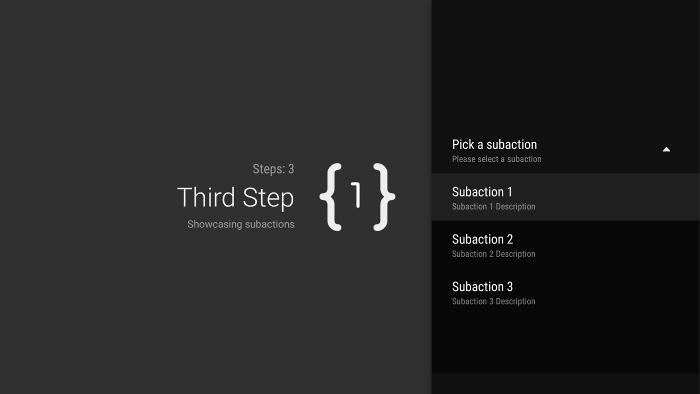
图 2. 引导步骤子操作。
子操作列表可以包含常规操作或单选按钮操作,但不包含日期选择器或可修改的文本操作。此外,由于系统不支持多个级别的子操作,因此子操作不能拥有自己的子操作集。
如需添加子操作,请先创建并填充将充当子操作的 GuidedAction 对象列表,如以下示例所示:
Kotlin
subActions.add(GuidedAction.Builder()
        .id(SUBACTION1)
        .title(getString(R.string.guidedstep_subaction1_title))
        .description(getString(R.string.guidedstep_subaction1_desc))
        .build())
...
Java
List<GuidedAction> subActions = new ArrayList<GuidedAction>();
subActions.add(new GuidedAction.Builder()
       .id(SUBACTION1)
       .title(getString(R.string.guidedstep_subaction1_title))
       .description(getString(R.string.guidedstep_subaction1_desc))
       .build());
...
在 onCreateActions() 中,创建一个选中后会显示子操作列表的顶级 GuidedAction:
Kotlin
    ...
    actions.add(GuidedAction.Builder()
            .id(SUBACTIONS)
            .title(getString(R.string.guidedstep_subactions_title))
            .description(getString(R.string.guidedstep_subactions_desc))
            .subActions(subActions)
            .build())
    ...
Java
@Override
public void onCreateActions(List<GuidedAction> actions, Bundle savedInstanceState) {
...
    actions.add(new GuidedAction.Builder()
           .id(SUBACTIONS)
           .title(getString(R.string.guidedstep_subactions_title))
           .description(getString(R.string.guidedstep_subactions_desc))
           .subActions(subActions)
           .build());
...
}
最后,通过替换 onSubGuidedActionClicked() 响应子操作选择:
Kotlin
override fun onSubGuidedActionClicked(action: GuidedAction): Boolean {
    // Check for which action was clicked and handle as needed
    when(action.id) {
        SUBACTION1 -> {
            // Subaction 1 selected
        }
    }
    // Return true to collapse the subactions menu or
    // false to keep the menu expanded
    return true
}
Java
@Override
public boolean onSubGuidedActionClicked(GuidedAction action) {
   // Check for which action was clicked and handle as needed
   if (action.getId() == SUBACTION1) {
       // Subaction 1 selected
   }
   // Return true to collapse the subactions menu or
   // false to keep the menu expanded
   return true;
}
添加按钮操作
如果引导步骤包含大量操作,用户可能必须滚动浏览列表以访问最常用的操作。使用按钮操作将常用操作与操作列表分开。按钮操作显示在操作列表旁边,并且易于导航。
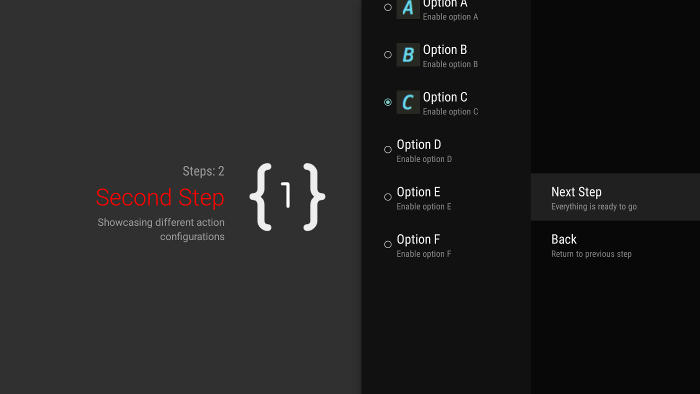
图 3. 引导步骤按钮操作。
按钮操作的创建和处理方式与常规操作一样,但您需要在
中创建
onCreateButtonActions()
而不是 onCreateActions()。响应 onGuidedActionClicked() 中的按钮操作。
将按钮操作用于简单操作,例如步骤之间的导航操作。 请勿将日期选择器操作或其他可修改操作作为按钮操作。 此外,按钮操作不能包含子操作。
将引导步骤分组到引导序列中
GuidedStepSupportFragment 表示单个步骤。如需创建有序的步骤序列,请使用
GuidedStepSupportFragment.add()将多个
GuidedStepSupportFragment对象组合在一起,以将序列中的下一个步骤添加到 Fragment 堆栈中。
Kotlin
override fun onGuidedActionClicked(action: GuidedAction) {
    val fm = fragmentManager
    when(action.id) {
        CONTINUE -> GuidedStepSupportFragment.add(fm, SecondStepFragment())
    }
}
Java
@Override
public void onGuidedActionClicked(GuidedAction action) {
    FragmentManager fm = getFragmentManager();
    if (action.getId() == CONTINUE) {
       GuidedStepSupportFragment.add(fm, new SecondStepFragment());
    }
...
如果用户按下电视遥控器上的“返回”按钮,设备会在 Fragment 堆栈上显示之前的 GuidedStepSupportFragment。如果您提供自己的 GuidedAction 返回上一步,可以通过调用 getFragmentManager().popBackStack() 实现“返回”行为。
如果需要让用户返回序列中更早的步骤,请使用
popBackStackToGuidedStepSupportFragment()
返回 Fragment 堆栈中的特定 GuidedStepSupportFragment。
用户完成序列中的最后一步后,请使用
finishGuidedStepSupportFragments() 从当前堆栈中移除所有
GuidedStepSupportFragment 实例
并返回原始父 Activity。如果使用 addAsRoot() 添加了第一个 GuidedStepSupportFragment,那么调用 finishGuidedStepSupportFragments() 也会关闭父 Activity。
自定义步骤呈现
GuidedStepSupportFragment 类可以使用自定义主题背景控制呈现的各个方面,例如标题文本格式或步骤过渡动画。自定义主题背景必须从 Theme_Leanback_GuidedStep 继承,并且可以为 GuidanceStylist 和 GuidedActionsStylist 中定义的属性提供替换值。
如需将自定义主题背景应用于 GuidedStepSupportFragment,请执行以下任一操作:
-
通过将
android:theme属性设置为 Android 清单中的 Activity 元素,将主题背景应用于父 Activity。设置该属性会将主题背景应用于所有子视图,并且如果父 Activity 仅包含GuidedStepSupportFragment对象,那么这是应用自定义主题背景最简单的方法。 -
如果您的 Activity 已使用一个自定义主题背景,并且您不想将
GuidedStepSupportFragment样式应用于 Activity 中的其他视图,请将LeanbackGuidedStepTheme_guidedStepTheme属性添加到现有自定义 Activity 主题背景中。该属性指向仅 Activity 中的GuidedStepSupportFragment对象使用的自定义主题背景。 -
如果您在属于同一整体多步骤任务的不同
Activity 中使用
GuidedStepSupportFragment对象,并且希望在所有步骤中使用一致的 视觉主题背景,请替换GuidedStepSupportFragment.onProvideTheme()并返回您的自定义主题背景。
如需详细了解如何添加样式和主题背景,请参阅 样式和主题背景。
GuidedStepSupportFragment 类使用特殊的样式类访问和应用主题背景属性。 GuidanceStylist 类使用主题背景信息控制左侧导航视图的呈现,而 GuidedActionsStylist 类使用主题背景信息控制右侧操作视图的呈现。
如需为主题背景自定义无法提供的步骤自定义可视样式,请为
GuidanceStylist或
GuidedActionsStylist创建子类,并返回
GuidedStepSupportFragment.onCreateGuidanceStylist()或
GuidedStepSupportFragment.onCreateActionsStylist()中的子类。
如需详细了解您可以在这些子类中自定义的内容,请参阅有关 GuidanceStylist 和 GuidedActionsStylist 的文档。