

在摺疊式裝置上,未摺疊的大型螢幕和獨特的摺疊狀態可以提供新的使用者體驗。如要在 Jetpack Compose 中為應用程式採用摺疊機制,請使用 Compose Material 3 Adaptive 程式庫,該程式庫提供摺疊式裝置視窗功能 (例如摺疊、轉軸和裝置姿勢) 的 API。採用摺疊機制的應用程式可以調整版面配置,避免在摺疊和轉軸區域放置重要內容,並能利用螢幕摺線和轉軸做為自然區隔機制。
瞭解裝置是否支援桌面或書本等型態,有助於決定是否支援不同版面配置或提供特定功能。
視窗資訊
在 Jetpack Compose 中,使用 collectFoldingFeaturesAsState() 可組合函式觀察視窗摺疊資訊。collectFoldingFeaturesAsState() 會將 WindowInfoTracker 中的目前視窗摺疊功能收集到 Compose State,其中包含 FoldingFeature 物件清單。
由於 collectFoldingFeaturesAsState() 會回傳 Compose State,因此每當裝置摺疊狀態或姿勢變更時,可組合函式就會自動重新組合,不需要手動管理生命週期或資料流收集:
@Composable
fun FoldAwareScreen() {
    val foldingFeatures by collectFoldingFeaturesAsState()

    // Access folding features for the current window.
    val foldFeature = foldingFeatures.firstOrNull()
    if (foldFeature != null) {
        // Adapt layout based on the fold feature.
    }
}
折疊式裝置螢幕功能
collectFoldingFeaturesAsState() (DisplayFeature 的子類型) 傳回的 FoldingFeature 元素清單會提供摺疊式螢幕的相關資訊,包括下列屬性:
state:裝置摺疊狀態,可為FLAT或HALF_OPENEDorientation:摺疊或轉軸方向,可為HORIZONTAL或VERTICALisSeparating:摺疊或轉軸是否會建立兩個邏輯顯示區域,可為 true 或 false
處於 HALF_OPENED 狀態的摺疊式裝置一律會將 isSeparating 回報為 true,因為裝置螢幕會分隔成兩個顯示區域。此外,如果應用程式在雙螢幕裝置上橫跨兩個螢幕顯示,則 isSeparating 也會一律為 true。
FoldingFeature bounds 屬性繼承自 DisplayFeature,代表摺疊或轉軸等摺疊功能的矩形界框。此界框可用來將元素放置在螢幕上相對於此功能的位置:
@Composable
fun FoldFeatureDemo() {
    val foldingFeatures by collectFoldingFeaturesAsState()
    val foldFeature = foldingFeatures.firstOrNull()

    if (foldFeature != null) {
        val isSeparating = foldFeature.isSeparating
        val occlusionType = foldFeature.occlusionType
        val bounds = foldFeature.bounds
        // Use bounds and properties to position content.
    }
}
桌面模式
運用 FoldingFeature 物件提供的資訊,應用程式可以支援桌面模式等各種型態,亦即手機穩定放置在平面上、轉軸處於橫向位置,以及摺疊式螢幕半開。
桌面模式方便使用者操作手機,不必拿著手機。桌面模式非常適合用來觀看媒體內容、拍照及進行視訊通話。
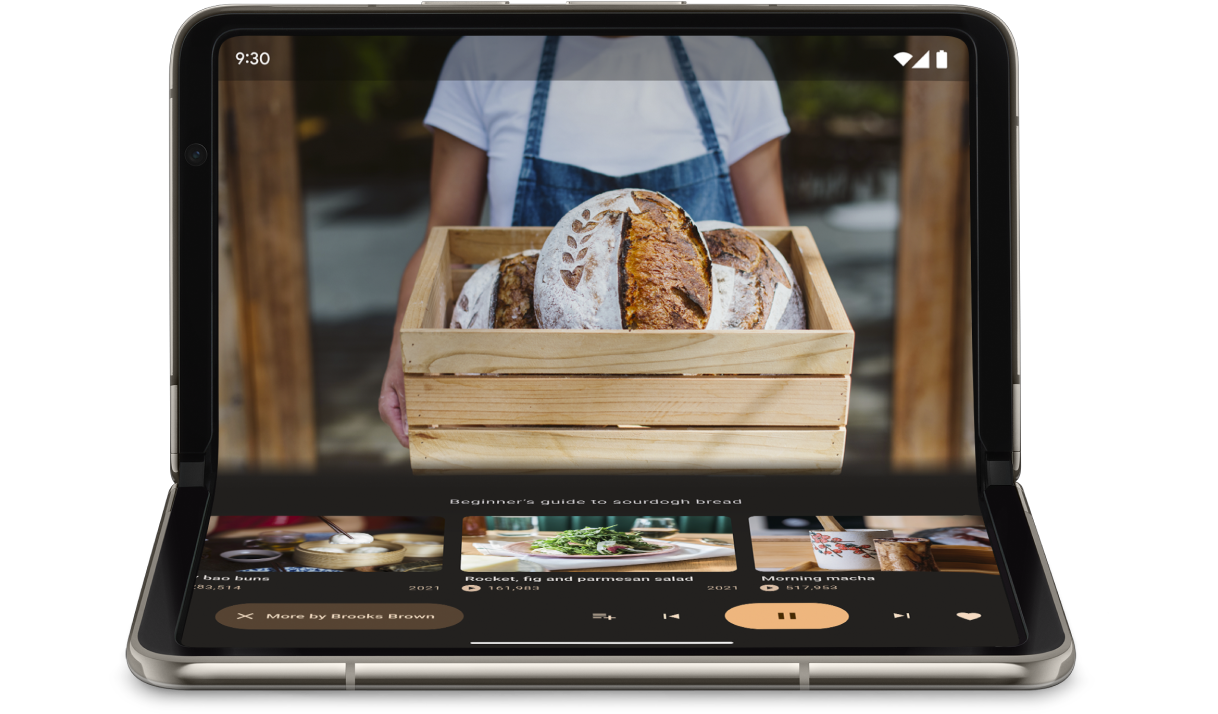
使用 collectFoldingFeaturesAsState() 的 FoldingFeature.State 和 FoldingFeature.Orientation,判斷裝置是否處於桌面模式:
@Composable
fun TabletopContent() {
    val foldingFeatures by collectFoldingFeaturesAsState()
    val foldFeature = foldingFeatures.firstOrNull()

    val isTableTopPosture = foldFeature != null &&
        foldFeature.state == FoldingFeature.State.HALF_OPENED &&
        foldFeature.orientation == FoldingFeature.Orientation.HORIZONTAL

    if (isTableTopPosture) {
        // Tabletop layout: separate content and controls across the fold.
    } else {
        // Standard layout.
    }
}
或者,您也可以檢查 currentWindowAdaptiveInfoV2() 傳回的 Posture 屬性,判斷視窗是否處於桌面模式:
val adaptiveInfo = currentWindowAdaptiveInfoV2()
val isTabletop = adaptiveInfo.windowPosture.isTabletop
確認裝置處於桌面模式後,請據此更新應用程式版面配置。以媒體應用程式來說,通常是指將播放內容放在上螢幕,並將控制項和補充資訊放在下螢幕,讓使用者不必動手就能欣賞影音內容。
範例
MediaPlayerActivity應用程式:瞭解如何使用 Media3 Exoplayer 和 WindowManager 建立採用摺疊機制的影片播放器。在各種板型規格中調整媒體內容:瞭解如何在 Jetpack Compose 中使用 Media3 處理視窗插邊、動態視窗大小調整和內容縮放。
使用 Jetpack WindowManager 最佳化適用於摺疊式裝置的相機應用程式程式碼研究室:瞭解如何實作攝影應用程式的桌面模式。將觀景窗顯示在上螢幕,並將控制項顯示在下螢幕。
書本型態
另一種獨特的摺疊功能是書本模式,亦即裝置半開,轉軸為垂直方向。書本型態適合用來閱讀電子書。在大螢幕摺疊式裝置上利用雙頁版面配置閱讀書籍,呈現翻開實體精裝書的感觸。
此外,如果想使用免持方式拍攝不同顯示比例的相片,也可以使用這項功能。
實作書本型態使用的技術與桌面型態相同。檢查摺疊功能螢幕方向是否為垂直,而非水平:
@Composable
fun BookContent() {
    val foldingFeatures by collectFoldingFeaturesAsState()
    val foldFeature = foldingFeatures.firstOrNull()

    val isBookPosture = foldFeature != null &&
        foldFeature.state == FoldingFeature.State.HALF_OPENED &&
        foldFeature.orientation == FoldingFeature.Orientation.VERTICAL

    if (isBookPosture) {
        // Book posture layout: two-page layout across the vertical fold.
    } else {
        // Standard single-page layout.
    }
}
視窗大小變化
應用程式的顯示區域可隨著裝置設定而變化,例如裝置處於摺疊、展開或旋轉狀態,或是在多視窗模式下重新調整大小。
如要在 Jetpack Compose 中擷取目前的視窗大小類別,並根據大小變化調整,請使用 Compose Material 3 Adaptive 程式庫中的 currentWindowAdaptiveInfoV2() 可組合函式。currentWindowAdaptiveInfoV2() 會傳回 WindowAdaptiveInfo 執行個體,提供目前視窗的 WindowSizeClass (預設支援大型和超大型中斷點),以及裝置的 windowPosture:
@Composable
fun AdaptiveApp() {
    val adaptiveInfo = currentWindowAdaptiveInfoV2()
    val windowSizeClass = adaptiveInfo.windowSizeClass

    when {
        windowSizeClass.isWidthAtLeastBreakpoint(
            WIDTH_DP_EXPANDED_LOWER_BOUND
        ) -> {
            // Expanded layout
        }
        windowSizeClass.isWidthAtLeastBreakpoint(
            WIDTH_DP_MEDIUM_LOWER_BOUND
        ) -> {
            // Medium layout
        }
        else -> {
            // Compact layout
        }
    }
}
請參閱「使用視窗大小類別」。
其他資源
如要進一步瞭解折疊感知版面配置和折疊式裝置,請參閱下列資源:
範例
- Jetpack WindowManager 範例:Jetpack WindowManager 程式庫的使用範例
- Jetcaster:使用 Compose 實作桌面模式