

本指南介绍了如何使用 Engage SDK 将“继续观看”功能集成到 Android TV 应用中。
准备工作
完成入门指南中的准备工作说明。
集成
创建实体
SDK 定义了不同的实体来代表每种内容类型。延续集群支持以下实体:
为这些实体指定平台专用 URI 和海报图片。
此外,如果您尚未为每个平台(例如 Android TV、Android 或 iOS)创建播放 URI,请创建。因此,当用户在每个平台上继续观看时,应用会使用目标播放 URI 来播放视频内容。
// Required. Set this when you want continue watching entities to show up on
// Google TV
val playbackUriTv = PlatformSpecificUri.Builder()
    .setPlatformType(PlatformType.TYPE_ANDROID_TV)
    .setActionUri(Uri.parse("https://www.example.com/entity_uri_for_tv"))
    .build()

// Required. Set this when you want continue watching entities to show up on
// Google TV Android app, Entertainment Space, Playstore Widget
val playbackUriAndroid = PlatformSpecificUri.Builder()
    .setPlatformType(PlatformType.TYPE_ANDROID_MOBILE)
    .setActionUri(Uri.parse("https://www.example.com/entity_uri_for_android"))
    .build()

// Optional. Set this when you want continue watching entities to show up on
// Google TV iOS app
val playbackUriIos = PlatformSpecificUri.Builder()
    .setPlatformType(PlatformType.TYPE_IOS)
    .setActionUri(Uri.parse("https://www.example.com/entity_uri_for_ios"))
    .build()

val platformSpecificPlaybackUris =
    Arrays.asList(playbackUriTv, playbackUriAndroid, playbackUriIos)
海报图片需要提供 URI 和像素尺寸(高度和宽度)。通过提供多张海报图片来适配不同的设备规格,但请确保所有图片都保持 16:9 的宽高比,且高度至少为 200 像素,以便正确显示“继续观看”实体,尤其是在 Google 的娱乐空间中。高度小于 200 像素的图片可能无法显示。
val images = Arrays.asList(
    Image.Builder()
        .setImageUri(Uri.parse("http://www.example.com/entity_image1.png"))
        .setImageHeightInPixel(300)
        .setImageWidthInPixel(169)
        .build(),
    Image.Builder()
        .setImageUri(Uri.parse("http://www.example.com/entity_image2.png"))
        .setImageHeightInPixel(640)
        .setImageWidthInPixel(360)
        .build()
    // Consider adding other images for different form factors
)
MovieEntity
以下示例展示了如何创建包含所有必填字段的 MovieEntity:
val movieEntity = MovieEntity.Builder()
   .setWatchNextType(WatchNextType.TYPE_CONTINUE)
   .setName("Movie name")
   .addPlatformSpecificPlaybackUris(platformSpecificPlaybackUris)
   .addPosterImages(images)
   // Timestamp in millis for sample last engagement time 12/1/2023 00:00:00
   .setLastEngagementTimeMillis(1701388800000)
   // Suppose the duration is 2 hours, it is 72000000 in milliseconds
   .setDurationMillis(72000000)
   // Suppose last playback offset is 1 hour, 36000000 in milliseconds
   .setLastPlayBackPositionTimeMillis(36000000)
   .setCallToActionText("Resume")
   .addTag("Action")
   .build()
提供类型和内容分级等详细信息,可让 Google TV 以更动态的方式展示您的内容,并将其与合适的观看者联系起来。
val genres = Arrays.asList("Action", "Science fiction")
val rating1 = RatingSystem.Builder().setAgencyName("MPAA").setRating("PG-13").build()
val contentRatings = Arrays.asList(rating1)
val movieEntity = MovieEntity.Builder()
    ...
    .addGenres(genres)
    .addContentRatings(contentRatings)
    .build()
除非您指定更短的到期时间,否则实体会自动保留 60 天。仅当您需要在默认期限之前移除实体时,才设置自定义到期时间。
// Set the expiration time to be now plus 30 days in milliseconds
val expirationTime = DisplayTimeWindow.Builder()
    .setEndTimestampMillis(now().toMillis()+2592000000).build()
val movieEntity = MovieEntity.Builder()
    ...
    .addAvailabilityTimeWindow(expirationTime)
    .build()
TvEpisodeEntity
以下示例展示了如何创建包含所有必填字段的 TvEpisodeEntity:
val tvEpisodeEntity = TvEpisodeEntity.Builder()
    .setWatchNextType(WatchNextType.TYPE_CONTINUE)
    .setName("Episode name")
    .addPlatformSpecificPlaybackUris(platformSpecificPlaybackUris)
    .addPosterImages(images)
    // Timestamp in millis for sample last engagement time 12/1/2023 00:00:00
    .setLastEngagementTimeMillis(1701388800000)
    .setDurationMillis(72000000) // 2 hours in milliseconds
    // 45 minutes and 15 seconds in milliseconds is 2715000
    .setLastPlayBackPositionTimeMillis(2715000)
    .setEpisodeNumber("2")
    .setSeasonNumber("1")
    .setShowTitle("Title of the show")
    .setCallToActionText("Resume")
    .addTag("Comedy")
    .build()
剧集编号字符串(例如 "2")和剧季编号字符串(例如 "1")会先展开为适当的形式,然后再显示在“继续观看”卡片上。请注意,这些值应为数字字符串,请勿输入“e2”“episode 2”“s1”或“season 1”。
如果某个电视节目只有一季,请将剧季编号设置为 1。
为了最大限度地提高观看者在 Google TV 上找到您的内容的机会,请考虑提供其他数据,例如类型、内容分级和可观看时间段,因为这些详细信息可以增强显示和过滤选项。
val genres = Arrays.asList("Action", "Science fiction")
val rating1 = RatingSystem.Builder().setAgencyName("MPAA").setRating("PG-13").build()
val contentRatings = Arrays.asList(rating1)
val tvEpisodeEntity = TvEpisodeEntity.Builder()
    ...
    .addGenres(genres)
    .addContentRatings(contentRatings)
    .setSeasonTitle("Season Title")
    .setShowTitle("Show Title")
    .build()
VideoClipEntity
以下示例展示了如何创建包含所有必填字段的 VideoClipEntity。
VideoClipEntity 表示用户生成的片段,例如 YouTube 视频。
val videoClipEntity = VideoClipEntity.Builder()
    .setPlayBackUri(Uri.parse("https://www.example.com/uri_for_current_platform"))
    .setWatchNextType(WatchNextType.TYPE_CONTINUE)
    .setName("Video clip name")
    .addPlatformSpecificPlaybackUris(platformSpecificPlaybackUris)
    .addPosterImages(images)
    // Timestamp in millis for sample last engagement time 12/1/2023 00:00:00
    .setLastEngagementTimeMillis(1701388800000)
    .setDurationMillis(600000) //10 minutes in milliseconds
    .setLastPlayBackPositionTimeMillis(300000) //5 minutes in milliseconds
    .setCallToActionText("Resume")
    .addTag("Vlog")
    .build()
您可以选择设置创作者、创作者图片、创建时间(以毫秒为单位)或可用时间范围。
LiveStreamingVideoEntity
以下是创建包含所有必填字段的 LiveStreamingVideoEntity 的示例。
val liveStreamingVideoEntity = LiveStreamingVideoEntity.Builder()
    .setPlayBackUri(Uri.parse("https://www.example.com/uri_for_current_platform"))
    .setWatchNextType(WatchNextType.TYPE_CONTINUE)
    .setName("Live streaming name")
    .addPlatformSpecificPlaybackUris(platformSpecificPlaybackUris)
    .addPosterImages(images)
    // Timestamp in millis for sample last engagement time 12/1/2023 00:00:00
    .setLastEngagementTimeMillis(1701388800000)
    .setLastPlayBackPositionTimeMillis(36000000) //1 hour in milliseconds
    .addContentRating(contentRating)
    .setCallToActionText("Resume")
    .addTag("Live")
    .build()
(可选)您可以为直播实体设置开始时间、广播公司、广播公司图标或可用时间窗口。
如需详细了解属性和要求,请参阅 API 参考文档。
提供接续集群数据
AppEngagePublishClient 负责发布接续集群。
您可以使用 publishContinuationCluster 方法发布 ContinuationCluster 对象。
请务必按照入门指南中的说明初始化客户端并检查服务可用性。
client.publishContinuationCluster(
    PublishContinuationClusterRequest
        .Builder()
        .setContinuationCluster(
            ContinuationCluster.Builder()
                .setAccountProfile(accountProfile)
                .addEntity(movieEntity1)
                .addEntity(movieEntity2)
                .addEntity(tvEpisodeEntity1)
                .addEntity(tvEpisodeEntity2)
                .setSyncAcrossDevices(true)
                .build()
        )
        .build()
)
当服务收到请求时,系统会在一项事务中执行以下操作:
- 系统会移除开发者合作伙伴的现有
ContinuationCluster数据。 - 系统会解析请求中的数据,并将其存储在经过更新的
ContinuationCluster中。
如果发生错误,系统将拒绝整个请求,并保留现有状态。
发布 API 是 upsert API;它会替换现有内容。如果您需要更新延续集群中的特定实体,则需要再次发布所有实体。
续看集群数据应仅提供给成人账号。仅在账号资料属于成人时发布。
跨设备同步
setSyncAcrossDevices 控制用户的 ContinuationCluster 数据是否在电视、手机、平板电脑等设备之间同步。默认情况下,跨设备同步处于停用状态。
值:
true:续播聚类数据会在用户的所有设备之间共享,以提供无缝的观看体验。我们强烈建议您选择此选项,以获得最佳的跨设备体验。false:续播聚类数据仅限于当前设备。
此外,您必须提供一个包含账号 ID 的 AccountProfile,以便在设备之间同步内容。请参阅创建账号资料。
征求用户意见
媒体应用必须提供清晰的设置,以便启用或停用跨设备同步。向用户说明好处,并存储用户的偏好设置一次,然后相应地在 publishContinuationCluster 中应用。
// Example to allow cross device syncing.
client.publishContinuationCluster(
    PublishContinuationClusterRequest
        .Builder()
        .setContinuationCluster(
            ContinuationCluster.Builder()
                .setAccountProfile(accountProfile)
                .setSyncAcrossDevices(true)
                .build()
        )
        .build()
)
为了充分利用我们的跨设备功能,请验证应用是否获得了用户同意,并启用 SyncAcrossDevices 到 true。这样一来,内容便可在设备之间无缝同步,从而带来更好的用户体验并提高互动度。例如,一位合作伙伴在实现此功能后,“继续观看”点击次数增加了 40%,因为其内容在多台设备上显示。
删除 Engage 数据
如需在标准的 60 天保留期之前从 Google TV 服务器中手动删除用户的数据,请使用 deleteClusters 方法。收到请求后,服务将删除账号个人资料或整个账号的所有现有 Engage 数据。
DeleteReason 枚举定义了数据删除的原因。
以下代码会在用户退出登录时移除“继续观看”数据。
// If the user logs out from your media app, you must make the following call
// to remove continue watching data from the current google TV device,
// otherwise, the continue watching data will persist on the current
// google TV device until 60 days later.
client.deleteClusters(
    DeleteClustersRequest.Builder()
        .setAccountProfile(accountProfile)
        .setDeleteReason(DeleteReason.DELETE_REASON_USER_LOG_OUT)
        .setSyncAcrossDevices(true)
        .build()
)
测试
使用验证应用验证 Engage SDK 集成能否正常运行。
调用发布 API 后,请检查验证应用,确认数据是否已正确发布。您的延续集群应在应用界面中显示为单独的一行。
- 在应用中测试以下操作:
- 登录。
- 在个人资料之间切换(如果适用)。
- 开始播放视频,然后暂停,或返回首页。
- 在视频播放期间关闭应用。
- 从“继续观看”行中移除内容(如果支持)。
- 在执行每项操作后,确认您的应用调用了
publishContinuationClustersAPI,并且数据在验证应用中正确显示。 对于正确实现的实体,验证应用会显示绿色的“一切正常”对勾标记。
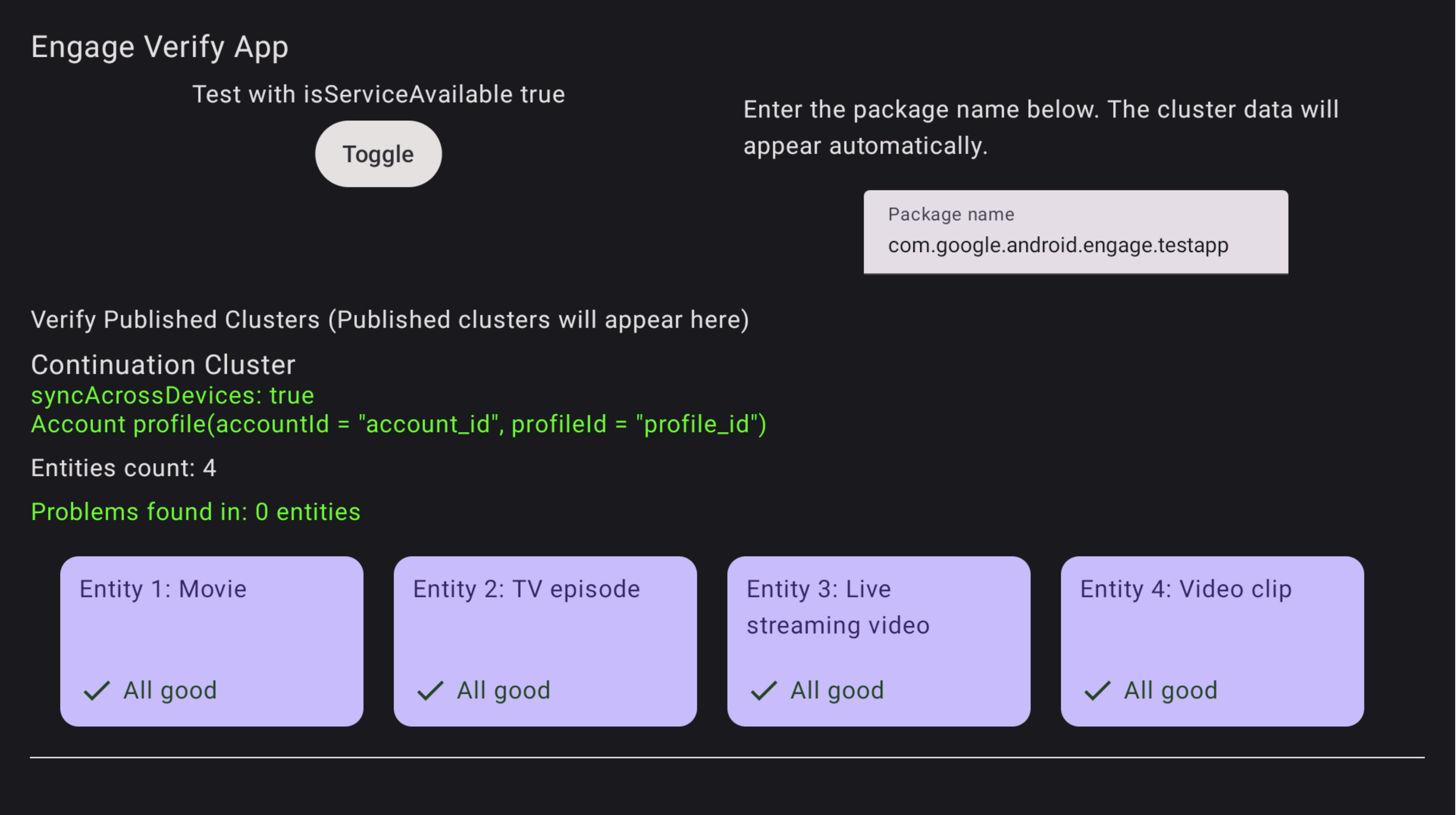
图 1. 验证应用成功 验证应用会标记所有有问题的实体。
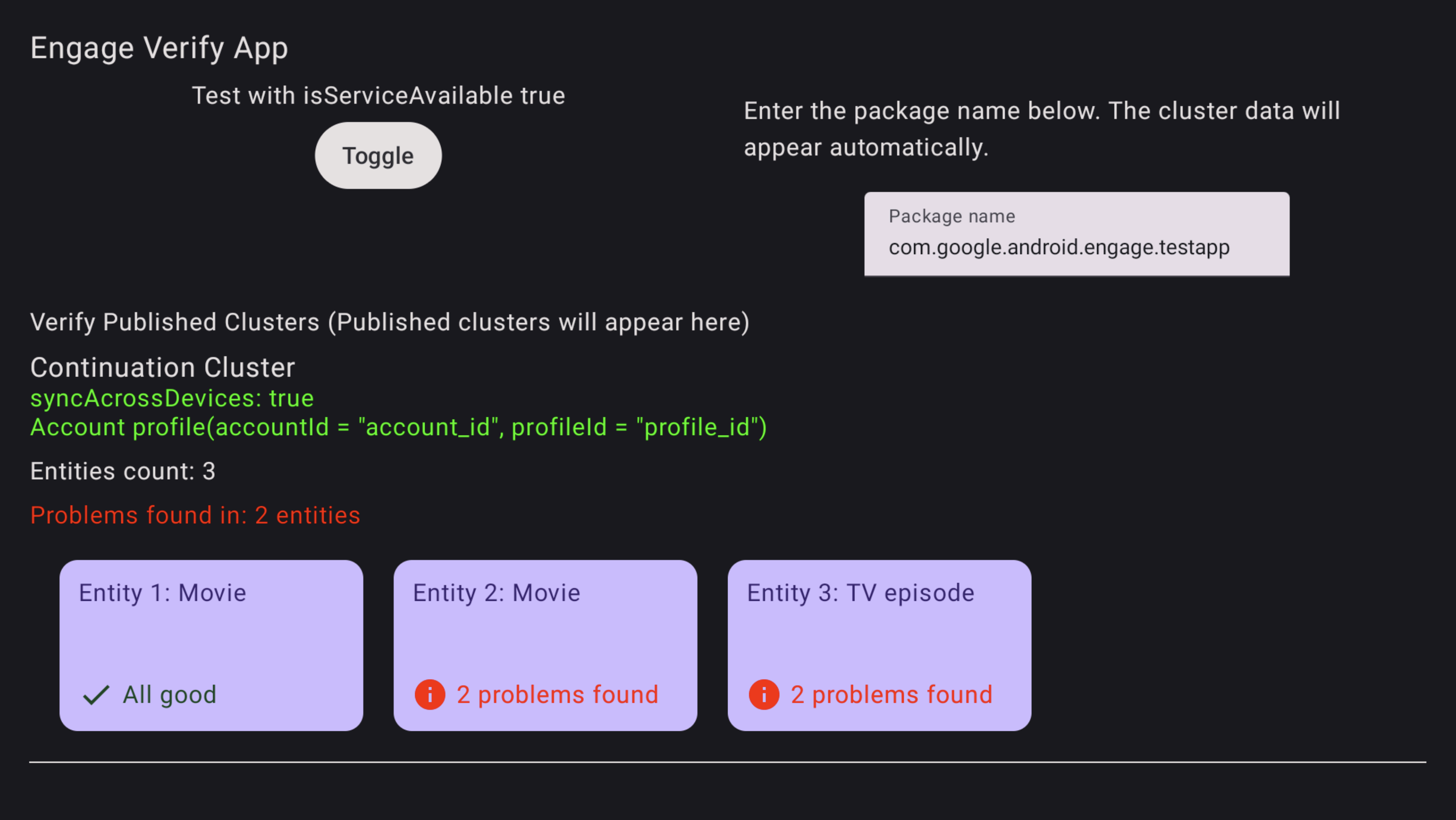
图 2. 验证应用错误 如需排查实体错误,请使用电视遥控器在验证应用中选择并点击相应实体。具体问题会显示并以红色突出显示,供您查看(请参阅以下示例)。
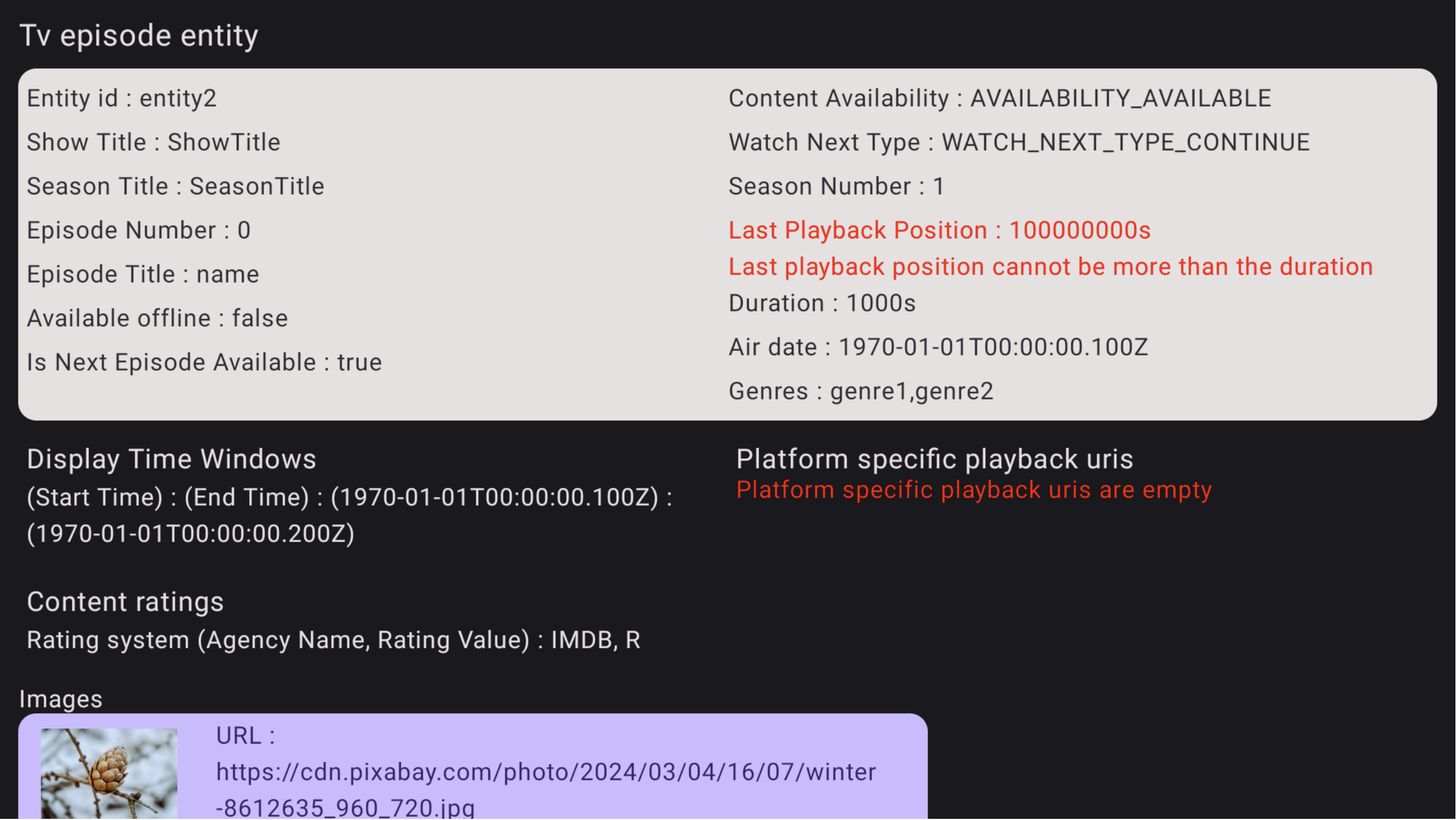
图 3. 验证应用错误详情