

如需在应用中使用蓝牙功能,您必须声明多项权限。您还应指定您的应用是否需要支持传统蓝牙或低功耗蓝牙 (BLE)。如果您的应用不需要传统蓝牙或 BLE,但仍可以从这些技术中受益,您可以在运行时检查可用性。
声明权限
您在应用中声明的权限集取决于应用的目标 SDK 版本。
以 Android 12 或更高版本为目标平台
注意: 在 Android 8.0(API 级别 26)及更高版本中,与本部分中所述的权限相比,配套设备管理器 (CDM) 提供了一种更简化的配套设备连接方法。CDM 系统会代表您的应用提供配对界面,并且不需要位置信息权限。
如果您想更好地控制配对和连接体验,请使用本部分中所述的权限。
如果您的应用以 Android 12(API 级别 31)或更高版本为目标平台,请在应用的清单文件中声明以下权限:
- 如果您的应用查找蓝牙设备(例如 BLE 外围设备),请声明
BLUETOOTH_SCAN权限。 - 如果您的应用使当前设备可被其他蓝牙设备检测到,请声明
BLUETOOTH_ADVERTISE权限。 - 如果您的应用与已配对的蓝牙设备通信,请声明
BLUETOOTH_CONNECT权限。 - 对于旧版蓝牙相关权限声明,请将
android:maxSdkVersion设置为 30。此应用兼容性步骤有助于系统仅向您的应用授予其在搭载 Android 12 或更高版本的设备上安装时所需的蓝牙权限。 - 如果您的应用使用蓝牙扫描结果来推导物理位置,请声明
ACCESS_FINE_LOCATION权限。否则,您可以坚定地声明您的应用不会推导物理位置,并将ACCESS_FINE_LOCATION权限的android:maxSdkVersion设置为 30。
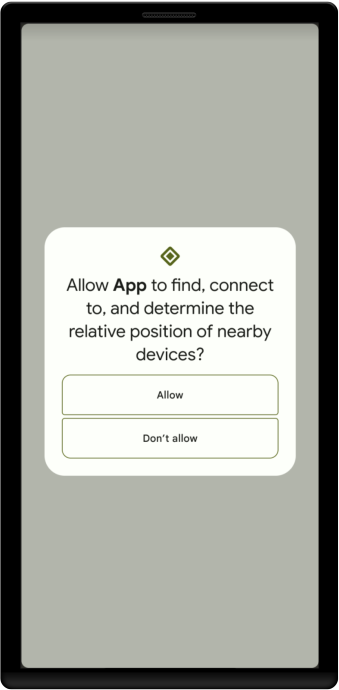
BLUETOOTH_ADVERTISE、BLUETOOTH_CONNECT 和 BLUETOOTH_SCAN 权限是运行时权限。因此,您必须先在应用中明确请求用户批准,然后才能查找蓝牙设备、使设备可被其他设备检测到,或与已配对的蓝牙设备进行通信。当您的应用请求其中至少一项权限时,系统会提示用户允许您的应用访问附近的设备,如图 1 所示。
以下代码段演示了如果应用以 Android 12 或更高版本为目标平台,如何在应用中声明蓝牙相关权限:
<manifest>
    <!-- Request legacy Bluetooth permissions on older devices. -->
    <uses-permission android:name="android.permission.BLUETOOTH"
                     android:maxSdkVersion="30" />
    <uses-permission android:name="android.permission.BLUETOOTH_ADMIN"
                     android:maxSdkVersion="30" />

    <!-- Needed only if your app looks for Bluetooth devices.
         If your app doesn't use Bluetooth scan results to derive physical
         location information, you can
         <a href="#assert-never-for-location">strongly assert that your app
         doesn't derive physical location</a>. -->
    <uses-permission android:name="android.permission.BLUETOOTH_SCAN" />

    <!-- Needed only if your app makes the device discoverable to Bluetooth
         devices. -->
    <uses-permission android:name="android.permission.BLUETOOTH_ADVERTISE" />

    <!-- Needed only if your app communicates with already-paired Bluetooth
         devices. -->
    <uses-permission android:name="android.permission.BLUETOOTH_CONNECT" />

    <!-- Needed only if your app uses Bluetooth scan results to derive
         physical location. -->
    <uses-permission android:name="android.permission.ACCESS_FINE_LOCATION" />
    ...
</manifest>
坚定地声明您的应用不会推导物理位置
如果您的应用不使用蓝牙扫描结果来推导物理位置,您可以坚定地声明您的应用绝不会使用蓝牙权限来推导物理位置。为此,请完成以下步骤:
将
android:usesPermissionFlags属性添加到BLUETOOTH_SCAN权限声明,并将此属性的值设为neverForLocation。如果您的应用不需要位置信息,请从应用的清单中移除
ACCESS_FINE_LOCATION权限。
以下代码段展示了如何更新应用的清单文件:
<manifest>
    <!-- Include "neverForLocation" only if you can strongly assert that
         your app never derives physical location from Bluetooth scan results. -->
    <uses-permission android:name="android.permission.BLUETOOTH_SCAN"
                     android:usesPermissionFlags="neverForLocation" />

    <!-- Set maxSdkVersion to 30 if you can strongly assert that, on
         Android 12 and higher, your app never derives physical location from
         Bluetooth scan results and doesn't need location access for any other
         purpose. -->
    <uses-permission android:name="android.permission.ACCESS_FINE_LOCATION"
                     android:maxSdkVersion="30" />
    ...
</manifest>
以 Android 11 或更低版本为目标平台
如果您的应用以 Android 11(API 级别 30)或更低版本为目标平台,请在应用的清单文件中声明以下权限:
BLUETOOTH是执行任何传统蓝牙或 BLE 通信(例如请求连接、接受连接和传输数据)所必需的。ACCESS_FINE_LOCATION是必需的,因为在 Android 11 及更低版本中,蓝牙扫描可能会用于收集用户的位置信息。
由于位置信息权限是运行时权限,因此您必须在运行时请求这些权限,并在清单中声明这些权限。
发现本地蓝牙设备
如果您想让应用启动设备发现或操纵蓝牙设置,则必须声明 BLUETOOTH_ADMIN 权限。大多数应用只需要此权限即可发现本地蓝牙设备。请勿使用此权限授予的其他功能,除非应用是根据用户请求修改蓝牙设置的“电源管理器”。在应用清单文件中声明该权限。例如:
<manifest>
...
<uses-permission android:name="android.permission.BLUETOOTH_ADMIN" />
...
</manifest>
如果您的应用支持某项服务,并且可以在 Android 10(API 级别 29)或 Android 11 上运行,您还必须声明 ACCESS_BACKGROUND_LOCATION 权限,才能发现蓝牙设备。如需详细了解此要求,请参阅在后台访问位置信息。
以下代码段展示了如何声明 ACCESS_BACKGROUND_LOCATION 权限:
<manifest>
...
<uses-permission android:name="android.permission.ACCESS_BACKGROUND_LOCATION" />
...
</manifest>
如需详细了解如何声明应用权限,请参阅 <uses-permission> 参考文档。
指定蓝牙功能的使用情况
如果蓝牙是应用的关键部分,您可以向清单文件添加标志,以指明此要求。<uses-feature> 元素可让您指定应用使用的硬件类型以及是否需要该硬件。
以下示例展示了如何指明您的应用需要传统蓝牙。
<uses-feature android:name="android.hardware.bluetooth" android:required="true"/>
如果您的应用依赖于低功耗蓝牙,您可以使用以下代码:
<uses-feature android:name="android.hardware.bluetooth_le" android:required="true"/>
如果您声明应用需要某项功能,则 Google Play 商店会向设备缺少这些功能的用户隐藏您的应用。因此,只有在应用没有该功能便无法正常工作的情况下,您才应将 required 属性设置为 true。
在运行时检查功能可用性
如需让不支持传统蓝牙或 BLE 的设备也能使用您的应用,您仍应在应用的清单中添加 <uses-feature> 元素,但要设置 required="false"。然后,在运行时,您可以使用 PackageManager.hasSystemFeature() 确定功能可用性:
Kotlin
// Check to see if the Bluetooth classic feature is available.
val bluetoothAvailable = packageManager.hasSystemFeature(PackageManager.FEATURE_BLUETOOTH)

// Check to see if the BLE feature is available.
val bluetoothLEAvailable = packageManager.hasSystemFeature(PackageManager.FEATURE_BLUETOOTH_LE)
Java
// Use this check to determine whether Bluetooth classic is supported on the device.
// Then you can selectively disable BLE-related features.
boolean bluetoothAvailable = getPackageManager().hasSystemFeature(PackageManager.FEATURE_BLUETOOTH);

// Use this check to determine whether BLE is supported on the device. Then
// you can selectively disable BLE-related features.
boolean bluetoothLEAvailable = getPackageManager().hasSystemFeature(PackageManager.FEATURE_BLUETOOTH_LE);