
The CastPlayer is a Jetpack Media3 Player implementation that supports
both local playback and casting to a remote Cast-enabled device. CastPlayer
simplifies adding cast functionality to your app and provides rich features to
seamlessly switch between local and remote playback. This guide shows you how to
integrate CastPlayer into your media app.
To integrate Cast with other platforms, see the Cast SDK.
Get a Cast-enabled device
To test CastPlayer, you need a Cast-enabled device. Choices include Android
TV, Chromecast, smart speakers, and smart displays. Verify that your device is
set up and connected to the same Wi-Fi network as your development mobile for
discovery.
Add build dependencies
To start using CastPlayer, add the AndroidX Media3 and CastPlayer
dependencies to the build.gradle file of your app module.
Kotlin
implementation("androidx.media3:media3-exoplayer:1.9.2")
implementation("androidx.media3:media3-ui:1.9.2")
implementation("androidx.media3:media3-session:1.9.2")
implementation("androidx.media3:media3-cast:1.9.2")
Groovy
implementation "androidx.media3:media3-exoplayer:1.9.2"
implementation "androidx.media3:media3-ui:1.9.2"
implementation "androidx.media3:media3-session:1.9.2"
implementation "androidx.media3:media3-cast:1.9.2"
Configure your CastPlayer
To configure the CastPlayer, update your AndroidManifest.xml file with an
options provider.
Options provider
The CastPlayer requires an options provider to configure its behavior. For a
basic setup, you can use the DefaultCastOptionsProvider by adding it to your
AndroidManifest.xml file. This uses default settings, including the default
receiver application.
<application>
  ...
  <meta-data
    android:name="com.google.android.gms.cast.framework.OPTIONS_PROVIDER_CLASS_NAME"
    android:value="androidx.media3.cast.DefaultCastOptionsProvider" />
  ...
</application>
To customize the configuration, implement your own custom OptionsProvider. See
the CastOptions guide to learn how.
Add a receiver for media transfers
Adding a MediaTransferReceiver to your manifest enables the System UI to
discover Cast-enabled devices on the network and reroute media without opening
the app activity. For example, a user can change the device playing your app's
media from the media notification.
<application>
  ...
  <receiver android:name="androidx.mediarouter.media.MediaTransferReceiver" />
  ...
</application>
Build a CastPlayer
For remote playback with Cast, your app should be able to manage playback even
when the user isn't interacting with an Activity from your app, such as through
the system media notification. For this reason, you should create your
ExoPlayer (for local playback) and CastPlayer (for remote playback)
instances in a service, such as MediaSessionService or MediaLibraryService.
First, create your ExoPlayer instance and then when building your
CastPlayer instance, set ExoPlayer as the local player instance. You can
then switch media playback between your mobile and the Cast-enabled device from
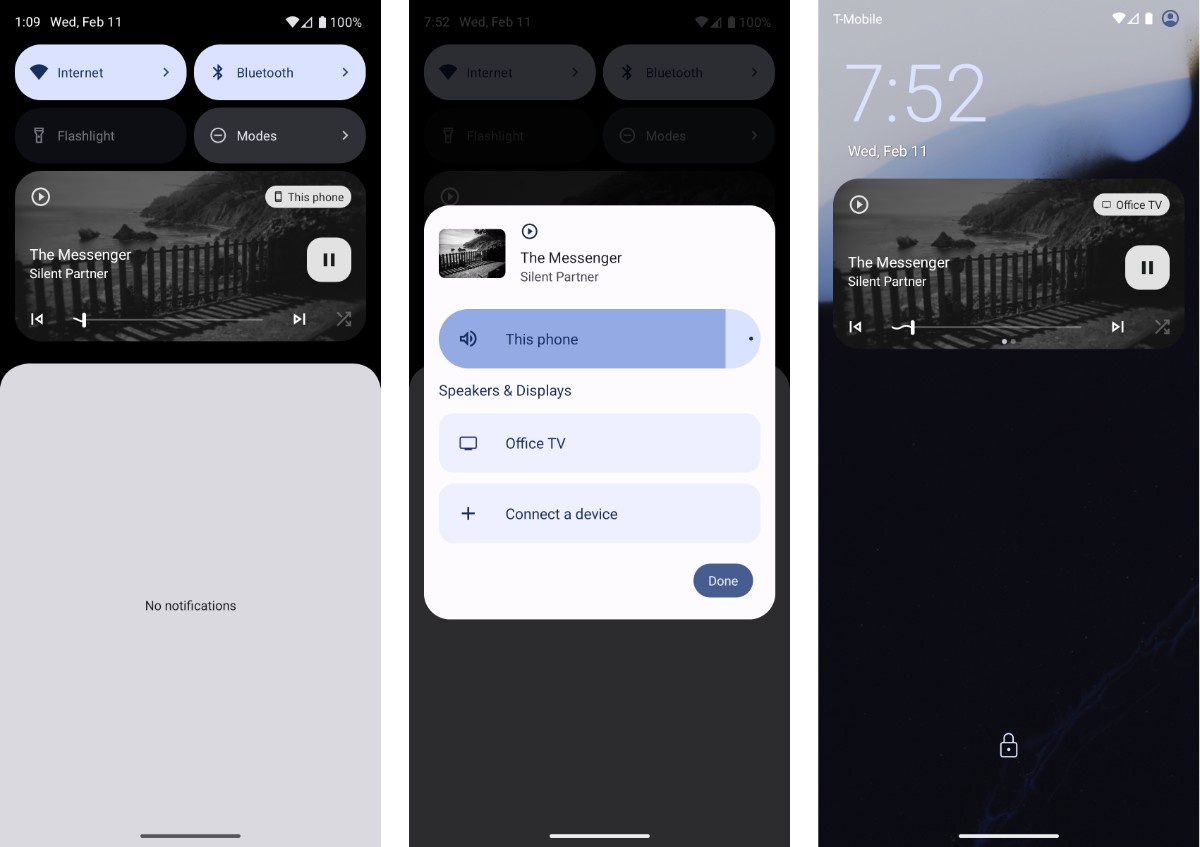
the media notification or the lock screen notification. Media3 uses the Output
Switcher feature to handle player transfers when the output route changes from
local to remote or from remote to local.
Kotlin
override fun onCreate() {
  super.onCreate()

  val exoPlayer = ExoPlayer.Builder(context).build()
  val castPlayer = CastPlayer.Builder(context)
      .setLocalPlayer(exoPlayer)
      .build()

  mediaSession = MediaSession.Builder(context, castPlayer).build()
}
Java
@Override
public void onCreate() {
  super.onCreate();

  ExoPlayer exoPlayer = new ExoPlayer.Builder(context).build();
  CastPlayer castPlayer = new CastPlayer.Builder(context)
      .setLocalPlayer(exoPlayer)
      .build();

  mediaSession = new MediaSession.Builder(
    /* context= */ context, /* player= */ castPlayer).build();
}
Add UI elements
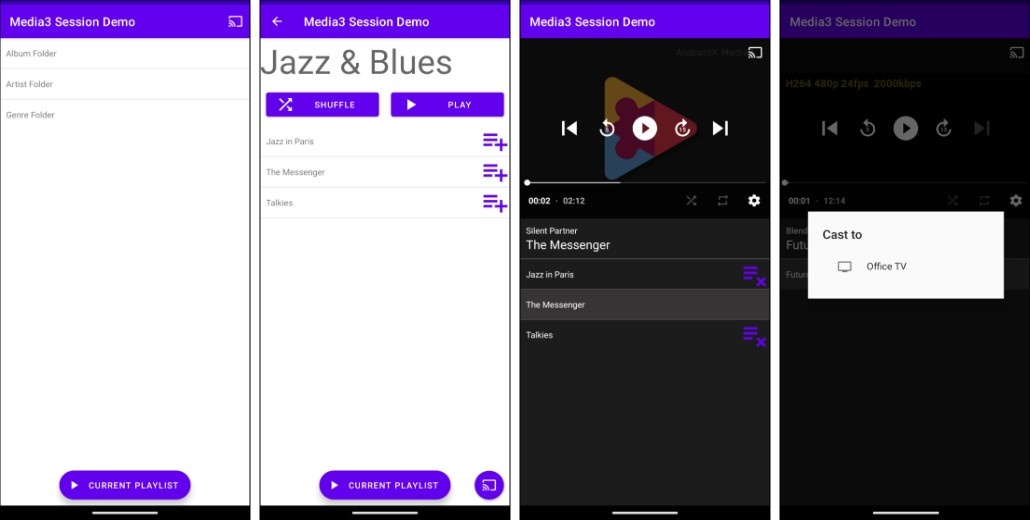
Add a MediaRouteButton to your app's UI. Tapping the MediaRouteButton
opens a dialog displaying a list of available Cast-enabled devices on the
network. When the user selects a device, the media playback is transferred from
the mobile to the selected receiver device. This section shows you how to add
the button and listen for events to update your UI when playback switches
between local and remote devices.
Set the MediaRouteButton
There are four ways to add the MediaRouteButton to your activity's UI. The
best choice depends on your app's design and requirements.
- Compose UI: Add a button composable.
- Views UI:
- Add the button to the app bar menu.
- Add the button inside
PlayerView. - Add the button as a standard
View.
Add a Composable MediaRouteButton to the Player
You can add the MediaRouteButton Composable to your player's UI. For more
information, see the Compose guide.
Kotlin
import androidx.compose.animation.AnimatedVisibility
import androidx.compose.animation.fadeIn
import androidx.compose.animation.fadeOut
import androidx.compose.runtime.Composable
import androidx.compose.ui.Modifier
import androidx.media3.cast.MediaRouteButton

@Composable
fun PlayerComposeView(player: Player, modifier: Modifier = Modifier) {
  var controlsVisible by remember { mutableStateOf(false) }

  Box(
    modifier = modifier.clickable { controlsVisible = true },
    contentAlignment = Alignment.Center,
  ) {
    PlayerSurface(player = player, modifier = modifier)
    AnimatedVisibility(visible = controlsVisible, enter = fadeIn(), exit = fadeOut()) {
      Box(modifier = Modifier.fillMaxSize()) {
        MediaRouteButton(modifier = Modifier.align(Alignment.TopEnd))
        PrimaryControls(player = player, modifier = Modifier.align(Alignment.Center))
      }
    }
  }
}

@Composable
fun PrimaryControls(player: Player, modifier: Modifier = Modifier) {
  ...
}
Add the MediaRouteButton to the PlayerView
You can add the MediaRouteButton directly within the PlayerView's UI
controls. After setting the MediaController as the player for your
PlayerView, provide a MediaRouteButtonViewProvider to display the Cast
button on the Player.
Kotlin
override fun onStart() {
  super.onStart()

  playerView.player = mediaController
  playerView.setMediaRouteButtonViewProvider(MediaRouteButtonViewProvider())
}
Java
@Override
public void onStart() {
  super.onStart();

  playerView.setPlayer(mediaController);
  playerView.setMediaRouteButtonViewProvider(new MediaRouteButtonViewProvider());
}
Add the MediaRouteButton to the app bar menu
To set up a MediaRouteButton in the app bar menu, create an XML menu and
override onCreateOptionsMenu in your Activity.
<menu xmlns:android="http://schemas.android.com/apk/res/android"
         xmlns:app="http://schemas.android.com/apk/res-auto">
  <item android:id="@+id/media_route_menu_item"
    android:title="@string/media_route_menu_title"
    app:showAsAction="always"
    app:actionProviderClass="androidx.mediarouter.app.MediaRouteActionProvider"/>
</menu>
Kotlin
override fun onCreateOptionsMenu(menu: Menu): Boolean {
    ...
    menuInflater.inflate(R.menu.sample_media_route_button_menu, menu)
    val menuItemFuture: ListenableFuture<MenuItem> =
        MediaRouteButtonFactory.setUpMediaRouteButton(
            context, menu, R.id.media_route_menu_item)
    Futures.addCallback(
        menuItemFuture,
        object : FutureCallback<MenuItem> {
            override fun onSuccess(menuItem: MenuItem?) {
                // Do something with the menu item.
            }

            override fun onFailure(t: Throwable) {
                // Handle the failure.
            }
        },
        executor)
    ...
}
Java
@Override
public boolean onCreateOptionsMenu(Menu menu) {
    ...
    getMenuInflater().inflate(R.menu.sample_media_route_button_menu, menu);
    ListenableFuture<MenuItem> menuItemFuture =
        MediaRouteButtonFactory.setUpMediaRouteButton(
          context, menu, R.id.media_route_menu_item);
    Futures.addCallback(
        menuItemFuture,
        new FutureCallback<MenuItem>() {
          @Override
          public void onSuccess(MenuItem menuItem) {
            // Do something with the menu item.
          }

          @Override
          public void onFailure(Throwable t) {
            // Handle the failure.
          }
        },
        executor);
    ...
}
Add the MediaRouteButton as a View
You can set up a MediaRouteButton in your activity layout.xml.
  <androidx.mediarouter.app.MediaRouteButton
      android:id="@+id/media_route_button"
      android:layout_width="wrap_content"
      android:layout_height="wrap_content"
      app:mediaRouteButtonTint="@android:color/white" />
To complete the setup for the MediaRouteButton, use the Media3 Cast
MediaRouteButtonFactory in your Activity code.
Kotlin
override fun onCreate(savedInstanceState: Bundle?) {
  super.onCreate(savedInstanceState)

  findViewById<MediaRouteButton>(R.id.media_route_button)?.also {
    val unused = MediaRouteButtonFactory.setUpMediaRouteButton(context, it)
  }
}
Java
@Override
public void onCreate(Bundle savedInstanceState) {
    ...
    MediaRouteButton button = findViewById(R.id.media_route_button);
    ListenableFuture<Void> setUpFuture =
        MediaRouteButtonFactory.setUpMediaRouteButton(context, button);
}
Activity Listener
Create a Player.Listener in your Activity to listen for changes to media
playback location. When the playbackType changes between PLAYBACK_TYPE_LOCAL
and PLAYBACK_TYPE_REMOTE, you can adjust your UI as needed. To prevent memory
leaks and to confine listener activity to only when your app is visible,
register the listener in onStart and unregister it in onStop:
Kotlin
import androidx.media3.common.DeviceInfo
import androidx.media3.common.Player

private val playerListener: Player.Listener =
  object : Player.Listener {
    override fun onDeviceInfoChanged(deviceInfo: DeviceInfo) {
      if (deviceInfo.playbackType == DeviceInfo.PLAYBACK_TYPE_LOCAL) {
        // Add UI changes for local playback.
      } else if (deviceInfo.playbackType == DeviceInfo.PLAYBACK_TYPE_REMOTE) {
        // Add UI changes for remote playback.
      }
    }
  }

override fun onStart() {
  super.onStart()
  mediaController.addListener(playerListener)
}

override fun onStop() {
  super.onStop()
  mediaController.removeListener(playerListener)
}
Java
import androidx.media3.common.DeviceInfo;
import androidx.media3.common.Player;

private Player.Listener playerListener =
    new Player.Listener() {
      @Override
      public void onDeviceInfoChanged(DeviceInfo deviceInfo) {
        if (deviceInfo.playbackType == DeviceInfo.PLAYBACK_TYPE_LOCAL) {
          // Add UI changes for local playback.
        } else if (deviceInfo.playbackType == DeviceInfo.PLAYBACK_TYPE_REMOTE) {
          // Add UI changes for remote playback.
        }
      }
    };

@Override
protected void onStart() {
  super.onStart();
  mediaController.addListener(playerListener);
}

@Override
protected void onStop() {
  super.onStop();
  mediaController.removeListener(playerListener);
}
For more information about listening and responding to playback events, see the player events guide.