

本指南提供開發人員操作說明,說明如何使用 Engage SDK 與 Google TV 分享應用程式訂閱和授權資料。使用者可以找到自己有權觀看的內容,並讓 Google TV 直接在電視、行動裝置和平板電腦的 Google TV 體驗中,向使用者提供高度相關的內容建議。
必要條件
如要使用裝置授權 API,請先加入媒體動作動態消息。如果尚未完成,請完成媒體動作動態消息的啟用程序。
事前作業
完成入門指南中的事前準備指示。
- 在下列事件發布訂閱資訊:
- 使用者登入您的應用程式。
- 使用者在設定檔之間切換 (如果支援設定檔)。
- 使用者購買新訂閱方案。
- 使用者升級現有訂閱方案。
- 使用者訂閱方案到期。
整合
本節提供必要的程式碼範例和操作說明,協助您實作 SubscriptionEntity 來管理各種訂閱類型。
共同的訂閱級別
如果使用者訂閱的是媒體供應商服務的基本方案 (例如:服務只有一個訂閱層級,可存取所有付費內容),請提供下列重要詳細資料:
SubscriptionType:清楚指出使用者目前訂閱的方案。SUBSCRIPTION_TYPE_ACTIVE:使用者有有效的付費訂閱方案。SUBSCRIPTION_TYPE_ACTIVE_TRIAL:使用者有試用訂閱方案。SUBSCRIPTION_TYPE_INACTIVE:使用者有帳戶,但沒有有效訂閱或試用方案。
ExpirationTimeMillis:選用時間 (以毫秒為單位)。指定訂閱方案的到期時間。ProviderPackageName:指定處理訂閱項目的應用程式套件名稱。
範例:媒體供應商動態饋給示例。
"actionAccessibilityRequirement": [
  {
    "@type": "ActionAccessSpecification",
    "category": "subscription",
    "availabilityStarts": "2022-06-01T07:00:00Z",
    "availabilityEnds": "2026-05-31T07:00:00Z",
    "requiresSubscription": {
    "@type": "MediaSubscription",
    // Don't match this string,
    // ID is only used to for reconciliation purpose
    "@id": "https://www.example.com/971bfc78-d13a-4419",
    // Don't match this, as name is only used for displaying purpose
    "name": "Basic common name",
    "commonTier": true
  }
以下範例會為使用者建立 SubscriptionEntity:
val subscription = SubscriptionEntity.Builder()
  setSubscriptionType(
    SubscriptionType.SUBSCRIPTION_TYPE_ACTIVE
  )
  .setProviderPackageName("com.google.android.example")
  // Optional
  // December 30, 2025 12:00:00AM in milliseconds since epoch
  .setExpirationTimeMillis(1767052800000)
  .build()
付費訂閱內容
如果應用程式提供多層級的進階訂閱方案 (包含一般層級以外的擴充內容或功能),請在「Subscription」中新增一或多項授權,代表這些方案。
這項授權具有下列欄位:
Identifier:這項授權的必要 ID 字串。這必須與發布至 Google TV 的媒體供應商動態饋給中提供的授權 ID (請注意,這不是 ID 欄位) 之一相符。Name:這是輔助資訊,用於比對授權。雖然是選用欄位,但提供人類可讀的授權名稱,有助於開發人員和支援團隊瞭解使用者授權。例如:Sling Orange。ExpirationTimeMillis:如果這項授權的到期時間與訂閱項目的到期時間不同,可以選擇指定授權到期時間 (以毫秒為單位)。預設情況下,權益會在訂閱方案到期時失效。
以下是媒體供應商動態饋給的程式碼片段範例:
"actionAccessibilityRequirement": [
  {
    "@type": "ActionAccessSpecification",
    "category": "subscription",
    "availabilityStarts": "2022-06-01T07:00:00Z",
    "availabilityEnds": "2026-05-31T07:00:00Z",
    "requiresSubscription": {
    "@type": "MediaSubscription",
    // Don't match this string,
    // ID is only used to for reconciliation purpose
    "@id": "https://www.example.com/971bfc78-d13a-4419",

    // Don't match this, as name is only used for displaying purpose
    "name": "Example entitlement name",
    "commonTier": false,
    // match this identifier in your API. This is the crucial
    // entitlement identifier used for recommendation purpose.
    "identifier": "example.com:entitlementString1"
  }
以下範例會為訂閱使用者建立 SubscriptionEntity:
// Subscription with entitlements.
// The entitlement expires at the same time as its subscription.
val subscription = SubscriptionEntity.Builder()
  .setSubscriptionType(
    SubscriptionType.SUBSCRIPTION_TYPE_ACTIVE
  )
  .setProviderPackageName("com.google.android.example")
  // Optional
  // December 30, 2025 12:00:00AM in milliseconds
  .setExpirationTimeMillis(1767052800000)
  .addEntitlement(
    SubscriptionEntitlement.Builder()
    // matches with the identifier in media provider feed
    .setEntitlementId("example.com:entitlementString1")
    .setDisplayName("entitlement name1")
    .build()
  )
  .build()
// Subscription with entitlements
// The entitement has different expiration time from its subscription
val subscription = SubscriptionEntity.Builder()
  .setSubscriptionType(
    SubscriptionType.SUBSCRIPTION_TYPE_ACTIVE
  )
  .setProviderPackageName("com.google.android.example")
  // Optional
  // December 30, 2025 12:00:00AM in milliseconds
  .setExpirationTimeMillis(1767052800000)
  .addEntitlement(
    SubscriptionEntitlement.Builder()
    .setEntitlementId("example.com:entitlementString1")
    .setDisplayName("entitlement name1")
    // You may set the expiration time for entitlement
    // December 15, 2025 10:00:00 AM in milliseconds
    .setExpirationTimeMillis(1765792800000)
    .build())
  .build()
已連結服務套裝組合的訂閱方案
訂閱項目通常屬於原始應用程式的媒體供應商,但只要在訂閱項目中指定連結的服務套件名稱,訂閱項目就能歸給連結的服務套件。
下列程式碼範例示範如何建立使用者訂閱項目。
// Subscription for linked service package
val subscription = SubscriptionEntity.Builder()
  .setSubscriptionType(
    SubscriptionType.SUBSCRIPTION_TYPE_ACTIVE
  )
  .setProviderPackageName("com.google.android.example")
  // Optional
  // December 30, 2025 12:00:00AM in milliseconds since epoch
  .setExpirationTimeMillis(1767052800000)
  .build()
此外,如果使用者訂閱了子公司服務,請新增其他訂閱項目,並相應設定連結的服務套件名稱。
// Subscription for linked service package
val linkedSubscription = Subscription.Builder()
  .setSubscriptionType(
    SubscriptionType.SUBSCRIPTION_TYPE_ACTIVE
  )
  .setProviderPackageName("linked service package name")
  // Optional
  // December 30, 2025 12:00:00AM in milliseconds since epoch
  .setExpirationTimeMillis(1767052800000)
  .addBundledSubscription(
    BundledSubscription.Builder()
      .setBundledSubscriptionProviderPackageName(
        "bundled-subscription-package-name"
      )
      .setSubscriptionType(SubscriptionType.SUBSCRIPTION_TYPE_ACTIVE)
      .setExpirationTimeMillis(111)
      .addEntitlement(
        SubscriptionEntitlement.Builder()
        .setExpirationTimeMillis(111)
        .setDisplayName("Silver subscription")
        .setEntitlementId("subscription.tier.platinum")
        .build()
      )
      .build()
  )
    .build()
您也可以視需要為連結的服務訂閱項目新增授權。
提供訂閱組合
在應用程式於前景運作時執行內容發布作業。
使用 AppEngagePublishClient 類別的 publishSubscriptionCluster() 方法發布 SubscriptionCluster 物件。
請務必按照入門指南所述,初始化用戶端並檢查服務可用性。
client.publishSubscription(
  PublishSubscriptionRequest.Builder()
    .setAccountProfile(accountProfile)
    .setSubscription(subscription)
    .build()
  )
使用 setSubscription() 驗證使用者是否只能訂閱這項服務一次。
使用 addLinkedSubscription() 或 addLinkedSubscriptions() (接受連結訂閱項目清單),讓使用者擁有零或多個連結訂閱項目。
服務收到要求後,系統會建立新項目,並在 60 天後自動刪除舊項目。系統一律會使用最新項目。如果發生錯誤,整個要求都會遭到拒絕,現有狀態則維持不變。
確保訂閱方案為最新版本
如要在變更時立即提供更新,請在使用者訂閱狀態變更時 (例如啟用、停用、升級、降級) 呼叫
publishSubscriptionCluster。如要定期驗證持續準確度,請至少每月呼叫一次
publishSubscriptionCluster。publishContinuationCluster如要在標準 60 天保留期限前刪除 Engage 資料,請使用
client.deleteClusters方法,從 Google TV 伺服器手動刪除使用者資料。這項操作會刪除帳戶設定檔或整個帳戶的所有現有 Engage 資料,視提供的DeleteReason而定。下列程式碼片段說明如何移除使用者訂閱項目:
// If the user logs out from your media app, you must make the following call
// to remove subscription and other Engage data from the current
// google TV device.
client.deleteClusters(
  new DeleteClustersRequest.Builder()
    .setAccountProfile(accountProfile)
  .setReason(DeleteReason.DELETE_REASON_USER_LOG_OUT)
  .build()
  )
下列程式碼片段示範使用者撤銷同意聲明時,如何移除使用者訂閱項目:
// If the user revokes the consent to share across device, make the call
// to remove subscription and other Engage data from all google
// TV devices.
client.deleteClusters(
  new DeleteClustersRequest.Builder()
    .setAccountProfile(accountProfile)
    .setReason(DeleteReason.DELETE_REASON_LOSS_OF_CONSENT)
    .build()
)
以下程式碼示範如何移除使用者個人資料刪除作業的訂閱資料。
// If the user delete a specific profile, you must make the following call
// to remove subscription data and other Engage data.
client.deleteClusters(
  new DeleteClustersRequest.Builder()
  .setAccountProfile(accountProfile)
  .setReason(DeleteReason.DELETE_REASON_ACCOUNT_PROFILE_DELETION)
  .build()
)
測試
本節提供逐步指南,說明如何測試訂閱功能導入作業。發布前,請先確認資料準確度及功能是否正常運作。
發布整合檢查清單
應用程式應在前景發布,且使用者正積極與應用程式互動。
發布時機:
- 使用者首次登入。
- 使用者變更設定檔 (如果系統支援設定檔)。
- 使用者購買新的訂閱方案。
- 使用者升級訂閱方案。
- 使用者訂閱方案到期。
在發布事件時,檢查應用程式是否在 logcat 中正確呼叫
isServiceAvailable()和publishClusters()API。確認驗證應用程式可顯示資料。驗證應用程式應將訂閱項目顯示為獨立的一列。叫用發布 API 時,驗證應用程式應會顯示資料。
前往應用程式並執行下列各項動作:
- 登入。
- 切換設定檔 (如果支援)。
- 購買新的訂閱方案。
- 升級現有訂閱方案。
- 讓訂閱方案到期。
驗證整合
如要測試整合結果,請使用驗證應用程式。
- 針對每個事件,檢查應用程式是否已叫用
publishSubscriptionAPI。在驗證應用程式中驗證已發布的資料。確認驗證應用程式中的所有項目都顯示綠色 如果所有實體的資訊都正確無誤,所有實體都會顯示綠色的「一切正常」勾號。
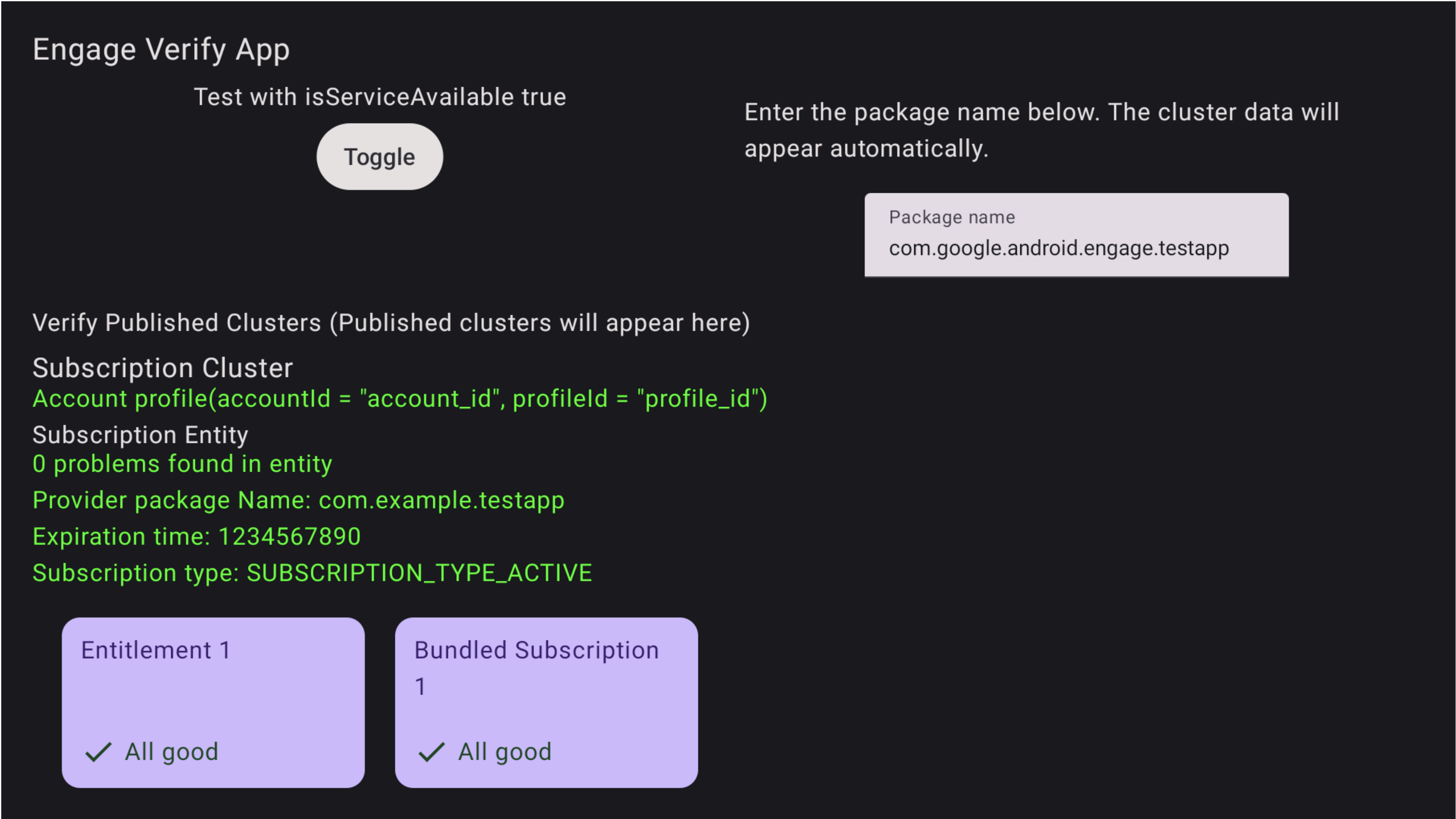
圖 1. 訂閱成功 驗證應用程式也會醒目顯示問題
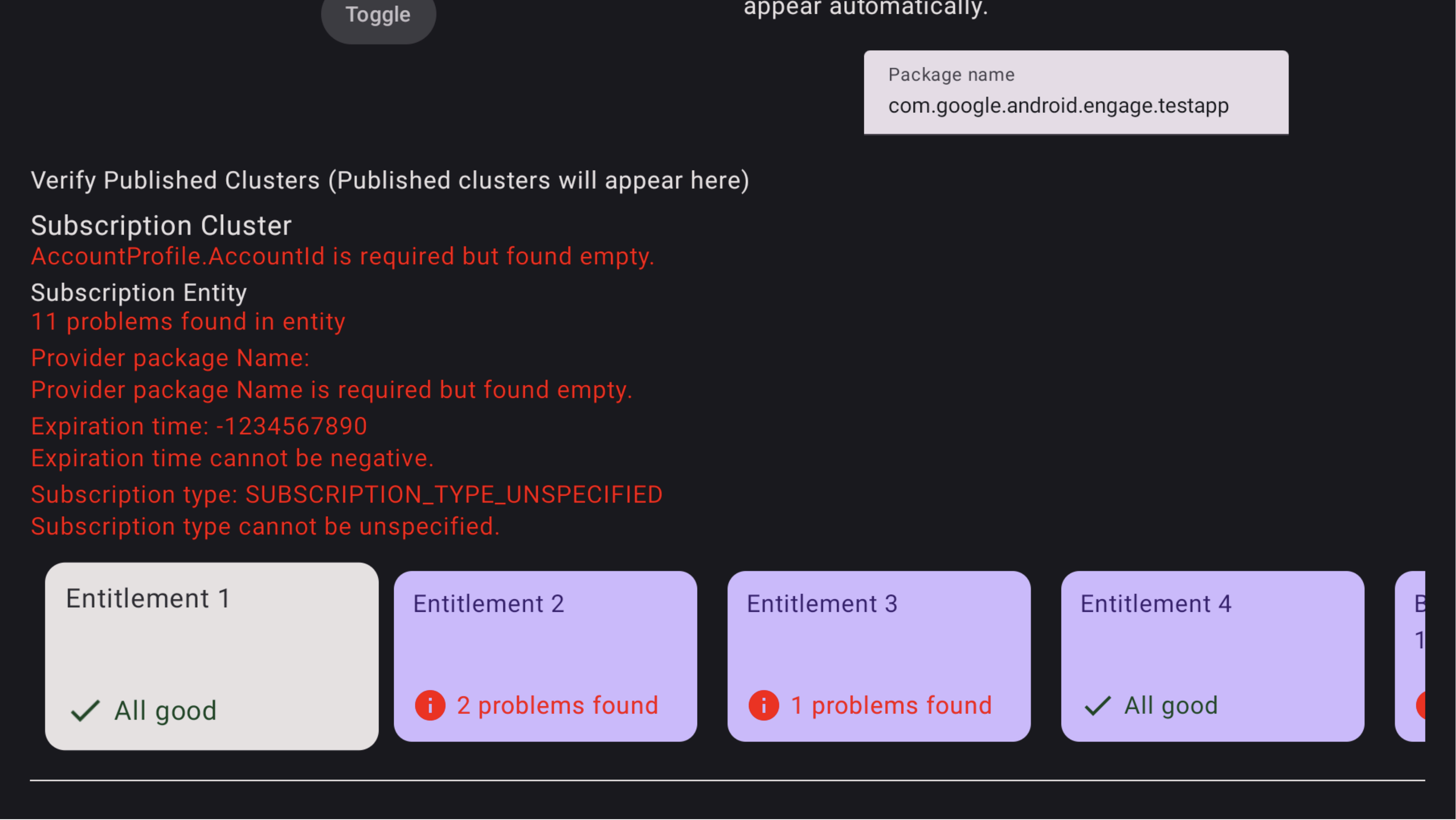
圖 2.訂閱失敗 如要查看套裝訂閱方案的問題,請使用電視遙控器將焦點移至該方案,然後按一下即可查看問題。你可能需要先將焦點移至該列,然後向右移動,找到「套裝訂閱方案」資訊卡。問題會以紅色醒目顯示,如圖 3 所示。此外,你也可以使用遙控器向下移動,查看套裝訂閱方案中授權的問題
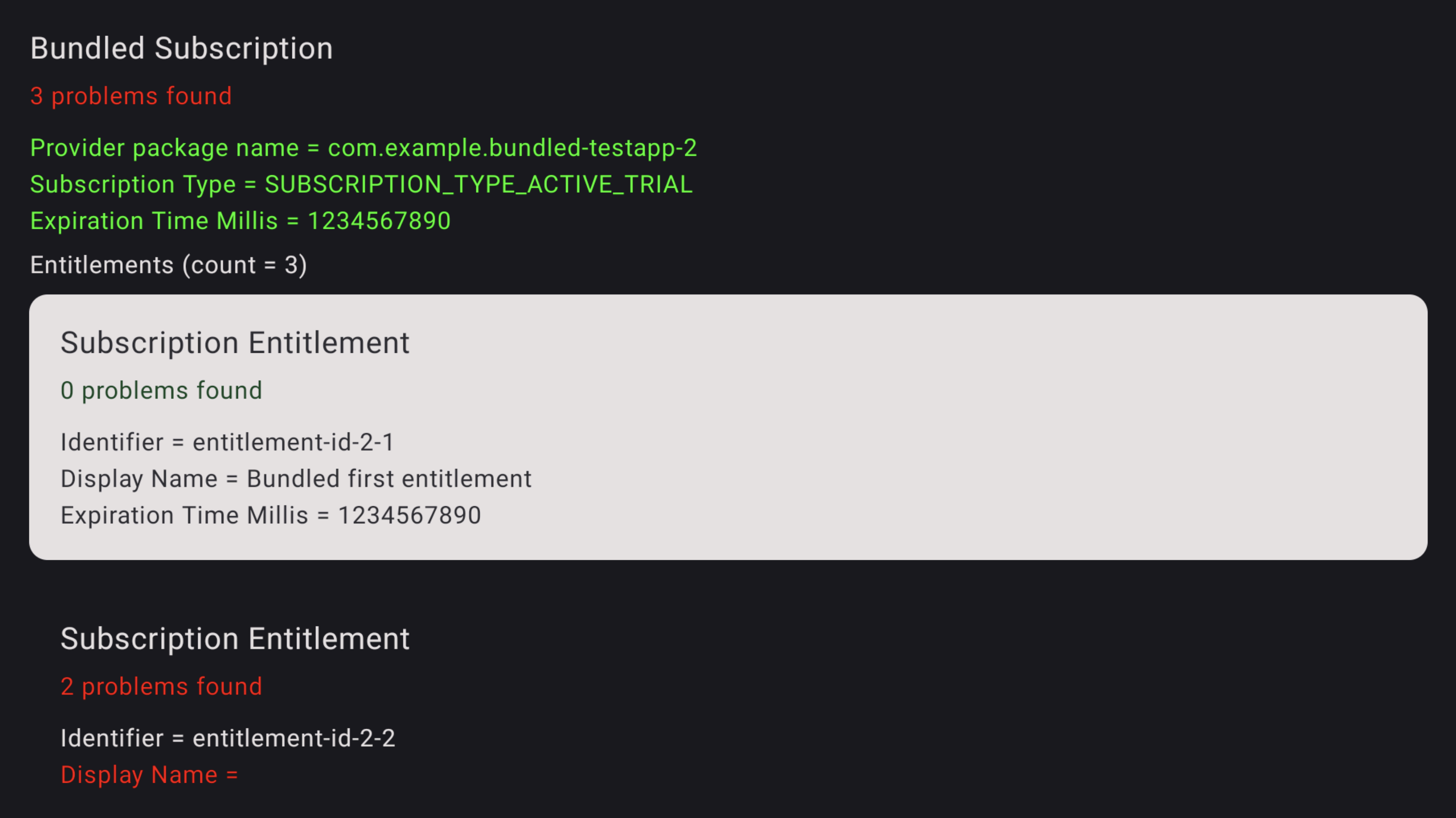
圖 3.訂閱錯誤 如要查看授權中的問題,請使用電視遙控器將焦點放在該特定授權上,然後按一下即可查看問題。問題會以紅色醒目顯示。
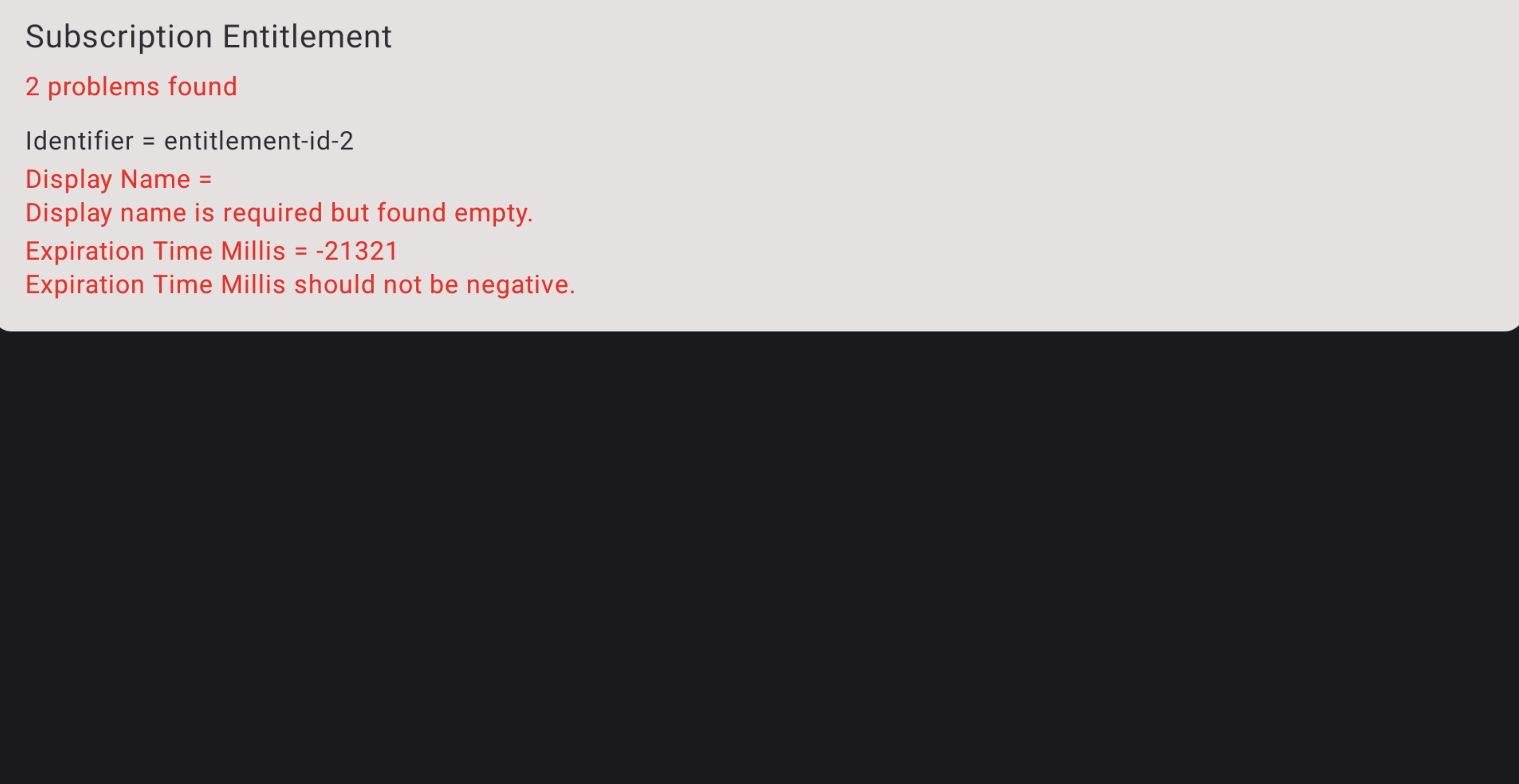
圖 4.訂閱錯誤詳細資料