
本页介绍了如何使用不同的触感反馈 API 在 Android 应用中创建超出标准振动波形的自定义效果。
本页包含以下示例:
如需更多示例,请参阅为事件添加触感反馈,并始终遵循触感设计原则。
使用回退来处理设备兼容性问题
实现任何自定义效果时,请考虑以下几点:
- 效果所需的设备功能
- 如果设备无法播放效果,该怎么办
Android 触感反馈 API 参考文档详细介绍了如何检查触感反馈所涉及组件的支持情况,以便您的应用提供一致的整体体验。
根据您的使用场景,您可能需要停用自定义效果,或者根据不同的潜在功能提供替代的自定义效果。
规划以下高级别的设备功能:
如果您使用的是触感基元:支持自定义效果所需基元的设备。(有关基元的详细信息,请参阅下一部分。)
具有振幅控制的设备。
支持基本振动(开/关)的设备,也就是说,不支持振幅控制的设备。
如果应用所选的触感效果考虑到了这些类别,那么其触感用户体验对于任何单个设备都应保持可预测性。
触感基元的使用
Android 包含多种触感基元,这些基元的振幅和频率各不相同。您可以单独使用一种基元,也可以组合使用多种基元来实现丰富的触感效果。
- 使用 50 毫秒或更长的延迟时间,以便在两个原语之间形成可辨别的间隙,同时尽可能考虑原语时长。
- 使用相差 1.4 倍或以上的比例,以便更好地感知强度差异。
使用 0.5、0.7 和 1.0 的缩放比例来创建低强度、中强度和高强度的基元版本。
创建自定义振动模式
振动模式通常用于注意力触感反馈,例如通知和铃声。Vibrator 服务可以播放长时间的振动模式,这些模式会随时间改变振动幅度。此类效果称为波形。
波形效果通常可以感知到,但在安静的环境中播放时,突发的长时间振动可能会使用户受到惊吓。过快地将振幅增加到目标值也可能会产生能听到的嗡嗡声。设计波形图案,以平滑振幅过渡,从而创建升降效果。
振动模式示例
以下部分提供了多个振动模式示例:
公开范围渐增模式
波形表示为 VibrationEffect,包含以下三个参数:
- 时间:一个数组,包含每个波形段的时长(以毫秒为单位)。
- 振幅:第一个实参中指定的每个时长的所需振动幅度,以 0 到 255 之间的整数值表示,其中 0 表示振动器处于“关闭状态”,255 表示设备的最大振幅。
- 重复索引:第一个实参中指定的数组中开始重复波形的索引,如果应仅播放一次模式,则为 -1。
下面是一个波形示例,它会闪烁两次,两次闪烁之间有 350 毫秒的暂停时间。第一个脉冲是平稳地升至最大振幅,第二个脉冲是快速升至最大振幅并保持该振幅。在末尾停止由负重复索引值定义。
Kotlin
val timings: LongArray = longArrayOf(
    50, 50, 50, 50, 50, 100, 350, 25, 25, 25, 25, 200)
val amplitudes: IntArray = intArrayOf(
    33, 51, 75, 113, 170, 255, 0, 38, 62, 100, 160, 255)
val repeatIndex = -1 // Don't repeat.

vibrator.vibrate(VibrationEffect.createWaveform(
    timings, amplitudes, repeatIndex))
Java
long[] timings = new long[] {
    50, 50, 50, 50, 50, 100, 350, 25, 25, 25, 25, 200 };
int[] amplitudes = new int[] {
    33, 51, 75, 113, 170, 255, 0, 38, 62, 100, 160, 255 };
int repeatIndex = -1; // Don't repeat.

vibrator.vibrate(VibrationEffect.createWaveform(
    timings, amplitudes, repeatIndex));
重复模式
波形也可以重复播放,直到取消。创建重复波形的方法是设置一个非负的 repeat 参数。当您播放重复的波形时,振动会一直持续,直到在服务中明确取消为止:
Kotlin
void startVibrating() {
val timings: LongArray = longArrayOf(50, 50, 100, 50, 50)
val amplitudes: IntArray = intArrayOf(64, 128, 255, 128, 64)
val repeat = 1 // Repeat from the second entry, index = 1.
VibrationEffect repeatingEffect = VibrationEffect.createWaveform(
    timings, amplitudes, repeat)
// repeatingEffect can be used in multiple places.

vibrator.vibrate(repeatingEffect)
}

void stopVibrating() {
vibrator.cancel()
}
Java
void startVibrating() {
long[] timings = new long[] { 50, 50, 100, 50, 50 };
int[] amplitudes = new int[] { 64, 128, 255, 128, 64 };
int repeat = 1; // Repeat from the second entry, index = 1.
VibrationEffect repeatingEffect = VibrationEffect.createWaveform(
    timings, amplitudes, repeat);
// repeatingEffect can be used in multiple places.

vibrator.vibrate(repeatingEffect);
}

void stopVibrating() {
vibrator.cancel();
}
这对于需要用户采取行动来确认的间歇性事件非常有用。此类事件的示例包括来电和触发的闹钟。
包含后备元素的模式
控制振动幅度是一项依赖于硬件的功能。在不具备此功能的低端设备上播放波形会导致设备针对振幅数组中的每个正条目以最大振幅振动。如果您的应用需要适应此类设备,请使用在上述条件下播放时不会产生嗡嗡声的振动模式,或者设计一个更简单的开/关模式作为后备方案。
Kotlin
if (vibrator.hasAmplitudeControl()) {
  vibrator.vibrate(VibrationEffect.createWaveform(
    smoothTimings, amplitudes, smoothRepeatIdx))
} else {
  vibrator.vibrate(VibrationEffect.createWaveform(
    onOffTimings, onOffRepeatIdx))
}
Java
if (vibrator.hasAmplitudeControl()) {
  vibrator.vibrate(VibrationEffect.createWaveform(
    smoothTimings, amplitudes, smoothRepeatIdx));
} else {
  vibrator.vibrate(VibrationEffect.createWaveform(
    onOffTimings, onOffRepeatIdx));
}
创建振动组合
本部分介绍了如何将振动组合成更长、更复杂的自定义效果,并进一步探索如何使用更高级的硬件功能实现丰富的触感反馈。您可以组合使用振幅和频率各不相同的效果,在触感反馈执行器具有更宽频率带宽的设备上创建更复杂的触感反馈效果。
本页之前介绍的创建自定义振动模式的流程说明了如何控制振动幅度,以创建平稳的振动增强和减弱效果。丰富触感反馈通过探索设备振动器的更广频率范围来改进这一概念,使效果更加顺畅。这些波形在营造渐强或渐弱效果方面尤其有效。
本页前面介绍的组合基元由设备制造商实现。它们提供清脆、短暂且令人愉悦的振动,符合清晰触感反馈的触感反馈原则。如需详细了解这些功能及其运作方式,请参阅振动执行器入门。
对于包含不受支持的原语的合成,Android 不提供回退。 因此,请执行以下步骤:
在激活高级触感之前,请检查指定设备是否支持您使用的所有基元。
停用不受支持的一致体验集,而不仅仅是缺少原语的效果。
有关如何检查设备支持情况的更多信息,请参阅以下部分。
创建组合振动效果
您可以使用 VibrationEffect.Composition 创建组合振动效果。以下示例展示了缓慢上升效果,随后是急促的点击效果:
Kotlin
vibrator.vibrate(
    VibrationEffect.startComposition().addPrimitive(
    VibrationEffect.Composition.PRIMITIVE_SLOW_RISE
    ).addPrimitive(
    VibrationEffect.Composition.PRIMITIVE_CLICK
    ).compose()
)
Java
vibrator.vibrate(
    VibrationEffect.startComposition()
        .addPrimitive(VibrationEffect.Composition.PRIMITIVE_SLOW_RISE)
        .addPrimitive(VibrationEffect.Composition.PRIMITIVE_CLICK)
        .compose());
通过添加要按顺序播放的基元来创建乐曲。每种原语也是可缩放的,因此您可以控制每种原语产生的振动幅度。该比例定义为介于 0 和 1 之间的值,其中 0 实际上对应于用户几乎感觉不到的最小振幅。
在振动原语中创建变体
如果您想为同一基元创建弱版本和强版本,请创建强度比为 1.4 或更高的版本,以便轻松感知强度差异。请勿尝试为同一原语创建三个以上的强度级别,因为它们在感知上没有区别。例如,使用 0.5、0.7 和 1.0 的缩放比例来创建低强度、中等强度和高强度的原色版本。
在振动原语之间添加间隙
合成还可以指定要在连续的原语之间添加的延迟。此延迟时间以自上一个原语结束起计的毫秒数表示。一般来说,两个图元之间的间隔时间为 5 到 10 毫秒时,太短而无法检测到。如果您想在两个原语之间创建可辨别的间隙,请使用 50 毫秒或更长的间隙。以下是包含延迟的合成示例:
Kotlin
val delayMs = 100
vibrator.vibrate(
    VibrationEffect.startComposition().addPrimitive(
    VibrationEffect.Composition.PRIMITIVE_SPIN, 0.8f
    ).addPrimitive(
    VibrationEffect.Composition.PRIMITIVE_SPIN, 0.6f
    ).addPrimitive(
    VibrationEffect.Composition.PRIMITIVE_THUD, 1.0f, delayMs
    ).compose()
)
Java
int delayMs = 100;
vibrator.vibrate(
    VibrationEffect.startComposition()
        .addPrimitive(VibrationEffect.Composition.PRIMITIVE_SPIN, 0.8f)
        .addPrimitive(VibrationEffect.Composition.PRIMITIVE_SPIN, 0.6f)
        .addPrimitive(
            VibrationEffect.Composition.PRIMITIVE_THUD, 1.0f, delayMs)
        .compose());
查看支持哪些原语
以下 API 可用于验证设备对特定原型的支持情况:
Kotlin
val primitive = VibrationEffect.Composition.PRIMITIVE_LOW_TICK

if (vibrator.areAllPrimitivesSupported(primitive)) {
  vibrator.vibrate(VibrationEffect.startComposition()
        .addPrimitive(primitive).compose())
} else {
  // Play a predefined effect or custom pattern as a fallback.
}
Java
int primitive = VibrationEffect.Composition.PRIMITIVE_LOW_TICK;

if (vibrator.areAllPrimitivesSupported(primitive)) {
  vibrator.vibrate(VibrationEffect.startComposition()
        .addPrimitive(primitive).compose());
} else {
  // Play a predefined effect or custom pattern as a fallback.
}
您还可以检查多个基元,然后根据设备支持级别决定要组合哪些基元:
Kotlin
val effects: IntArray = intArrayOf(
VibrationEffect.Composition.PRIMITIVE_LOW_TICK,
VibrationEffect.Composition.PRIMITIVE_TICK,
VibrationEffect.Composition.PRIMITIVE_CLICK
)
val supported: BooleanArray = vibrator.arePrimitivesSupported(primitives)
Java
int[] primitives = new int[] {
VibrationEffect.Composition.PRIMITIVE_LOW_TICK,
VibrationEffect.Composition.PRIMITIVE_TICK,
VibrationEffect.Composition.PRIMITIVE_CLICK
};
boolean[] supported = vibrator.arePrimitivesSupported(effects);
振动组合示例
以下部分提供了多个振动组合示例,这些示例来自 GitHub 上的 Haptics 示例应用。
抗阻(低心跳)
您可以控制原始振动的振幅,以便为正在进行的操作提供有用的反馈。可以使用间隔较小的缩放值来创建基元的平滑渐强效果。还可以根据用户互动动态设置连续原语之间的延迟时间。以下示例展示了由拖动手势控制并增强了触感的视图动画。
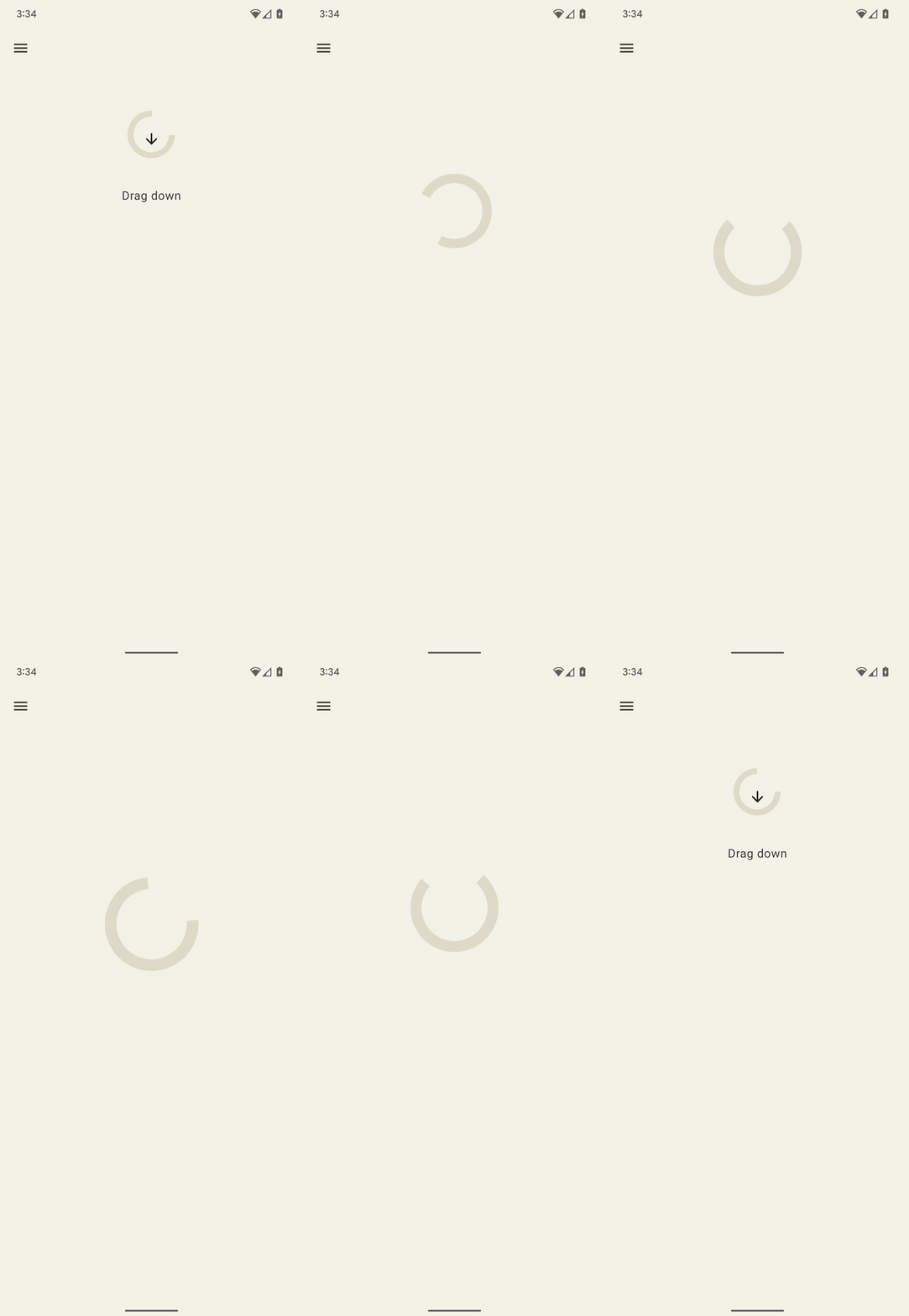
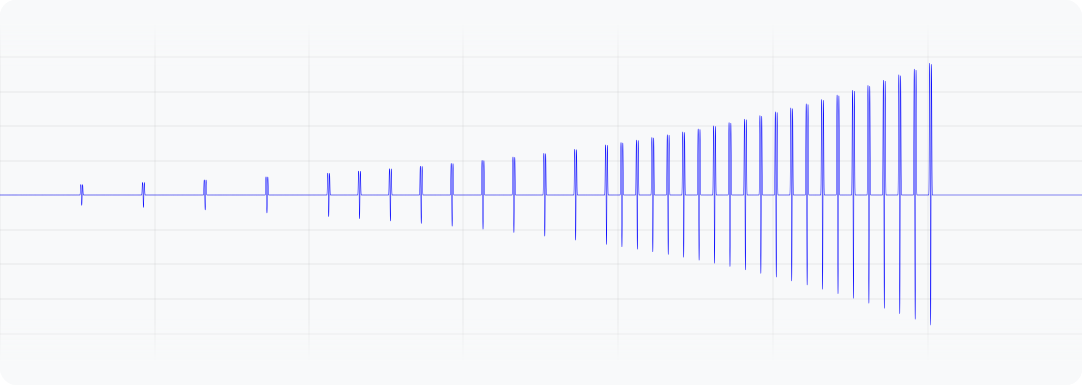
图 1. 此波形表示设备振动的输出加速度。
Kotlin
@Composable
fun ResistScreen() {
    // Control variables for the dragging of the indicator.
    var isDragging by remember { mutableStateOf(false) }
    var dragOffset by remember { mutableStateOf(0f) }

    // Only vibrates while the user is dragging
    if (isDragging) {
        LaunchedEffect(Unit) {
        // Continuously run the effect for vibration to occur even when the view
        // is not being drawn, when user stops dragging midway through gesture.
        while (true) {
            // Calculate the interval inversely proportional to the drag offset.
            val vibrationInterval = calculateVibrationInterval(dragOffset)
            // Calculate the scale directly proportional to the drag offset.
            val vibrationScale = calculateVibrationScale(dragOffset)

            delay(vibrationInterval)
            vibrator.vibrate(
            VibrationEffect.startComposition().addPrimitive(
                VibrationEffect.Composition.PRIMITIVE_LOW_TICK,
                vibrationScale
            ).compose()
            )
        }
        }
    }

    Screen() {
        Column(
        Modifier
            .draggable(
            orientation = Orientation.Vertical,
            onDragStarted = {
                isDragging = true
            },
            onDragStopped = {
                isDragging = false
            },
            state = rememberDraggableState { delta ->
                dragOffset += delta
            }
            )
        ) {
        // Build the indicator UI based on how much the user has dragged it.
        ResistIndicator(dragOffset)
        }
    }
}
Java
class DragListener implements View.OnTouchListener {
    // Control variables for the dragging of the indicator.
    private int startY;
    private int vibrationInterval;
    private float vibrationScale;

    @Override
    public boolean onTouch(View view, MotionEvent event) {
        switch (event.getAction()) {
        case MotionEvent.ACTION_DOWN:
            startY = event.getRawY();
            vibrationInterval = calculateVibrationInterval(0);
            vibrationScale = calculateVibrationScale(0);
            startVibration();
            break;
        case MotionEvent.ACTION_MOVE:
            float dragOffset = event.getRawY() - startY;
            // Calculate the interval inversely proportional to the drag offset.
            vibrationInterval = calculateVibrationInterval(dragOffset);
            // Calculate the scale directly proportional to the drag offset.
            vibrationScale = calculateVibrationScale(dragOffset);
            // Build the indicator UI based on how much the user has dragged it.
            updateIndicator(dragOffset);
            break;
        case MotionEvent.ACTION_CANCEL:
        case MotionEvent.ACTION_UP:
            // Only vibrates while the user is dragging
            cancelVibration();
            break;
        }
        return true;
    }

    private void startVibration() {
        vibrator.vibrate(
            VibrationEffect.startComposition()
                .addPrimitive(VibrationEffect.Composition.PRIMITIVE_LOW_TICK,
                        vibrationScale)
                .compose());

        // Continuously run the effect for vibration to occur even when the view
        // is not being drawn, when user stops dragging midway through gesture.
        handler.postDelayed(this::startVibration, vibrationInterval);
    }

    private void cancelVibration() {
        handler.removeCallbacksAndMessages(null);
    }
}
展开(有升有降)
有两种原语可用于逐步提高感知到的振动强度:PRIMITIVE_QUICK_RISE 和 PRIMITIVE_SLOW_RISE。两者都可实现相同的目标,但持续时间不同。只有一个用于调低音量的基元,即 PRIMITIVE_QUICK_FALL。这些原语可以更好地协同工作,从而创建强度逐渐增大然后逐渐减弱的波形段。您可以对齐缩放后的原语,以防止它们之间的振幅出现突变,这也有助于延长整体效果持续时间。从感知上来说,人们总是更关注上升部分,而不是下降部分,因此,让上升部分比下降部分短可以用来将重点转移到下降部分。
下面是一个应用此组合来展开和收缩圆形的示例。升起效果可以增强动画播放期间的扩展感。升起和落下效果的组合有助于强调动画结束时的折叠效果。
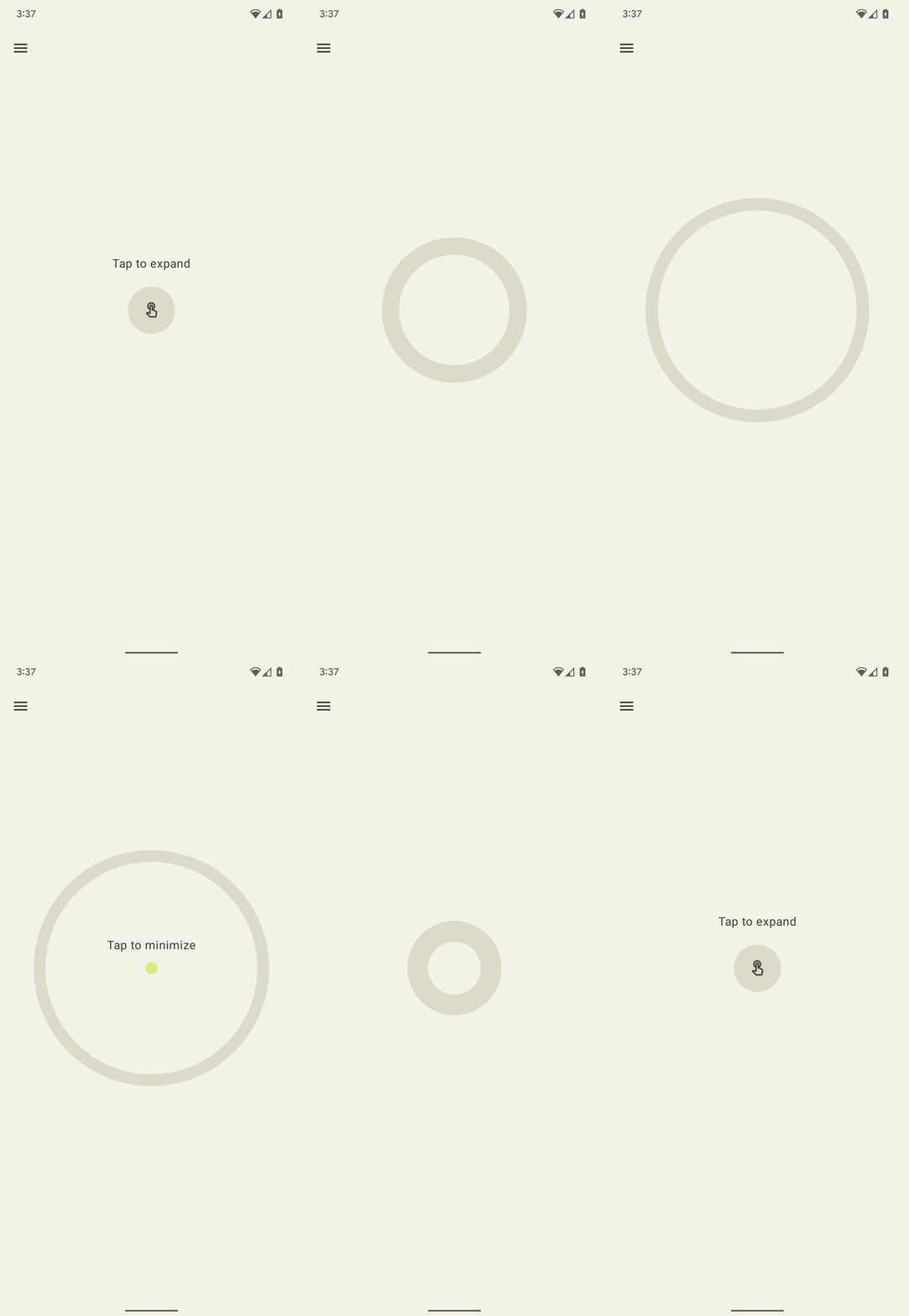
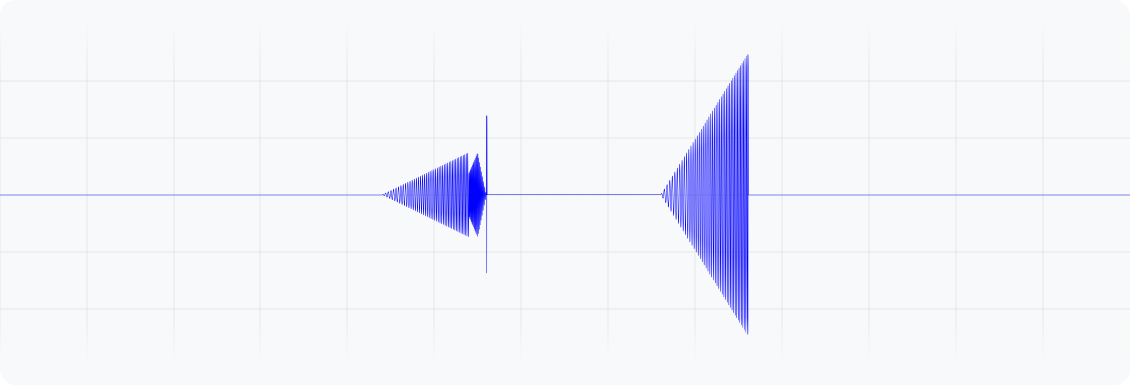
图 2.此波形表示设备的振动输出加速度。
Kotlin
enum class ExpandShapeState {
    Collapsed,
    Expanded
}

@Composable
fun ExpandScreen() {
    // Control variable for the state of the indicator.
    var currentState by remember { mutableStateOf(ExpandShapeState.Collapsed) }

    // Animation between expanded and collapsed states.
    val transitionData = updateTransitionData(currentState)

    Screen() {
        Column(
        Modifier
            .clickable(
            {
                if (currentState == ExpandShapeState.Collapsed) {
                currentState = ExpandShapeState.Expanded
                vibrator.vibrate(
                    VibrationEffect.startComposition().addPrimitive(
                    VibrationEffect.Composition.PRIMITIVE_SLOW_RISE,
                    0.3f
                    ).addPrimitive(
                    VibrationEffect.Composition.PRIMITIVE_QUICK_FALL,
                    0.3f
                    ).compose()
                )
                } else {
                currentState = ExpandShapeState.Collapsed
                vibrator.vibrate(
                    VibrationEffect.startComposition().addPrimitive(
                    VibrationEffect.Composition.PRIMITIVE_SLOW_RISE
                    ).compose()
                )
            }
            )
        ) {
        // Build the indicator UI based on the current state.
        ExpandIndicator(transitionData)
        }
    }
}
Java
class ClickListener implements View.OnClickListener {
    private final Animation expandAnimation;
    private final Animation collapseAnimation;
    private boolean isExpanded;

    ClickListener(Context context) {
        expandAnimation = AnimationUtils.loadAnimation(context, R.anim.expand);
        expandAnimation.setAnimationListener(new Animation.AnimationListener() {

        @Override
        public void onAnimationStart(Animation animation) {
            vibrator.vibrate(
            VibrationEffect.startComposition()
                .addPrimitive(
                    VibrationEffect.Composition.PRIMITIVE_SLOW_RISE, 0.3f)
                .addPrimitive(
                    VibrationEffect.Composition.PRIMITIVE_QUICK_FALL, 0.3f)
                .compose());
        }
        });

        collapseAnimation = AnimationUtils
                .loadAnimation(context, R.anim.collapse);
        collapseAnimation.setAnimationListener(new Animation.AnimationListener() {

            @Override
            public void onAnimationStart(Animation animation) {
                vibrator.vibrate(
                VibrationEffect.startComposition()
                    .addPrimitive(
                        VibrationEffect.Composition.PRIMITIVE_SLOW_RISE)
                    .compose());
            }
        });
    }

    @Override
    public void onClick(View view) {
        view.startAnimation(isExpanded ? collapseAnimation : expandAnimation);
        isExpanded = !isExpanded;
    }
}
摇摆(带旋转)
触感反馈原则之一是让用户感到愉悦。如需以有趣的方式引入令人愉悦的意外振动效果,可以使用 PRIMITIVE_SPIN。多次调用此原语时,效果最佳。串联多个旋转可以产生摇摆不定的效果,通过对每个原语应用一定程度的随机缩放,可以进一步增强这种效果。您还可以尝试调整连续自旋原语之间的间隙。两次旋转之间没有任何间隔(间隔时间为 0 毫秒)会产生紧凑的旋转感。将旋转间隙从 10 毫秒增加到 50 毫秒会带来更宽松的旋转感,可用于匹配视频或动画的时长。
请勿使用超过 100 毫秒的间隙,因为连续旋转不再能很好地融合,而是开始感觉像单独的效果。
以下是一个弹性形状的示例,该形状在被向下拖动然后释放后会弹回。动画效果通过一对旋转效果得到增强,旋转效果以与弹跳位移成正比的不同强度播放。
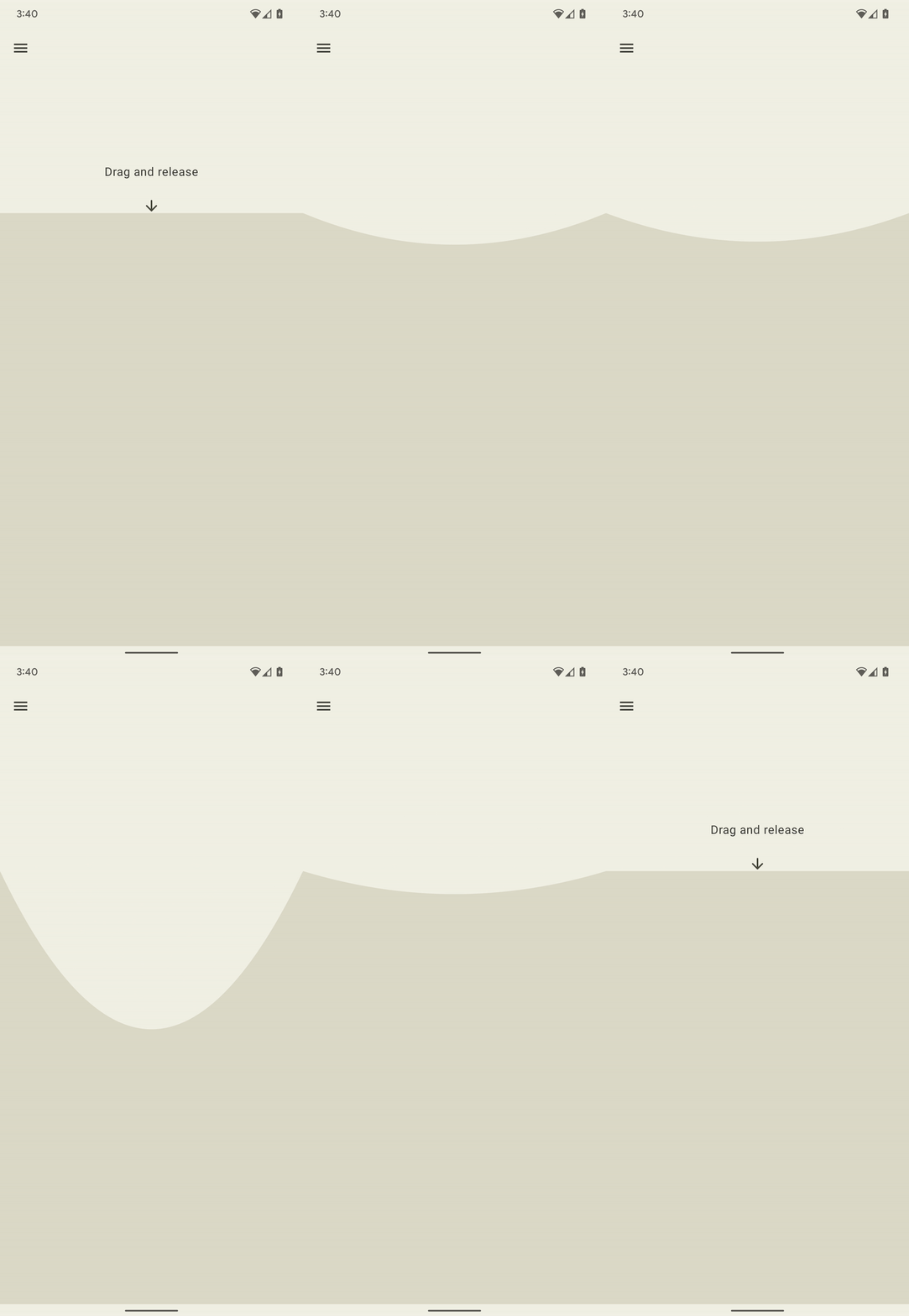
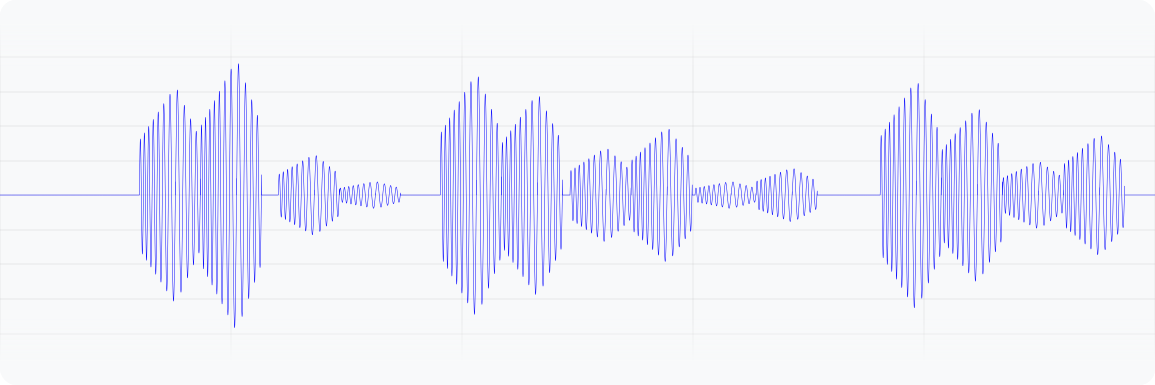
图 3. 此波形表示设备振动的输出加速度。
Kotlin
@Composable
fun WobbleScreen() {
    // Control variables for the dragging and animating state of the elastic.
    var dragDistance by remember { mutableStateOf(0f) }
    var isWobbling by remember { mutableStateOf(false) }

    // Use drag distance to create an animated float value behaving like a spring.
    val dragDistanceAnimated by animateFloatAsState(
        targetValue = if (dragDistance > 0f) dragDistance else 0f,
        animationSpec = spring(
            dampingRatio = Spring.DampingRatioHighBouncy,
            stiffness = Spring.StiffnessMedium
        ),
    )

    if (isWobbling) {
        LaunchedEffect(Unit) {
            while (true) {
                val displacement = dragDistanceAnimated / MAX_DRAG_DISTANCE
                // Use some sort of minimum displacement so the final few frames
                // of animation don't generate a vibration.
                if (displacement > SPIN_MIN_DISPLACEMENT) {
                    vibrator.vibrate(
                        VibrationEffect.startComposition().addPrimitive(
                            VibrationEffect.Composition.PRIMITIVE_SPIN,
                            nextSpinScale(displacement)
                        ).addPrimitive(
                        VibrationEffect.Composition.PRIMITIVE_SPIN,
                        nextSpinScale(displacement)
                        ).compose()
                    )
                }
                // Delay the next check for a sufficient duration until the
                // current composition finishes. Note that you can use
                // Vibrator.getPrimitiveDurations API to calculcate the delay.
                delay(VIBRATION_DURATION)
            }
        }
    }

    Box(
        Modifier
            .fillMaxSize()
            .draggable(
                onDragStopped = {
                    isWobbling = true
                    dragDistance = 0f
                },
                orientation = Orientation.Vertical,
                state = rememberDraggableState { delta ->
                    isWobbling = false
                    dragDistance += delta
                }
            )
    ) {
        // Draw the wobbling shape using the animated spring-like value.
        WobbleShape(dragDistanceAnimated)
    }
}

// Calculate a random scale for each spin to vary the full effect.
fun nextSpinScale(displacement: Float): Float {
    // Generate a random offset in the range [-0.1, +0.1] to be added to the
    // vibration scale so the spin effects have slightly different values.
    val randomOffset: Float = Random.Default.nextFloat() * 0.2f - 0.1f
    return (displacement + randomOffset).absoluteValue.coerceIn(0f, 1f)
}
Java
class AnimationListener implements DynamicAnimation.OnAnimationUpdateListener {
    private final Random vibrationRandom = new Random(seed);
    private final long lastVibrationUptime;

    @Override
    public void onAnimationUpdate(
        DynamicAnimation animation, float value, float velocity) {
        // Delay the next check for a sufficient duration until the current
        // composition finishes. Note that you can use
        // Vibrator.getPrimitiveDurations API to calculcate the delay.
        if (SystemClock.uptimeMillis() - lastVibrationUptime < VIBRATION_DURATION) {
            return;
        }

        float displacement = calculateRelativeDisplacement(value);

        // Use some sort of minimum displacement so the final few frames
        // of animation don't generate a vibration.
        if (displacement < SPIN_MIN_DISPLACEMENT) {
            return;
        }

        lastVibrationUptime = SystemClock.uptimeMillis();
        vibrator.vibrate(
        VibrationEffect.startComposition()
            .addPrimitive(VibrationEffect.Composition.PRIMITIVE_SPIN,
            nextSpinScale(displacement))
            .addPrimitive(VibrationEffect.Composition.PRIMITIVE_SPIN,
            nextSpinScale(displacement))
            .compose());
    }

    // Calculate a random scale for each spin to vary the full effect.
    float nextSpinScale(float displacement) {
        // Generate a random offset in the range [-0.1,+0.1] to be added to
        // the vibration scale so the spin effects have slightly different
        // values.
        float randomOffset = vibrationRandom.nextFloat() * 0.2f - 0.1f
        return MathUtils.clamp(displacement + randomOffset, 0f, 1f)
    }
}
弹跳(伴有砰砰声)
振动效果的另一项高级应用是模拟物理互动。PRIMITIVE_THUD 可以营造出强劲而回荡的效果,并可与视频或动画中的冲击可视化效果搭配使用,以增强整体体验。
以下示例展示了增强的球体掉落动画,每次球体从屏幕底部弹起时都会播放砰然声效:
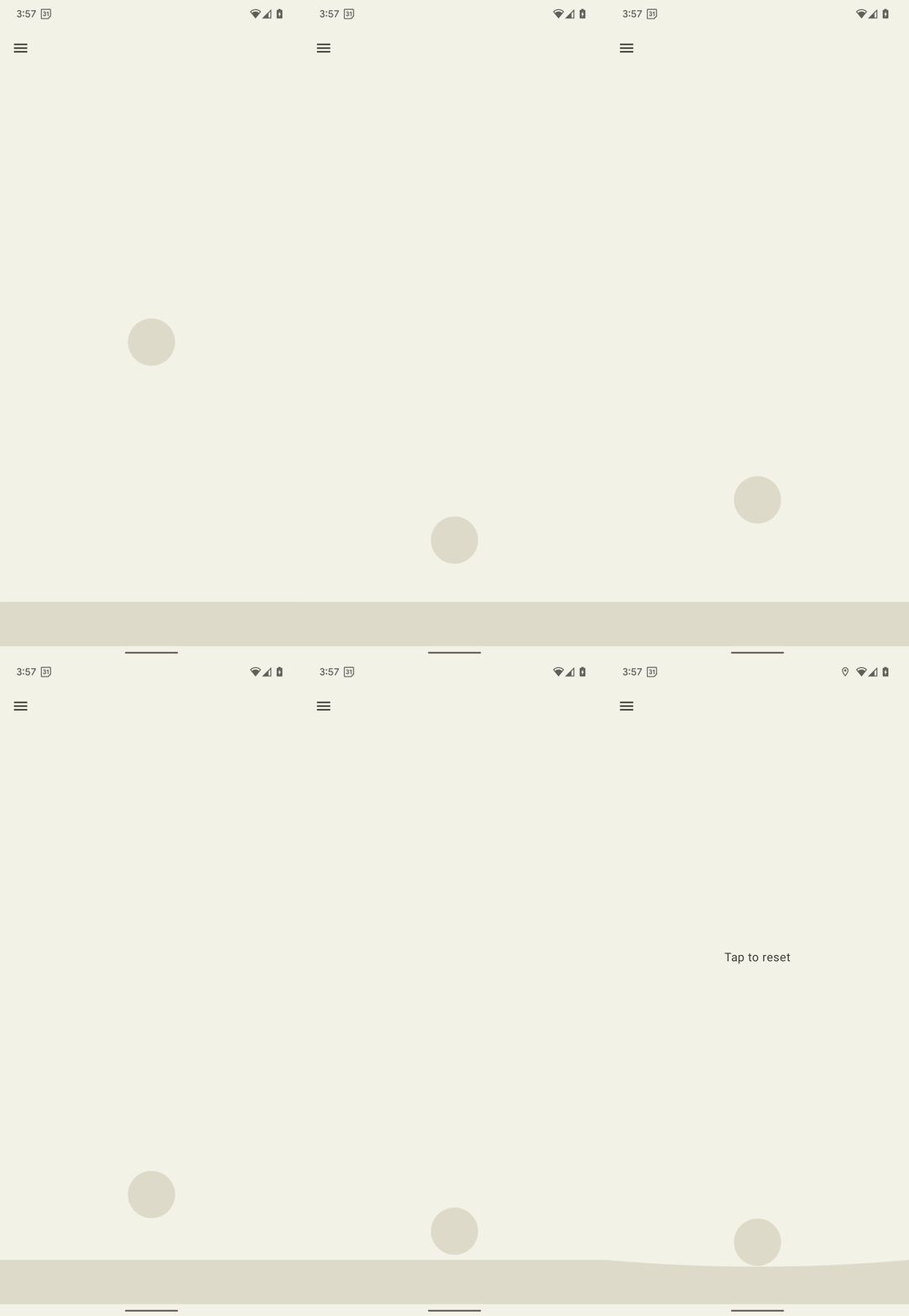
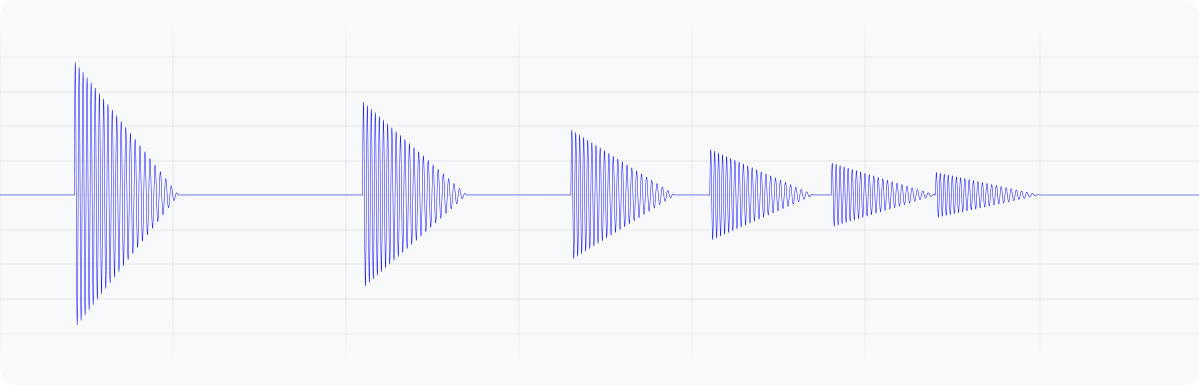
图 4. 此波形表示设备振动的输出加速度。
Kotlin
enum class BallPosition {
    Start,
    End
}

@Composable
fun BounceScreen() {
    // Control variable for the state of the ball.
    var ballPosition by remember { mutableStateOf(BallPosition.Start) }
    var bounceCount by remember { mutableStateOf(0) }

    // Animation for the bouncing ball.
    var transitionData = updateTransitionData(ballPosition)
    val collisionData = updateCollisionData(transitionData)

    // Ball is about to contact floor, only vibrating once per collision.
    var hasVibratedForBallContact by remember { mutableStateOf(false) }
    if (collisionData.collisionWithFloor) {
        if (!hasVibratedForBallContact) {
        val vibrationScale = 0.7.pow(bounceCount++).toFloat()
        vibrator.vibrate(
            VibrationEffect.startComposition().addPrimitive(
            VibrationEffect.Composition.PRIMITIVE_THUD,
            vibrationScale
            ).compose()
        )
        hasVibratedForBallContact = true
        }
    } else {
        // Reset for next contact with floor.
        hasVibratedForBallContact = false
    }

    Screen() {
        Box(
        Modifier
            .fillMaxSize()
            .clickable {
            if (transitionData.isAtStart) {
                ballPosition = BallPosition.End
            } else {
                ballPosition = BallPosition.Start
                bounceCount = 0
            }
            },
        ) {
        // Build the ball UI based on the current state.
        BouncingBall(transitionData)
        }
    }
}
Java
class ClickListener implements View.OnClickListener {
    @Override
    public void onClick(View view) {
        view.animate()
        .translationY(targetY)
        .setDuration(3000)
        .setInterpolator(new BounceInterpolator())
        .setUpdateListener(new AnimatorUpdateListener() {

            boolean hasVibratedForBallContact = false;
            int bounceCount = 0;

            @Override
            public void onAnimationUpdate(ValueAnimator animator) {
            boolean valueBeyondThreshold = (float) animator.getAnimatedValue() > 0.98;
            if (valueBeyondThreshold) {
                if (!hasVibratedForBallContact) {
                float vibrationScale = (float) Math.pow(0.7, bounceCount++);
                vibrator.vibrate(
                    VibrationEffect.startComposition()
                    .addPrimitive(
                        VibrationEffect.Composition.PRIMITIVE_THUD,
                        vibrationScale)
                    .compose());
                hasVibratedForBallContact = true;
                }
            } else {
                // Reset for next contact with floor.
                hasVibratedForBallContact = false;
            }
            }
        });
    }
}
带包络的振动波形
通过创建自定义振动模式的过程,您可以控制振动幅度,从而实现平稳的升降效果。本部分介绍了如何使用波形包络创建动态触感效果,从而实现对振动幅度和频率随时间变化的精确控制。这样一来,您就可以打造更丰富、更精细的触感反馈体验。
从 Android 16(API 级别 36)开始,系统提供以下 API,用于通过定义一系列控制点来创建振动波形包络:
BasicEnvelopeBuilder:一种创建与硬件无关的触感效果的无障碍方法。WaveformEnvelopeBuilder:一种更高级的触感反馈效果创建方法;需要熟悉触感反馈硬件。
Android 不为信封效果提供回退。如果您需要此支持,请完成以下步骤:
- 使用
Vibrator.areEnvelopeEffectsSupported()检查给定的设备是否支持包络效果。 - 停用不受支持的一致体验,或使用自定义振动模式或乐曲作为回退替代方案。
如需创建更基本的包络效果,请使用 BasicEnvelopeBuilder 并搭配以下参数:
- 范围为 \( [0, 1] \)的强度值,表示感知到的振动强度。例如,值 \( 0.5 \)被视为设备可达到的全局最大强度的二分之一。
范围为 \( [0, 1] \)的清晰度值,表示振动的清晰度。值越低,振动越平缓;值越高,振动越强烈。
一个时长值,表示从上一个控制点(即强度和清晰度对)过渡到新控制点所用的时间(以毫秒为单位)。
以下是一个示例波形,它会在 500 毫秒内将强度从低音调逐渐增加到高音调、最大强度振动,然后在 100 毫秒内逐渐降回\( 0 \) (关闭)。
vibrator.vibrate(VibrationEffect.BasicEnvelopeBuilder()
    .setInitialSharpness(0.0f)
    .addControlPoint(1.0f, 1.0f, 500)
    .addControlPoint(0.0f, 1.0f, 100)
    .build()
)
如果您对触感反馈有更深入的了解,可以使用 WaveformEnvelopeBuilder 定义包络效果。使用此对象时,您可以通过 VibratorFrequencyProfile 访问频次到输出加速映射 (FOAM)。
- 范围为 \( [0, 1] \)的振幅值,表示在给定频率下可实现的振动强度,由设备 FOAM 确定。例如,值为 \( 0.5 \) 时,生成的输出加速度为给定频率下可实现的最大输出加速度的一半。
以赫兹为单位指定的频次值。
一个时长值,表示从上一个控制点过渡到新控制点所用的时间(以毫秒为单位)。
以下代码展示了一个定义 400 毫秒振动效果的波形示例。首先,振幅在 50 毫秒内从无到全以恒定的 60 Hz 速率逐渐增大。然后,频率在接下来的 100 毫秒内逐渐增大到 120 Hz,并保持该水平 200 毫秒。最后,振幅在最后 50 毫秒内逐渐减小到 \( 0 \),并且频率返回到 60 Hz:
vibrator.vibrate(VibrationEffect.WaveformEnvelopeBuilder()
    .addControlPoint(1.0f, 60f, 50)
    .addControlPoint(1.0f, 120f, 100)
    .addControlPoint(1.0f, 120f, 200)
    .addControlPoint(0.0f, 60f, 50)
    .build()
)
以下部分提供了多个带包络的振动波形示例。
弹跳效果
之前的示例使用 PRIMITIVE_THUD 来模拟物理反弹互动。基本包络线 API 可提供更精细的控制,让您能够精确调整振动强度和清晰度。这样一来,触感反馈就能更准确地跟随动画事件。
以下示例展示了一个自由落体的弹簧,动画效果通过基本包络效果得到增强,每次弹簧从屏幕底部弹起时都会播放该效果:


图 5. 一个模拟弹簧弹跳的振动的输出加速度波形图。
@Composable
fun BouncingSpringAnimation() {
  var springX by remember { mutableStateOf(SPRING_WIDTH) }
  var springY by remember { mutableStateOf(SPRING_HEIGHT) }
  var velocityX by remember { mutableFloatStateOf(INITIAL_VELOCITY) }
  var velocityY by remember { mutableFloatStateOf(INITIAL_VELOCITY) }
  var sharpness by remember { mutableFloatStateOf(INITIAL_SHARPNESS) }
  var intensity by remember { mutableFloatStateOf(INITIAL_INTENSITY) }
  var multiplier by remember { mutableFloatStateOf(INITIAL_MULTIPLIER) }
  var bottomBounceCount by remember { mutableIntStateOf(0) }
  var animationStartTime by remember { mutableLongStateOf(0L) }
  var isAnimating by remember { mutableStateOf(false) }

  val (screenHeight, screenWidth) = getScreenDimensions(context)

  LaunchedEffect(isAnimating) {
    animationStartTime = System.currentTimeMillis()
    isAnimating = true

    while (isAnimating) {
      velocityY += GRAVITY
      springX += velocityX.dp
      springY += velocityY.dp

      // Handle bottom collision
      if (springY > screenHeight - FLOOR_HEIGHT - SPRING_HEIGHT / 2) {
        // Set the spring's y-position to the bottom bounce point, to keep it
        // above the floor.
        springY = screenHeight - FLOOR_HEIGHT - SPRING_HEIGHT / 2

        // Reverse the vertical velocity and apply damping to simulate a bounce.
        velocityY *= -BOUNCE_DAMPING
        bottomBounceCount++

        // Calculate the fade-out duration of the vibration based on the
        // vertical velocity.
        val fadeOutDuration =
            ((abs(velocityY) / GRAVITY) * FRAME_DELAY_MS).toLong()

        // Create a "boing" envelope vibration effect that fades out.
        vibrator.vibrate(
            VibrationEffect.BasicEnvelopeBuilder()
                // Starting from zero sharpness here, will simulate a smoother
                // "boing" effect.
                .setInitialSharpness(0f)

                // Add a control point to reach the desired intensity and
                // sharpness very quickly.
                .addControlPoint(intensity, sharpness, 20L)

                // Add a control point to fade out the vibration intensity while
                // maintaining sharpness.
                .addControlPoint(0f, sharpness, fadeOutDuration)
                .build()
        )

        // Decrease the intensity and sharpness of the vibration for subsequent
        // bounces, and reduce the multiplier to create a fading effect.
        intensity *= multiplier
        sharpness *= multiplier
        multiplier -= 0.1f
      }

      if (springX > screenWidth - SPRING_WIDTH / 2) {
        // Prevent the spring from moving beyond the right edge of the screen.
        springX = screenWidth - SPRING_WIDTH / 2
      }

      // Check for 3 bottom bounces and then slow down.
      if (bottomBounceCount >= MAX_BOTTOM_BOUNCE &&
            System.currentTimeMillis() - animationStartTime > 1000) {
        velocityX *= 0.9f
        velocityY *= 0.9f
      }

      delay(FRAME_DELAY_MS) // Control animation speed.

      // Determine if the animation should continue based on the spring's
      // position and velocity.
      isAnimating = (springY < screenHeight + SPRING_HEIGHT ||
            springX < screenWidth + SPRING_WIDTH)
        && (velocityX >= 0.1f || velocityY >= 0.1f)
    }
  }

  Box(
    modifier = Modifier
      .fillMaxSize()
      .noRippleClickable {
        if (!isAnimating) {
          resetAnimation()
        }
      }
      .width(screenWidth)
      .height(screenHeight)
  ) {
    DrawSpring(mutableStateOf(springX), mutableStateOf(springY))
    DrawFloor()
    if (!isAnimating) {
      DrawText("Tap to restart")
    }
  }
}
火箭发射
之前的示例展示了如何使用基本信封 API 来模拟弹簧的弹跳反应。WaveformEnvelopeBuilder 可实现对设备完整频段的精确控制,从而实现高度自定义的触感反馈效果。通过将此数据与 FOAM 数据相结合,您可以根据特定的频率功能定制振动。
以下示例演示了如何使用动态振动模式模拟火箭发射。效果从支持的最低频率加速度输出 0.1 G 到共振频率,始终保持 10% 的振幅输入。这样一来,即使驱动振幅相同,效果也会从相当强的输出开始,并提高感知到的强度和清晰度。达到共振后,效果频率会降回最低值,这会被感知为强度和清晰度下降。 这样一来,您会先感受到初始阻力,然后感受到释放,从而模拟发射到太空中的感觉。
基本包络 API 无法实现此效果,因为它会抽象出有关设备共振频率和输出加速度曲线的设备特定信息。提高清晰度可能会使等效频率超出共振频率,从而可能导致意外的加速度下降。


图 6. 模拟火箭发射的振动的输出加速度波形图。
@Composable
fun RocketLaunchAnimation() {
  val context = LocalContext.current
  val screenHeight = remember { mutableFloatStateOf(0f) }
  var rocketPositionY by remember { mutableFloatStateOf(0f) }
  var isLaunched by remember { mutableStateOf(false) }
  val animation = remember { Animatable(0f) }

  val animationDuration = 3000
  LaunchedEffect(isLaunched) {
    if (isLaunched) {
      animation.animateTo(
        1.2f, // Overshoot so that the rocket goes off the screen.
        animationSpec = tween(
          durationMillis = animationDuration,
          // Applies an easing curve with a slow start and rapid acceleration
          // towards the end.
          easing = CubicBezierEasing(1f, 0f, 0.75f, 1f)
        )
      ) {
        rocketPositionY = screenHeight.floatValue * value
      }
      animation.snapTo(0f)
      rocketPositionY = 0f;
      isLaunched = false;
    }
  }

  Box(
    modifier = Modifier
      .fillMaxSize()
      .noRippleClickable {
        if (!isLaunched) {
          // Play vibration with same duration as the animation, using 70% of
          // the time for the rise of the vibration, to match the easing curve
          // defined previously.
          playVibration(vibrator, animationDuration, 0.7f)
          isLaunched = true
        }
      }
      .background(Color(context.getColor(R.color.background)))
      .onSizeChanged { screenHeight.floatValue = it.height.toFloat() }
  ) {
    drawRocket(rocketPositionY)
  }
}

private fun playVibration(
  vibrator: Vibrator,
  totalDurationMs: Long,
  riseBias: Float,
  minOutputAccelerationGs: Float = 0.1f,
) {
  require(riseBias in 0f..1f) { "Rise bias must be between 0 and 1." }

  if (!vibrator.areEnvelopeEffectsSupported()) {
    return
  }

  val resonantFrequency = vibrator.resonantFrequency
  if (resonantFrequency.isNaN()) {
    // Device doesn't have or expose a resonant frequency.
    return
  }

  val startFrequency = vibrator.frequencyProfile?.getFrequencyRange(minOutputAccelerationGs)?.lower ?: return

  if (startFrequency >= resonantFrequency) {
    // Vibrator can't generate the minimum required output at lower frequencies.
    return
  }

  val minDurationMs = vibrator.envelopeEffectInfo.minControlPointDurationMillis
  val rampUpDurationMs = (riseBias * totalDurationMs).toLong() - minDurationMs
  val rampDownDurationMs = totalDurationMs - rampUpDuration - minDurationMs

  vibrator.vibrate(
    VibrationEffect.WaveformEnvelopeBuilder()
      // Quickly reach the desired output at the start frequency
      .addControlPoint(0.1f, startFrequency, minDurationMs)
      .addControlPoint(0.1f, resonantFrequency, rampUpDurationMs)
      .addControlPoint(0.1f, startFrequency, rampDownDurationMs)

      // Controlled ramp down to zero to avoid ringing after the vibration.
      .addControlPoint(0.0f, startFrequency, minDurationMs)
      .build()
  )
}