

verticalScroll 和 horizontalScroll 修饰符提供一种最简单的方法,可让用户在元素内容边界大于最大尺寸约束时滚动元素。利用 verticalScroll 和 horizontalScroll 修饰符,您无需转换或偏移内容。
@Composable private fun ScrollBoxes() { Column( modifier = Modifier .background(Color.LightGray) .size(100.dp) .verticalScroll(rememberScrollState()) ) { repeat(10) { Text("Item $it", modifier = Modifier.padding(2.dp)) } } }
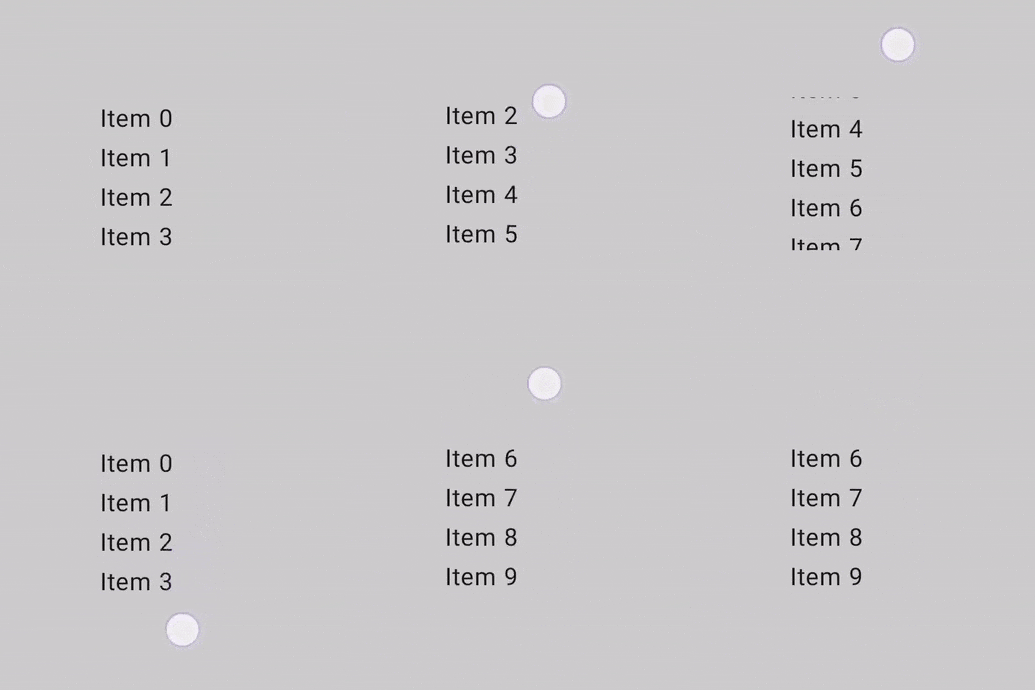
借助 ScrollState,您可以更改滚动位置或获取当前状态。如需使用默认参数创建此列表,请使用 rememberScrollState()。
@Composable private fun ScrollBoxesSmooth() { // Smoothly scroll 100px on first composition val state = rememberScrollState() LaunchedEffect(Unit) { state.animateScrollTo(100) } Column( modifier = Modifier .background(Color.LightGray) .size(100.dp) .padding(horizontal = 8.dp) .verticalScroll(state) ) { repeat(10) { Text("Item $it", modifier = Modifier.padding(2.dp)) } } }
可滚动区域修饰符
scrollableArea 修饰符是创建自定义可滚动容器的基本构建块。它在 scrollable 修饰符的基础上提供更高级别的抽象,可处理手势增量解读、内容裁剪和滚动回弹效果等常见要求。
虽然 scrollableArea 用于自定义实现,但对于标准滚动列表,您通常应首选现成的解决方案,例如 verticalScroll、horizontalScroll 或可组合项(例如 LazyColumn)。这些更高级别的组件更适合常见用例,并且本身是使用 scrollableArea 构建的。
scrollableArea 修饰符与 scrollable 修饰符之间的区别
scrollableArea 和 scrollable 之间的主要区别在于它们解读用户滚动手势的方式:
scrollable(原始增量):增量直接反映用户在屏幕上输入(例如,拖动指针)的实际移动。scrollableArea(面向内容的增量):delta在语义上是反转的,用于表示所选的滚动位置变化,以使内容看起来随用户的手势移动,这通常与指针移动方向相反。
您可以这样理解:scrollable 会告知指针的移动方式,而 scrollableArea 会将指针移动转化为内容在可滚动视图中的移动方式。这种反转使得在实现标准可滚动容器时,scrollableArea 感觉更自然。
下表总结了常见场景的增量符号:
用户手势 |
|
向 |
|---|---|---|
指针向上移动 |
负面 |
正面 |
指针向下移动 |
正面 |
负面 |
指针向左移动 |
负面 |
正(对于从右向左的语言,为负) |
指针向右移动 |
正面 |
负(对于从右向左的语言,为正) |
(*) scrollableArea delta 符号说明:scrollableArea 的 delta 符号并非只是简单的反转。它会智能地考虑以下因素:
- 方向:竖向或横向。
LayoutDirection:从左到右 (LTR) 或从右到左 (RTL)(对于水平滚动尤其重要)。reverseScrolling标志:是否反转滚动方向。
除了反转滚动增量之外,scrollableArea 还会将内容剪裁到布局的边界,并处理过度滚动效果的渲染。默认情况下,它使用 LocalOverscrollFactory 提供的效果。您可以使用接受 OverscrollEffect 参数的 scrollableArea 重载来自定义或停用此功能。
何时使用 scrollableArea 修饰符
当您需要构建自定义滚动组件,但 horizontalScroll 或 verticalScroll 修饰符或 Lazy 布局无法充分满足您的需求时,应使用 scrollableArea 修饰符。这通常涉及以下情况:
- 自定义布局逻辑:当项的排列根据滚动位置动态变化时。
- 独特的视觉效果:在子项滚动时对其应用转换、缩放或其他效果。
- 直接控制:需要对滚动机制进行精细控制,而不仅仅是
verticalScroll或 Lazy 布局所提供的控制。
使用 scrollableArea 创建自定义滚轮式列表
以下示例演示了如何使用 scrollableArea 构建自定义垂直列表,其中项目在远离中心时会缩小,从而营造出“轮状”视觉效果。这种依赖于滚动的转换非常适合使用 scrollableArea。
scrollableArea 的自定义垂直列表。
@Composable private fun ScrollableAreaSample() { // ... Layout( modifier = Modifier .size(150.dp) .scrollableArea(scrollState, Orientation.Vertical) .background(Color.LightGray), // ... ) { measurables, constraints -> // ... // Update the maximum scroll value to not scroll beyond limits and stop when scroll // reaches the end. scrollState.maxValue = (totalHeight - viewportHeight).coerceAtLeast(0) // Position the children within the layout. layout(constraints.maxWidth, viewportHeight) { // The current vertical scroll position, in pixels. val scrollY = scrollState.value val viewportCenterY = scrollY + viewportHeight / 2 var placeableLayoutPositionY = 0 placeables.forEach { placeable -> // This sample applies a scaling effect to items based on their distance // from the center, creating a wheel-like effect. // ... // Place the item horizontally centered with a layer transformation for // scaling to achieve wheel-like effect. placeable.placeRelativeWithLayer( x = constraints.maxWidth / 2 - placeable.width / 2, // Offset y by the scroll position to make placeable visible in the viewport. y = placeableLayoutPositionY - scrollY, ) { scaleX = scaleFactor scaleY = scaleFactor } // Move to the next item's vertical position. placeableLayoutPositionY += placeable.height } } } } // ...
可滚动的修饰符
scrollable 修饰符与滚动修饰符不同,区别在于 scrollable 可检测滚动手势并捕获增量,但不会自动偏移其内容。而是通过 ScrollableState 委托给用户,此修饰符只有在指定了 ScrollableState 的情况下,才能正常工作。
构造 ScrollableState 时,您必须提供一个 consumeScrollDelta 函数,该函数将在每个滚动步骤调用(通过手势输入、流畅滚动或快速滑动),并且增量以像素为单位。该函数必须返回所消耗的滚动距离,以确保在存在具有 scrollable 修饰符的嵌套元素时,可以正确传播相应事件。
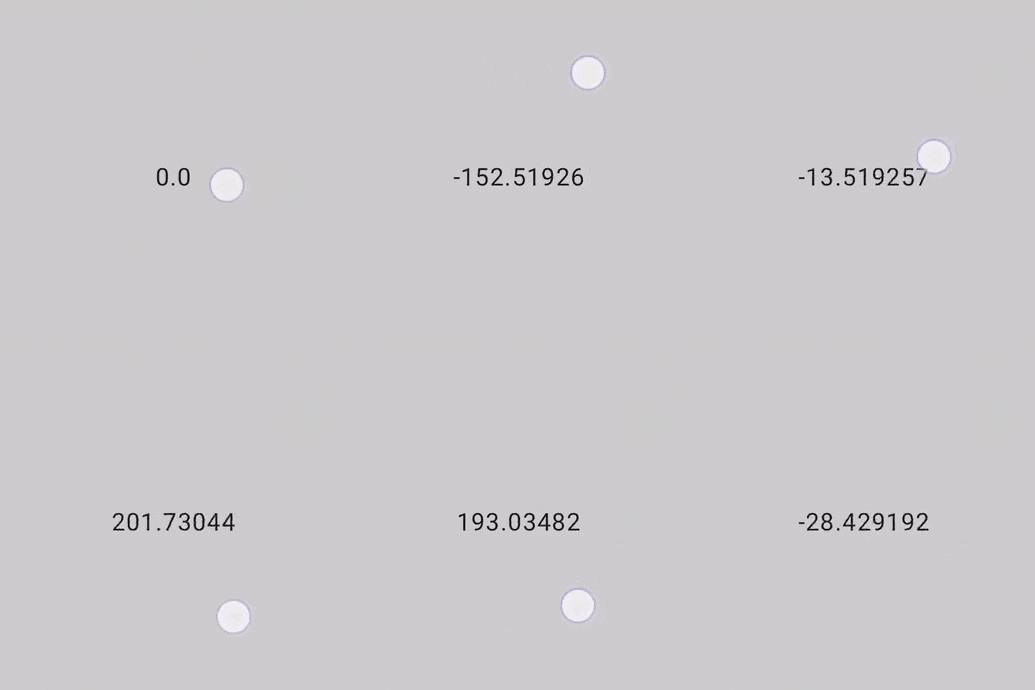
以下代码段可检测手势并显示偏移量的数值,但不会偏移任何元素:
@Composable private fun ScrollableSample() { // actual composable state var offset by remember { mutableFloatStateOf(0f) } Box( Modifier .size(150.dp) .scrollable( orientation = Orientation.Vertical, // Scrollable state: describes how to consume // scrolling delta and update offset state = rememberScrollableState { delta -> offset += delta delta } ) .background(Color.LightGray), contentAlignment = Alignment.Center ) { Text(offset.toString()) } }
为您推荐
- 注意:当 JavaScript 处于关闭状态时,系统会显示链接文字
- 了解手势
- 将
CoordinatorLayout迁移到 Compose - 在 Compose 中使用 View