
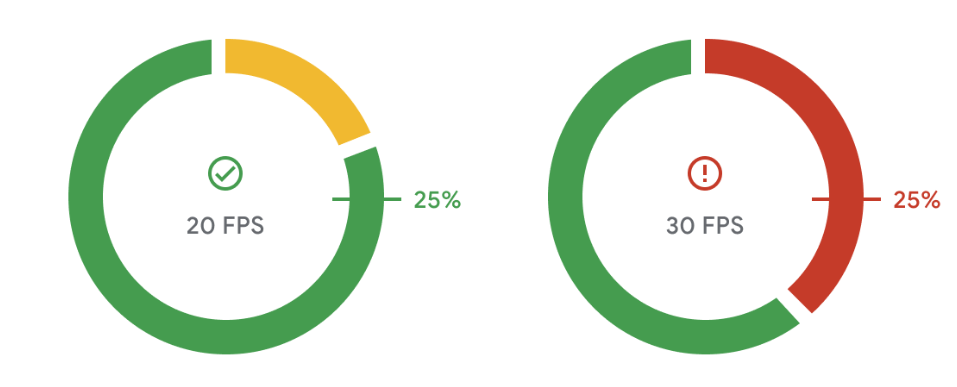
In Android vitals, a slow session is a session in which more than 25% of the frames are slow. A frame is slow if it is not presented less than 50ms after the previous frame (equivalent to 20 FPS). Android vitals also reports a second Slow Sessions metric with a target of 34ms (equivalent to 30 FPS). Using Slow Sessions, you can understand the frame-rate performance of your game, which impacts how smooth and fluid your game feels to users.
In due course, Play will start steering users away from games that cannot achieve 20 FPS on their phones. Note that Android vitals only begins monitoring frame rate after your game has been running for one minute.
Visit our Help Center for more details about the metric.
How to measure FPS and detect slow frames
The Android dumpsys SurfaceFlinger --timestats command provides average FPS
and present to present timing histograms for all layers that are being
rendered. The present to present time of a frame is the interval between
the current frame and previous frame being drawn. Follow these steps
to use the command to collect your game's FPS:
Run the command with the flags
enableandclearto start capturing information:adb shell dumpsys SurfaceFlinger --timestats -clear -enableWhen the game is played long enough, run the command again with flag
dumpto dump information:adb shell dumpsys SurfaceFlinger --timestats -dumpThe dumped information provides total frames and
presentToPresenthistogram for all layers rendered by SurfaceFlinger. You must find the section of your game by filtering based onlayerName:layerName = SurfaceView[com.google.test/com.devrel.MainActivity]@0(BLAST)#132833You can calculate the slow frame rate of the session based on the information of each layer.
For example, 20 FPS slow frame percentage = (sum of values from 54 ms to 1000 ms) / totalFrames x 100
totalFrames = 274
...
presentToPresent histogram:
0ms=0 1ms=0 2ms=0 3ms=0 4ms=0 5ms=0 6ms=0 7ms=0 8ms=0 9ms=0 10ms=0 11ms=0 12ms=0
13ms=0 14ms=0 15ms=0 16ms=1 17ms=0 18ms=0 19ms=0 20ms=0 21ms=0 22ms=0 23ms=0
24ms=0 25ms=0 26ms=0 27ms=0 28ms=0 29ms=0 30ms=0 31ms=0 32ms=0 33ms=269 34ms=0
36ms=0 38ms=0 40ms=0 42ms=0 44ms=0 46ms=0 48ms=0 50ms=1 54ms=0 58ms=0 62ms=0
66ms=0 70ms=1 74ms=0 78ms=0 82ms=0 86ms=0 90ms=0 94ms=0 98ms=0 102ms=0 106ms=0
110ms=0 114ms=0 118ms=0 122ms=0 126ms=0 130ms=0 134ms=0 138ms=0 142ms=0 146ms=0
150ms=0 200ms=0 250ms=0 300ms=0 350ms=0 400ms=0 450ms=0 500ms=0 550ms=0 600ms=0
650ms=0 700ms=0 750ms=0 800ms=0 850ms=0 900ms=0 950ms=0 1000ms=0
Average FPS of each layer is also shown in the dump:
...
averageFPS = 30.179
...
After collecting all the information, disable timestats by using the
disableflag:adb shell dumpsys SurfaceFlinger --timestats -disable
Slow frame causes and solutions
There are many reasons why a frame might present or render longer on the screen than your target. Your game might be CPU- or GPU-bound, the device might be overheating and activating a throttled thermal state, or there might be a mismatch between the game's framerate and the device's display refresh rate.
Use Android Frame Pacing (Swappy), Vulkan, and ADPF to address these issues and improve your game's performance.
What is Swappy
The Android Frame Pacing library, also known as Swappy, is part of the AGDK libraries. Swappy helps OpenGL and Vulkan games achieve smooth rendering and correct frame pacing on Android.
Frame pacing is the synchronization of a game's logic and rendering loop with an OS's display subsystem and the underlying display hardware. The Android display subsystem was designed to avoid visual artifacts (known as tearing) that can occur when the display hardware switches to a new frame partway through an update. To avoid these artifacts, the display subsystem does the following:
- Buffers past frames internally.
- Detects late frame submissions.
- Repeats the display of past frames when late frames are detected.
Learn how Mir 2 used Swappy to reduce their slow session rate from 40% to 10%.
How to use Swappy in native projects
See the following guides to integrate the Android Frame Pacing library into your game:
- Integrate Android Frame Pacing into your OpenGL renderer
- Integrate Android Frame Pacing into your Vulkan renderer
How to use Swappy in Unity game engine
Unity has integrated Android Frame Pacing into their engine. To enable this feature in Unity 2019.2 or higher, check the Optimized Frame Pacing checkbox under Project Settings > Player > Settings for Android > Resolution and Presentation:
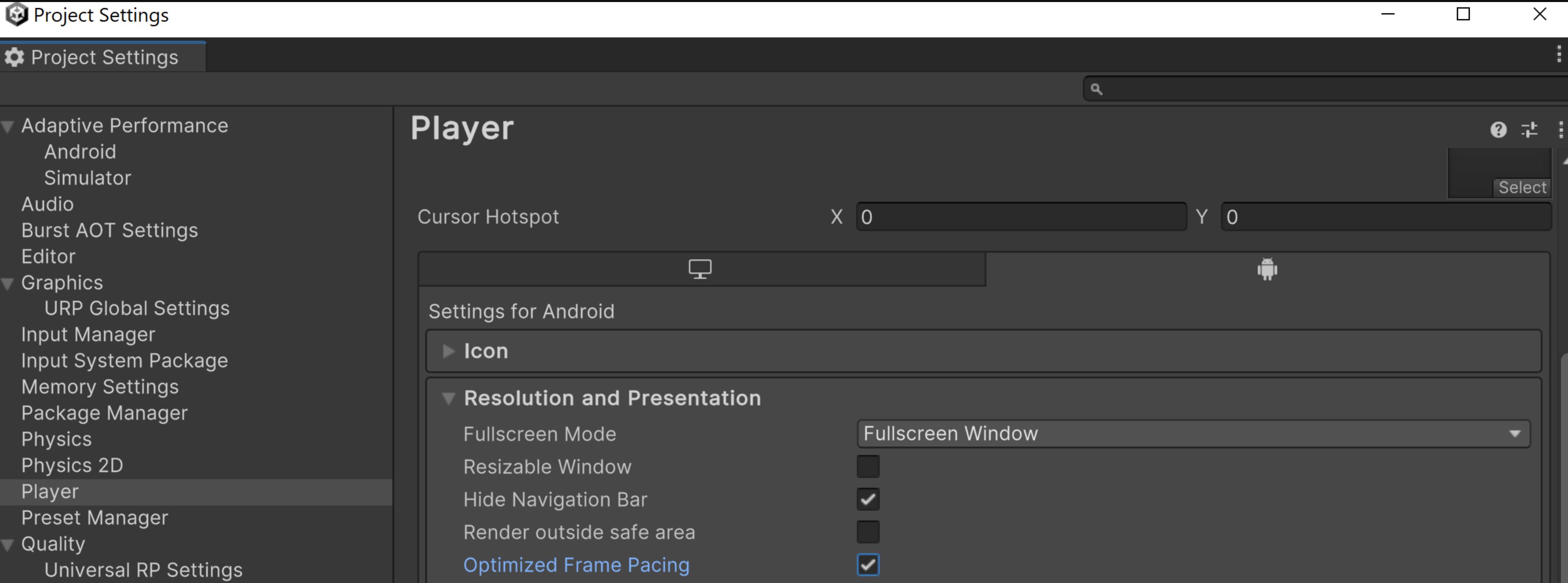
Alternatively, programmatically enable Optimized Frame Pacing option in your logic code to allow Unity to evenly distribute frames for less variance in frame rate, creating smoother gameplay.
How to use Swappy in Unreal game engine
Unreal 4.25 and higher integrate the Android Frame Pacing Library, which is part of the Android Game Development Kit. The Mobile Frame Pacing article explains how to enable the Android Frame Pacing Library and how to control frame pacing from C++ code.
What is Vulkan
Vulkan is a modern cross-platform 3D graphics API designed to minimize abstraction between device graphics hardware and your game. Vulkan is the primary low-level graphics API on Android, replacing OpenGL ES. OpenGL ES is still supported on Android, but is no longer under active feature development.
Vulkan offers the following advantages over OpenGL ES:
- A more efficient architecture with lower CPU overhead in the graphics driver
- New optimization strategies to improve CPU performance
- New graphics features not available in OpenGL ES, such as bindless APIs and ray tracing
How to use Vulkan in native Android projects
The Getting started with Vulkan on Android codelab guides you through setting up your Vulkan rendering pipeline and then rendering a textured, rotating triangle on the screen. Use the codelab to learn how to render your game graphics.
How to use Vulkan in Unity game engine
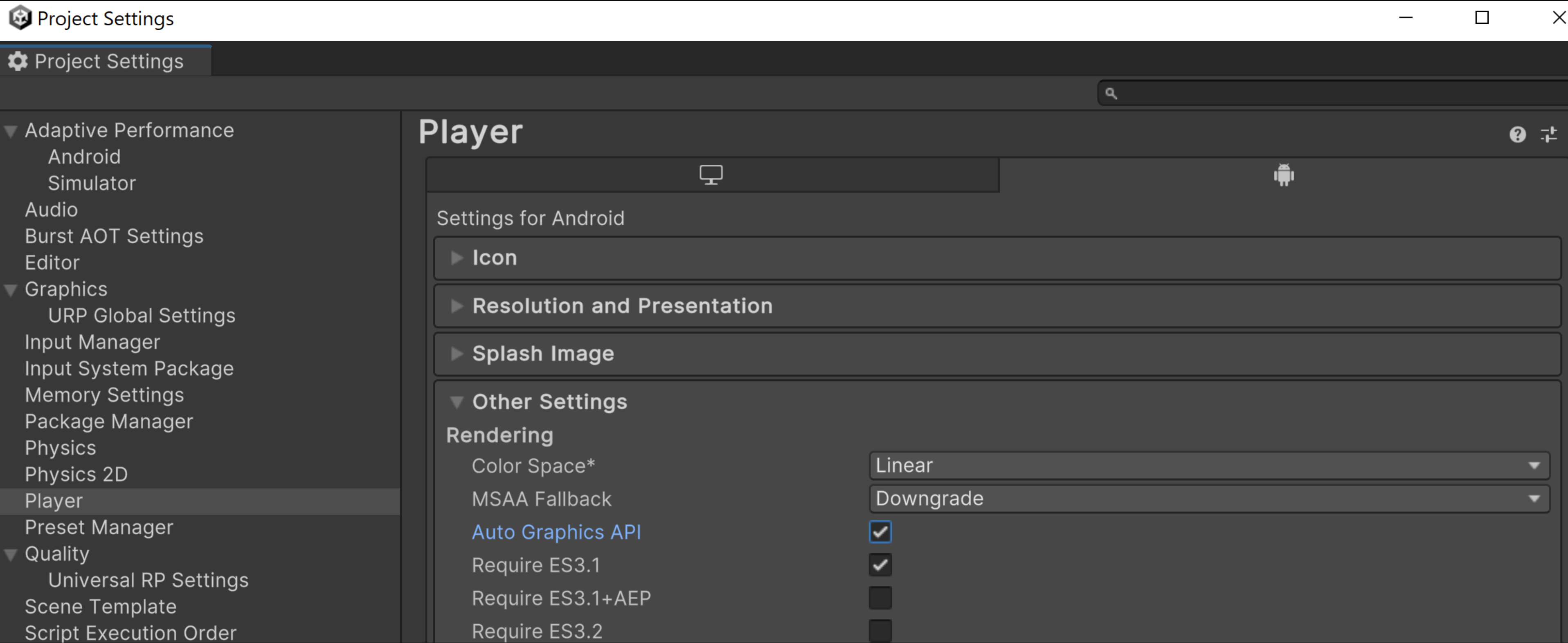
To enable automatic device selection on Unity, follow the steps to configure Auto Graphics API.
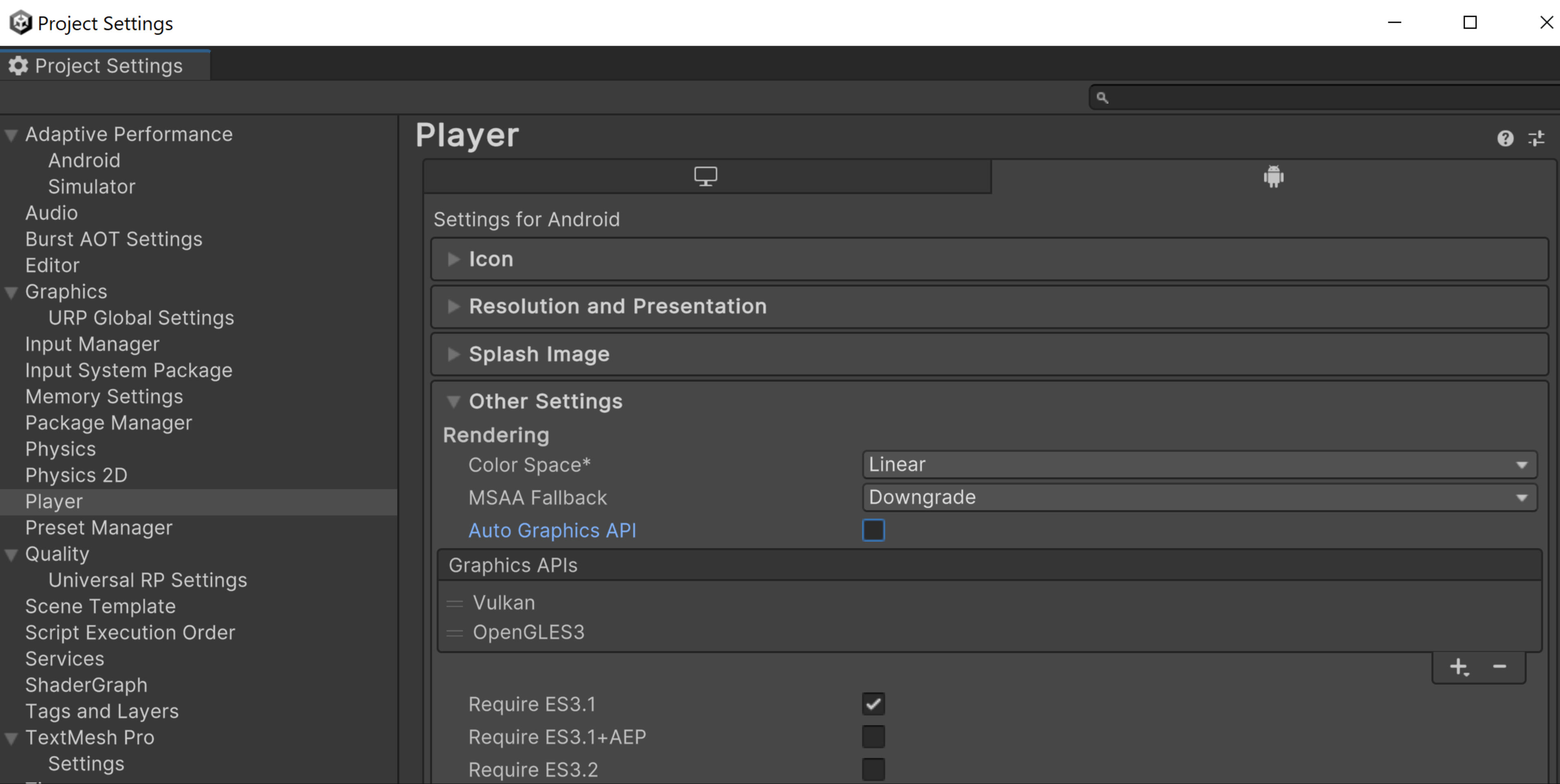
Alternatively, you can enable Vulkan manually by disabling Auto Graphics API, and put Vulkan in the highest priority in the Graphics APIs list. If you're using Unity 2021.1 or a previous version, this is the only way to use Vulkan.
Use the VkQuality Unity engine plugin to provide launch-time recommendations of the graphics API for your game to use on specific devices.
How to use Vulkan in Unreal game engine
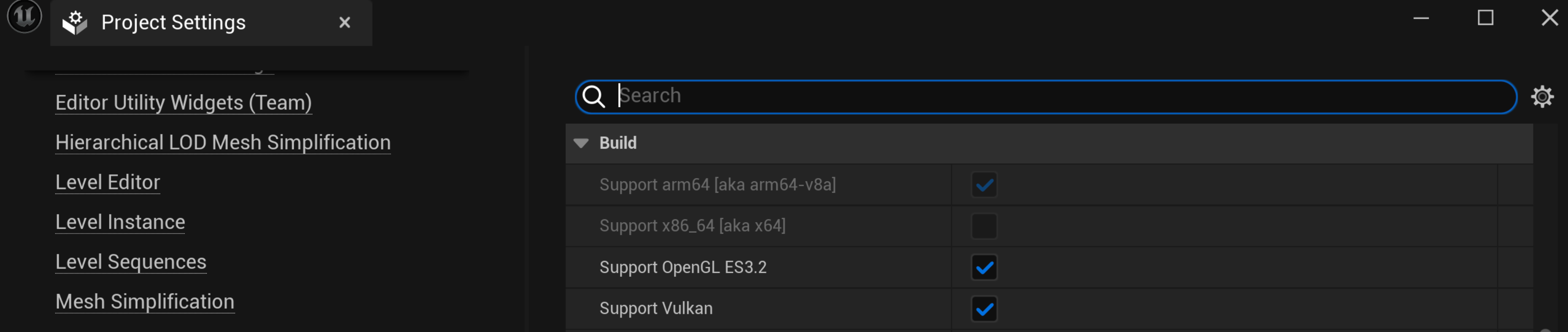
To enable the Vulkan graphics API, navigate to Project Settings > Platforms > Android > Build and select Support Vulkan. When you select both Support Vulkan and Support OpenGL ES3.2, Unreal uses Vulkan by default. If the device doesn't support Vulkan, Unreal falls back to OpenGL ES 3.2.
If you're using specific Vulkan features that are known to behave badly on
certain devices, you can customize your BaseDeviceProfile.ini file to exclude
those devices. To learn how to customize BaseDeviceProfile.ini, see
Customizing Device Profiles and Scalability
for Android. Because new
device drivers might fix previously known bad devices, keep your
BaseDeviceProfile.ini file updated to get all the optimizations.
What is ADPF
The Android Dynamic Performance Framework (ADPF) optimizes games based on the dynamic thermal, CPU, and GPU management features on Android. The focus is on games, but you can also use the features for other performance-intensive apps.
ADPF is a set of APIs that allow games and performance-intensive apps to interact more directly with power and thermal systems of Android devices. With these APIs, you can monitor the dynamic behavior on Android systems and optimize game performance at a sustainable level that doesn't overheat devices.
Here are the main ADPF features:
- Thermal API: Monitor the thermal state of a device so that the application can proactively adjust workload before it becomes unsustainable.
- CPU Performance Hint API: Provide performance hints that let Android choose the right performance settings (for example, CPU operating point or core) for the workload.
- Game Mode API and Game State API: Enable game play optimization by prioritizing performance or battery life characteristics, based on user's settings and game specific configurations.
- Fixed Performance Mode: Enable fixed-performance mode on a device during benchmarking to get measurements that aren't altered by dynamic CPU clocking.
- Power Efficiency Mode: Indicate to the session that the threads in the Performance Hint Session can be safely scheduled to prefer power efficiency over performance. Available in Android 15 (API level 35).
How to use ADPF in native Android projects
The Integrating Adaptability Features Into Your Native Game codelab guides you to integrate ADPF features into your game with steps that you can follow at your own pace. At the end of the codelab, you will have integrated the following features:
- Thermal API: Listen to device thermal condition and react before the device falls into thermal throttling state.
- Game Mode API: Understand player optimization preferences (maximize performance or preserve battery) and adjust accordingly.
- Game State API: Let the system know the state of your game (loading, playing, UI, etc.), and the system can adjust resources accordingly (boost I/O, or CPU, GPU, etc.).
- Performance Hint API: Let the system know your threading model and workload so that the system can allocate resources accordingly.
How to use ADPF in Unity game engine
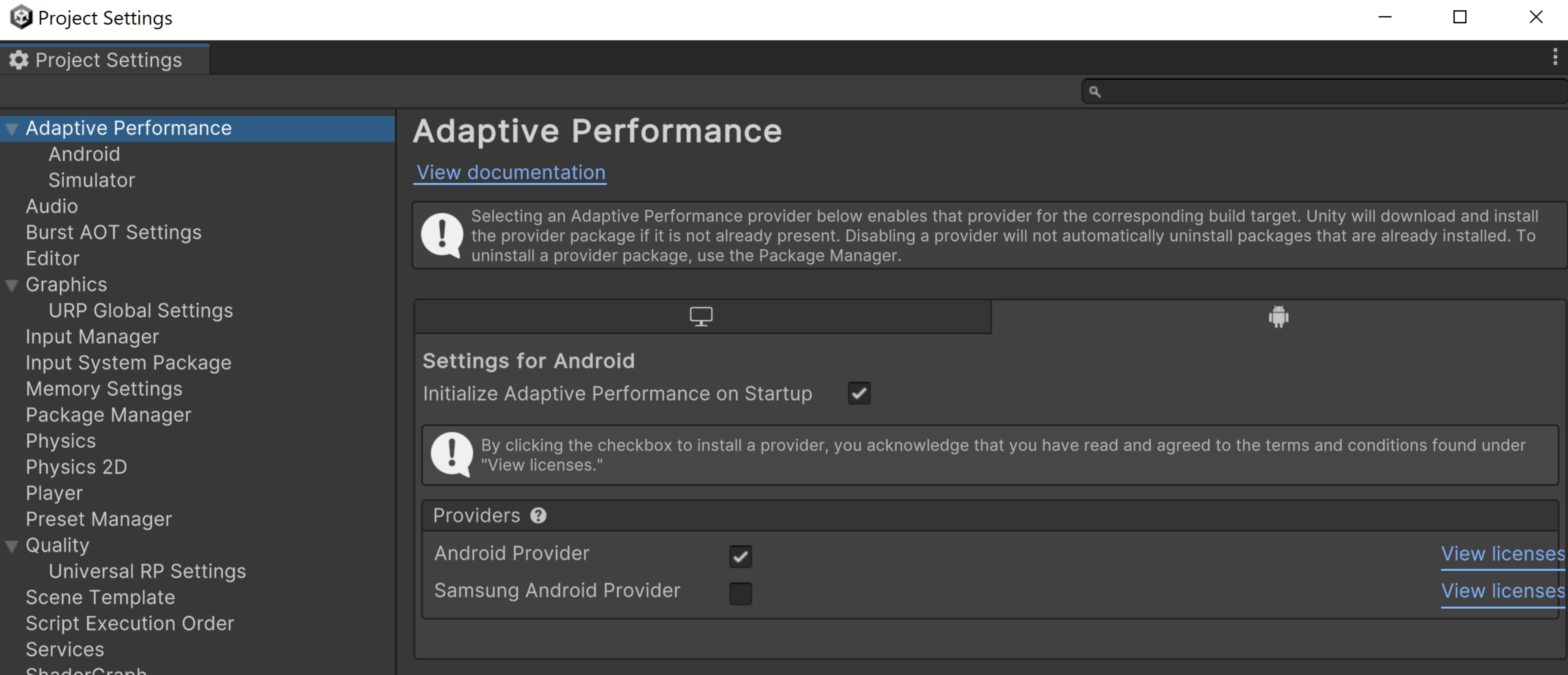
Unity's Adaptive Performance is a tool for game developers looking to optimize their games on mobile devices, particularly for the diverse Android ecosystem. Adaptive Performance enables your game to adapt to the device's performance and thermal characteristics in real-time, ensuring a smooth and efficient gaming experience.
Adaptive Performance Android provider guides you through the steps to implement ADPF in Unity. See also ADPF Unity Adaptive Performance and Android provider.
How to use ADPF in Unreal game engine

- Download the plugin.
- Copy the plugin into the project plugin folder.
- Enable the ADPF Unreal Engine plugin in the Unreal editor.
- Relaunch the Unreal editor.
- Build and cook the game.
The Android Dynamic Performance Framework (ADPF) plugin for Unreal Engine provides stable performance and prevents thermal throttling. Download the plugin from GitHub. This plugin changes features by setting Unreal console values. For more details, see ADPF Unreal Engine plugin.