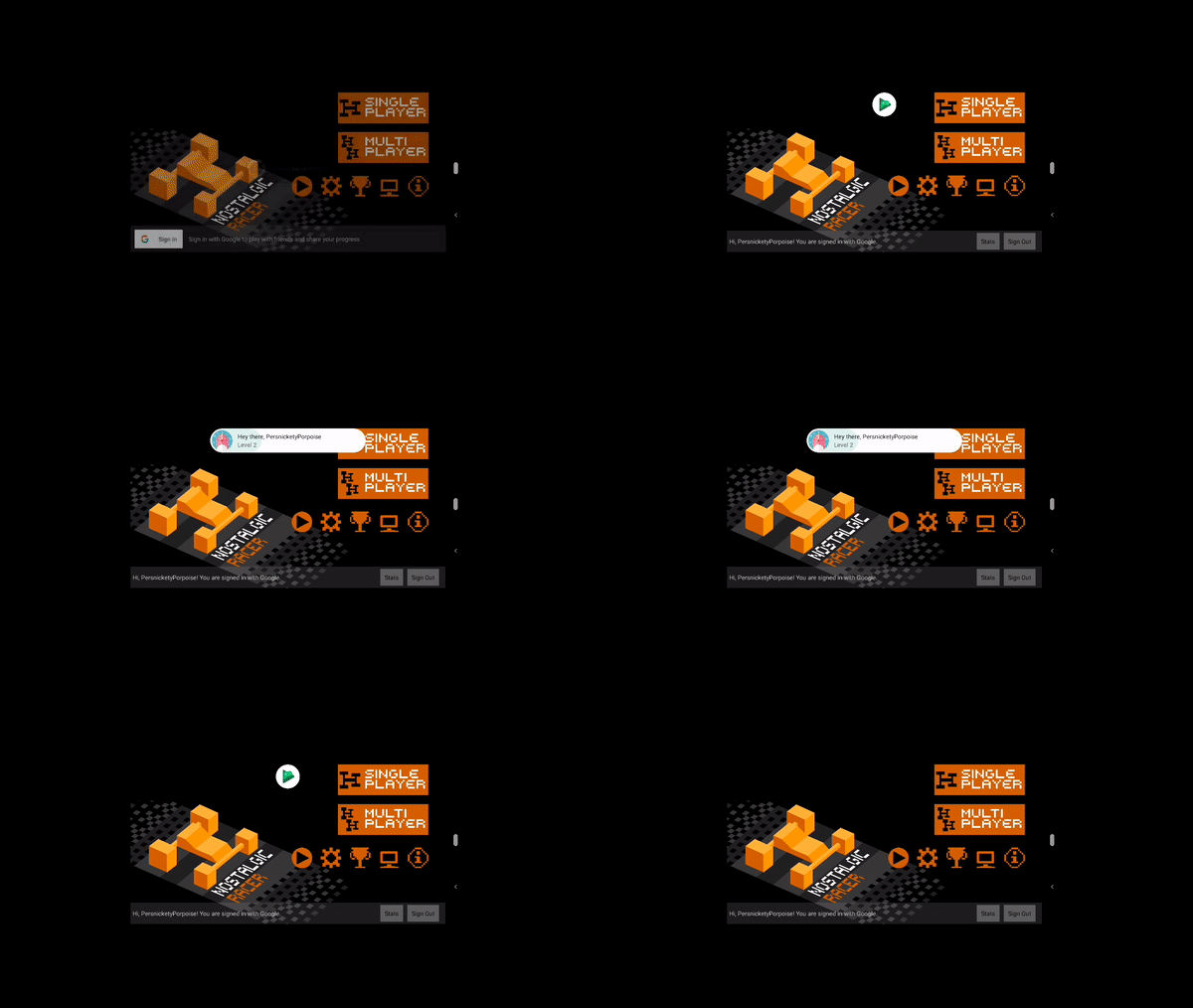
The first step in integrating your game with Google Play Games Services (PGS) is implementing Platform Authentication. This is required to access all other features such as achievements, leaderboards, and events.
Since Play Games Services SDK automatically performs platform authentication at the game launch, you need to integrate PGS v2 SDK with your game and implement the recommended authentication flow, so that your game is ready to implement and satisfy the Google Play Games Level Up user experience guidelines.
Authentication concepts
In Play Games Services v2, the concept of "signing in" is separated into two distinct layers: platform authentication and in-game authentication.
Platform authentication
Play Games Services provides a platform engagement layer. It manages your player's relationship with the Google Play Games ecosystem using Gamer Profile, to access features such as achievements, leaderboards, and quests. Platform authentication has the following key characteristics:
- Silent and automatic: Authentication occurs automatically in the background when the game launches. Play Games Services doesn't require a manual Sign in button.
- Player ID: After successful platform authentication, Play Games Services provides a stable Player ID. This ID is consistent across devices for the same game. Use this ID primarily to track platform features, such as achievement progress.
- Decoupled: You must not use Play Games Services as your game's primary identity system to manage your player's in-game account (IGA), game progress, or inventory. Play Games Services serves as a persistent platform identifier.
Player ID
A player ID is an identifier for a Play Games Services player account. Your game can retrieve a player ID for any player that signs into your game using Play Games Services authentication. Your game client integration, game server integration, and cloud-save service can use the ID to securely access player data from Play Games Services.
A player ID is consistent for a user when they play your game on multiple devices. However, it is not always consistent between games. For more information, see next generation Player IDs.
In-game authentication
You manage the in-game account (IGA), which is the identity system that binds player progress, inventory, and currency within your game.
- Primary Identity: You can use your own backend, Sign in with Google (SiWG), or other providers as the primary sign-in method.
- Independence: Players can sign in to Play Games Services (Platform Identity) to earn achievements while signed in to any specific IGA (for example, a guest account or a specific SiWG account).
- Management of multiple IGAs: Play Games Services handles only platform authentication. Your game manages the primary authentication of players into their IGAs. This means there is no change to your game's existing flows for players to switch between their IGAs. When players switch accounts, they remain authenticated to the Play Games platform through PGS, and you continue sending their data related to achievements and other PGS features against the persistent Player ID.
Cross-platform continuity with SiWG
To help players carry their progress across Android, iOS, and web, use Sign in with Google as a primary in-game authentication method. Consider the following:
- Sign in with Google button: In PGS v1, the Google Play button often handled both platform and game sign-in. In v2, these are separate processes. Implement a standard Sign in with Google button for players to authenticate and access their IGA.
- Google Sign-in SDKs:
- For both Android and iOS, use the standard Google Sign-in SDKs to authenticate players into their IGAs.
- Use Google Open ID as the primary identifier for a player's in-game account.
- Use the Play Games Services Player ID to report a player's progress on Play Games features, such as achievements.
Recommended integration
To integrate your game with Play Games Services, follow these recommended steps:
Initialization and authentication
This step is required to initialize and authenticate your game:
Implement platform authentication by initializing the Play Games Services v2 SDK on startup. For more information, see platform authentication for Android games. This step is required to access Play Games Services features, such as achievements and leaderboards.
Authentication runs as a silent background process during game launch. Existing Play Games Services users see a welcome message after successful authentication. Users who don't have a Play Games Services profile are prompted to create a profile during SDK initialization.

Profile creation
Players need a Play Games Services profile to engage with the platform. Some players might not have a Play Games Services profile when they start your game. These players will be asked to create one.
Auto-triggered profile creation prompts appear automatically by default when you launch a game without a Play Games Services profile.
In-game authentication
Once platform authentication has been successfully executed, developers should implement the following steps for players to access their IGAs, depending on the current game state:
- If an active game session exists on the device, allow the player to resume their current session.
- If no active game session is present:
- In the case of a seamless restore scenario where a last played IGA is associated with the PGS Player ID, proceed to automatically restore the associated IGA.
- Otherwise, present the player with your application's designated login or account creation screen. Players can then choose their preferred authentication method to establish or log into an existing IGA.
OAuth scopes
Play Games Services relies on the
OAuth system
to allow players to give your game access to their account. Play Games Services
has a unique scope for games (games-lite) and relies on another scope
(drive.appdata) if your game uses the saved games feature. The saved games
feature gives access to the user's Google Drive account, which is where the game
data is stored.
When using the Play Games Services v2 SDK, you can request extra
OAuth scopes.
If you need extra OAuth scopes, we recommend calling requestServerSideAccess.
For more information, see
get the server auth code or retrieve server authentication codes.
User experience guideline for ideal authentication flow
The following guidelines explain the recommended authentication flow with PGS v2 integration. They cover scenarios for new, existing, and returning users, and guest mode.
New player
This flow applies to a user launching the game for the very first time on a device with no prior play history with the game.
- Upon launch, the PGS SDK initializes to authenticate the user's platform identity (PGS Player ID).
- After this background handshake, the game displays IGA creation options to the player, for example, Create new account, Sign in with Google, or other social login methods.
- Once the player creates or selects an IGA, the game binds this account to the chosen primary identifier in their backend.
- The game also binds this chosen IGA to the PGS Player ID, marking it as the last played IGA for seamless restore.
Players with active sessions
This scenario describes players launching the game on a device where they already have an active session. The goal is to provide a seamless entry experience.
- When the player launches the app, PGS silently authenticates in the background providing you with Player ID to track progress against achievements and other play games features.
- Simultaneously, where applicable, the game bypasses login screens and immediately signs the player into their active IGA session or the last played IGA associated with their Player ID, so they can resume gameplay immediately.
Players switching accounts
This flow occurs when a player with an active session navigates to the game settings to switch accounts. For example, signing out of a main account to use an alternate account.
- The player signs out of the current IGA, but the PGS platform connection remains active.
- When the player logs in with a different IGA, the game binds this new account to the current PGS Player ID as the last played IGA only for seamless restore.
Seamless restore for returning players
This scenario applies when a player launches the game after an inactive period, a re-install, or on a completely new device. The game is recommended to implement seamless restore.
- Upon launch, PGS authenticates the user and provides the PGS Player ID to the game.
- The game checks its backend (or retrieved recall token if using Recall API) to see if a last played IGA is already linked to this PGS ID.
- If a link is found, the game automatically restores the player's progress and logs them in, skipping the manual login screen entirely.
- Else, the game presents the player with their login screen
- The player then chooses a login method and signs into an IGA
- The game then binds this IGA with PGS player ID as the last played IGA for seamless restore.
Guest mode
Players can launch the game and play using a local guest account. PGS still authenticates in the background. If the player chooses to Save Progress, the game converts the guest session into a permanent IGA and binds it to the PGS Player ID.