

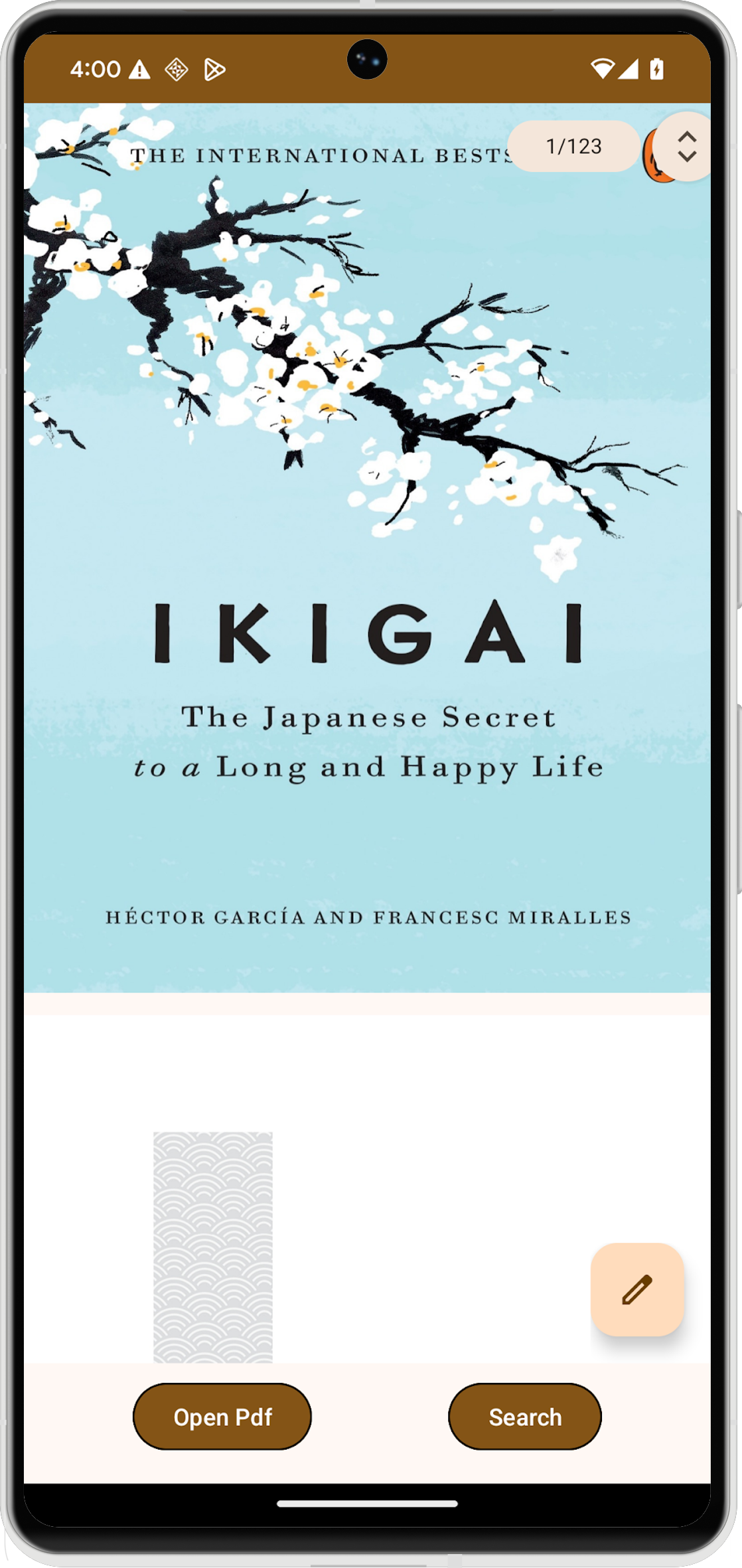
PdfViewerFragment to wyspecjalizowany Fragment, którego możesz użyć do wyświetlania dokumentów PDF w aplikacji na Androida.
PdfViewerFragment upraszcza renderowanie plików PDF, dzięki czemu możesz skupić się na innych aspektach funkcjonalności aplikacji.
Wyniki
Zgodność wersji
Aby używać PdfViewerFragment, aplikacja musi być kierowana na Androida w wersji S (poziom API 31) lub nowszej oraz na poziom rozszerzenia SDK 13 lub wyższy. Jeśli te wymagania dotyczące zgodności
nie zostaną spełnione, biblioteka zgłosi wyjątek
UnsupportedOperationException.
Wersję rozszerzenia SDK możesz sprawdzić w czasie działania aplikacji za pomocą modułu SdkExtensions. Dzięki temu możesz warunkowo wczytywać fragment i dokument PDF tylko wtedy, gdy urządzenie spełnia wymagane kryteria.
if (SdkExtensions.getExtensionVersion(Build.VERSION_CODES.S) >= 13) {
    // Load the fragment and document.
}
Zależności
Aby zintegrować przeglądarkę PDF z aplikacją, zadeklaruj zależność
androidx.pdf w pliku modułu aplikacjibuild.gradle. Biblioteka PDF jest dostępna w repozytorium Google Maven.
dependencies {
    val pdfVersion = "1.0.0-alpha0X"
    implementation("androidx.pdf:pdf:pdf-viewer-fragment:$pdfVersion")
}
Funkcje PdfViewerFragment
PdfViewerFragment wyświetla dokumenty PDF w formacie stronicowym, co ułatwia nawigację. Aby zapewnić wydajne wczytywanie, fragment stosuje 2-etapową strategię renderowania, która stopniowo wczytuje wymiary strony.
Aby zoptymalizować wykorzystanie pamięci, PdfViewerFragment renderuje tylko aktualnie widoczne strony i zwalnia mapy bitowe stron, które są poza ekranem.
Dodatkowo PdfViewerFragment zawiera pływający przycisk działania (FAB), który obsługuje adnotacje, wysyłając niejawny intent android.intent.action.ANNOTATE zawierający identyfikator URI dokumentu.
Implementacja
Dodanie przeglądarki PDF do aplikacji na Androida to proces wieloetapowy.
Utwórz układ aktywności
Zacznij od zdefiniowania układu XML dla aktywności, która będzie hostować przeglądarkę PDF. Układ powinien zawierać element FrameLayout, który będzie zawierać PdfViewerFragment, oraz przyciski do interakcji z użytkownikiem, np. do wyszukiwania w dokumencie.
<androidx.constraintlayout.widget.ConstraintLayout
    xmlns:android="http://schemas.android.com/apk/res/android"
    xmlns:app="http://schemas.android.com/apk/res-auto"
    xmlns:tools="http://schemas.android.com/tools"
    android:id="@+id/pdf_container_view"
    android:layout_width="match_parent"
    android:layout_height="match_parent"
    android:layout_gravity="center"
    android:orientation="vertical"
    tools:context=".MainActivity">

    <FrameLayout
        android:id="@+id/fragment_container_view"
        android:layout_width="0dp"
        android:layout_height="0dp"
        android:layout_marginBottom="8dp"
        app:layout_constraintStart_toStartOf="parent"
        app:layout_constraintEnd_toEndOf="parent"
        app:layout_constraintTop_toTopOf="parent"/>

    <com.google.android.material.button.MaterialButton
        android:id="@+id/search_button"
        android:layout_width="wrap_content"
        android:layout_height="wrap_content"
        android:text="@string/search_string"
        app:strokeWidth="1dp"
        android:layout_marginStart="8dp"
        android:layout_marginBottom="8dp"
        app:layout_constraintBottom_toBottomOf="parent"
        app:layout_constraintEnd_toEndOf="parent" />

</androidx.constraintlayout.widget.ConstraintLayout>
Skonfiguruj aktywność
Aktywność, która hostuje PdfViewerFragment, musi rozszerzać
AppCompatActivity. W metodzie onCreate() aktywności ustaw widok treści na utworzony układ i zainicjuj wszystkie niezbędne elementy interfejsu.
class MainActivity : AppCompatActivity() {
    override fun onCreate(savedInstanceState: Bundle?) {
        super.onCreate(savedInstanceState)
        setContentView(R.layout.activity_main)

        val getContentButton: MaterialButton = findViewById(R.id.launch_button)
        val searchButton: MaterialButton = findViewById(R.id.search_button)
    }
}
Zainicjuj PdfViewerFragment
Utwórz instancję PdfViewerFragment za pomocą menedżera fragmentów uzyskanego z
getSupportFragmentManager(). Zanim utworzysz nową instancję fragmentu, sprawdź, czy już istnieje, zwłaszcza podczas zmian konfiguracji.
W przykładzie poniżej funkcja initializePdfViewerFragment() obsługuje tworzenie i zatwierdzanie transakcji fragmentu. Funkcja zastępuje istniejący fragment w kontenerze instancją PdfViewerFragment.
class MainActivity : AppCompatActivity() {
    @RequiresExtension(extension = Build.VERSION_CODES.S, version = 13)
    private var pdfViewerFragment: PdfViewerFragment? = null

    override fun onCreate(savedInstanceState: Bundle?) {
        // ...

        if (pdfViewerFragment == null) {
            pdfViewerFragment =
                supportFragmentManager
                    .findFragmentByTag(PDF_VIEWER_FRAGMENT_TAG) as PdfViewerFragment?
        }

    }

    // Used to instantiate and commit the fragment.
    @RequiresExtension(extension = Build.VERSION_CODES.S, version = 13)
    private fun initializePdfViewerFragment() {
        // This condition can be skipped if you want to create a new fragment every time.
        if (pdfViewerFragment == null) {
            val fragmentManager: FragmentManager = supportFragmentManager

          // Fragment initialization.
          pdfViewerFragment = PdfViewerFragmentExtended()
          val transaction: FragmentTransaction = fragmentManager.beginTransaction()

          // Replace an existing fragment in a container with an instance of a new fragment.
          transaction.replace(
              R.id.fragment,4_container_view,
              pdfViewerFragment!!,
              PDF_VIEWER_FRAGMENT_TAG
          )
          transaction.commitAllowingStateLoss()
          fragmentManager.executePendingTransactions()
        }
    }

    companion object {
        private const val MIME_TYPE_PDF = "application/pdf"
        private const val PDF_VIEWER_FRAGMENT_TAG = "pdf_viewer_fragment_tag"
    }
}
Rozszerz funkcjonalność PdfViewerFragment
PdfViewerFragment udostępnia funkcje publiczne, które możesz zastąpić, aby rozszerzyć jego możliwości. Utwórz nową klasę, która dziedziczy po PdfViewerFragment. W podklasie zastąp metody takie jak onLoadDocumentSuccess() i onLoadDocumentError(), aby dodać niestandardową logikę, np. rejestrowanie danych.
@RequiresExtension(extension = Build.VERSION_CODES.S, version = 13)
class PdfViewerFragmentExtended : PdfViewerFragment() {
          private val someLogger : SomeLogger = // ... used to log metrics

          override fun onLoadDocumentSuccess() {
                someLogger.log(/** log document success */)
          }

          override fun onLoadDocumentError(error: Throwable) {
                someLogger.log(/** log document error */, error)
          }
}
Włącz wyszukiwanie w dokumentach
Chociaż PdfViewerFragment nie zawiera wbudowanego menu wyszukiwania, obsługuje pasek wyszukiwania. Widoczność paska wyszukiwania możesz kontrolować za pomocą interfejsu API isTextSearchActive. Aby włączyć wyszukiwanie w dokumentach, ustaw właściwość isTextSearchActive instancji PdfViewerFragment.
Użyj WindowCompat.setDecorFitsSystemWindows(), aby mieć pewność, że WindowInsetsCompat jest
prawidłowo przekazywany do widoków treści, co jest niezbędne do prawidłowego pozycjonowania
widoku wyszukiwania.
class MainActivity : AppCompatActivity() {
    @RequiresExtension(extension = Build.VERSION_CODES.S, version = 13)
    override fun onCreate(savedInstanceState: Bundle?) {
        // ...
        searchButton.setOnClickListener {
            pdfViewerFragment?.isTextSearchActive =
                pdfViewerFragment?.isTextSearchActive == false
        }

        // Ensure WindowInsetsCompat are passed to content views without being
        // consumed by the decor view. These insets are used to calculate the
        // position of the search view.
        WindowCompat.setDecorFitsSystemWindows(window, false)
    }
}
Integracja z oknem wyboru plików
Aby umożliwić użytkownikom wybieranie plików PDF z urządzenia, zintegruj PdfViewerFragment z oknem wyboru plików Androida. Najpierw zaktualizuj układ XML aktywności, aby dodać przycisk uruchamiający okno wyboru plików.
<androidx.constraintlayout.widget.ConstraintLayout
    ...
    tools:context=".MainActivity">

    <FrameLayout
        ...
        app:layout_constraintBottom_toTopOf="@+id/launch_button"/>

    // Adding a button to open file picker.
    <com.google.android.material.button.MaterialButton
        android:id="@+id/launch_button"
        android:layout_width="wrap_content"
        android:layout_height="wrap_content"
        android:text="@string/launch_string"
        app:strokeWidth="1dp"
        android:layout_marginEnd="8dp"
        android:layout_marginBottom="8dp"
        app:layout_constraintBottom_toBottomOf="parent"
        app:layout_constraintStart_toStartOf="parent"
        app:layout_constraintEnd_toStartOf="@id/search_button"/>

    <com.google.android.material.button.MaterialButton
        ...
        app:layout_constraintStart_toEndOf="@id/launch_button" />

</androidx.constraintlayout.widget.ConstraintLayout>
Następnie w aktywności uruchom okno wyboru plików za pomocą
registerForActivityResult(GetContent()). Gdy użytkownik wybierze plik, wywołanie zwrotne udostępni identyfikator URI. Następnie ustaw właściwość documentUri instancji PdfViewerFragment na ten identyfikator URI, aby wczytać i wyświetlić wybrany plik PDF.
class MainActivity : AppCompatActivity() {
    // ...

    private var filePicker: ActivityResultLauncher<String> =
        registerForActivityResult(GetContent()) { uri: Uri? ->
            uri?.let {
                initializePdfViewerFragment()
                pdfViewerFragment?.documentUri = uri
            }
        }

    override fun onCreate(savedInstanceState: Bundle?) {
        // ...
        getContentButton.setOnClickListener { filePicker.launch(MIME_TYPE_PDF) }
    }

    private fun initializePdfViewerFragment() {
        // ...
    }

    companion object {
        private const val MIME_TYPE_PDF = "application/pdf"
        // ...
    }
}
Dostosowanie interfejsu
Interfejs użytkownika PdfViewerFragment możesz dostosować, zastępując atrybuty XML udostępniane przez bibliotekę. Dzięki temu możesz dostosować wygląd elementów takich jak pasek przewijania i wskaźnik strony, aby pasowały do projektu aplikacji.
Atrybuty, które można dostosować, to:
fastScrollVerticalThumbDrawable– ustawia obiekt rysowalny dla uchwytu paska przewijania.fastScrollPageIndicatorBackgroundDrawable– ustawia obiekt rysowalny tła dla wskaźnika strony.fastScrollPageIndicatorMarginEnd– ustawia prawy margines wskaźnika strony. Upewnij się, że wartości marginesów są dodatnie.fastScrollVerticalThumbMarginEnd– ustawia prawy margines uchwytu pionowego paska przewijania. Upewnij się, że wartości marginesów są dodatnie.
Aby zastosować te dostosowania, zdefiniuj styl niestandardowy w zasobach XML.
<resources>
    <style name="pdfContainerStyle">
        <item name="fastScrollVerticalThumbDrawable">@drawable/custom_thumb_drawable</item>
        <item name="fastScrollPageIndicatorBackgroundDrawable">@drawable/custom_page_indicator_background</item>
        <item name="fastScrollVerticalThumbMarginEnd">8dp</item>
    </style>
</resources>
Następnie przekaż zasób stylu niestandardowego do PdfViewerFragment za pomocą
PdfStylingOptions gdy tworzysz instancję fragmentu za pomocą
PdfViewerFragment.newInstance(stylingOptions).
private fun initializePdfViewerFragment() {
    // This condition can be skipped if you want to create a new fragment every time.
    if (pdfViewerFragment == null) {
      val fragmentManager: FragmentManager = supportFragmentManager

      // Create styling options.
      val stylingOptions = PdfStylingOptions(R.style.pdfContainerStyle)

      // Fragment initialization.
      pdfViewerFragment = PdfViewerFragment.newInstance(stylingOptions)

      // Execute fragment transaction.
    }
}
Jeśli masz podklasę PdfViewerFragment, użyj chronionego konstruktora, aby podać opcje stylu. Dzięki temu style niestandardowe zostaną prawidłowo zastosowane do rozszerzonego fragmentu.
class StyledPdfViewerFragment: PdfViewerFragment {

    constructor() : super()

    private constructor(pdfStylingOptions: PdfStylingOptions) : super(pdfStylingOptions)

    companion object {
        fun newInstance(): StyledPdfViewerFragment {
            val stylingOptions = PdfStylingOptions(R.style.pdfContainerStyle)
            return StyledPdfViewerFragment(stylingOptions)
        }
    }
}
Pełna implementacja
Poniższy kod zawiera kompletny przykład implementacji PdfViewerFragment w aktywności, w tym inicjowanie, integrację z oknem wyboru plików, funkcję wyszukiwania i dostosowanie interfejsu.
class MainActivity : AppCompatActivity() {

    private var pdfViewerFragment: PdfViewerFragment? = null
    private var filePicker: ActivityResultLauncher<String> =
        registerForActivityResult(GetContent()) { uri: Uri? ->
            uri?.let {
                initializePdfViewerFragment()
                pdfViewerFragment?.documentUri = uri
            }
        }

    override fun onCreate(savedInstanceState: Bundle?) {
        super.onCreate(savedInstanceState)
        setContentView(R.layout.activity_main)

        if (pdfViewerFragment == null) {
            pdfViewerFragment =
                supportFragmentManager
                   .findFragmentByTag(PDF_VIEWER_FRAGMENT_TAG) as PdfViewerFragment?
        }

        val getContentButton: MaterialButton = findViewById(R.id.launch_button)
        val searchButton: MaterialButton = findViewById(R.id.search_button)

        getContentButton.setOnClickListener { filePicker.launch(MIME_TYPE_PDF) }
        searchButton.setOnClickListener {
            pdfViewerFragment?.isTextSearchActive = pdfViewerFragment?.isTextSearchActive == false
        }
    }

    private fun initializePdfViewerFragment() {
        // This condition can be skipped if you want to create a new fragment every time.
        if (pdfViewerFragment == null) {
            val fragmentManager: FragmentManager = supportFragmentManager

          // Create styling options.
          // val stylingOptions = PdfStylingOptions(R.style.pdfContainerStyle)

          // Fragment initialization.
          // For customization:
          // pdfViewerFragment = PdfViewerFragment.newInstance(stylingOptions)
          pdfViewerFragment = PdfViewerFragmentExtended()
          val transaction: FragmentTransaction = fragmentManager.beginTransaction()

          // Replace an existing fragment in a container with an instance of a new fragment.
          transaction.replace(
              R.id.fragment_container_view,
              pdfViewerFragment!!,
              PDF_VIEWER_FRAGMENT_TAG
          )
          transaction.commitAllowingStateLoss()
          fragmentManager.executePendingTransactions()
        }
    }

    companion object {
        private const val MIME_TYPE_PDF = "application/pdf"
        private const val PDF_VIEWER_FRAGMENT_TAG = "pdf_viewer_fragment_tag"
    }
}
Najważniejsze informacje o kodzie
- Upewnij się, że projekt spełnia minimalne wymagania dotyczące poziomu API i rozszerzenia SDK.
- Aktywność hostująca
PdfViewerFragmentmusi rozszerzaćAppCompatActivity. - Możesz rozszerzyć
PdfViewerFragment, aby dodać niestandardowe zachowania. - Dostosuj interfejs
PdfViewerFragment, zastępując atrybuty XML.