

แม้ว่า Material จะเป็นระบบการออกแบบที่เราแนะนำและ Jetpack Compose จะมาพร้อมกับการใช้งาน Material แต่คุณก็ไม่จำเป็นต้องใช้ระบบดังกล่าว Material สร้างขึ้นจาก API สาธารณะทั้งหมด คุณจึงสร้างระบบการออกแบบของคุณเองในลักษณะเดียวกันได้
คุณอาจใช้วิธีการต่อไปนี้
- ขยาย
MaterialThemeด้วยค่าการกำหนดธีมเพิ่มเติม - แทนที่ระบบ Material อย่างน้อย 1 ระบบ ซึ่งได้แก่
ColorScheme,TypographyหรือShapesด้วยการติดตั้งใช้งานที่กำหนดเองโดยยังคงระบบอื่นๆ ไว้ - ใช้ระบบการออกแบบที่กำหนดเองอย่างเต็มรูปแบบเพื่อแทนที่
MaterialTheme
นอกจากนี้ คุณยังอาจต้องการใช้คอมโพเนนต์ Material กับระบบการออกแบบที่กำหนดเองต่อไป คุณทำได้ แต่มีสิ่งที่ควรคำนึงถึงเพื่อให้เหมาะกับแนวทางที่คุณเลือก
ดูข้อมูลเพิ่มเติมเกี่ยวกับโครงสร้างและ API ระดับต่ำที่ MaterialTheme และระบบการออกแบบที่กำหนดเองใช้ได้ในคู่มือโครงสร้างของธีมใน Compose
ขยายการกำหนดธีม Material
Compose Material มีรูปแบบที่ใกล้เคียงกับการกำหนดธีม Material เพื่อให้ทำตามหลักเกณฑ์ของ Material ได้อย่างตรงไปตรงมาและมีความปลอดภัยในการกำหนดประเภท อย่างไรก็ตาม คุณสามารถขยายชุดสี การพิมพ์ และรูปร่างด้วยค่าเพิ่มเติมได้ วิธีที่ง่ายที่สุดคือการเพิ่มพร็อพเพอร์ตี้ส่วนขยาย ดังนี้
// Use with MaterialTheme.colorScheme.snackbarAction val ColorScheme.snackbarAction: Color @Composable get() = if (isSystemInDarkTheme()) Red300 else Red700 // Use with MaterialTheme.typography.textFieldInput val Typography.textFieldInput: TextStyle get() = TextStyle(/* ... */) // Use with MaterialTheme.shapes.card val Shapes.card: Shape get() = RoundedCornerShape(size = 20.dp)
ซึ่งจะช่วยให้สอดคล้องกับ API การใช้งาน MaterialTheme ตัวอย่างของค่านี้ที่กำหนดโดย Compose เองคือ surfaceColorAtElevation ซึ่งจะกำหนดสีพื้นผิวที่ควรใช้โดยขึ้นอยู่กับระดับความสูง
อีกวิธีหนึ่งคือการกำหนดธีมแบบขยายที่ "รวม" MaterialTheme และค่าต่างๆ ไว้ด้วยกัน
สมมติว่าคุณต้องการเพิ่มสีอีก 2 สี ได้แก่ caution และ onCaution ซึ่งเป็นสีเหลืองที่ใช้สำหรับการดำเนินการที่ค่อนข้างอันตราย โดยยังคงสี Material ที่มีอยู่ไว้ ดังนี้
@Immutable data class ExtendedColors( val caution: Color, val onCaution: Color ) val LocalExtendedColors = staticCompositionLocalOf { ExtendedColors( caution = Color.Unspecified, onCaution = Color.Unspecified ) } @Composable fun ExtendedTheme( /* ... */ content: @Composable () -> Unit ) { val extendedColors = ExtendedColors( caution = Color(0xFFFFCC02), onCaution = Color(0xFF2C2D30) ) CompositionLocalProvider(LocalExtendedColors provides extendedColors) { MaterialTheme( /* colors = ..., typography = ..., shapes = ... */ content = content ) } } // Use with eg. ExtendedTheme.colors.caution object ExtendedTheme { val colors: ExtendedColors @Composable get() = LocalExtendedColors.current }
ซึ่งคล้ายกับ API การใช้งาน MaterialTheme นอกจากนี้ยังรองรับหลายธีมด้วย
เนื่องจากคุณสามารถฝัง ExtendedTheme ได้ในลักษณะเดียวกับ MaterialTheme
ใช้คอมโพเนนต์ Material
เมื่อขยายการกำหนดธีม Material ระบบจะคงค่า MaterialTheme ที่มีอยู่ไว้ และคอมโพเนนต์ Material จะยังคงมีค่าเริ่มต้นที่เหมาะสม
หากต้องการใช้ค่าที่ขยายในคอมโพเนนต์ ให้รวมค่าเหล่านั้นไว้ในฟังก์ชันที่ประกอบกันได้ของคุณเอง โดยตั้งค่าที่ต้องการแก้ไขโดยตรง และแสดงค่าอื่นๆ เป็นพารามิเตอร์สำหรับคอมโพสิเบิลที่มีอยู่
@Composable fun ExtendedButton( onClick: () -> Unit, modifier: Modifier = Modifier, content: @Composable RowScope.() -> Unit ) { Button( colors = ButtonDefaults.buttonColors( containerColor = ExtendedTheme.colors.caution, contentColor = ExtendedTheme.colors.onCaution /* Other colors use values from MaterialTheme */ ), onClick = onClick, modifier = modifier, content = content ) }
จากนั้นคุณจะแทนที่การใช้งาน Button ด้วย ExtendedButton ตามความเหมาะสม
@Composable fun ExtendedApp() { ExtendedTheme { /*...*/ ExtendedButton(onClick = { /* ... */ }) { /* ... */ } } }
แทนที่ระบบย่อยของ Material
แทนที่จะขยายการกำหนดธีม Material คุณอาจต้องการแทนที่ระบบอย่างน้อย 1 ระบบ ได้แก่ ColorScheme, Typography หรือ Shapes ด้วยการติดตั้งใช้งานที่กำหนดเอง โดยยังคงระบบอื่นๆ ไว้
สมมติว่าคุณต้องการแทนที่ระบบประเภทและรูปร่างโดยยังคงระบบสีไว้
@Immutable data class ReplacementTypography( val body: TextStyle, val title: TextStyle ) @Immutable data class ReplacementShapes( val component: Shape, val surface: Shape ) val LocalReplacementTypography = staticCompositionLocalOf { ReplacementTypography( body = TextStyle.Default, title = TextStyle.Default ) } val LocalReplacementShapes = staticCompositionLocalOf { ReplacementShapes( component = RoundedCornerShape(ZeroCornerSize), surface = RoundedCornerShape(ZeroCornerSize) ) } @Composable fun ReplacementTheme( /* ... */ content: @Composable () -> Unit ) { val replacementTypography = ReplacementTypography( body = TextStyle(fontSize = 16.sp), title = TextStyle(fontSize = 32.sp) ) val replacementShapes = ReplacementShapes( component = RoundedCornerShape(percent = 50), surface = RoundedCornerShape(size = 40.dp) ) CompositionLocalProvider( LocalReplacementTypography provides replacementTypography, LocalReplacementShapes provides replacementShapes ) { MaterialTheme( /* colors = ... */ content = content ) } } // Use with eg. ReplacementTheme.typography.body object ReplacementTheme { val typography: ReplacementTypography @Composable get() = LocalReplacementTypography.current val shapes: ReplacementShapes @Composable get() = LocalReplacementShapes.current }
ใช้คอมโพเนนต์ Material
เมื่อมีการแทนที่ระบบของ MaterialTheme อย่างน้อย 1 ระบบ การใช้คอมโพเนนต์ Material ตามที่เป็นอยู่อาจส่งผลให้ได้ค่าสี ประเภท หรือรูปร่างของ Material ที่ไม่ต้องการ
หากต้องการใช้ค่าแทนที่ในคอมโพเนนต์ ให้รวมค่าเหล่านั้นไว้ในฟังก์ชันที่ประกอบกันได้ของคุณเอง โดยตั้งค่าสำหรับระบบที่เกี่ยวข้องโดยตรง และแสดงค่าอื่นๆ เป็นพารามิเตอร์สำหรับฟังก์ชันที่ประกอบกันได้ที่มีอยู่
@Composable fun ReplacementButton( onClick: () -> Unit, modifier: Modifier = Modifier, content: @Composable RowScope.() -> Unit ) { Button( shape = ReplacementTheme.shapes.component, onClick = onClick, modifier = modifier, content = { ProvideTextStyle( value = ReplacementTheme.typography.body ) { content() } } ) }
จากนั้นคุณจะแทนที่การใช้งาน Button ด้วย ReplacementButton ตามความเหมาะสม
@Composable fun ReplacementApp() { ReplacementTheme { /*...*/ ReplacementButton(onClick = { /* ... */ }) { /* ... */ } } }
ใช้ระบบการออกแบบที่กำหนดเองทั้งหมด
คุณอาจต้องการแทนที่การกำหนดธีม Material ด้วยระบบการออกแบบที่กำหนดเองทั้งหมด
โปรดทราบว่า MaterialTheme มีระบบต่อไปนี้
ColorScheme,TypographyและShapes: ระบบการกำหนดธีม MaterialTextSelectionColors: สีที่ใช้สำหรับการเลือกข้อความโดยTextและTextFieldrippleซึ่งระบุเป็นLocalIndication: การใช้งานที่สำคัญของIndication
หากต้องการใช้คอมโพเนนต์ Material ต่อไป คุณต้องแทนที่ระบบเหล่านี้บางส่วนในธีมที่กำหนดเอง หรือจัดการระบบในคอมโพเนนต์เพื่อหลีกเลี่ยงลักษณะการทำงานที่ไม่พึงประสงค์
อย่างไรก็ตาม ระบบการออกแบบไม่ได้จำกัดอยู่เพียงแนวคิดที่ Material ใช้เท่านั้น คุณสามารถแก้ไขระบบที่มีอยู่และเปิดตัวระบบใหม่ทั้งหมด โดยมีคลาสและประเภทใหม่ๆ เพื่อให้แนวคิดอื่นๆ เข้ากันได้กับธีม
ในโค้ดต่อไปนี้ เราจะจำลองระบบสีแบบกำหนดเองที่มีการไล่ระดับสี (List<Color>) รวมถึงระบบประเภท แนะนำระบบระดับความสูงใหม่ และยกเว้นระบบอื่นๆ ที่ MaterialTheme มีให้
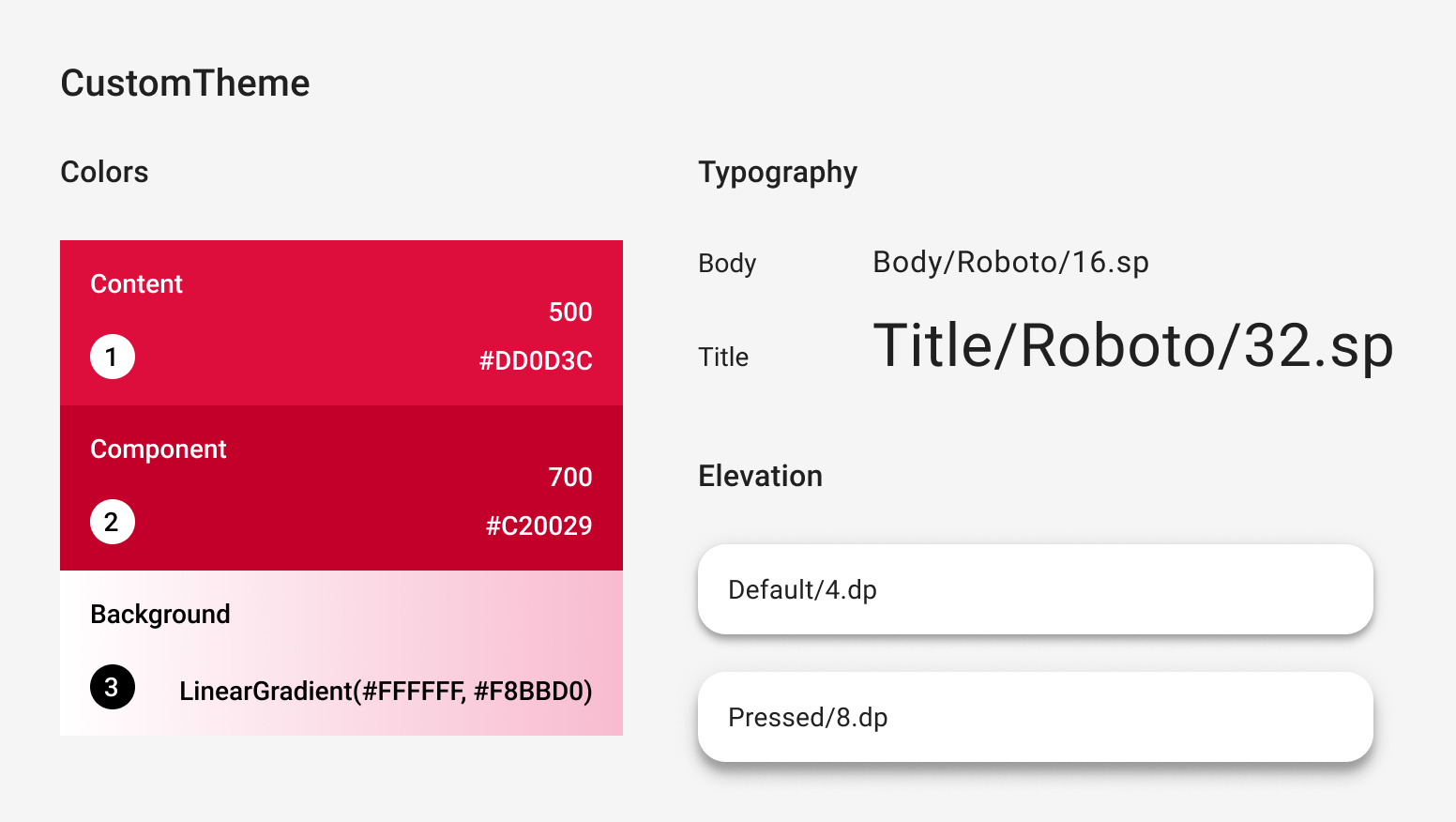
@Immutable data class CustomColors( val content: Color, val component: Color, val background: List<Color> ) @Immutable data class CustomTypography( val body: TextStyle, val title: TextStyle ) @Immutable data class CustomElevation( val default: Dp, val pressed: Dp ) val LocalCustomColors = staticCompositionLocalOf { CustomColors( content = Color.Unspecified, component = Color.Unspecified, background = emptyList() ) } val LocalCustomTypography = staticCompositionLocalOf { CustomTypography( body = TextStyle.Default, title = TextStyle.Default ) } val LocalCustomElevation = staticCompositionLocalOf { CustomElevation( default = Dp.Unspecified, pressed = Dp.Unspecified ) } @Composable fun CustomTheme( /* ... */ content: @Composable () -> Unit ) { val customColors = CustomColors( content = Color(0xFFDD0D3C), component = Color(0xFFC20029), background = listOf(Color.White, Color(0xFFF8BBD0)) ) val customTypography = CustomTypography( body = TextStyle(fontSize = 16.sp), title = TextStyle(fontSize = 32.sp) ) val customElevation = CustomElevation( default = 4.dp, pressed = 8.dp ) CompositionLocalProvider( LocalCustomColors provides customColors, LocalCustomTypography provides customTypography, LocalCustomElevation provides customElevation, content = content ) } // Use with eg. CustomTheme.elevation.small object CustomTheme { val colors: CustomColors @Composable get() = LocalCustomColors.current val typography: CustomTypography @Composable get() = LocalCustomTypography.current val elevation: CustomElevation @Composable get() = LocalCustomElevation.current }
ใช้คอมโพเนนต์ Material
เมื่อไม่มี MaterialTheme การใช้คอมโพเนนต์ Material ตามที่เป็นอยู่จะส่งผลให้เกิดค่าสี ประเภท และรูปร่างของ Material รวมถึงลักษณะการบ่งชี้ที่ไม่ต้องการ
หากต้องการใช้ค่าที่กำหนดเองในคอมโพเนนต์ ให้รวมค่าเหล่านั้นไว้ในฟังก์ชันที่ประกอบกันได้ของคุณเอง โดยตั้งค่าสำหรับระบบที่เกี่ยวข้องโดยตรง และแสดงค่าอื่นๆ เป็นพารามิเตอร์สำหรับคอมโพสิเบิลที่มีอยู่
เราขอแนะนำให้คุณเข้าถึงค่าที่คุณตั้งไว้จากธีมที่กำหนดเอง
หรือหากธีมไม่มี Color, TextStyle, Shape หรือระบบอื่นๆ คุณสามารถฮาร์ดโค้ดได้
@Composable fun CustomButton( onClick: () -> Unit, modifier: Modifier = Modifier, content: @Composable RowScope.() -> Unit ) { Button( colors = ButtonDefaults.buttonColors( containerColor = CustomTheme.colors.component, contentColor = CustomTheme.colors.content, disabledContainerColor = CustomTheme.colors.content .copy(alpha = 0.12f) .compositeOver(CustomTheme.colors.component), disabledContentColor = CustomTheme.colors.content .copy(alpha = 0.38f) ), shape = ButtonShape, elevation = ButtonDefaults.elevatedButtonElevation( defaultElevation = CustomTheme.elevation.default, pressedElevation = CustomTheme.elevation.pressed /* disabledElevation = 0.dp */ ), onClick = onClick, modifier = modifier, content = { ProvideTextStyle( value = CustomTheme.typography.body ) { content() } } ) } val ButtonShape = RoundedCornerShape(percent = 50)
หากคุณได้เปิดตัวคลาสประเภทใหม่ เช่น List<Color> เพื่อแสดงการไล่ระดับสี การใช้คอมโพเนนต์ตั้งแต่ต้นอาจดีกว่าการรวมคอมโพเนนต์เหล่านั้น ดูตัวอย่างได้ที่ JetsnackButton จากตัวอย่าง Jetsnack
แนะนำสำหรับคุณ
- หมายเหตุ: ข้อความลิงก์จะแสดงเมื่อ JavaScript ปิดอยู่
- Material Design 3 ใน Compose
- ย้ายข้อมูลจาก Material 2 ไปยัง Material 3 ใน Compose
- องค์ประกอบของธีมใน Compose