
Android devices come in many form factors—phones, foldables, tablets, ChromeOS laptops, TVs, car displays, XR. Different devices offer different hardware capabilities. For example, some devices don't have telephony services, touchscreens, or cameras.
When an app declares a requirement for a specific hardware or software feature, Google Play prevents users with unsupported devices from downloading the app.
To maximize your app's availability across device types, make features optional and verify requirements with automated checks.
How required features reduce availability
Google Play filters app availability based on feature requirements declared in your app's manifest and dependencies.
Explicit feature declarations
The <uses-feature> manifest element specifies hardware or software
dependencies. By default, <uses-feature> marks declared features as required
(android:required="true").
For example, declaring a camera requirement prevents devices that don't have a back (world‑facing) camera from downloading the app:
<uses-feature android:name="android.hardware.camera" />
To indicate that the feature is optional, you must explicitly set
android:required to false:
<uses-feature
    android:name="android.hardware.camera"
    android:required="false" />
Implicit feature requirements from permissions
Declaring <uses-permission> elements can also implicitly require
corresponding hardware features. For example, declaring the CAMERA permission
requires the android.hardware.camera feature unless explicitly overridden.
On devices running Android 5.1 (API level 22) and lower, users grant permissions when they install the app; on devices running Android 6.0 (API level 23) and higher, at runtime.
Expectations around permissions have evolved with the introduction of runtime
permissions, in which case a <uses-permission> declaration doesn't mean
your app will be granted access. With runtime permissions, users can choose to
deny access or prefer alternative workflows, such as manually searching for a
location rather than granting location permissions. Because apps must continue
to function in the case of permission denial at runtime, requiring the
underlying hardware feature at install time and having Google Play filter on
that requirement is unnecessary.
For a complete list of permissions that trigger implicit feature requirements, see Permissions that imply feature requirements.
Implicit feature requirements from activity orientation
Specifying fixed screen orientations on activities using
android:screenOrientation can implicitly require hardware features. For
example, setting android:screenOrientation="portrait" implies a requirement
for portrait-capable displays, which can exclude devices with fixed landscape
displays such as cars or desktop environments.
Apps should always support both landscape and portrait orientations, so declaring an orientation requirement is unnecessary and can reduce app availability. See Screen hardware features.
Manage transitive dependencies and manifest merging
The Android build system merges manifests across all modules and third-party dependencies into a single final manifest. As a result, a newly added library dependency might request permissions or declare features that introduce unexpected requirements, silently reducing device availability.
Determine your app's required features
Check the exact features required by your app after manifest merging using
AAPT2 or Google Play Console.
Use AAPT2 badging output
Run the AAPT2 tool to dump badging metadata from your
universal APK:
aapt2 dump badging path/to/app.apk
The badging output lists all declared permissions and all explicitly and implicitly required features, which determines the filtering rules applied by Google Play.
Check Google Play Console device catalog
In the Google Play Console, check the Device Catalog to view the list of supported and excluded devices. Excluded device entries specify the manifest declarations that caused the exclusion.
Make features optional
To support the widest range of form factors, avoid strictly requiring hardware or software features unless your app can't function without them.
Provide fallback workflows
Design alternative user interactions when hardware features or permissions are unavailable, for example:
- Camera: Banking apps that support Remote Deposit Capture (RDC) of checks shouldn't require an autofocus camera, a front or rear camera, or any camera at all. Allow users to upload a picture of a check from another source.
- Touchscreen and input: All apps should support keyboard navigation and mouse input for accessibility and usability. Don't strictly require a hardware touchscreen, ensuring compatibility with desktop windowing, ChromeOS, and TV form factors.
- Orientation: Adaptive apps support both landscape and portrait orientations. Car displays are often in a fixed landscape orientation; requiring portrait support would exclude those displays.
- Location and connectivity: Not all devices have location hardware or telephony services. Allow manual address entry or email options if location hardware or telephony services are absent or permission is denied.
Set android:required to false
Add android:required="false" to all <uses-feature> declarations in
AndroidManifest.xml:
<uses-feature
    android:name="android.hardware.camera"
    android:required="false" />
<uses-feature
    android:name="android.hardware.autofocus"
    android:required="false" />
Or remove the <uses-feature> declaration entirely if the app no longer
supports a specific feature.
Override implicit permission requirements
When declaring permissions that imply hardware features, add a corresponding
<uses-feature> tag with android:required="false":
<uses-permission android:name="android.permission.CAMERA" />
<uses-feature
    android:name="android.hardware.camera"
    android:required="false" />
Check feature availability at runtime
Before calling hardware-specific APIs, check whether the device supports the
feature using PackageManager.hasSystemFeature:
if (packageManager.hasSystemFeature(PackageManager.FEATURE_CAMERA_ANY)) {
    // Access camera hardware.
} else {
    // Provide alternative workflow.
}
Prevent regressions with CI and badging
Automate badging verification in your continuous integration (CI) pipeline to detect unintended feature requirements introduced by code or dependency updates.
By storing the badging output of the AAPT2 tool in a text file and checking
the file into version control, you can track all explicitly and implicitly
required features and all declared permissions that are part of your final
universal APK.
Configure Gradle badging tasks
Define three Gradle tasks for each build variant, for example, the release variant:
generateReleaseBadging: InvokesAAPT2to generate a badging text file from the release APK.updateReleaseBadging: Copies the generated badging text file to your project source tree as a version-controlled golden reference file.checkReleaseBadging: Compares newly generated badging files with the checked-in golden file.
Verify in continuous integration
Configure your CI pipeline to run checkReleaseBadging on every pull request.
CI-automated badging guards against changes inadvertently causing a new feature
to be required, which would reduce availability of the app.
If a dependency change or manifest edit introduces a new permission or required feature, the badging check fails, preventing accidental availability regressions.
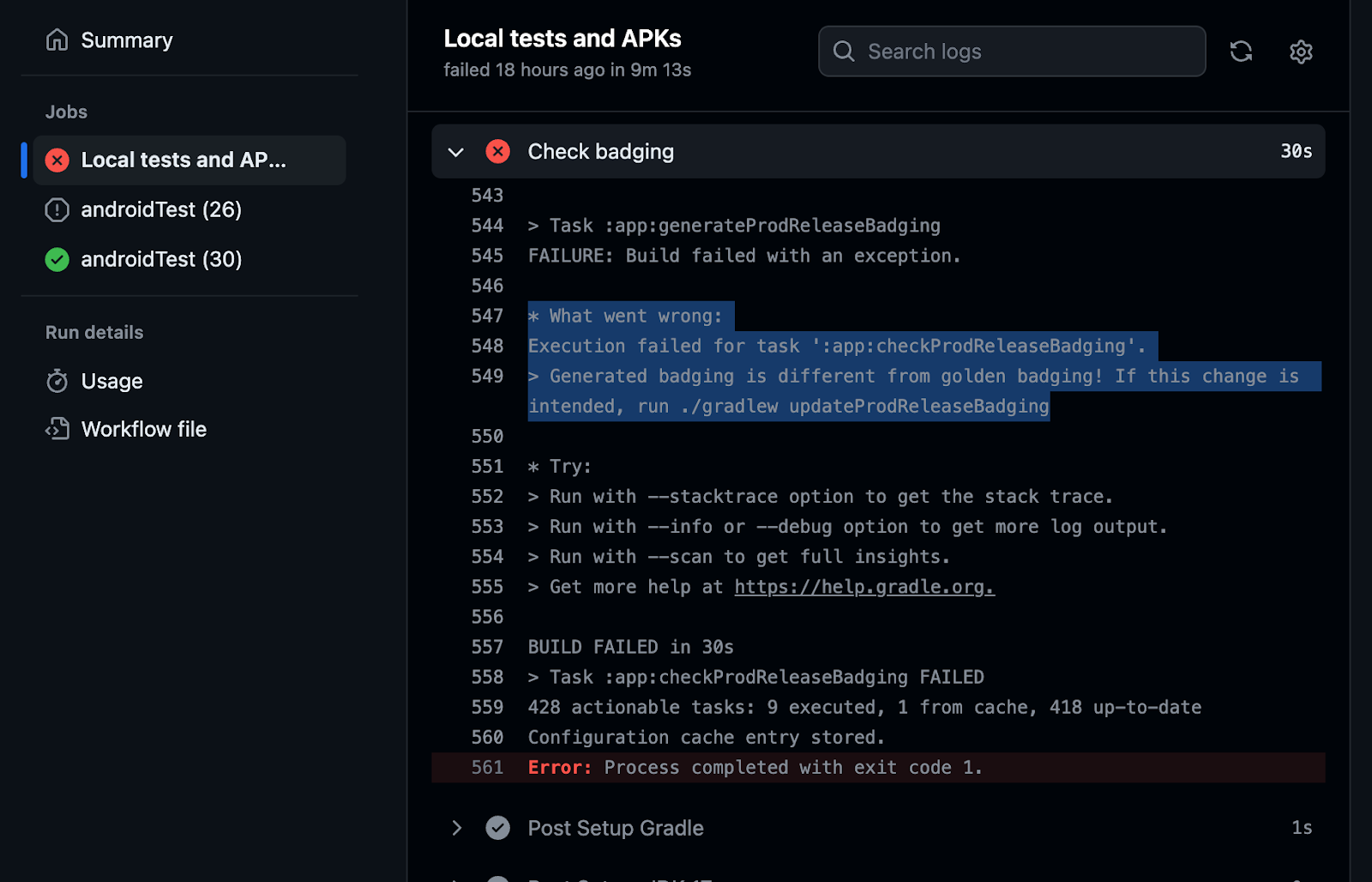
When a requirement change is intentional, run updateReleaseBadging to update
the golden badging file and commit the change for code review.
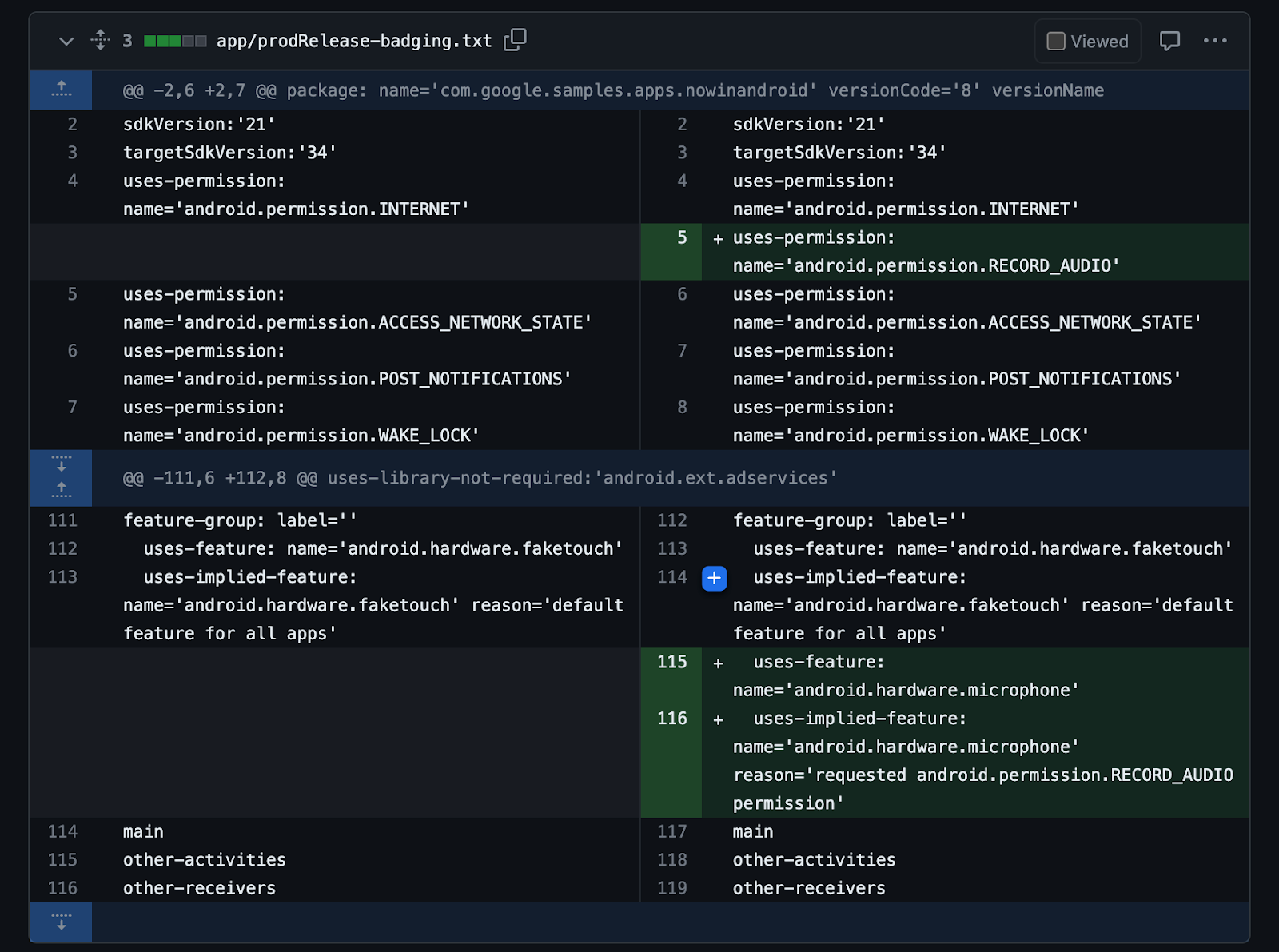
For a complete working example of a CI system verifying the badging file, see the Now in Android app.
Best practices
If you don't absolutely need a feature for your app to function, make the feature optional to ensure your app is available to the greatest number of devices and users.