

在摺疊式裝置上,未摺疊的大型螢幕和獨特的摺疊狀態可以提供新的使用者體驗。如要為應用程式採用摺疊機制,您可以使用 Jetpack WindowManager 程式庫,為摺疊或轉軸等摺疊式裝置視窗功能提供 API 途徑。採用摺疊機制的應用程式可以調整版面配置,避免在摺疊和轉軸區域放置重要內容,並能利用螢幕摺線和轉軸做為自然區隔機制。
瞭解裝置是否支援桌面或書本型態等設定,有助於決定是否支援不同版面配置或提供特定功能。
視窗資訊
Jetpack WindowManager 的 WindowInfoTracker 介面可以公開視窗版面配置資訊。此介面的 windowLayoutInfo() 方法會傳回一連串的 WindowLayoutInfo 資料,告知應用程式摺疊式裝置的摺疊狀態。WindowInfoTracker#getOrCreate() 方法會建立 WindowInfoTracker 的執行個體。
WindowManager 支援使用 Kotlin 流程和 Java 回呼收集 WindowLayoutInfo 資料。
Kotlin 資料流
如要開始及停止收集 WindowLayoutInfo 資料,可使用可重新啟動的生命週期感知協同程式,當生命週期至少 STARTED 時便會執行 repeatOnLifecycle 程式碼區塊,而當生命週期為 STOPPED 時便會停止。當生命週期再度為 STARTED 時,系統會自動重新開始執行程式碼區塊。在以下範例中,程式碼區塊會收集並使用 WindowLayoutInfo 資料:
class DisplayFeaturesActivity : ComponentActivity() { override fun onCreate(savedInstanceState: Bundle?) { // ... lifecycleScope.launch(Dispatchers.Main) { lifecycle.repeatOnLifecycle(Lifecycle.State.STARTED) { WindowInfoTracker.getOrCreate(this@DisplayFeaturesActivity) .windowLayoutInfo(this@DisplayFeaturesActivity) .collect { newLayoutInfo -> // Use newLayoutInfo to update the layout. } } } } }
Java 回呼
有了 androidx.window:window-java 依附元件內附的回呼相容性層,不必使用 Kotlin 資料流就能收集 WindowLayoutInfo 更新資訊。構件包含 WindowInfoTrackerCallbackAdapter 類別,這個類別會自動調整 WindowInfoTracker 以支援註冊 (及取消註冊) 回呼,以接收 WindowLayoutInfo 的更新,例如:
public class SplitLayoutActivity extends AppCompatActivity {

    private WindowInfoTrackerCallbackAdapter windowInfoTracker;
    private ActivitySplitLayoutBinding binding;
    private final LayoutStateChangeCallback layoutStateChangeCallback =
            new LayoutStateChangeCallback();

   @Override
   protected void onCreate(@Nullable Bundle savedInstanceState) {
       super.onCreate(savedInstanceState);

       binding = ActivitySplitLayoutBinding.inflate(getLayoutInflater());
       setContentView(binding.getRoot());

       windowInfoTracker =
                new WindowInfoTrackerCallbackAdapter(WindowInfoTracker.getOrCreate(this));
   }

   @Override
   protected void onStart() {
       super.onStart();
       windowInfoTracker.addWindowLayoutInfoListener(
                this, Runnable::run, layoutStateChangeCallback);
   }

   @Override
   protected void onStop() {
       super.onStop();
       windowInfoTracker
           .removeWindowLayoutInfoListener(layoutStateChangeCallback);
   }

   class LayoutStateChangeCallback implements Consumer<WindowLayoutInfo> {
       @Override
       public void accept(WindowLayoutInfo newLayoutInfo) {
           SplitLayoutActivity.this.runOnUiThread( () -> {
               // Use newLayoutInfo to update the layout.
           });
       }
   }
}
RxJava 支援
如果您已在使用 RxJava (版本 2 或 3),請善用可讓您使用 Observable 或 Flowable 的特定構件,以收集 WindowLayoutInfo 更新,無需使用 Kotlin Flow。
androidx.window:window-rxjava2 和 androidx.window:window-rxjava3 依附元件提供的相容性層包含 WindowInfoTracker#windowLayoutInfoFlowable() 和 WindowInfoTracker#windowLayoutInfoObservable() 方法,可讓應用程式接收 WindowLayoutInfo 更新,例如:
class RxActivity: AppCompatActivity {

    private lateinit var binding: ActivityRxBinding

    private var disposable: Disposable? = null
    private lateinit var observable: Observable<WindowLayoutInfo>

   @Override
   protected void onCreate(@Nullable Bundle savedInstanceState) {
       super.onCreate(savedInstanceState);

       binding = ActivityRxBinding.inflate(getLayoutInflater());
       setContentView(binding.getRoot());

        // Create a new observable.
        observable = WindowInfoTracker.getOrCreate(this@RxActivity)
            .windowLayoutInfoObservable(this@RxActivity)
   }

   @Override
   protected void onStart() {
       super.onStart();

        // Subscribe to receive WindowLayoutInfo updates.
        disposable?.dispose()
        disposable = observable
            .observeOn(AndroidSchedulers.mainThread())
            .subscribe { newLayoutInfo ->
            // Use newLayoutInfo to update the layout.
        }
   }

   @Override
   protected void onStop() {
       super.onStop();

        // Dispose of the WindowLayoutInfo observable.
        disposable?.dispose()
   }
}
折疊式裝置螢幕功能
Jetpack WindowManager 的 WindowLayoutInfo 類別可用 DisplayFeature 元素清單形式提供顯示視窗功能。
FoldingFeature 是一種 DisplayFeature,可提供摺疊式裝置螢幕相關資訊,包括下列屬性:
state:裝置摺疊狀態,可為FLAT或HALF_OPENEDorientation:摺疊或轉軸方向,可為HORIZONTAL或VERTICALisSeparating:摺疊或轉軸是否會建立兩個邏輯顯示區域,可為 true 或 false
處於 HALF_OPENED 狀態的摺疊式裝置一律會將 isSeparating 回報為 true,因為裝置螢幕會分隔成兩個顯示區域。此外,如果應用程式在雙螢幕裝置上橫跨兩個螢幕顯示,則 isSeparating 也會一律為 true。
FoldingFeature bounds 屬性繼承自 DisplayFeature,代表摺疊或轉軸等摺疊功能的矩形界框。此界框可用來將元素放置在螢幕上相對於此功能的位置:
Kotlin
override fun onCreate(savedInstanceState: Bundle?) { // ... lifecycleScope.launch(Dispatchers.Main) { lifecycle.repeatOnLifecycle(Lifecycle.State.STARTED) { // Safely collects from WindowInfoTracker when the lifecycle is // STARTED and stops collection when the lifecycle is STOPPED. WindowInfoTracker.getOrCreate(this@MainActivity) .windowLayoutInfo(this@MainActivity) .collect { layoutInfo -> // New posture information. val foldingFeature = layoutInfo.displayFeatures .filterIsInstance<FoldingFeature>() .firstOrNull() // Use information from the foldingFeature object. } } } }
Java
private WindowInfoTrackerCallbackAdapter windowInfoTracker;
private final LayoutStateChangeCallback layoutStateChangeCallback =
                new LayoutStateChangeCallback();

@Override
protected void onCreate(@Nullable Bundle savedInstanceState) {
    // ...
    windowInfoTracker =
            new WindowInfoTrackerCallbackAdapter(WindowInfoTracker.getOrCreate(this));
}

@Override
protected void onStart() {
    super.onStart();
    windowInfoTracker.addWindowLayoutInfoListener(
            this, Runnable::run, layoutStateChangeCallback);
}

@Override
protected void onStop() {
    super.onStop();
    windowInfoTracker.removeWindowLayoutInfoListener(layoutStateChangeCallback);
}

class LayoutStateChangeCallback implements Consumer<WindowLayoutInfo> {
    @Override
    public void accept(WindowLayoutInfo newLayoutInfo) {
        // Use newLayoutInfo to update the Layout.
        List<DisplayFeature> displayFeatures = newLayoutInfo.getDisplayFeatures();
        for (DisplayFeature feature : displayFeatures) {
            if (feature instanceof FoldingFeature) {
                // Use information from the feature object.
            }
        }
    }
}
桌面模式
運用 FoldingFeature 物件提供的資訊,應用程式可以支援桌面模式等各種型態,亦即手機穩定放置在平面上、轉軸處於橫向位置,以及摺疊式螢幕半開。
桌面模式方便使用者操作手機,不必拿著手機。桌面模式非常適合用來觀看媒體內容、拍照及進行視訊通話。
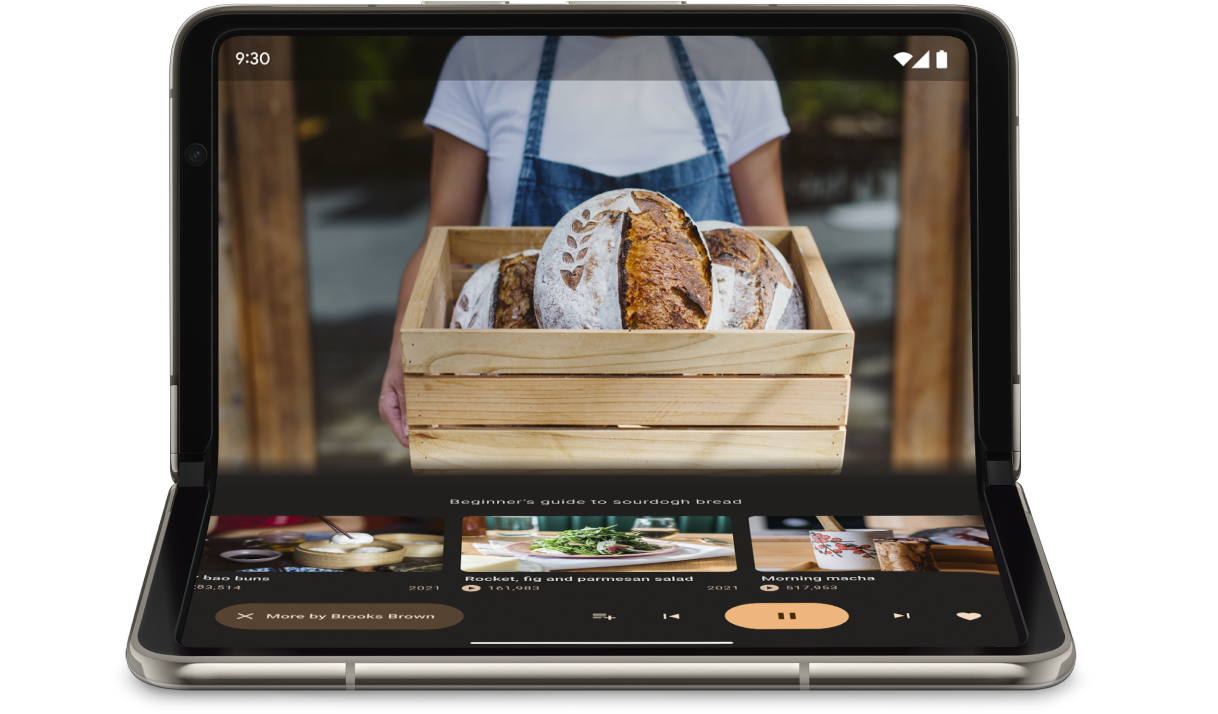
使用 FoldingFeature.State 和 FoldingFeature.Orientation 判斷裝置是否處於桌面型態:
Kotlin
fun isTableTopPosture(foldFeature: FoldingFeature?): Boolean { contract { returns(true) implies (foldFeature != null) } return foldFeature?.state == FoldingFeature.State.HALF_OPENED && foldFeature.orientation == FoldingFeature.Orientation.HORIZONTAL }
Java
boolean isTableTopPosture(FoldingFeature foldFeature) {
    return (foldFeature != null) &&
           (foldFeature.getState() == FoldingFeature.State.HALF_OPENED) &&
           (foldFeature.getOrientation() == FoldingFeature.Orientation.HORIZONTAL);
}
確認裝置處於桌面型態後,請據此更新應用程式版面配置。以媒體應用程式來說,通常是指將播放內容放在不需捲動位置,並將控制項和補充資訊放在下螢幕,讓使用者不必動手就能欣賞影音內容。
在 Android 15 (API 級別 35) 以上版本中,您可以叫用同步 API,偵測裝置是否支援桌上型電腦模式,無論裝置目前狀態為何。
這項 API 會提供裝置支援的姿勢清單。如果清單包含桌上型電腦模式,您可以分割應用程式版面配置來支援此模式,並針對桌上型電腦和全螢幕版面配置執行應用程式 UI 的 A/B 測試。
Kotlin
if (WindowSdkExtensions.getInstance().extensionVersion >= 6) { val postures = WindowInfoTracker.getOrCreate(context).supportedPostures if (postures.contains(SupportedPosture.TABLETOP)) { // Device supports tabletop posture. } }
Java
if (WindowSdkExtensions.getInstance().getExtensionVersion() >= 6) {
    List<SupportedPosture> postures = WindowInfoTracker.getOrCreate(context).getSupportedPostures();
    if (postures.contains(SupportedPosture.TABLETOP)) {
        // Device supports tabletop posture.
    }
}
範例
MediaPlayerActivity應用程式:瞭解如何使用 Media3 Exoplayer 和 WindowManager 建立採用摺疊機制的影片播放器。使用 Jetpack WindowManager 最佳化適用於摺疊式裝置的相機應用程式程式碼研究室:瞭解如何實作攝影應用程式的桌面模式。將觀景窗顯示在上螢幕 (不需捲動位置),並將控制項顯示在下螢幕 (需捲動位置)。
書本型態
另一種獨特的摺疊型態是書本模式,亦即裝置半開,轉軸為垂直方向。書本型態適合用來閱讀電子書。在大螢幕摺疊式裝置上利用雙頁版面配置閱讀書籍,呈現翻開實體精裝書的感觸。
此外,如果想使用免持方式拍攝不同顯示比例的相片,也可以使用這項功能。
實作書本模式使用的技術與桌面模式相同。唯一的差別在於程式碼應檢查摺疊功能螢幕方向是否為垂直,而非水平:
Kotlin
fun isBookPosture(foldFeature: FoldingFeature?): Boolean { contract { returns(true) implies (foldFeature != null) } return foldFeature?.state == FoldingFeature.State.HALF_OPENED && foldFeature.orientation == FoldingFeature.Orientation.VERTICAL }
Java
boolean isBookPosture(FoldingFeature foldFeature) {
    return (foldFeature != null) &&
           (foldFeature.getState() == FoldingFeature.State.HALF_OPENED) &&
           (foldFeature.getOrientation() == FoldingFeature.Orientation.VERTICAL);
}
視窗大小變化
應用程式的顯示區域可隨著裝置設定而變化,例如裝置處於摺疊、展開或旋轉狀態,或是在多視窗模式下重新調整視窗大小。
您可以利用 Jetpack WindowManager WindowMetricsCalculator 類別擷取目前和最大的視窗指標。如同 API 級別 30 中導入的平台 WindowMetrics,WindowManagerWindowMetrics 也能提供視窗界框,但這個 API 可以回溯相容至 API 級別 14。
請參閱「使用視窗大小類別」。
其他資源
範例
- Jetpack WindowManager:Jetpack WindowManager 程式庫的使用範例
- Jetcaster:使用 Compose 實作桌面模式