

नेस्टेड स्क्रोलिंग एक ऐसा सिस्टम है जिसमें एक-दूसरे के अंदर मौजूद कई स्क्रोलिंग कॉम्पोनेंट, एक साथ काम करते हैं. इसके लिए, वे एक ही स्क्रोल जेस्चर पर प्रतिक्रिया देते हैं और अपने स्क्रोलिंग डेल्टा (बदलावों) को शेयर करते हैं.
नेस्टेड स्क्रोलिंग सिस्टम की मदद से, स्क्रोल किए जा सकने वाले और क्रम के हिसाब से लिंक किए गए कॉम्पोनेंट के बीच तालमेल बनाया जा सकता है. आम तौर पर, ये कॉम्पोनेंट एक ही पैरंट को शेयर करते हैं. यह सिस्टम, स्क्रोल किए जा सकने वाले कंटेनर को लिंक करता है. साथ ही, यह स्क्रोलिंग डेल्टा के साथ इंटरैक्शन की अनुमति देता है. ये डेल्टा, कंटेनर के बीच शेयर किए जाते हैं.
Compose, कंपोज़ेबल के बीच नेस्टेड स्क्रोलिंग को मैनेज करने के कई तरीके उपलब्ध कराता है. नेस्टेड स्क्रोलिंग का एक सामान्य उदाहरण, एक सूची के अंदर दूसरी सूची है. वहीं, ज़्यादा जटिल मामला छोटा होने वाला टूलबार है.
अपने-आप नेस्टेड स्क्रोलिंग की सुविधा
सिंपल नेस्टेड स्क्रोलिंग के लिए, आपको कुछ करने की ज़रूरत नहीं है. स्क्रोल करने की कार्रवाई शुरू करने वाले जेस्चर, चाइल्ड एलिमेंट से पैरंट एलिमेंट में अपने-आप लागू हो जाते हैं. इससे, जब चाइल्ड एलिमेंट को और स्क्रोल नहीं किया जा सकता, तो जेस्चर को उसके पैरंट एलिमेंट से मैनेज किया जाता है.
Compose के कुछ कॉम्पोनेंट और मॉडिफ़ायर, अपने-आप नेस्टेड स्क्रोलिंग की सुविधा देते हैं और इसे पहले से उपलब्ध कराते हैं:
verticalScroll,
horizontalScroll,
scrollable,
Lazy एपीआई, और TextField. इसका मतलब है कि जब उपयोगकर्ता नेस्ट किए गए कॉम्पोनेंट के इनर चाइल्ड को स्क्रोल करता है, तो पिछले मॉडिफ़ायर, स्क्रोलिंग डेल्टा को उन पैरंट कॉम्पोनेंट पर भेजते हैं जिनमें नेस्ट की गई स्क्रोलिंग की सुविधा होती है.
इस उदाहरण में, ऐसे एलिमेंट दिखाए गए हैं जिन पर verticalScroll मॉडिफ़ायर लागू किया गया है. ये एलिमेंट एक ऐसे कंटेनर में मौजूद हैं जिस पर verticalScroll मॉडिफ़ायर भी लागू किया गया है.
@Composable private fun AutomaticNestedScroll() { val gradient = Brush.verticalGradient(0f to Color.Gray, 1000f to Color.White) Box( modifier = Modifier .background(Color.LightGray) .verticalScroll(rememberScrollState()) .padding(32.dp) ) { Column { repeat(6) { Box( modifier = Modifier .height(128.dp) .verticalScroll(rememberScrollState()) ) { Text( "Scroll here", modifier = Modifier .border(12.dp, Color.DarkGray) .background(brush = gradient) .padding(24.dp) .height(150.dp) ) } } } } }

nestedScroll मॉडिफ़ायर का इस्तेमाल करना
अगर आपको कई एलिमेंट के बीच बेहतर तरीके से स्क्रोल करने की सुविधा बनानी है, तो
nestedScroll
मॉडिफ़ायर का इस्तेमाल करें. इससे आपको नेस्ट किए गए स्क्रोलिंग की हैरारकी तय करने में ज़्यादा मदद मिलती है. पिछले सेक्शन में बताया गया है कि कुछ कॉम्पोनेंट में, नेस्ट किए गए स्क्रोल की सुविधा पहले से मौजूद होती है. हालांकि, अपने-आप स्क्रोल न होने वाले कंपोज़ेबल, जैसे कि Box या Column के लिए, ऐसे कॉम्पोनेंट पर स्क्रोल डेल्टा, नेस्ट किए गए स्क्रोल सिस्टम में लागू नहीं होंगे. साथ ही, डेल्टा, NestedScrollConnection या पैरंट कॉम्पोनेंट तक नहीं पहुंचेंगे. इस समस्या को हल करने के लिए, nestedScroll का इस्तेमाल किया जा सकता है. इससे कस्टम कॉम्पोनेंट के साथ-साथ अन्य कॉम्पोनेंट को भी इस तरह की सहायता दी जा सकती है.
नेस्ट किया गया स्क्रोलिंग साइकल
नेस्टेड स्क्रोल साइकल, स्क्रोल डेल्टा का फ़्लो होता है. इसे नेस्टेड स्क्रोलिंग सिस्टम के सभी कॉम्पोनेंट (या नोड) के ज़रिए, हैरारकी ट्री में ऊपर और नीचे भेजा जाता है. उदाहरण के लिए, स्क्रोल किए जा सकने वाले कॉम्पोनेंट और मॉडिफ़ायर या nestedScroll का इस्तेमाल करके.
नेस्टेड स्क्रोलिंग साइकल के फ़ेज़
जब स्क्रोल किए जा सकने वाले कॉम्पोनेंट को किसी ट्रिगर इवेंट (उदाहरण के लिए, जेस्चर) का पता चलता है, तो स्क्रोल करने की असल कार्रवाई ट्रिगर होने से पहले ही, जनरेट किए गए डेल्टा को नेस्ट किए गए स्क्रोल सिस्टम में भेज दिया जाता है. इसके बाद, ये तीन चरणों से गुज़रते हैं: स्क्रोल करने से पहले, नोड का इस्तेमाल, और स्क्रोल करने के बाद.
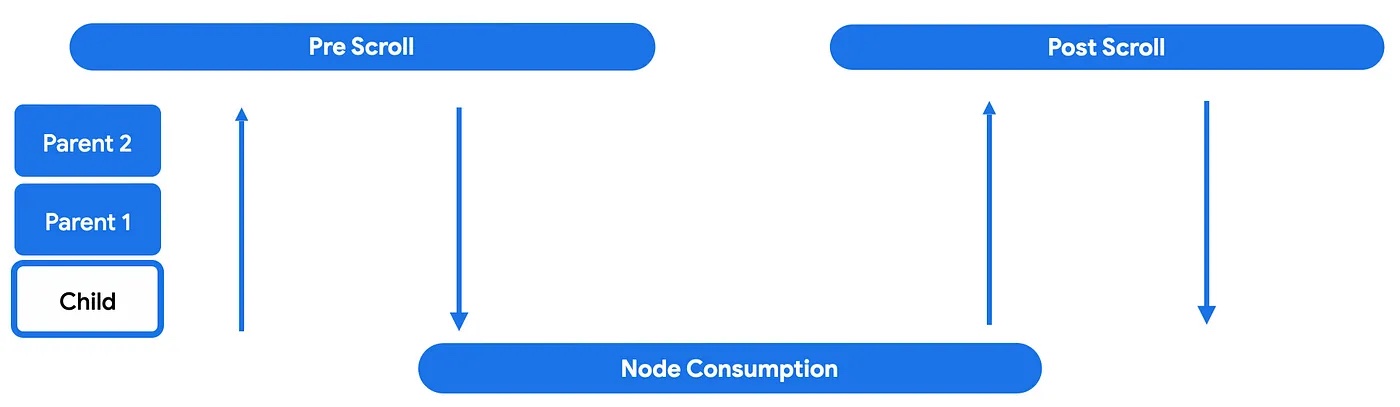
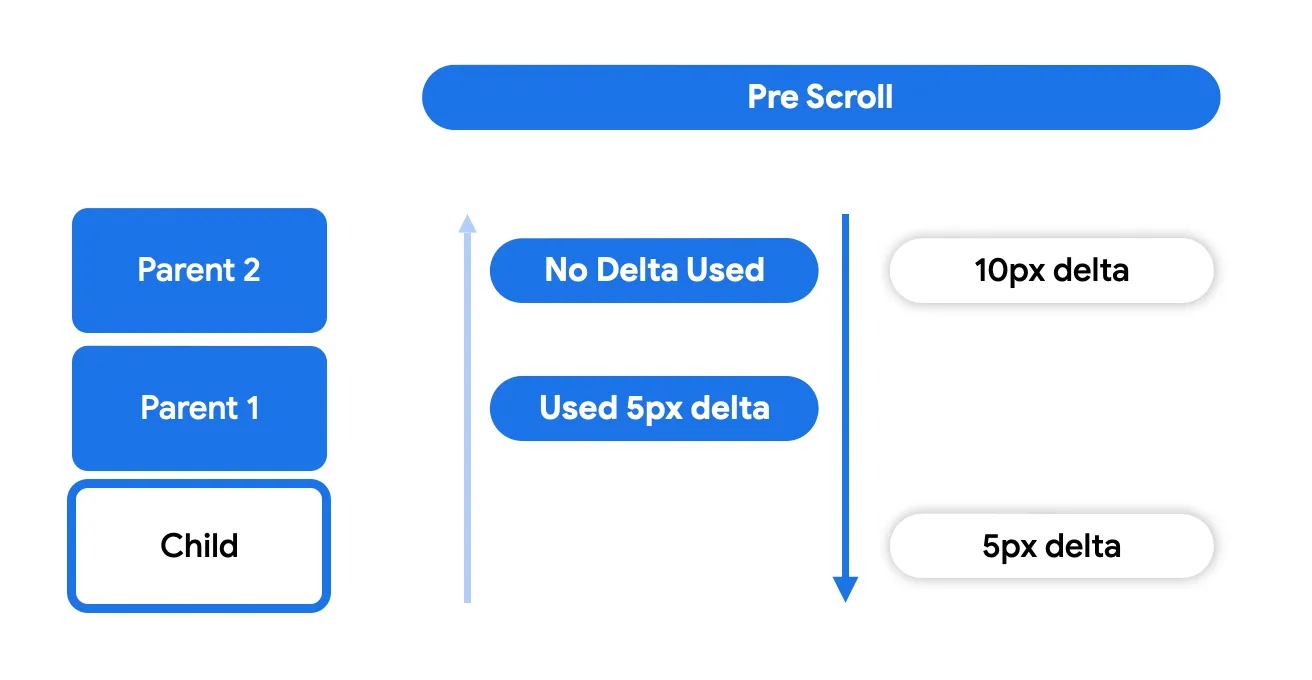
पहले, प्री-स्क्रोल फ़ेज़ में, ट्रिगर इवेंट डेल्टा पाने वाला कॉम्पोनेंट, उन इवेंट को हैरारकी ट्री के ज़रिए सबसे ऊपर मौजूद पैरंट कॉम्पोनेंट को भेज देगा. इसके बाद, डेल्टा इवेंट नीचे की ओर बबल होंगे. इसका मतलब है कि डेल्टा, सबसे ऊपर मौजूद पैरंट से नीचे की ओर उस चाइल्ड तक भेजे जाएंगे जिसने नेस्ट किए गए स्क्रोल साइकल को शुरू किया था.
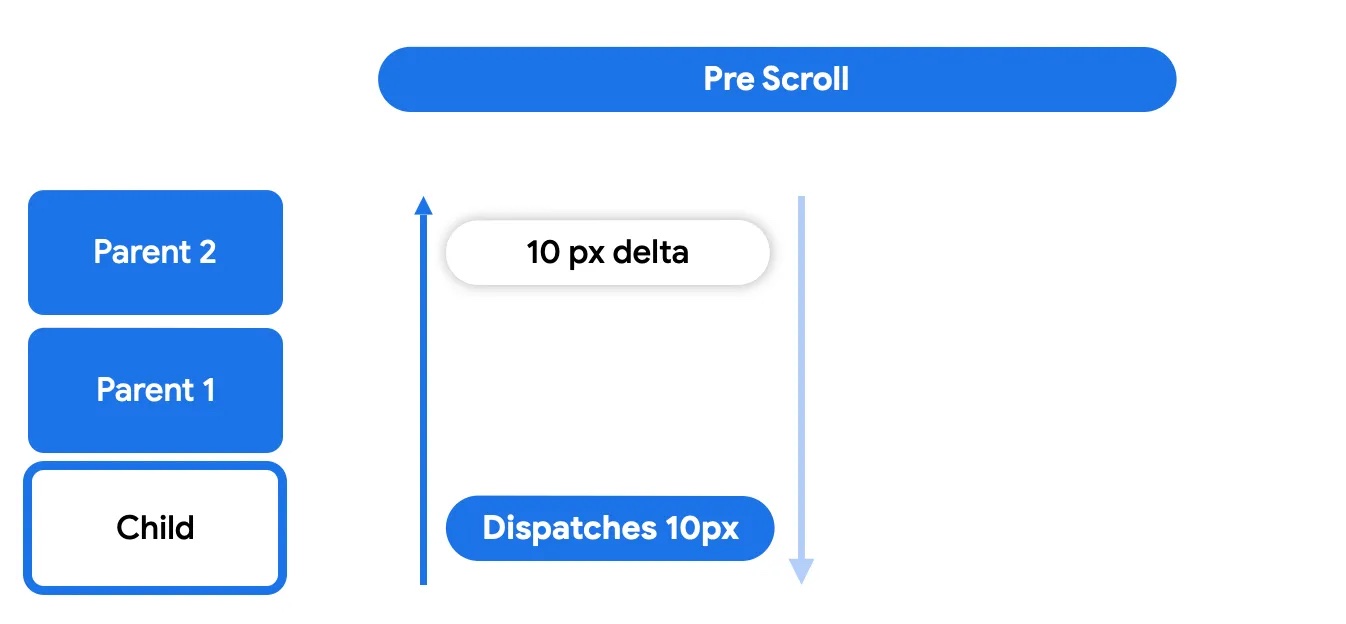
इससे नेस्ट किए गए स्क्रोल पैरंट (nestedScroll या स्क्रोल किए जा सकने वाले मॉडिफ़ायर का इस्तेमाल करने वाले कंपोज़ेबल) को डेल्टा के साथ कुछ करने का मौका मिलता है. इसके बाद ही, नोड इसका इस्तेमाल कर सकता है.
नोड के इस्तेमाल के चरण में, नोड खुद उस डेल्टा का इस्तेमाल करेगा जिसका इस्तेमाल उसके पैरंट ने नहीं किया है. यह वह समय होता है, जब स्क्रोलिंग मूवमेंट असल में होता है और दिखता है.
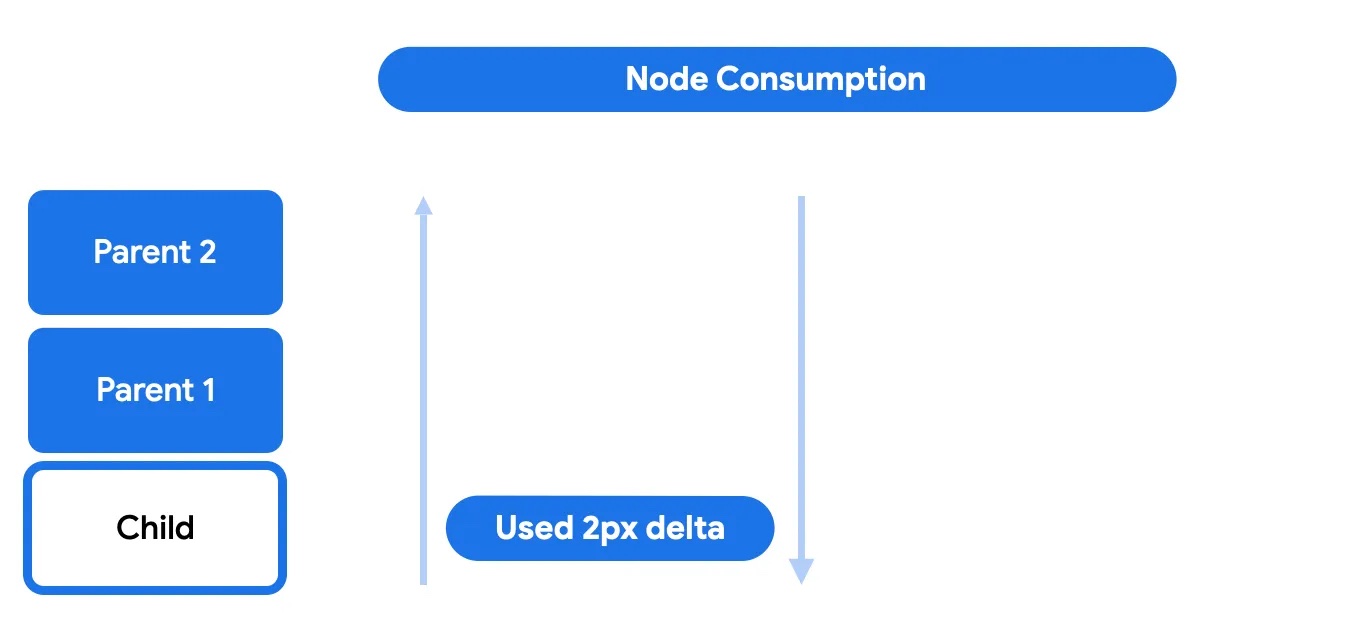
इस दौरान, बच्चा बचे हुए स्क्रोल को पूरा या कुछ हिस्सा इस्तेमाल कर सकता है. बाकी बचे कॉन्टेंट को पोस्ट-स्क्रोल फ़ेज़ में भेज दिया जाएगा.
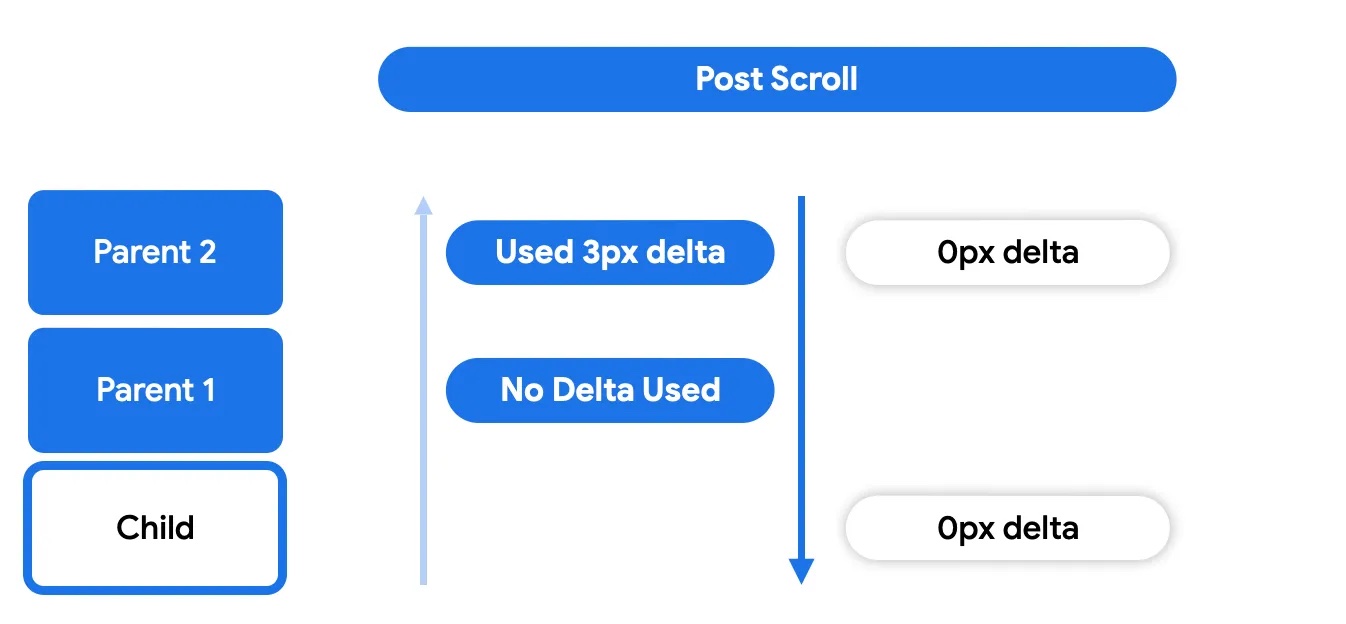
आखिर में, पोस्ट-स्क्रोल फ़ेज़ में, नोड ने जो भी इस्तेमाल नहीं किया है उसे फिर से उसके पैरंट नोड को इस्तेमाल करने के लिए भेज दिया जाएगा.
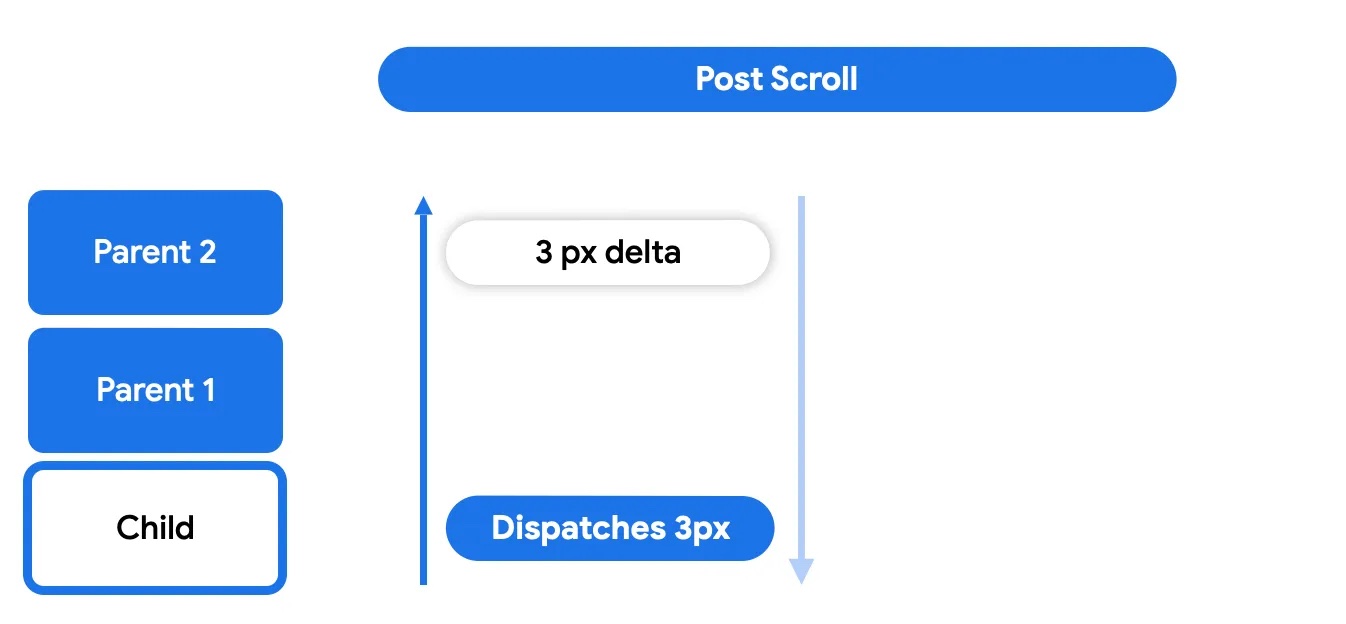
स्क्रोल करने के बाद का फ़ेज़, स्क्रोल करने से पहले के फ़ेज़ की तरह ही काम करता है. इसमें माता-पिता यह चुन सकते हैं कि उन्हें कॉन्टेंट देखना है या नहीं.
स्क्रोल करने की तरह ही, जब ड्रैग जेस्चर खत्म होता है, तो उपयोगकर्ता के इंटेंट को ऐसी रफ़्तार में बदला जा सकता है जिसका इस्तेमाल, स्क्रोल किए जा सकने वाले कंटेनर को फ़्लिंग (ऐनिमेशन का इस्तेमाल करके स्क्रोल करना) करने के लिए किया जाता है. फ़्लिंग भी नेस्ट किए गए स्क्रोल साइकल का हिस्सा है. साथ ही, ड्रैग इवेंट से जनरेट होने वाली स्पीड, इन चरणों से होकर गुज़रती है: प्री-फ़्लिंग, नोड का इस्तेमाल, और पोस्ट-फ़्लिंग. ध्यान दें कि फ़्लिंग ऐनिमेशन सिर्फ़ टच जेस्चर से जुड़ा होता है. यह अन्य इवेंट से ट्रिगर नहीं होगा. जैसे, a11y या हार्डवेयर स्क्रोल.
नेस्टेड स्क्रोलिंग साइकल में हिस्सा लेना
साइकल में हिस्सा लेने का मतलब है, हैरारकी के हिसाब से डेल्टा को इंटरसेप्ट करना, इस्तेमाल करना, और इस्तेमाल की रिपोर्ट करना. Compose, नेस्ट किए गए स्क्रोलिंग सिस्टम के काम करने के तरीके और उससे सीधे इंटरैक्ट करने के तरीके पर असर डालने के लिए, टूल का एक सेट उपलब्ध कराता है. उदाहरण के लिए, जब आपको स्क्रोल किए जा सकने वाले कॉम्पोनेंट के स्क्रोल होने से पहले, स्क्रोल डेल्टा के साथ कुछ करना हो.
अगर नेस्ट किया गया स्क्रोल साइकल, नोड की चेन पर काम करने वाला सिस्टम है, तो
nestedScroll
मॉडिफ़ायर, इन बदलावों को रोकने और उनमें बदलाव करने का एक तरीका है. साथ ही,
यह चेन में भेजे गए डेटा (स्क्रोल डेल्टा) पर असर डालता है. इस मॉडिफ़ायर को हैरारकी में कहीं भी रखा जा सकता है. साथ ही, यह ट्री में मौजूद नेस्ट किए गए स्क्रोल मॉडिफ़ायर इंस्टेंस के साथ कम्यूनिकेट करता है, ताकि इस चैनल के ज़रिए जानकारी शेयर की जा सके. इस मॉडिफ़ायर के बिल्डिंग ब्लॉक NestedScrollConnection और NestedScrollDispatcher हैं.
NestedScrollConnection
नेस्ट किए गए स्क्रोल साइकल के चरणों का जवाब देने और नेस्ट किए गए स्क्रोल सिस्टम पर असर डालने का तरीका उपलब्ध कराता है. इसमें कॉलबैक के चार तरीके शामिल हैं. इनमें से हर तरीका, कॉन्टेंट इस्तेमाल करने के किसी एक चरण को दिखाता है: स्क्रोल करने से पहले/बाद में और फ़्लिंग करने से पहले/बाद में:
val nestedScrollConnection = object : NestedScrollConnection { override fun onPreScroll(available: Offset, source: NestedScrollSource): Offset { println("Received onPreScroll callback.") return Offset.Zero } override fun onPostScroll( consumed: Offset, available: Offset, source: NestedScrollSource ): Offset { println("Received onPostScroll callback.") return Offset.Zero } }
हर कॉलबैक, प्रोपेगेट किए जा रहे डेल्टा के बारे में भी जानकारी देता है:
उस फ़ेज़ के लिए available डेल्टा और पिछले फ़ेज़ में इस्तेमाल किया गया consumed डेल्टा. अगर आपको किसी भी समय हैरारकी में डेल्टा को आगे बढ़ाने से रोकना है, तो नेस्ट किए गए स्क्रोल कनेक्शन का इस्तेमाल करें:
val disabledNestedScrollConnection = remember { object : NestedScrollConnection { override fun onPostScroll( consumed: Offset, available: Offset, source: NestedScrollSource ): Offset { return if (source == NestedScrollSource.SideEffect) { available } else { Offset.Zero } } } }
सभी कॉलबैक, NestedScrollSource टाइप के बारे में जानकारी देते हैं.
NestedScrollDispatcher
नेस्ट किए गए स्क्रोल साइकल को शुरू करता है. डिस्पैचर का इस्तेमाल करने और उसके तरीकों को कॉल करने से, साइकल ट्रिगर होता है. स्क्रोल किए जा सकने वाले कंटेनर में पहले से मौजूद डिस्पैचर होता है. यह जेस्चर के दौरान कैप्चर किए गए डेल्टा को सिस्टम में भेजता है. इस वजह से, नेस्टेड स्क्रोलिंग को पसंद के मुताबिक बनाने के ज़्यादातर मामलों में, डिस्पैचर के बजाय NestedScrollConnection का इस्तेमाल किया जाता है. इससे नए डेल्टा भेजने के बजाय, पहले से मौजूद डेल्टा पर प्रतिक्रिया दी जाती है.
ज़्यादा इस्तेमाल के लिए,
NestedScrollDispatcherSample
देखें.
स्क्रोल करने पर इमेज का साइज़ बदलना
उपयोगकर्ता के स्क्रोल करने पर, डाइनैमिक विज़ुअल इफ़ेक्ट बनाया जा सकता है. इसमें स्क्रोल की पोज़िशन के हिसाब से इमेज का साइज़ बदलता है.
स्क्रोल की पोज़िशन के आधार पर किसी इमेज का साइज़ बदलना
इस स्निपेट में, वर्टिकल स्क्रोल पोज़िशन के आधार पर, LazyColumn में मौजूद इमेज का साइज़ बदलने का तरीका बताया गया है. उपयोगकर्ता के नीचे की ओर स्क्रोल करने पर इमेज छोटी हो जाती है और ऊपर की ओर स्क्रोल करने पर बड़ी हो जाती है. हालांकि, यह तय किए गए कम से कम और ज़्यादा से ज़्यादा साइज़ की सीमाओं के अंदर ही रहती है:
@Composable fun ImageResizeOnScrollExample( modifier: Modifier = Modifier, maxImageSize: Dp = 300.dp, minImageSize: Dp = 100.dp ) { var currentImageSize by remember { mutableStateOf(maxImageSize) } var imageScale by remember { mutableFloatStateOf(1f) } val nestedScrollConnection = remember { object : NestedScrollConnection { override fun onPreScroll(available: Offset, source: NestedScrollSource): Offset { // Calculate the change in image size based on scroll delta val delta = available.y val newImageSize = currentImageSize + delta.dp val previousImageSize = currentImageSize // Constrain the image size within the allowed bounds currentImageSize = newImageSize.coerceIn(minImageSize, maxImageSize) val consumed = currentImageSize - previousImageSize // Calculate the scale for the image imageScale = currentImageSize / maxImageSize // Return the consumed scroll amount return Offset(0f, consumed.value) } } } Box(Modifier.nestedScroll(nestedScrollConnection)) { LazyColumn( Modifier .fillMaxWidth() .padding(15.dp) .offset { IntOffset(0, currentImageSize.roundToPx()) } ) { // Placeholder list items items(100, key = { it }) { Text( text = "Item: $it", style = MaterialTheme.typography.bodyLarge ) } } Image( painter = ColorPainter(Color.Red), contentDescription = "Red color image", Modifier .size(maxImageSize) .align(Alignment.TopCenter) .graphicsLayer { scaleX = imageScale scaleY = imageScale // Center the image vertically as it scales translationY = -(maxImageSize.toPx() - currentImageSize.toPx()) / 2f } ) } }
कोड के बारे में अहम बातें
- यह कोड, स्क्रोल इवेंट को इंटरसेप्ट करने के लिए
NestedScrollConnectionका इस्तेमाल करता है. onPreScroll, स्क्रोल डेल्टा के आधार पर इमेज के साइज़ में होने वाले बदलाव का हिसाब लगाता है.currentImageSizeस्टेट वैरिएबल, इमेज का मौजूदा साइज़ सेव करता है. यह साइज़,minImageSizeऔरmaxImageSize. imageScaleके बीच सीमित होता है. यह साइज़,currentImageSizeसे लिया जाता है.currentImageSizeके आधार परLazyColumnऑफ़सेट.Image, कैलकुलेट किए गए स्केल को लागू करने के लिए,graphicsLayerमॉडिफ़ायर का इस्तेमाल करता है.graphicsLayerमें मौजूदtranslationYयह पक्का करता है कि इमेज का साइज़ बदलने पर, वह वर्टिकल तौर पर बीच में रहे.
नतीजा
पिछले स्निपेट की वजह से, स्क्रोल करने पर इमेज का साइज़ बदलने वाला इफ़ेक्ट दिखता है:
नेस्टेड स्क्रोलिंग इंटरऑप
स्क्रोल किए जा सकने वाले कंपोज़ेबल में, स्क्रोल किए जा सकने वाले View एलिमेंट को नेस्ट करने की कोशिश करने पर या इसके उलट, आपको समस्याएं आ सकती हैं. सबसे ज़्यादा ध्यान देने वाली बात यह है कि जब चाइल्ड व्यू को स्क्रोल किया जाता है और वह अपने शुरुआती या आखिरी हिस्से तक पहुंच जाता है, तो पैरंट व्यू को स्क्रोल करने की उम्मीद की जाती है. हालांकि, ऐसा हो सकता है कि यह सुविधा काम न करे या उम्मीद के मुताबिक काम न करे.
यह समस्या, स्क्रोल किए जा सकने वाले कंपोज़ेबल में पहले से मौजूद उम्मीदों की वजह से होती है.
स्क्रोल किए जा सकने वाले कंपोज़ेबल में, "नेस्टेड-स्क्रोल-बाय-डिफ़ॉल्ट" नियम होता है. इसका मतलब है कि स्क्रोल किए जा सकने वाले किसी भी कंटेनर को नेस्टेड स्क्रोल चेन में शामिल होना चाहिए. इसके लिए, उसे
NestedScrollConnection
के ज़रिए पैरंट और
NestedScrollDispatcher
के ज़रिए चाइल्ड के तौर पर शामिल होना चाहिए.
इसके बाद, चाइल्ड व्यू, पैरंट व्यू के लिए नेस्टेड स्क्रोल को तब ट्रिगर करेगा, जब चाइल्ड व्यू अपनी सीमा पर पहुंच जाएगा. उदाहरण के लिए, इस नियम की मदद से Compose Pager और Compose LazyRow एक साथ अच्छी तरह से काम कर पाते हैं. हालांकि, ViewPager2 या RecyclerView के साथ इंटरऑपरेबिलिटी स्क्रोलिंग करते समय, चाइल्ड से पैरंट तक लगातार स्क्रोल करना मुमकिन नहीं है. ऐसा इसलिए है, क्योंकि ये NestedScrollingParent3 को लागू नहीं करते.
स्क्रोल किए जा सकने वाले View एलिमेंट और स्क्रोल किए जा सकने वाले कंपोज़ेबल के बीच, नेस्ट किए गए स्क्रोलिंग इंटरऑप एपीआई को चालू करने के लिए, नेस्ट किए गए स्क्रोलिंग इंटरऑप एपीआई का इस्तेमाल किया जा सकता है. इससे इन समस्याओं को कम किया जा सकता है.
एक सहयोगी पैरंट View, जिसमें एक चाइल्ड ComposeView शामिल है
साथ मिलकर काम करने वाला पैरंट View वह होता है जो पहले से ही NestedScrollingParent3 को लागू करता है. इसलिए, वह साथ मिलकर काम करने वाले नेस्ट किए गए चाइल्ड कंपोज़ेबल से स्क्रोलिंग डेल्टा पा सकता है. इस मामले में, ComposeView एक चाइल्ड क्लास की तरह काम करेगा और उसे (अप्रत्यक्ष रूप से) NestedScrollingChild3 को लागू करना होगा.
सहयोग करने वाले पैरंट का एक उदाहरण androidx.coordinatorlayout.widget.CoordinatorLayout है.
अगर आपको स्क्रोल किए जा सकने वाले View पैरंट कंटेनर और नेस्ट किए गए स्क्रोल किए जा सकने वाले चाइल्ड कंपोज़ेबल के बीच, नेस्ट की गई स्क्रोलिंग इंटरऑपरेबिलिटी की ज़रूरत है, तो rememberNestedScrollInteropConnection() का इस्तेमाल करें.
rememberNestedScrollInteropConnection()
,
NestedScrollConnection
को अनुमति देता है और उसे याद रखता है.
इससे, NestedScrollingParent3
को लागू करने वाले View पैरंट और Compose चाइल्ड के बीच, नेस्ट किए गए स्क्रोल की इंटरऑपरेबिलिटी चालू होती है. इसका इस्तेमाल nestedScroll मॉडिफ़ायर के साथ किया जाना चाहिए. Compose में नेस्टेड स्क्रोलिंग की सुविधा डिफ़ॉल्ट रूप से चालू होती है. इसलिए, इस कनेक्शन का इस्तेमाल करके, View में नेस्टेड स्क्रोल की सुविधा चालू की जा सकती है. साथ ही, Views और कंपोज़ेबल के बीच ज़रूरी ग्लू लॉजिक जोड़ा जा सकता है.
CoordinatorLayout, CollapsingToolbarLayout, और चाइल्ड कंपोज़ेबल का इस्तेमाल करना, एक आम उदाहरण है. इसे यहां दिखाया गया है:
<androidx.coordinatorlayout.widget.CoordinatorLayout xmlns:android="http://schemas.android.com/apk/res/android" xmlns:app="http://schemas.android.com/apk/res-auto" android:layout_width="match_parent" android:layout_height="match_parent"> <com.google.android.material.appbar.AppBarLayout android:id="@+id/app_bar" android:layout_width="match_parent" android:layout_height="100dp" android:fitsSystemWindows="true"> <com.google.android.material.appbar.CollapsingToolbarLayout android:id="@+id/collapsing_toolbar_layout" android:layout_width="match_parent" android:layout_height="match_parent" android:fitsSystemWindows="true" app:layout_scrollFlags="scroll|exitUntilCollapsed"> <!--...--> </com.google.android.material.appbar.CollapsingToolbarLayout> </com.google.android.material.appbar.AppBarLayout> <androidx.compose.ui.platform.ComposeView android:id="@+id/compose_view" app:layout_behavior="@string/appbar_scrolling_view_behavior" android:layout_width="match_parent" android:layout_height="match_parent"/> </androidx.coordinatorlayout.widget.CoordinatorLayout>
अपनी Activity या Fragment में, आपको चाइल्ड कंपोज़ेबल और ज़रूरी NestedScrollConnection सेट अप करना होगा:
open class MainActivity : ComponentActivity() { override fun onCreate(savedInstanceState: Bundle?) { super.onCreate(savedInstanceState) setContentView(R.layout.activity_main) findViewById<ComposeView>(R.id.compose_view).apply { setContent { val nestedScrollInterop = rememberNestedScrollInteropConnection() // Add the nested scroll connection to your top level @Composable element // using the nestedScroll modifier. LazyColumn(modifier = Modifier.nestedScroll(nestedScrollInterop)) { items(20) { item -> Box( modifier = Modifier .padding(16.dp) .height(56.dp) .fillMaxWidth() .background(Color.Gray), contentAlignment = Alignment.Center ) { Text(item.toString()) } } } } } } }
एक पैरंट कंपोज़ेबल, जिसमें चाइल्ड AndroidView शामिल है
इस स्थिति में, Compose की तरफ़ नेस्टेड स्क्रोलिंग इंटरऑप एपीआई को लागू करने के बारे में बताया गया है. ऐसा तब होता है, जब आपके पास पैरंट कंपोज़ेबल हो और उसमें चाइल्ड AndroidView शामिल हो. AndroidView, NestedScrollDispatcher को लागू करता है, क्योंकि यह Compose स्क्रोलिंग पैरंट के लिए चाइल्ड के तौर पर काम करता है. साथ ही, यह NestedScrollingParent3 को लागू करता है, क्योंकि यह View स्क्रोलिंग चाइल्ड के लिए पैरंट के तौर पर काम करता है. इसके बाद, Compose पैरंट, नेस्ट किए गए स्क्रोल किए जा सकने वाले चाइल्ड View से, नेस्ट किए गए स्क्रोल डेल्टा पा सकेगा.
यहां दिए गए उदाहरण में, इस स्थिति में नेस्टेड स्क्रोलिंग इंटरऑप को हासिल करने का तरीका बताया गया है. साथ ही, Compose में छोटा होने वाले टूलबार के बारे में भी बताया गया है:
@Composable private fun NestedScrollInteropComposeParentWithAndroidChildExample() { val toolbarHeightPx = with(LocalDensity.current) { ToolbarHeight.roundToPx().toFloat() } val toolbarOffsetHeightPx = remember { mutableStateOf(0f) } // Sets up the nested scroll connection between the Box composable parent // and the child AndroidView containing the RecyclerView val nestedScrollConnection = remember { object : NestedScrollConnection { override fun onPreScroll(available: Offset, source: NestedScrollSource): Offset { // Updates the toolbar offset based on the scroll to enable // collapsible behaviour val delta = available.y val newOffset = toolbarOffsetHeightPx.value + delta toolbarOffsetHeightPx.value = newOffset.coerceIn(-toolbarHeightPx, 0f) return Offset.Zero } } } Box( Modifier .fillMaxSize() .nestedScroll(nestedScrollConnection) ) { TopAppBar( title = {}, modifier = Modifier .height(ToolbarHeight) .offset { IntOffset(x = 0, y = toolbarOffsetHeightPx.value.roundToInt()) } ) AndroidView( { context -> LayoutInflater.from(context) .inflate(R.layout.view_in_compose_nested_scroll_interop, null).apply { with(findViewById<RecyclerView>(R.id.main_list)) { layoutManager = LinearLayoutManager(context, VERTICAL, false) adapter = NestedScrollInteropAdapter() } }.also { // Nested scrolling interop is enabled when // nested scroll is enabled for the root View ViewCompat.setNestedScrollingEnabled(it, true) } }, // ... ) } } private class NestedScrollInteropAdapter : Adapter<NestedScrollInteropAdapter.NestedScrollInteropViewHolder>() { val items = (1..10).map { it.toString() } override fun onCreateViewHolder( parent: ViewGroup, viewType: Int ): NestedScrollInteropViewHolder { return NestedScrollInteropViewHolder( LayoutInflater.from(parent.context) .inflate(R.layout.list_item, parent, false) ) } override fun onBindViewHolder(holder: NestedScrollInteropViewHolder, position: Int) { // ... } class NestedScrollInteropViewHolder(view: View) : ViewHolder(view) { fun bind(item: String) { // ... } } // ... }
इस उदाहरण में, scrollable मॉडिफ़ायर के साथ एपीआई इस्तेमाल करने का तरीका बताया गया है:
@Composable fun ViewInComposeNestedScrollInteropExample() { Box( Modifier .fillMaxSize() .scrollable( rememberScrollableState { // View component deltas should be reflected in Compose // components that participate in nested scrolling it }, Orientation.Vertical ) ) { AndroidView( { context -> LayoutInflater.from(context) .inflate(R.layout.list_item, null) .apply { // Nested scrolling interop is enabled when // nested scroll is enabled for the root View ViewCompat.setNestedScrollingEnabled(this, true) } } ) } }
आखिर में, इस उदाहरण में दिखाया गया है कि खींचने और खारिज करने की सुविधा को सही तरीके से इस्तेमाल करने के लिए, नेस्टेड स्क्रोलिंग इंटरऑप एपीआई का इस्तेमाल BottomSheetDialogFragment के साथ कैसे किया जाता है:
class BottomSheetFragment : BottomSheetDialogFragment() { override fun onCreateView( inflater: LayoutInflater, container: ViewGroup?, savedInstanceState: Bundle? ): View { val rootView: View = inflater.inflate(R.layout.fragment_bottom_sheet, container, false) rootView.findViewById<ComposeView>(R.id.compose_view).apply { setContent { val nestedScrollInterop = rememberNestedScrollInteropConnection() LazyColumn( Modifier .nestedScroll(nestedScrollInterop) .fillMaxSize() ) { item { Text(text = "Bottom sheet title") } items(10) { Text( text = "List item number $it", modifier = Modifier.fillMaxWidth() ) } } } return rootView } } }
ध्यान दें कि
rememberNestedScrollInteropConnection()
, उस एलिमेंट में
NestedScrollConnection
इंस्टॉल करेगा जिससे आपने इसे अटैच किया है. NestedScrollConnection, कंपोज़ लेवल से View लेवल तक डेल्टा ट्रांसमिट करने के लिए ज़िम्मेदार है. इससे एलिमेंट, नेस्टेड स्क्रोलिंग में हिस्सा ले पाता है. हालांकि, इससे एलिमेंट अपने-आप स्क्रोल नहीं होते. Box या Column जैसे कॉम्पोज़ेबल अपने-आप स्क्रोल नहीं होते. ऐसे कॉम्पोनेंट पर स्क्रोल डेल्टा, नेस्ट किए गए स्क्रोल सिस्टम में लागू नहीं होंगे. साथ ही, डेल्टा, rememberNestedScrollInteropConnection() से मिले NestedScrollConnection तक नहीं पहुंचेंगे. इसलिए, वे डेल्टा, पैरंट View कॉम्पोनेंट तक नहीं पहुंचेंगे. इस समस्या को हल करने के लिए, पक्का करें कि आपने इस तरह के नेस्ट किए गए कंपोज़ेबल के लिए, स्क्रोल किए जा सकने वाले मॉडिफ़ायर भी सेट किए हों. ज़्यादा जानकारी के लिए, नेस्टेड स्क्रोलिंग के बारे में पिछला सेक्शन देखें.
एक ऐसा पैरंट View जिसमें चाइल्ड ComposeView शामिल है, लेकिन वह सहयोग नहीं कर रहा है
सहयोग न करने वाला व्यू वह होता है जो View साइड पर ज़रूरी NestedScrolling इंटरफ़ेस लागू नहीं करता. ध्यान दें कि इसका मतलब है कि इन Views के साथ नेस्टेड स्क्रोलिंग इंटरऑपरेबिलिटी, डिफ़ॉल्ट रूप से काम नहीं करती. Views, RecyclerView और ViewPager2 हैं.
अन्य संसाधन
आपके लिए सुझाव
- ध्यान दें: JavaScript बंद होने पर, लिंक टेक्स्ट दिखता है
- जेस्चर के बारे में जानकारी
CoordinatorLayoutको Compose पर माइग्रेट करना- Compose में व्यू इस्तेमाल करना