
The following sections show how to combine Modifier.blur,
BlurRadiusSpec, BlurStop, and BlurScope for common UI
patterns. For an introduction to these APIs, see Blurring in Compose.
Blur the edges of scrolling or draggable content
When displaying a scrolling list, carousel, or picker, you can use multi-stop progressive blurs to soften items near the container edges while keeping the active center region in sharp focus.
Fade top and bottom edges of a scrolling list
To soften items as they scroll into and out of a vertical list's viewport,
apply BlurRadiusSpec.verticalGradient with BlurStop entries to the
LazyColumn. In the following example, which scrolls song lyrics line by line,
the 0.dp stops between 0.42f and 0.58f keep the active line in the center
sharp while the lines toward the top and bottom edges progressively blur out:
@Composable fun SongListTopBottomBlurExample(lyrics: List<String>) { // ... LazyColumn( state = listState, flingBehavior = flingBehavior, modifier = Modifier .width(330.dp) .height(480.dp) .padding(horizontal = 24.dp) .blur( blurRadiusSpec = BlurRadiusSpec.verticalGradient( stops = listOf( BlurStop(fraction = 0.00f, radius = 18.dp), // Heavily blurred top edge BlurStop(fraction = 0.24f, radius = 8.dp), // Soft upper transition BlurStop(fraction = 0.42f, radius = 0.dp), // Sharp center focus starts BlurStop(fraction = 0.58f, radius = 0.dp), // Sharp center focus ends BlurStop(fraction = 0.76f, radius = 8.dp), // Soft lower transition BlurStop(fraction = 1.00f, radius = 18.dp), // Heavily blurred bottom edge ), ), edgeTreatment = BlurredEdgeTreatment.Unbounded, ), contentPadding = PaddingValues(vertical = 36.dp), verticalArrangement = Arrangement.spacedBy(26.dp), horizontalAlignment = Alignment.CenterHorizontally, ) { // ... } }
Fade left and right edges of a horizontal control
Similarly, to draw focus to the center of a horizontally scrollable or
draggable component, such as a wheel picker, carousel, or measurement scale,
apply BlurRadiusSpec.horizontalGradient with BlurStop entries. In the
following draggable weight scale, the left and right edges soften while the
ticks and numbers near the center indicator needle stay completely sharp:
@Composable fun HorizontalScaleBlurExample() { var selectedValue by remember { mutableFloatStateOf(65.0f) } val animatedValue by animateFloatAsState( targetValue = selectedValue, animationSpec = tween(durationMillis = 900, easing = FastOutSlowInEasing), label = "horizontalScaleSmoothScroll", ) Column( modifier = Modifier .width(340.dp) .background(Color(0xFF0F172A), RoundedCornerShape(24.dp)) .padding(vertical = 24.dp), horizontalAlignment = Alignment.CenterHorizontally, ) { Text( text = "${(animatedValue * 10).roundToInt() / 10.0} kg", color = Color.White, fontSize = 44.sp, fontWeight = FontWeight.Black, ) Spacer(Modifier.height(16.dp)) Box( // ... ) { // Ruler ticks blurred at the left and right edges, sharp at center Canvas( modifier = Modifier .fillMaxSize() .blur( blurRadiusSpec = BlurRadiusSpec.horizontalGradient( stops = listOf( BlurStop(fraction = 0.00f, radius = 14.dp), BlurStop(fraction = 0.28f, radius = 0.dp), BlurStop(fraction = 0.72f, radius = 0.dp), BlurStop(fraction = 1.00f, radius = 14.dp), ), ), edgeTreatment = BlurredEdgeTreatment.Unbounded, ), ) { // Draw horizontal ruler ticks offset by `animatedValue` // ... } // ... } } }
Create a diagonal blur with linearGradient
BlurRadiusSpec.linearGradient varies the blur radius along a line segment
between start and end DpOffset values in the layer's coordinate space.
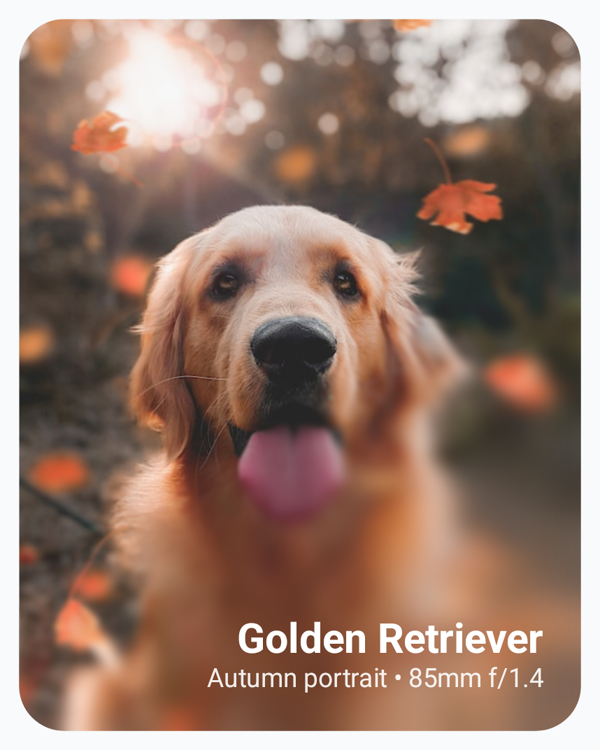
Inside the Modifier.blur lambda block, you can read BlurScope.size to run a
diagonal progressive blur across a hero image from the top-left corner to the
bottom-right corner, keeping the subject at the top-left completely sharp while
progressively blurring the lower-right region behind the overlaid text:
@Composable fun DiagonalLinearBlurCardExample() { Box( modifier = Modifier .wrapContentSize() .background(Color(0xFFF8FAFC)) .padding(10.dp), ) { Image( painter = painterResource(id = R.drawable.dog), contentDescription = stringResource(id = R.string.dog_content_description), contentScale = ContentScale.Crop, modifier = Modifier .size(width = 300.dp, height = 380.dp) .blur { blurRadiusSpec = BlurRadiusSpec.linearGradient( start = DpOffset(0.dp, 0.dp), end = DpOffset(size.width, size.height), stops = listOf( BlurStop(fraction = 0.00f, radius = 0.dp), BlurStop(fraction = 0.50f, radius = 0.dp), BlurStop(fraction = 0.75f, radius = 14.dp), BlurStop(fraction = 1.00f, radius = 28.dp), ), ) edgeTreatment = BlurredEdgeTreatment(RoundedCornerShape(24.dp)) }, ) // ... } }
Create a focus spotlight with radialGradient
BlurRadiusSpec.radialGradient creates a circular spotlight effect by varying
the blur radius outward from a focal point. Define center as a DpOffset and
fallOffRadius as the Dp distance from center at which endRadius is
reached. If you leave center as DpOffset.Unspecified, the gradient is
centered on the composable, and if you leave fallOffRadius as
Dp.Unspecified, it defaults to half of the layer's smaller dimension.
For example, applying BlurRadiusSpec.radialGradient over a passage of text
and updating center from pointer drag events lets the user drag a circular
reading spotlight across the paragraph while blurring the surrounding text, as
shown in the following example:
@Composable fun RadialSpotlightTextExample() { var touchOffset by remember { mutableStateOf(Offset.Unspecified) } Box( modifier = Modifier .size(width = 330.dp, height = 340.dp) .background(Color(0xFF0F172A), RoundedCornerShape(20.dp)) .pointerInput(Unit) { detectDragGestures( onDragStart = { offset -> touchOffset = offset }, onDrag = { change, _ -> touchOffset = change.position }, ) } .blur { val spotlightCenter = if (touchOffset.isSpecified) { DpOffset(touchOffset.x.toDp(), touchOffset.y.toDp()) } else { DpOffset(x = size.width / 2, y = size.height / 2) } blurRadiusSpec = BlurRadiusSpec.radialGradient( startRadius = 0.dp, endRadius = 10.dp, center = spotlightCenter, fallOffRadius = 215.dp, ) edgeTreatment = BlurredEdgeTreatment(RoundedCornerShape(20.dp)) } .padding(22.dp), ) { // ... } }
Create a custom blur mask with a shader
For complex spatial blur distributions beyond linear or radial gradients, such
as repeating patterns, arbitrary shapes, or procedural noise, pass a custom
Shader, such as an AGSL RuntimeShader, to
BlurRadiusSpec.shader. The shader evaluates in layer pixel coordinates from
the top-left origin, and its sampled alpha channel (0..1) scales maxRadius.
Create the shader and BlurRadiusSpec.shader configuration once using the
remember composable function, so a single instance is reused across
recompositions. Compose invokes the configuration block with the layer size on
each resolve, which is where you set size-dependent uniforms:
@RequiresApi(Build.VERSION_CODES.TIRAMISU) @Composable fun ShaderBlurExample() { // Creates 6 diagonal frosted-glass bands across the image. val maskShader = remember { RuntimeShader( """ uniform float2 size; half4 main(float2 coord) { float2 uv = coord / size; float band = smoothstep(0.4, 0.6, fract((uv.x + uv.y) * 3.0)); return half4(0.0, 0.0, 0.0, half(band)); } """.trimIndent(), ) } val maskBlurSpec = remember(maskShader) { BlurRadiusSpec.shader(maxRadius = 24.dp) { sizePx -> maskShader.setFloatUniform("size", sizePx.width, sizePx.height) maskShader } } Image( painter = painterResource(id = R.drawable.dog), contentDescription = stringResource(id = R.string.dog_content_description), contentScale = ContentScale.Crop, modifier = Modifier .size(150.dp) .blur(blurRadiusSpec = maskBlurSpec), ) }
