

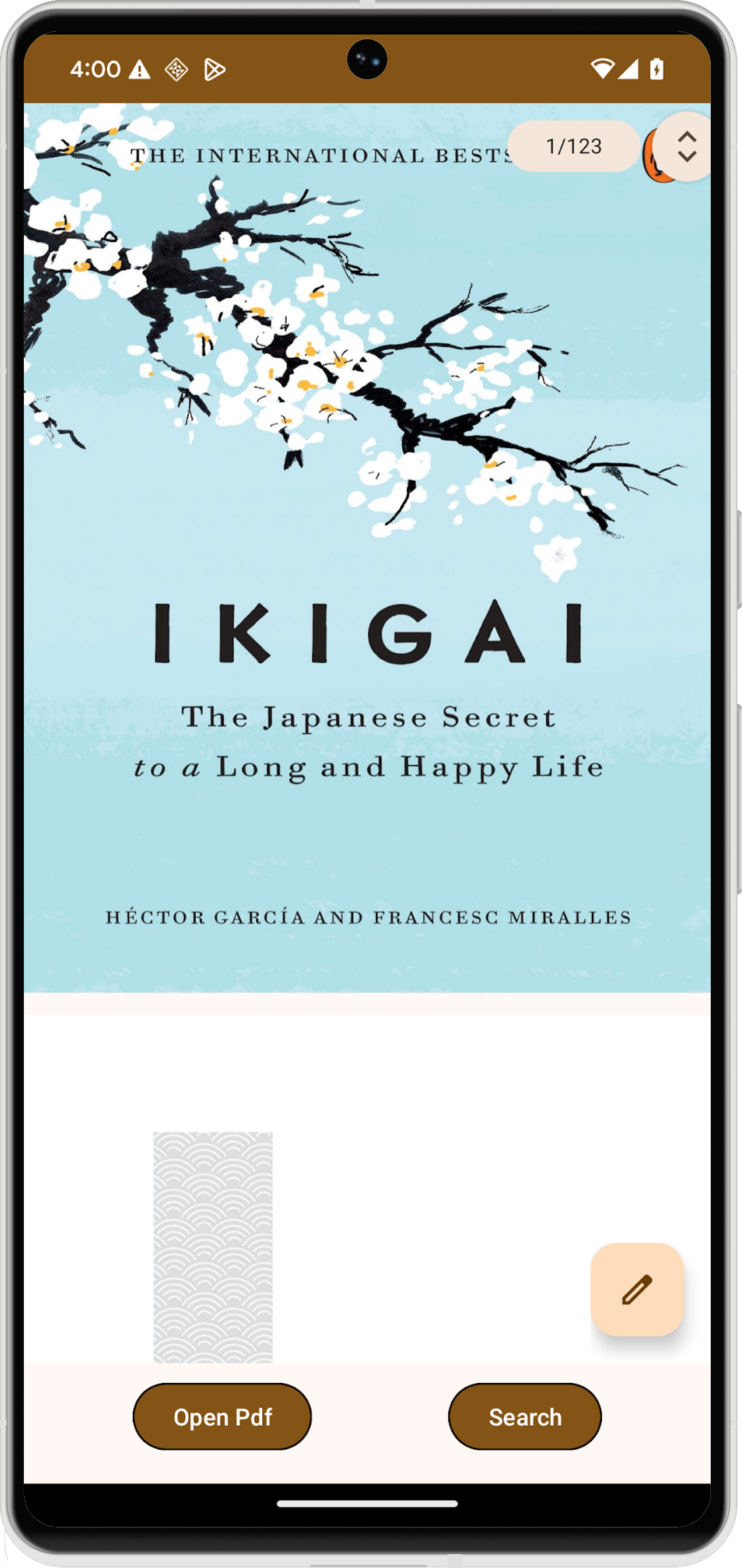
PdfViewerFragment は、Android アプリケーション内で PDF ドキュメントを表示するために使用できる特殊な Fragment です。PdfViewerFragment は PDF レンダリングを簡素化し、アプリの機能の他の側面に集中できるようにします。
結果
バージョンの互換性
PdfViewerFragment を使用するには、アプリが Android S(API レベル 31)と SDK 拡張機能レベル 13 以上を対象としている必要があります。これらの互換性要件が満たされていない場合、ライブラリは UnsupportedOperationException をスローします。
SdkExtensions モジュールを使用して、実行時に SDK 拡張機能のバージョンを確認できます。これにより、デバイスが必要な要件を満たしている場合にのみ、フラグメントと PDF ドキュメントを条件付きで読み込むことができます。
if (SdkExtensions.getExtensionVersion(Build.VERSION_CODES.S) >= 13) {
    // Load the fragment and document.
}
依存関係
PDF ビューアをアプリケーションに組み込むには、アプリのモジュール build.gradle ファイルで androidx.pdf 依存関係を宣言します。PDF ライブラリは Google Maven リポジトリからアクセスできます。
dependencies {
    val pdfVersion = "1.0.0-alpha0X"
    implementation("androidx.pdf:pdf:pdf-viewer-fragment:$pdfVersion")
}
PdfViewerFragment の機能
PdfViewerFragment は PDF ドキュメントをページ形式で表示するため、簡単に移動できます。効率的に読み込むため、このフラグメントでは、ページ サイズを段階的に読み込む 2 パス レンダリング戦略を採用しています。
メモリ使用量を最適化するため、PdfViewerFragment は現在表示されているページのみをレンダリングし、画面外のページのビットマップを解放します。また、PdfViewerFragment には、ドキュメント URI を含む暗黙的 android.intent.action.ANNOTATE インテントを起動してアノテーションをサポートするフローティング アクション ボタン(FAB)が含まれています。
実装
Android アプリケーションに PDF ビューアを追加するには、複数の手順が必要です。
アクティビティ レイアウトを作成する
まず、PDF ビューアをホストするアクティビティのレイアウト XML を定義します。レイアウトには、ドキュメント内の検索などのユーザー操作用の PdfViewerFragment とボタンを含める FrameLayout を含める必要があります。
<androidx.constraintlayout.widget.ConstraintLayout
    xmlns:android="http://schemas.android.com/apk/res/android"
    xmlns:app="http://schemas.android.com/apk/res-auto"
    xmlns:tools="http://schemas.android.com/tools"
    android:id="@+id/pdf_container_view"
    android:layout_width="match_parent"
    android:layout_height="match_parent"
    android:layout_gravity="center"
    android:orientation="vertical"
    tools:context=".MainActivity">

    <FrameLayout
        android:id="@+id/fragment_container_view"
        android:layout_width="0dp"
        android:layout_height="0dp"
        android:layout_marginBottom="8dp"
        app:layout_constraintStart_toStartOf="parent"
        app:layout_constraintEnd_toEndOf="parent"
        app:layout_constraintTop_toTopOf="parent"/>

    <com.google.android.material.button.MaterialButton
        android:id="@+id/search_button"
        android:layout_width="wrap_content"
        android:layout_height="wrap_content"
        android:text="@string/search_string"
        app:strokeWidth="1dp"
        android:layout_marginStart="8dp"
        android:layout_marginBottom="8dp"
        app:layout_constraintBottom_toBottomOf="parent"
        app:layout_constraintEnd_toEndOf="parent" />

</androidx.constraintlayout.widget.ConstraintLayout>
アクティビティを設定する
PdfViewerFragment をホストするアクティビティは、AppCompatActivity を拡張する必要があります。アクティビティの onCreate() メソッドで、コンテンツ ビューを作成したレイアウトに設定し、必要な UI 要素を初期化します。
class MainActivity : AppCompatActivity() {
    override fun onCreate(savedInstanceState: Bundle?) {
        super.onCreate(savedInstanceState)
        setContentView(R.layout.activity_main)

        val getContentButton: MaterialButton = findViewById(R.id.launch_button)
        val searchButton: MaterialButton = findViewById(R.id.search_button)
    }
}
PdfViewerFragment を初期化する
getSupportFragmentManager() から取得したフラグメント マネージャーを使用して PdfViewerFragment のインスタンスを作成します。特に構成の変更時には、新しいフラグメントを作成する前に、フラグメントのインスタンスがすでに存在するかどうかを確認します。
次の例では、initializePdfViewerFragment() 関数がフラグメント トランザクションの作成とコミットを処理します。この関数は、コンテナ内の既存のフラグメントを PdfViewerFragment のインスタンスに置き換えます。
class MainActivity : AppCompatActivity() {
    @RequiresExtension(extension = Build.VERSION_CODES.S, version = 13)
    private var pdfViewerFragment: PdfViewerFragment? = null

    override fun onCreate(savedInstanceState: Bundle?) {
        // ...

        if (pdfViewerFragment == null) {
            pdfViewerFragment =
                supportFragmentManager
                    .findFragmentByTag(PDF_VIEWER_FRAGMENT_TAG) as PdfViewerFragment?
        }

    }

    // Used to instantiate and commit the fragment.
    @RequiresExtension(extension = Build.VERSION_CODES.S, version = 13)
    private fun initializePdfViewerFragment() {
        // This condition can be skipped if you want to create a new fragment every time.
        if (pdfViewerFragment == null) {
            val fragmentManager: FragmentManager = supportFragmentManager

          // Fragment initialization.
          pdfViewerFragment = PdfViewerFragmentExtended()
          val transaction: FragmentTransaction = fragmentManager.beginTransaction()

          // Replace an existing fragment in a container with an instance of a new fragment.
          transaction.replace(
              R.id.fragment,4_container_view,
              pdfViewerFragment!!,
              PDF_VIEWER_FRAGMENT_TAG
          )
          transaction.commitAllowingStateLoss()
          fragmentManager.executePendingTransactions()
        }
    }

    companion object {
        private const val MIME_TYPE_PDF = "application/pdf"
        private const val PDF_VIEWER_FRAGMENT_TAG = "pdf_viewer_fragment_tag"
    }
}
PdfViewerFragment の機能を拡張
PdfViewerFragment は、オーバーライドして機能を拡張できるパブリック関数を公開します。PdfViewerFragment から継承する新しいクラスを作成します。サブクラスで、onLoadDocumentSuccess() や onLoadDocumentError() などのメソッドをオーバーライドして、指標のロギングなどのカスタム ロジックを追加します。
@RequiresExtension(extension = Build.VERSION_CODES.S, version = 13)
class PdfViewerFragmentExtended : PdfViewerFragment() {
          private val someLogger : SomeLogger = // ... used to log metrics

          override fun onLoadDocumentSuccess() {
                someLogger.log(/** log document success */)
          }

          override fun onLoadDocumentError(error: Throwable) {
                someLogger.log(/** log document error */, error)
          }
}
ドキュメント検索を有効にする
PdfViewerFragment には組み込みの検索メニューはありませんが、検索バーはサポートされています。検索バーの表示 / 非表示は、isTextSearchActive API を使用して制御します。ドキュメント検索を有効にするには、PdfViewerFragment インスタンスの isTextSearchActive プロパティを設定します。
WindowCompat.setDecorFitsSystemWindows() を使用して、WindowInsetsCompat がコンテンツ ビューに正しく渡されるようにします。これは、検索ビューを適切に配置するために必要です。
class MainActivity : AppCompatActivity() {
    @RequiresExtension(extension = Build.VERSION_CODES.S, version = 13)
    override fun onCreate(savedInstanceState: Bundle?) {
        // ...
        searchButton.setOnClickListener {
            pdfViewerFragment?.isTextSearchActive =
                pdfViewerFragment?.isTextSearchActive == false
        }

        // Ensure WindowInsetsCompat are passed to content views without being
        // consumed by the decor view. These insets are used to calculate the
        // position of the search view.
        WindowCompat.setDecorFitsSystemWindows(window, false)
    }
}
ファイル選択ツールと統合する
ユーザーがデバイスから PDF ファイルを選択できるようにするには、PdfViewerFragment を Android ファイル選択ツールと統合します。まず、アクティビティのレイアウト XML を更新して、ファイル選択ツールを起動するボタンを追加します。
<androidx.constraintlayout.widget.ConstraintLayout
    ...
    tools:context=".MainActivity">

    <FrameLayout
        ...
        app:layout_constraintBottom_toTopOf="@+id/launch_button"/>

    // Adding a button to open file picker.
    <com.google.android.material.button.MaterialButton
        android:id="@+id/launch_button"
        android:layout_width="wrap_content"
        android:layout_height="wrap_content"
        android:text="@string/launch_string"
        app:strokeWidth="1dp"
        android:layout_marginEnd="8dp"
        android:layout_marginBottom="8dp"
        app:layout_constraintBottom_toBottomOf="parent"
        app:layout_constraintStart_toStartOf="parent"
        app:layout_constraintEnd_toStartOf="@id/search_button"/>

    <com.google.android.material.button.MaterialButton
        ...
        app:layout_constraintStart_toEndOf="@id/launch_button" />

</androidx.constraintlayout.widget.ConstraintLayout>
次に、アクティビティで registerForActivityResult(GetContent()) を使用してファイル選択ツールを起動します。ユーザーがファイルを選択すると、コールバックは URI を提供します。次に、この URI を使用して PdfViewerFragment インスタンスの documentUri プロパティを設定し、選択した PDF を読み込んで表示します。
class MainActivity : AppCompatActivity() {
    // ...

    private var filePicker: ActivityResultLauncher<String> =
        registerForActivityResult(GetContent()) { uri: Uri? ->
            uri?.let {
                initializePdfViewerFragment()
                pdfViewerFragment?.documentUri = uri
            }
        }

    override fun onCreate(savedInstanceState: Bundle?) {
        // ...
        getContentButton.setOnClickListener { filePicker.launch(MIME_TYPE_PDF) }
    }

    private fun initializePdfViewerFragment() {
        // ...
    }

    companion object {
        private const val MIME_TYPE_PDF = "application/pdf"
        // ...
    }
}
UI をカスタマイズする
PdfViewerFragment のユーザー インターフェースは、ライブラリが公開する XML 属性をオーバーライドすることでカスタマイズできます。これにより、スクロールバーやページ インジケーターなどの要素の外観をアプリのデザインに合わせて調整できます。
カスタマイズ可能な属性は次のとおりです。
fastScrollVerticalThumbDrawable- スクロールバーのサムのドローアブルを設定します。fastScrollPageIndicatorBackgroundDrawable- ページ インジケーターの背景ドローアブルを設定します。fastScrollPageIndicatorMarginEnd- ページ インジケーターの右余白を設定します。余白の値が正であることを確認します。fastScrollVerticalThumbMarginEnd- 垂直スクロールバーのつまみの右マージンを設定します。余白の値が正であることを確認します。
これらのカスタマイズを適用するには、XML リソースでカスタム スタイルを定義します。
<resources>
    <style name="pdfContainerStyle">
        <item name="fastScrollVerticalThumbDrawable">@drawable/custom_thumb_drawable</item>
        <item name="fastScrollPageIndicatorBackgroundDrawable">@drawable/custom_page_indicator_background</item>
        <item name="fastScrollVerticalThumbMarginEnd">8dp</item>
    </style>
</resources>
次に、PdfViewerFragment.newInstance(stylingOptions) でフラグメントのインスタンスを作成するときに、PdfStylingOptions を使用してカスタム スタイル リソースを PdfViewerFragment に渡します。
private fun initializePdfViewerFragment() {
    // This condition can be skipped if you want to create a new fragment every time.
    if (pdfViewerFragment == null) {
      val fragmentManager: FragmentManager = supportFragmentManager

      // Create styling options.
      val stylingOptions = PdfStylingOptions(R.style.pdfContainerStyle)

      // Fragment initialization.
      pdfViewerFragment = PdfViewerFragment.newInstance(stylingOptions)

      // Execute fragment transaction.
    }
}
PdfViewerFragment をサブクラス化している場合は、保護されたコンストラクタを使用してスタイル設定オプションを指定します。これにより、拡張フラグメントにカスタム スタイルが正しく適用されます。
class StyledPdfViewerFragment: PdfViewerFragment {

    constructor() : super()

    private constructor(pdfStylingOptions: PdfStylingOptions) : super(pdfStylingOptions)

    companion object {
        fun newInstance(): StyledPdfViewerFragment {
            val stylingOptions = PdfStylingOptions(R.style.pdfContainerStyle)
            return StyledPdfViewerFragment(stylingOptions)
        }
    }
}
実装を完了する
次のコードは、初期化、ファイル選択ツールの統合、検索機能、UI のカスタマイズなど、アクティビティで PdfViewerFragment を実装する方法の完全な例を示しています。
class MainActivity : AppCompatActivity() {

    private var pdfViewerFragment: PdfViewerFragment? = null
    private var filePicker: ActivityResultLauncher<String> =
        registerForActivityResult(GetContent()) { uri: Uri? ->
            uri?.let {
                initializePdfViewerFragment()
                pdfViewerFragment?.documentUri = uri
            }
        }

    override fun onCreate(savedInstanceState: Bundle?) {
        super.onCreate(savedInstanceState)
        setContentView(R.layout.activity_main)

        if (pdfViewerFragment == null) {
            pdfViewerFragment =
                supportFragmentManager
                   .findFragmentByTag(PDF_VIEWER_FRAGMENT_TAG) as PdfViewerFragment?
        }

        val getContentButton: MaterialButton = findViewById(R.id.launch_button)
        val searchButton: MaterialButton = findViewById(R.id.search_button)

        getContentButton.setOnClickListener { filePicker.launch(MIME_TYPE_PDF) }
        searchButton.setOnClickListener {
            pdfViewerFragment?.isTextSearchActive = pdfViewerFragment?.isTextSearchActive == false
        }
    }

    private fun initializePdfViewerFragment() {
        // This condition can be skipped if you want to create a new fragment every time.
        if (pdfViewerFragment == null) {
            val fragmentManager: FragmentManager = supportFragmentManager

          // Create styling options.
          // val stylingOptions = PdfStylingOptions(R.style.pdfContainerStyle)

          // Fragment initialization.
          // For customization:
          // pdfViewerFragment = PdfViewerFragment.newInstance(stylingOptions)
          pdfViewerFragment = PdfViewerFragmentExtended()
          val transaction: FragmentTransaction = fragmentManager.beginTransaction()

          // Replace an existing fragment in a container with an instance of a new fragment.
          transaction.replace(
              R.id.fragment_container_view,
              pdfViewerFragment!!,
              PDF_VIEWER_FRAGMENT_TAG
          )
          transaction.commitAllowingStateLoss()
          fragmentManager.executePendingTransactions()
        }
    }

    companion object {
        private const val MIME_TYPE_PDF = "application/pdf"
        private const val PDF_VIEWER_FRAGMENT_TAG = "pdf_viewer_fragment_tag"
    }
}
コードに関する主なポイント
- プロジェクトが最小 API レベルと SDK 拡張機能の要件を満たしていることを確認します。
PdfViewerFragmentをホストするアクティビティはAppCompatActivityを拡張する必要があります。PdfViewerFragmentを拡張してカスタム動作を追加できます。- XML 属性をオーバーライドして、
PdfViewerFragmentの UI をカスタマイズします。