

基本的な通知には通常、タイトル、1 行のテキスト、ユーザーが応答として実行できるアクションが含まれます。より多くの情報を提供するには、このドキュメントで説明されているように、いくつかの通知テンプレートのいずれかを適用して、展開可能な大きな通知を作成します。
まず、通知を作成するの説明に沿って、すべての基本コンテンツを含む通知を作成します。次に、スタイル オブジェクトを指定して setStyle() を呼び出し、以下の例に示すように、各テンプレートに対応する情報を指定します。
大きな画像を追加する
通知に画像を追加するには、NotificationCompat.BigPictureStyle のインスタンスを setStyle() に渡します。
var notification = NotificationCompat.Builder(context, CHANNEL_ID) .setSmallIcon(com.example.compose.snippets.R.drawable.ic_logo) .setContentTitle("Title") .setContentText("Content text") .setStyle( NotificationCompat.BigPictureStyle() .bigPicture(bitmapImage) ) .build()
次の図に示すように、通知が折りたたまれているときにのみ画像をサムネイルとして表示するには、setLargeIcon() を呼び出して画像を渡します。次に、BigPictureStyle.bigLargeIcon() を呼び出して null を渡します。これにより、通知が展開されると大きいアイコンが消えます。
notification = NotificationCompat.Builder(context, CHANNEL_ID) .setSmallIcon(R.drawable.ic_logo) .setContentTitle("Title") .setContentText("Content text") .setLargeIcon(Icon.createWithResource(context, R.drawable.dog)) .setStyle( NotificationCompat.BigPictureStyle() .bigPicture(bitmapImage) .bigLargeIcon(null as Bitmap?) ) .build()
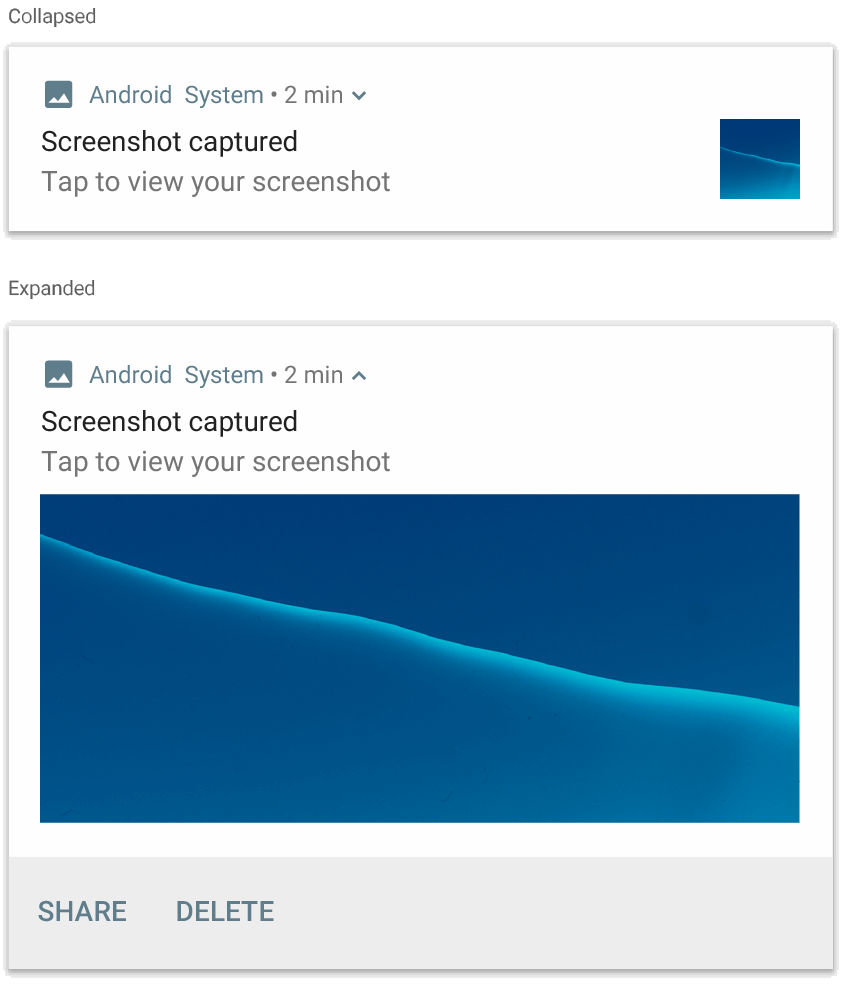
NotificationCompat.BigPictureStyle を使用した通知。
大きなテキスト ブロックを追加する
NotificationCompat.BigTextStyle を適用して、通知の展開されたコンテンツ領域にテキストを表示します。
notification = NotificationCompat.Builder(context, CHANNEL_ID) .setSmallIcon(R.drawable.ic_logo) .setContentTitle("Sender name") .setContentText("Email subject") .setLargeIcon(Icon.createWithResource(context, R.drawable.dog)) .setStyle( NotificationCompat.BigTextStyle() .bigText(someVeryLongMessage) ) .build()
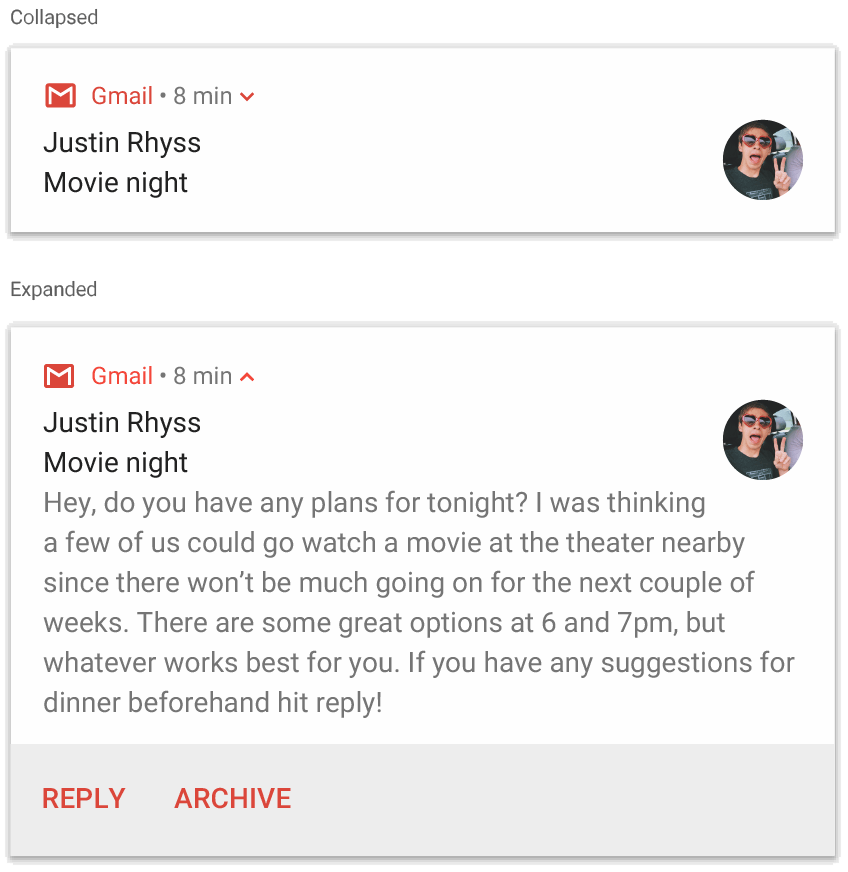
NotificationCompat.BigTextStyle を使用した通知。
受信トレイスタイルの通知を作成する
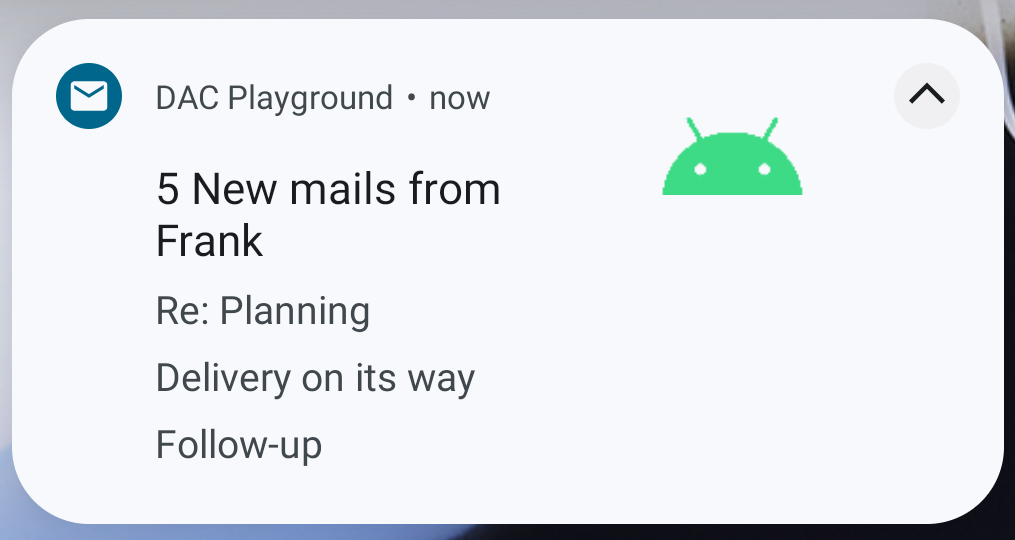
受信メールのスニペットなど、複数の短い概要行を追加する場合は、通知に NotificationCompat.InboxStyle を適用します。これにより、NotificationCompat.BigTextStyle で提供される 1 行の連続したテキストではなく、それぞれ 1 行に切り捨てられた複数のコンテンツ テキストを追加できます。
新しい行を追加するには、次の例に示すように、addLine() を最大 6 回呼び出します。6 行を超える行を追加すると、最初の 6 行のみが表示されます。
notification = NotificationCompat.Builder(context, CHANNEL_ID) .setSmallIcon(R.drawable.mail) .setContentTitle("5 New mails from Frank") .setContentText("Check them out") .setLargeIcon(bitmapImage) .setStyle( NotificationCompat.InboxStyle() .addLine("Re: Planning") .addLine("Delivery on its way") .addLine("Follow-up") ) .build()
結果は次の図のようになります。
通知に会話を表示する
NotificationCompat.MessagingStyle を適用して、任意の数のユーザー間で連続したメッセージを表示します。これは、送信者名とメッセージ テキストを別々に処理することで、各メッセージに一貫したレイアウトを提供し、各メッセージを複数行にできるため、メッセージ アプリに最適です。
新しいメッセージを追加するには、addMessage() を呼び出し、メッセージ テキスト、受信時刻、送信者の名前を渡します。次の例に示すように、この情報を NotificationCompat.MessagingStyle.Message オブジェクトとして渡すこともできます。
val message1 = NotificationCompat.MessagingStyle.Message( messages[0].text, messages[0].time, messages[0].sender ) val message2 = NotificationCompat.MessagingStyle.Message( messages[1].text, messages[1].time, messages[1].sender ) notification = NotificationCompat.Builder(context, CHANNEL_ID) .setSmallIcon(R.drawable.ic_logo) .setStyle( NotificationCompat.MessagingStyle(Person.Builder().setName("Me").build()) .addMessage(message1) .addMessage(message2) ) .build()
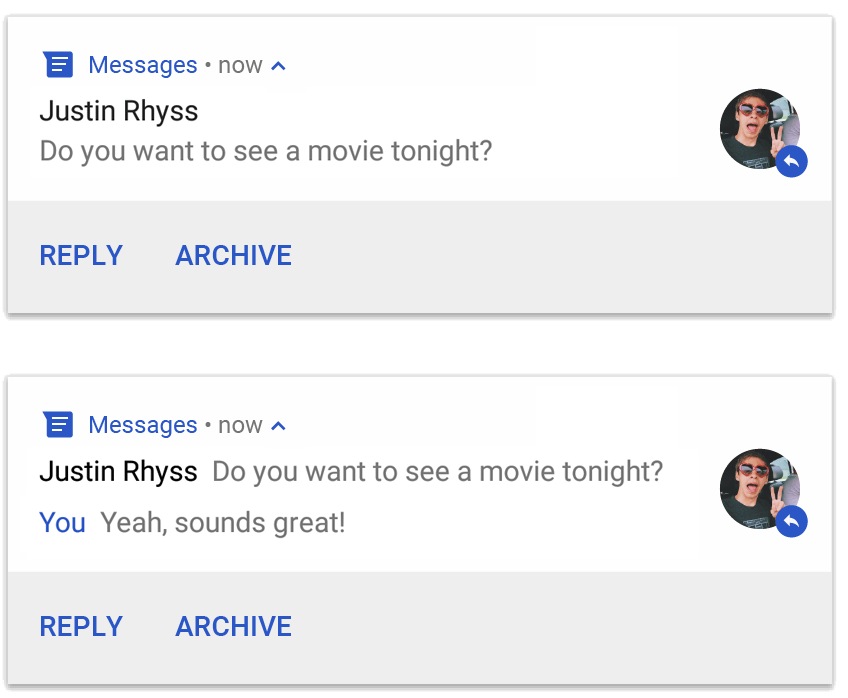
NotificationCompat.MessagingStyle を使用した通知。
NotificationCompat.MessagingStyle を使用する場合、setContentTitle() と setContentText() に指定された値は無視されます。
setConversationTitle() を呼び出して、会話の上に表示されるタイトルを追加できます。これは、ユーザーが作成したグループの名前、または特定の名前がない場合は、会話の参加者のリストです。1 対 1 のチャットに会話のタイトルを設定しないでください。システムは、このフィールドの存在を会話がグループであることのヒントとして使用します。
このスタイルは、Android 7.0(API レベル 24)以降を搭載したデバイスにのみ適用されます。前述のように、互換性ライブラリ(NotificationCompat)を使用すると、MessagingStyle を含む通知は、サポートされている拡張通知スタイルに自動的にフォールバックします。
チャットの会話用にこのような通知を作成する場合は、ダイレクト返信アクションを追加します。
メディア コントロールを備えた通知を作成する
MediaStyleNotificationHelper.MediaStyle を適用して、メディア再生コントロールとトラック情報を表示します。
コンストラクタで、関連付けられた MediaSession を指定します。これにより、Android はメディアに関する適切な情報を表示できます。
addAction() を最大 5 回呼び出して、最大 5 個のアイコンボタンを表示します。setLargeIcon() を呼び出して、アルバムアートを設定します。
他の通知スタイルとは異なり、MediaStyle では、折りたたみ表示にも表示される 3 つのアクション ボタンを指定することで、折りたたみサイズのコンテンツ ビューを変更することもできます。これを行うには、操作ボタンのインデックスを setShowActionsInCompactView() に指定します。
次の例は、メディア コントロールを含む通知を作成する方法を示しています。
notification = NotificationCompat.Builder(context, CHANNEL_ID) // Show controls on lock screen even when user hides sensitive content. .setVisibility(NotificationCompat.VISIBILITY_PUBLIC) .setSmallIcon(com.example.compose.snippets.R.drawable.play) // Add media control buttons that invoke intents in your media service .addAction(R.drawable.previous, "Previous", null /* Add valid intent */) // #0 .addAction(R.drawable.pause, "Pause", null /* Add valid intent */) // #1 .addAction(R.drawable.next, "Next", null /* Add valid intent */) // #2 // Apply the media style template. .setStyle(MediaStyleNotificationHelper.MediaStyle(mediaSession) .setShowActionsInCompactView(1 /* #1: pause button */)) .setContentTitle("Wonderful music") .setContentText("My Awesome Band") .setLargeIcon(bitmapImage) .build()
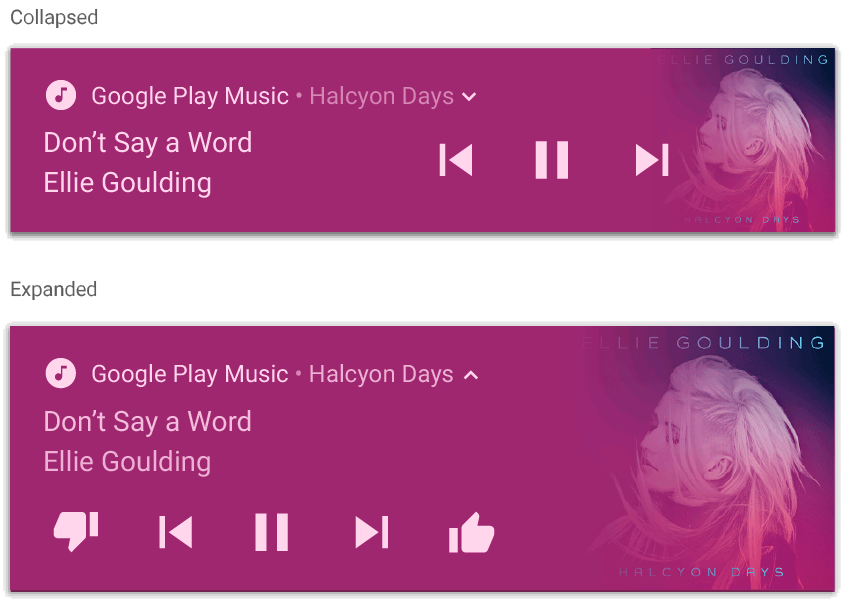
MediaStyleNotificationHelper.MediaStyle を使用した通知。
参考情報
MediaStyle と展開可能な通知の詳細については、次のリファレンスをご覧ください。