
Review and refine the following gamepad input choices to keep gameplay responsive, comfortable, and immersive.
Relying only on a virtual mouse for core gameplay
Using a virtual mouse cursor as your primary gamepad control scheme introduces the following gameplay and usability issues:
Slows down gameplay
In fast-paced action or combat, moving a stick-driven cursor across the screen to select targets or on-screen skill icons adds extra steps between inputs. Mapping core actions directly to controller buttons lets players react more quickly and keeps gameplay flowing smoothly.
| Not recommended | Recommended |
|---|---|

|

|
Underutilizes controller hardware
Gamepads offer dedicated physical inputs, such as a directional pad (D-pad) for discrete grid navigation, tactile face buttons and bumpers for immediate single-press actions, and pressure-sensitive triggers for gradual speed control. Forcing players to drag a cursor across inventory slots or on-screen icons turns direct button or D-pad inputs into slow, complicated movements and leaves these hardware controls unused.
| Not recommended | Recommended |
|---|---|

|

|
Reusing mobile touch physics for analog sticks
Applying touch-swipe or virtual joystick logic directly to analog sticks affects movement, aiming, and camera control. To calibrate analog stick axis values accurately, see Process joystick movements (Kotlin or Java) and Controller device information (C++ Game Controller library).
Uncontrollable camera acceleration
Mobile camera controls use swipe speed and momentum so players can spin the camera quickly with short finger flicks. Passing analog stick input directly into this touch-swipe logic causes the camera to accelerate uncontrollably while the player tilts the stick and keep sliding after they release it, making steady aiming impossible. Instead, rotate the camera at a steady rate proportional to the stick's axis value and stop immediately when the player releases the stick.
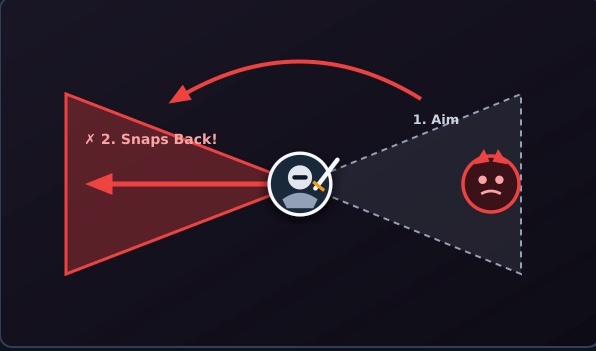
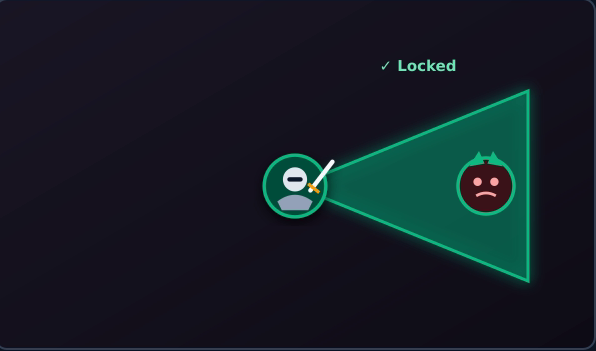
Spring-back aiming resets
In touch controls, lifting a thumb registers immediately at the edge of the
virtual joystick, locking in the final aim direction. On a physical gamepad,
releasing the stick causes mechanical springs to pull it back to (0, 0),
reporting intermediate axis values along the way. Reusing touch-release logic
causes the aiming reticle to snap backward or reset as the stick returns to the
center. Instead, update the aim direction only when the player tilts the stick
past a set threshold and lock in the last valid angle when the tilt falls within
that threshold, or use a dedicated trigger button to fire.
| Not recommended | Recommended |
|---|---|
|
|
Next steps
After applying these design guidelines, verify your implementation across different controller layouts and form factors in Test controller support.