

本页面介绍了如何使用现有的 Glance 组件处理尺寸,以及如何通过 Glance 提供灵活且自适应的布局。
使用 Box、Column 和 Row
Glance 有三种主要的可组合项布局:
Box:将元素堆叠在一起。它会转换为RelativeLayout。Column:在垂直轴上依次放置元素。它会转换为具有垂直方向的LinearLayout。Row:在水平轴上依次放置元素。它会转换为具有横向方向的LinearLayout。
Glance 支持 Scaffold 对象。将 Column、Row 和 Box 可组合项放置在给定的 Scaffold 对象中。
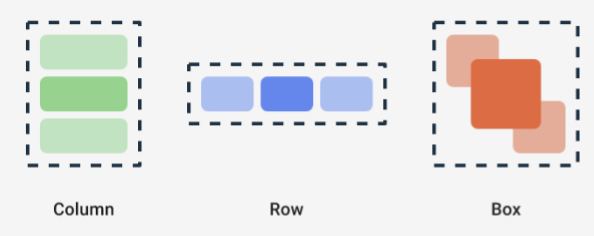
通过这些可组合项,您可以使用修饰符来定义其内容的垂直和水平对齐方式,以及宽度、高度、权重或内边距限制。此外,每个子项都可以定义其修饰符,以更改父项内的间距和放置位置。
以下示例展示了如何创建一个 Row,使其子项在水平方向上均匀分布,如图 1 所示:
Row(modifier = GlanceModifier.fillMaxWidth().padding(16.dp)) { val modifier = GlanceModifier.defaultWeight() Text("first", modifier) Text("second", modifier) Text("third", modifier) }
Row 会填充最大可用宽度,并且由于每个子项具有相同的权重,因此它们会平均分配可用空间。您可以定义不同的权重、大小、内边距或对齐方式,以根据需要调整布局。
使用可滚动布局
提供自适应内容的另一种方法是使其可滚动。这可以通过 LazyColumn 可组合项实现。借助此可组合项,您可以定义一组要在应用 widget 的可滚动容器中显示的项。
以下代码段展示了在 LazyColumn 中定义项的不同方式。
您可以提供商品数量:
// Remember to import Glance Composables // import androidx.glance.appwidget.layout.LazyColumn LazyColumn { items(10) { index: Int -> Text( text = "Item $index", modifier = GlanceModifier.fillMaxWidth() ) } }
提供个别商品:
LazyColumn { item { Text("First Item") } item { Text("Second Item") } }
提供商品列表或数组:
LazyColumn { items(peopleNameList) { name -> Text(name) } }
您还可以组合使用上述示例:
LazyColumn { item { Text("Names:") } items(peopleNameList) { name -> Text(name) } // or in case you need the index: itemsIndexed(peopleNameList) { index, person -> Text("$person at index $index") } }
请注意,前面的代码段未指定 itemId。指定 itemId 有助于提高性能,并在 Android 12 及更高版本中通过列表和 appWidget 更新(例如,在列表中添加或移除内容时)保持滚动位置。以下示例展示了如何指定 itemId:
items( items = peopleList, itemId = { person -> person.id.hashCode().toLong() }) { person -> Text(person.name) }
贴靠滚动
贴靠滚动是一种动画,可让可滚动内容贴靠到 widget 容器的顶部。
如需实现贴靠滚动,请确保满足以下条件:
- 将 Glance 依赖项更新到 1.3.0-alpha02 或更高版本。
- 将
compileSdk设置为 37 或更高版本,因为搭载 Android 17 及更高版本的设备支持贴靠滚动。 - 使用
VerticalScrollMode配置LazyColumn。如果设备支持贴靠滚动,请使用SnapScrollMatchHeight。否则,请使用Normal。
如果您要将贴靠滚动与图片搭配使用,请参阅全出血图片规范布局。
@Composable fun SnapScrollLayout() { val height = LocalSize.current.height val items = listOf( ColorItem(Color.Red, "Red"), ColorItem(Color.Yellow, "Yellow"), ColorItem(Color.Blue, "Blue") ) val scrollMode = if (Build.VERSION.SDK_INT >= 37) { VerticalScrollMode.SnapScrollMatchHeight(height) } else { VerticalScrollMode.Normal } LazyColumn( verticalScrollMode = scrollMode ) { items(items) { item -> ColorCard(item, height) } } } @Composable private fun ColorCard(item: ColorItem, height: Dp) { Box( modifier = GlanceModifier .background(item.color) .fillMaxWidth() .height(height), contentAlignment = Alignment.Center ) { Text( text = item.name, modifier = GlanceModifier.background(Color.White) ) } }
定义 SizeMode
AppWidget 大小可能会因设备、用户选择或启动器而异,因此请务必提供灵活的布局,如提供灵活的小组件布局页面中所述。Glance 通过 SizeMode 定义和 LocalSize 值简化了这一过程。以下部分介绍了这三种模式。
SizeMode.Single
SizeMode.Single 是默认模式。这表示仅提供一种类型的内容;也就是说,即使 AppWidget 可用大小发生变化,内容大小也不会发生变化。
class MyAppWidget : GlanceAppWidget() { override val sizeMode = SizeMode.Single override suspend fun provideGlance(context: Context, id: GlanceId) { // ... provideContent { MyContent() } } @Composable private fun MyContent() { // Size will be the minimum size or resizable // size defined in the App Widget metadata val size = LocalSize.current // ... } }
使用此模式时,请确保:
- 根据内容大小正确定义了最小和最大大小元数据值。
- 内容在预期尺寸范围内具有足够的灵活性。
通常,在以下任一情况下,您都应使用此模式:
a) AppWidget 具有固定大小,或
b) 调整大小时,其内容不会发生变化。
SizeMode.Responsive
此模式相当于提供自适应布局,可让 GlanceAppWidget 定义一组受特定尺寸限制的自适应布局。对于每个定义的尺寸,系统会在创建或更新 AppWidget 时创建内容并将其映射到特定尺寸。然后,系统会根据可用尺寸选择最合适的尺寸。
例如,在我们的目标 AppWidget 中,您可以定义三种尺寸及其内容:
class MyAppWidget : GlanceAppWidget() { companion object { private val SMALL_SQUARE = DpSize(100.dp, 100.dp) private val HORIZONTAL_RECTANGLE = DpSize(250.dp, 100.dp) private val BIG_SQUARE = DpSize(250.dp, 250.dp) } override val sizeMode = SizeMode.Responsive( setOf( SMALL_SQUARE, HORIZONTAL_RECTANGLE, BIG_SQUARE ) ) override suspend fun provideGlance(context: Context, id: GlanceId) { // ... provideContent { MyContent() } } @Composable private fun MyContent() { // Size will be one of the sizes defined above. val size = LocalSize.current Column { if (size.height >= BIG_SQUARE.height) { Text(text = "Where to?", modifier = GlanceModifier.padding(12.dp)) } Row(horizontalAlignment = Alignment.CenterHorizontally) { Button() Button() if (size.width >= HORIZONTAL_RECTANGLE.width) { Button("School") } } if (size.height >= BIG_SQUARE.height) { Text(text = "provided by X") } } } }
在前面的示例中,provideContent 方法被调用了三次,并映射到定义的大小。
- 在第一次调用中,大小计算结果为
100x100。内容不包含额外按钮,也不包含顶部和底部文字。 - 在第二次调用中,大小计算结果为
250x100。内容包括额外按钮,但不包括顶部和底部文本。 - 在第三次调用中,大小的求值结果为
250x250。内容包括额外的按钮和两个文本。
SizeMode.Responsive 是另外两种模式的组合,可让您在预定义的边界内定义自适应内容。通常,此模式在调整 AppWidget 大小时效果更好,过渡更顺畅。
下表显示了大小的值,具体取决于 SizeMode 和 AppWidget 可用大小:
| 可用尺寸 | 105 x 110 | 203 x 112 | 72 x 72 | 203 x 150 |
|---|---|---|---|---|
SizeMode.Single |
110 x 110 | 110 x 110 | 110 x 110 | 110 x 110 |
SizeMode.Exact |
105 x 110 | 203 x 112 | 72 x 72 | 203 x 150 |
SizeMode.Responsive |
80 x 100 | 80 x 100 | 80 x 100 | 150 x 120 |
| * 确切值仅用于演示目的。 |
SizeMode.Exact
SizeMode.Exact 相当于提供确切布局,即每次可用 AppWidget 大小发生变化(例如,当用户在主屏幕中调整 AppWidget 大小时)时,都会请求 GlanceAppWidget 内容。
例如,在目的地微件中,如果可用宽度大于特定值,则可以添加一个额外的按钮。
class MyAppWidget : GlanceAppWidget() { override val sizeMode = SizeMode.Exact override suspend fun provideGlance(context: Context, id: GlanceId) { // ... provideContent { MyContent() } } @Composable private fun MyContent() { // Size will be the size of the AppWidget val size = LocalSize.current Column { Text(text = "Where to?", modifier = GlanceModifier.padding(12.dp)) Row(horizontalAlignment = Alignment.CenterHorizontally) { Button() Button() if (size.width > 250.dp) { Button("School") } } } } }
此模式比其他模式更灵活,但有一些注意事项:
- 每次大小发生变化时,都必须完全重新创建
AppWidget。当内容复杂时,这可能会导致性能问题和界面跳动。 - 可用大小可能会因启动器的实现而异。 例如,如果启动器未提供尺寸列表,则使用可能的最小尺寸。
- 在搭载 Android 12 之前版本的设备中,尺寸计算逻辑可能无法在所有情况下都正常运行。
一般来说,如果无法使用 SizeMode.Responsive(即无法使用一小组自适应布局),则应使用此模式。
获得丰富的资源
使用 LocalContext.current 访问任何 Android 资源,如以下示例所示:
LocalContext.current.getString(R.string.glance_title)
我们建议直接提供资源 ID,以减小最终 RemoteViews 对象的大小并启用动态资源,例如动态颜色。
可组合项和方法使用“提供程序”(例如 ImageProvider)或使用重载方法(例如 GlanceModifier.background(R.color.blue))接受资源。例如:
Column( modifier = GlanceModifier.background(R.color.default_widget_background) ) { /**...*/ } Image( provider = ImageProvider(R.drawable.ic_logo), contentDescription = "My image", )
处理文本
Glance 1.1.0 包含一个用于设置文本样式的 API。使用 TextStyle 类的 fontSize、fontWeight 或 fontFamily 属性设置文本样式。
fontFamily 支持所有系统字体,如以下示例所示,但不支持应用中的自定义字体:
Text( style = TextStyle( fontWeight = FontWeight.Bold, fontSize = 18.sp, fontFamily = FontFamily.Monospace ), text = "Example Text" )
添加复合按钮
复合按钮是在 Android 12 中引入的。Glance 支持以下类型的复合按钮的向后兼容性:
这些复合按钮各自显示一个表示“已选中”状态的可点击视图。
var isApplesChecked by remember { mutableStateOf(false) } var isEnabledSwitched by remember { mutableStateOf(false) } var isRadioChecked by remember { mutableIntStateOf(0) } CheckBox( checked = isApplesChecked, onCheckedChange = { isApplesChecked = !isApplesChecked }, text = "Apples" ) Switch( checked = isEnabledSwitched, onCheckedChange = { isEnabledSwitched = !isEnabledSwitched }, text = "Enabled" ) RadioButton( checked = isRadioChecked == 1, onClick = { isRadioChecked = 1 }, text = "Checked" )
当状态发生变化时,系统会触发提供的 lambda。您可以存储选中状态,如以下示例所示:
class MyAppWidget : GlanceAppWidget() { override suspend fun provideGlance(context: Context, id: GlanceId) { val myRepository = MyRepository.getInstance() provideContent { val scope = rememberCoroutineScope() val saveApple: (Boolean) -> Unit = { scope.launch { myRepository.saveApple(it) } } MyContent(saveApple) } } @Composable private fun MyContent(saveApple: (Boolean) -> Unit) { var isAppleChecked by remember { mutableStateOf(false) } Button( text = "Save", onClick = { saveApple(isAppleChecked) } ) } }
您还可以向 CheckBox、Switch 和 RadioButton 提供 colors 属性,以自定义其颜色:
CheckBox( // ... colors = CheckboxDefaults.colors( checkedColor = ColorProvider(day = colorAccentDay, night = colorAccentNight), uncheckedColor = ColorProvider(day = Color.DarkGray, night = Color.LightGray) ), checked = isChecked, onCheckedChange = { isChecked = !isChecked } ) Switch( // ... colors = SwitchDefaults.colors( checkedThumbColor = ColorProvider(day = Color.Red, night = Color.Cyan), uncheckedThumbColor = ColorProvider(day = Color.Green, night = Color.Magenta), checkedTrackColor = ColorProvider(day = Color.Blue, night = Color.Yellow), uncheckedTrackColor = ColorProvider(day = Color.Magenta, night = Color.Green) ), checked = isChecked, onCheckedChange = { isChecked = !isChecked }, text = "Enabled" ) RadioButton( // ... colors = RadioButtonDefaults.colors( checkedColor = ColorProvider(day = Color.Cyan, night = Color.Yellow), uncheckedColor = ColorProvider(day = Color.Red, night = Color.Blue) ), )
其他组件
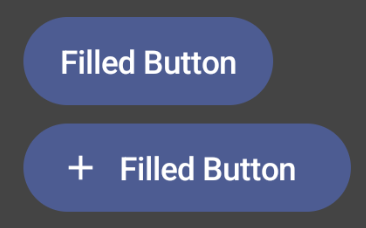
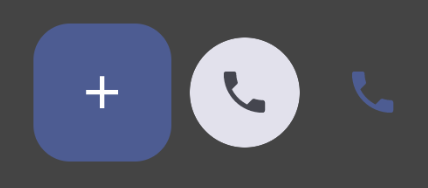
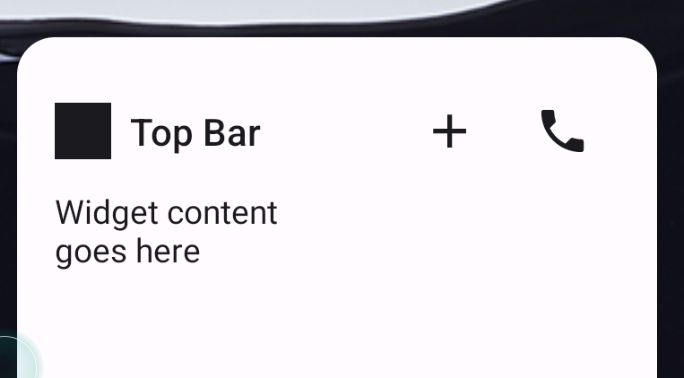
Glance 1.1.0 包含其他组件,如下表所述:
| 名称 | 图片 | 参考链接 | 其他说明 |
|---|---|---|---|
| 实心按钮 |
|
组件 | |
| 轮廓按钮 |

|
组件 | |
| 图标按钮 |
|
组件 | 主要 / 次要 / 仅图标 |
| 标题栏 |
|
组件 | |
| Scaffold | Scaffold 和标题栏位于同一演示中。 |
如需详细了解设计细节,请参阅 Figma 上的此设计套件中的组件设计。
如需详细了解规范布局,请参阅规范 widget 布局。