

图标按钮显示用户可以执行的操作。图标按钮必须使用含义明确的图标,通常代表常见或常用的操作。
图标按钮分为两种类型:
- 默认:这些按钮可以打开其他元素,例如菜单或搜索。
- 切换:这些按钮可以表示可切换开启或关闭的二元操作,例如“收藏”或“添加书签”。
API Surface
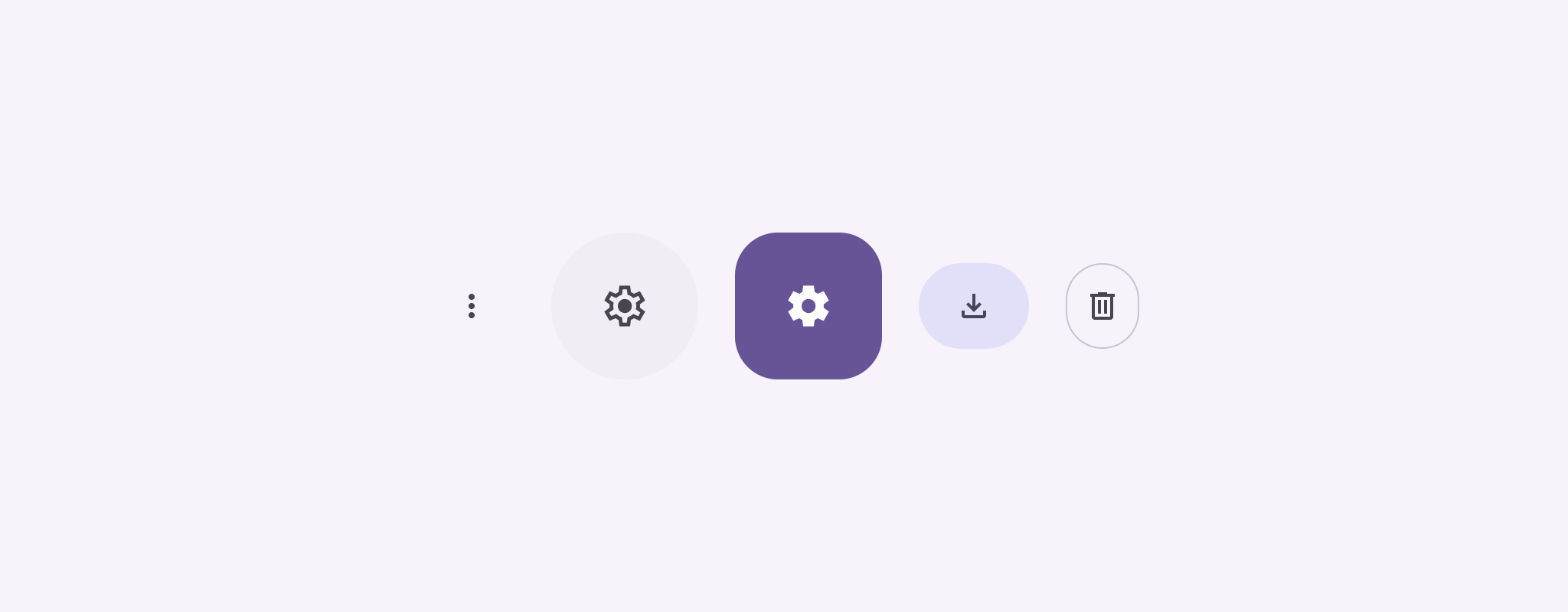
使用 IconButton 可组合项实现标准图标按钮。如需创建不同的视觉样式(例如填充、填充色调或轮廓),请分别使用 FilledIconButton、FilledTonalIconButton 和 OutlinedIconButton。
IconButton 的关键参数包括:
onClick:一个 lambda 函数,会在用户点按图标按钮时执行。enabled:一个布尔值,用于控制按钮的启用状态。如果为false,按钮不会响应用户输入。content:按钮内的可组合内容,通常为Icon。
基本示例:切换图标按钮
以下示例展示了如何实现切换图标按钮。切换图标按钮会根据其是否处于选中状态而改变外观。
@Preview @Composable fun ToggleIconButtonExample() { // isToggled initial value should be read from a view model or persistent storage. var isToggled by rememberSaveable { mutableStateOf(false) } IconButton( onClick = { isToggled = !isToggled } ) { Icon( painter = if (isToggled) painterResource(R.drawable.favorite_filled) else painterResource(R.drawable.favorite), contentDescription = if (isToggled) "Selected icon button" else "Unselected icon button." ) } }
代码要点
ToggleIconButtonExample可组合项定义了一个可切换的IconButton。mutableStateOf(false)会创建一个MutableState对象,该对象包含一个布尔值,初始值为false。这使得isToggled成为状态容器,这意味着每当其值发生变化时,Compose 都会重组界面。rememberSaveable可确保isToggled状态在配置更改(例如屏幕旋转)后保持不变。
IconButton的onClicklambda 定义了按钮在被点击时的行为,即在true和false之间切换状态。Icon可组合项的painter参数会根据isToggled状态有条件地加载不同的painterResource。这会更改图标的视觉外观。- 如果
isToggled为true,则会加载实心心形可绘制对象。 - 如果
isToggled为false,则会加载空心心形可绘制对象。
- 如果
Icon的contentDescription也会根据isToggled状态进行更新,以提供适当的无障碍信息。
结果
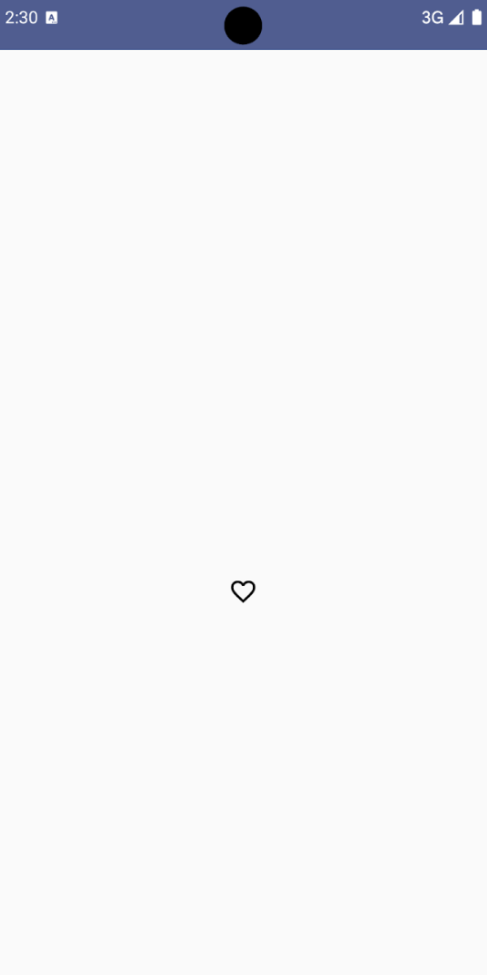
下图显示了上述代码段中的切换图标按钮处于未选中状态:
高级示例:按下时重复执行操作
本部分演示了如何创建图标按钮,这些按钮在用户按住时会持续触发操作,而不仅仅是在每次点击时触发一次。
@Composable fun MomentaryIconButton( unselectedImage: Int, selectedImage: Int, contentDescription: String, modifier: Modifier = Modifier, stepDelay: Long = 100L, // Minimum value is 1L milliseconds. onClick: () -> Unit ) { val interactionSource = remember { MutableInteractionSource() } val isPressed by interactionSource.collectIsPressedAsState() val pressedListener by rememberUpdatedState(onClick) LaunchedEffect(isPressed) { while (isPressed) { delay(stepDelay.coerceIn(1L, Long.MAX_VALUE)) pressedListener() } } IconButton( modifier = modifier, onClick = onClick, interactionSource = interactionSource ) { Icon( painter = if (isPressed) painterResource(id = selectedImage) else painterResource(id = unselectedImage), contentDescription = contentDescription, ) } }
代码要点
MomentaryIconButton接受unselectedImage: Int(按钮未按下时图标的可绘制资源 ID)和selectedImage: Int(按钮按下时图标的可绘制资源 ID)。- 它使用
interactionSource专门跟踪用户的“按下”互动。 - 当按钮被按下时,
isPressed为 true,否则为 false。当isPressed为true时,LaunchedEffect会进入循环。- 在此循环中,它使用
delay(带有stepDelay)在触发操作之间创建暂停。coerceIn可确保延迟时间至少为 1 毫秒,以防止无限循环。 - 在循环中的每次延迟后,系统都会调用
pressedListener。这会使操作重复。
- 在此循环中,它使用
pressedListener使用rememberUpdatedState来确保onClicklambda(要执行的操作)始终是最新组合中的最新版本。Icon会根据按钮当前是否被按下来更改其显示的图片。- 如果
isPressed为 true,则显示selectedImage。 - 否则,系统会显示
unselectedImage。
- 如果
接下来,在示例中使用此 MomentaryIconButton。以下代码段演示了两个控制计数器的图标按钮:
@Preview() @Composable fun MomentaryIconButtonExample() { var pressedCount by remember { mutableIntStateOf(0) } Row( modifier = Modifier.fillMaxWidth(), verticalAlignment = Alignment.CenterVertically ) { MomentaryIconButton( unselectedImage = R.drawable.fast_rewind, selectedImage = R.drawable.fast_rewind_filled, stepDelay = 100L, onClick = { pressedCount -= 1 }, contentDescription = "Decrease count button" ) Spacer(modifier = Modifier) Text("advanced by $pressedCount frames") Spacer(modifier = Modifier) MomentaryIconButton( unselectedImage = R.drawable.fast_forward, selectedImage = R.drawable.fast_forward_filled, contentDescription = "Increase count button", stepDelay = 100L, onClick = { pressedCount += 1 } ) } }
代码要点
MomentaryIconButtonExample可组合项会显示一个Row,其中包含两个MomentaryIconButton实例和一个Text可组合项,用于构建一个可递增和递减计数器的界面。- 它使用
remember和mutableIntStateOf维护一个pressedCount可变状态变量,该变量会初始化为 0。当pressedCount发生变化时,观察它的任何可组合项(例如Text可组合项)都会重组,以反映新值。 - 第一个
MomentaryIconButton在点击或按住时会减少pressedCount。 - 第二个
MomentaryIconButton在点击或按住时会增加pressedCount。 - 两个按钮都使用 100 毫秒的
stepDelay,这意味着在按住按钮时,onClick操作会每 100 毫秒重复一次。
结果
以下视频展示了包含图标按钮和计数器的界面: