In this document
Android O introduces adaptive launcher icons, which can display a variety of shapes across different device models. For example, a launcher icon can display a circular shape on one OEM device, and display a squircle on another device. Each device OEM provides a mask, which the system then uses to render all icons with the same shape. The new launcher icons are also used in shortcuts, the Settings app, sharing dialogs, and the overview screen.
Figure 1. Adaptive icons support a variety of masks.
You can control the look of your launcher icon by defining 2 layers, consisting of a background and a foreground. You must provide icon layers as drawables without masks or background shadows around the outline of the icon.
Figure 2. Adaptive icons are defined using 2 layers and a mask.
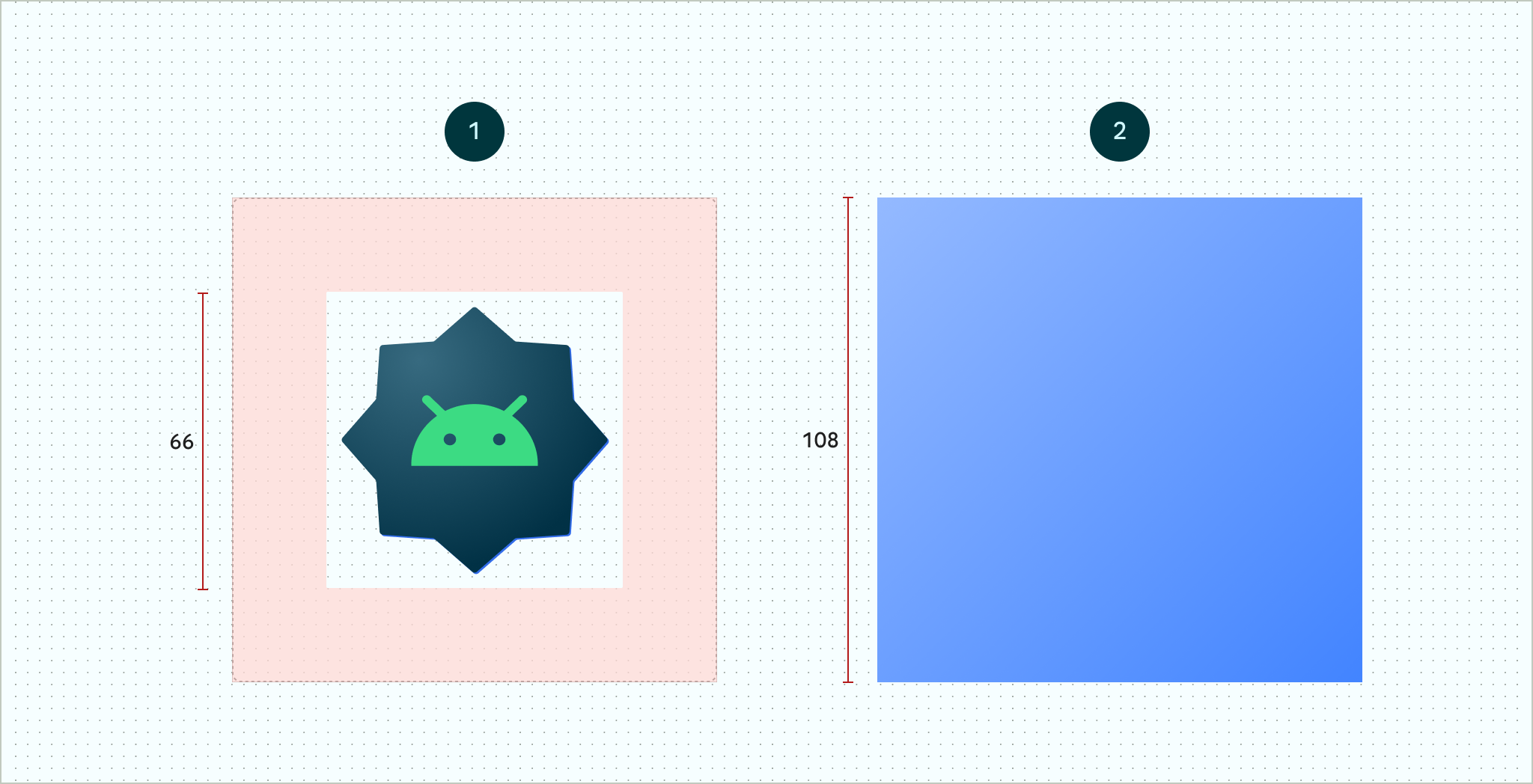
In previous versions of Android, launcher icons were sized at 48 x 48 dp. You must now size your icon layers using the following guidelines:
- Both layers must be sized at 108 x 108 dp.
- The inner 72 x 72 dp of the icon appears within the masked viewport.
- The system reserves the outer 18 dp on each of the 4 sides to create interesting visual effects, such as parallax or pulsing.
Caution: A device OEM can specify a mask that may include a radius that is as short as 33 dp along certain points of the shape.
Figure 3. Adaptive icons support a variety of visual effects.
Caution: If you don't update your launcher icon with the necessary layers, the icon doesn't look consistent with other icons that the system UI displays, and doesn't support visual effects.
Create adaptive icons with Android Studio
Android Studio 3.0 introduces support for creating adaptive icons using Image Asset Studio. Image Asset Studio generates previews of the adaptive icon in circle, squircle, rounded square, and square shapes, as well as a full bleed preview of the icon. Image Asset Studio also generates legacy, round, and Google Play Store previews of the icon. Legacy icons are intended for use on devices running Android 7.1 (API level 25) or older, that don't support adaptive icons.
To start Image Asset Studio, follow these steps:
- In the Project window, select the Android view.
- Right-click the res folder and select
New > Image Asset.

After you open Image Asset Studio, you can add an adaptive icon by following these steps:
- In the Icon Type field, select Launcher Icons (Adaptive & Legacy).
- In the Foreground Layer tab, select an Asset Type, and then
specify the asset in the field underneath:
- Select Image to specify the path for an image file.
- Select Clip Art to specify an image from the material design icon set.
- Select Text to specify a text string and select a font.
- In the Background Layer tab, select an Asset Type, and then specify the asset in the field underneath. You can either select a color or specify an image to use as the background layer.
- In the Legacy tab, review the default settings and confirm you want to generate legacy, round, and Google Play Store icons.
- Optionally change the name and display settings for each of the
Foreground Layer and Background Layer tabs:
- Name - If you don't want to use the default name, type a new name. If that resource name already exists in the project, as indicated by an error at the bottom of the wizard, it's overwritten. The name can contain lowercase characters, underscores, and digits only.
- Trim - To adjust the margin between the icon graphic and border in the source asset, select Yes. This operation removes transparent space, while preserving the aspect ratio. To leave the source asset unchanged, select No. Default: No
- Color - To change the color for a Clip Art or Text icon, click the field. In the Select Color dialog, specify a color and then click Choose. The new value appears in the field. Default: 000000
- Resize - Use the slider to specify a scaling factor in percent to resize an Image, Clip Art, or Text icon. This control is disabled for the background layer when you specify a Color asset type.
- Click Next.
- Optionally change the resource directory: Select the resource source set where you want to add the image asset: src/main/res, src/debug/res, src/release/res, or a user-defined source set. The main source set applies to all build variants, including debug and release. The debug and release source sets override the main source set and apply to one version of a build. The debug source set is for debugging only. To define a new source set, select File > Project Structure > app > Build Types. For example, you can define a beta source set and create a version of an icon that includes the text "BETA" in the bottom right corner. For more information, see Configure Build Variants.
- Click Finish. Image Asset Studio adds the images to the mipmap folders for the different densities.
Creating adaptive icons in XML
To add an adaptive icon to an app using XML, begin by updating the
android:icon attribute in your app manifest to specify a
drawable resource. You can also define an icon drawable resource using the
android:roundIcon attribute. You must only use the
android:roundIcon attribute if you require a different icon asset
for circular masks, if for example the branding of your logo relies on a
circular shape. The following code snippet illustrates both of these
attributes:
<application
…
android:icon="@mipmap/ic_launcher"
android:roundIcon="@mipmap/ic_launcher_round"
…>
</application>
Next you must create alternative drawable resources in your app for use with
Android O in res/mipmap-anydpi/ic_launcher.xml. You can then use
the <adaptive-icon> element to define the foreground and
background layer drawables for your icons. The
<foreground> and <background> inner
elements both support the android:drawable attribute.
<adaptive-icon>
<background android:drawable="@color/ic_background"/>
<foreground android:drawable="@mipmap/ic_foreground"/>
</adaptive-icon>
You can also define the background and foreground drawables as elements
by enclosing them in <foreground> and
<background> elements.
If you want to apply the same mask and visual effect to your shortcuts as regular adaptive launcher icons, use one of the following techniques:
- For static shortcuts, use the
<adaptive-icon>element. - For dynamic shortcuts, call the
createWithAdaptiveBitmap()method when you create them.
For more information on shortcuts, see App Shortcuts.